
" My SD card (or micro SD card) is write protected. I can not write or delete data. Format tool does not work at all! Is it possible to solve it? "
Once your SD card or micro SD card get write protection, you can not save any new data to the SD card, modify files inside like delete or change. You can only read the existed files inside the SD card. Besides, you can not format the write protected SD card either. SD card in this situation is useless for most users.
These solutions could be divided into 2 kinds:
- Solve physical reasons like poor connect and write protection button on SD card exterior.
- Solve logical reasons like configuration or data error on SD card.
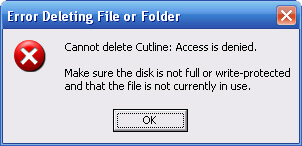
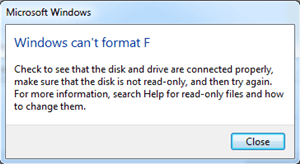
Micro SD card was named to be Trans-flash Card (TF card) and renamed to be Micro SD card at 2004. This card was released by SanDisk to save data in portable digital devices. And Micro SD card and TF card could be transfer to be SD card with Micro SD to SD adapter.
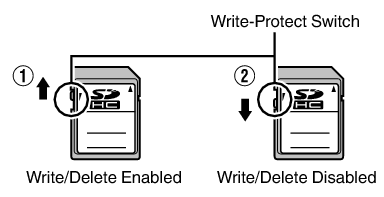
1. The write-protect switch of the SD card is on lock status

Strong to recover Recover data from the storage devices sustaining many bad sectors;
Supported devices SD card, SDHC, SDXC, USB flash drive, hard disk and computer;
Supported file types Image, video, audio, text, email and so on;
Easy to use Recover data by 3 steps and support to preview scan results;
Multiple scan modes Fast partition/whole partition/whole disk scan.
▽ Free Trial (Win) ▽ Free Trial (Mac) (Win)
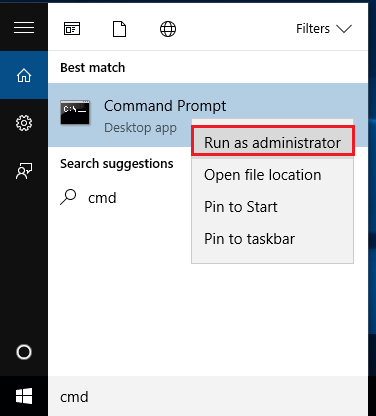
Step 1: Press Win + S button and type “cmd” in the pop-up window. Right click “Command Prompt” and select “Run as administrator”.
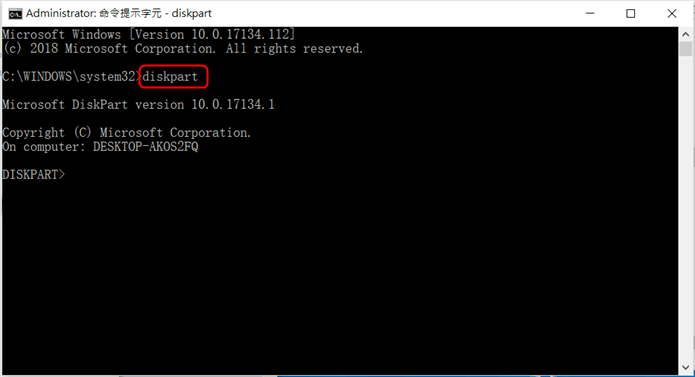
Step 2: Enter “diskpart” in the pop-up window.
Step 3: After that, please type list disk and find out the target SD card according to its size.
Disk ### Status Size Free Dyn Gpt
——– ————- ——- ——- — —
Disk 0 Online 149 GB 1024 KB
Disk 1 Online 32 GB 30 GB
Step 4: Select the target disk.
Disk ### Status Size Free Dyn Gpt
——– ————- ——- ——- — —
Disk 0 Online 149 GB 1024 KB
* Disk 1 Online 32 GB 32 GB
Step 5: Type “attributes disk clear readonly” to remove the write protection on SD card.
Step 6: (Optional) If you want to set the SD card to be read only, please enter “attributes disk set readonly” after step 5.
Step 7: Enter “exit” after all step finishes.
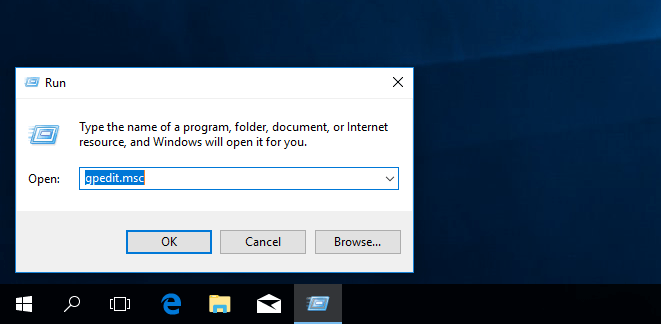
Step 1: Press “Win” + “R”. Type gpedit.msc in the pop up window and click “OK”.
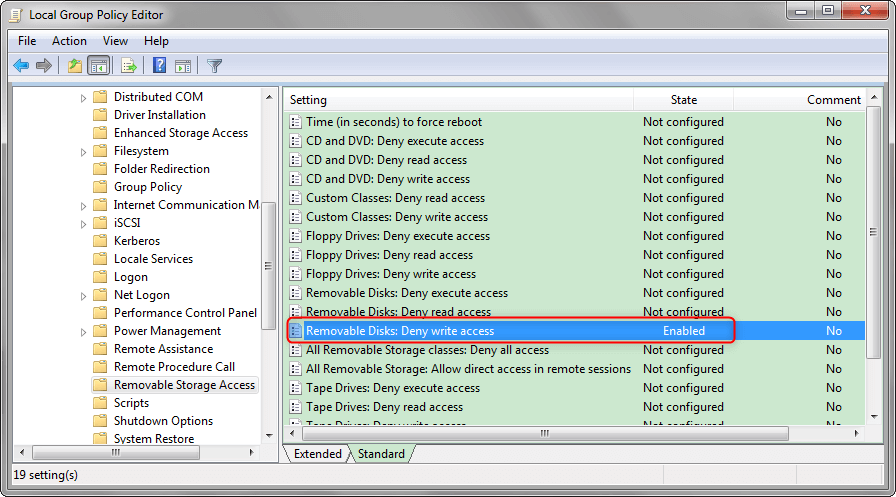
Step 2: Find “Removable Disk: Deny write access” through the following path: “Computer configuration” -> “Administrative Templates” -> “System” -> “Removable Storage Access”.
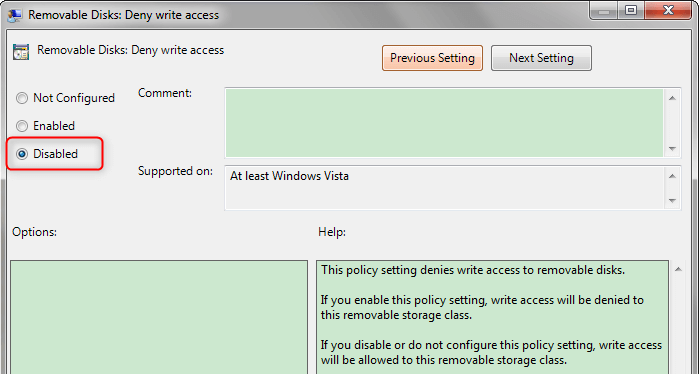
Step 3: Double click “Removable Disk: Deny Writing”. Select “Disable” in the settings and save the settings.
Step 1: Press “Win” + “R”. Type gpedit.msc in the pop up window and click “OK”.
Step 2: Find the value of WriteProtect through the following path:
HKEY_LOCAL_MACHINE\SYSTEM\CurrentControlSet\Control\StorageDevicePolicies
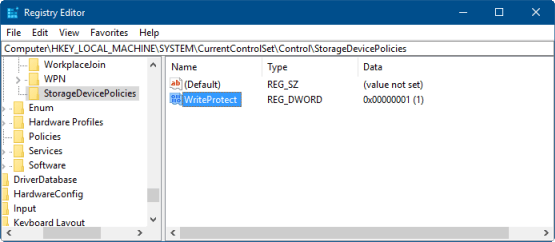
Step 3: Double click WriteProtect and change its value from 1 to 0.
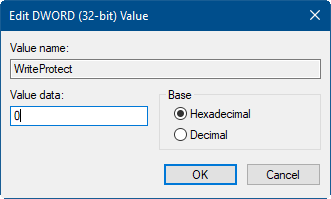
Step 4: Restart your computer.
Relate Links :
[Solved] Windows 10/8/7 Can not format SD Card in Mobile Phone & Digital Camera

16-05-2022
Jennifer Thatcher : You may lose data in SD card or PC require you to format it before using. However, when...
Fix SD Card Not Reading in PC, Smart Phone and Digital Camera

27-05-2019
Amanda J. Brook : Take photos and videos with cameras or Android phone and save in SD card. But SD card inside...
Comments
0 comments
Please sign in to leave a comment.