SD card is a portable storage device, widely used in computers, phones and cameras for storage capacity extension. When using the SD card, you may accidentally lost data. For example:
- Accidentally delete important files.
- Format the SD card.
- SD card got corrupted or inaccessible .
- Be attacked by virus.
- Power failed.
- Change the file system.
On Mac, file systems, such as APFS, Mac OS Extended, MS-DOS (FAT) and ExFAT, are supported for the SD card. APFS is used in the Mac OS 10.13 and later versions; Mac OS Extended in the version up through Mac OS 10.12; MS-DOS (FAT) and ExFAT are the file systems compatible Mac with Windows.
If your SD card is connected to different operating systems, MS-DOS (FAT) and ExFAT are suitable.
If one of these two file systems has been used on Mac, it is very easy to recover the lost files from the SD card (also called RAW card) even it got formatted. So, how to run SD card recovery on Mac? Please follow these steps!
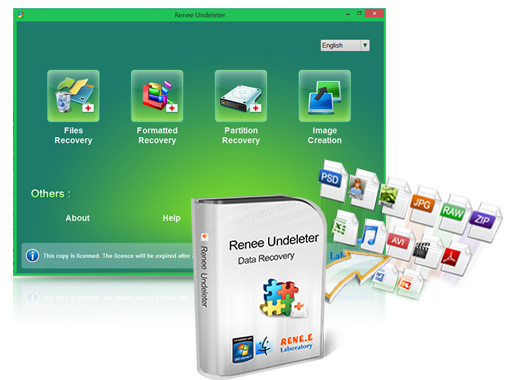
Renee Undeleter is professional software for data recovery. All data on hard disks, flash drives and storage cards (SD card, MMC card) can be retrieved through simple steps. It can also recover files accidentally deleted or emptied from Recycle Bin in the computer.
Powerful Data Recovery Software — Renee Undeleter
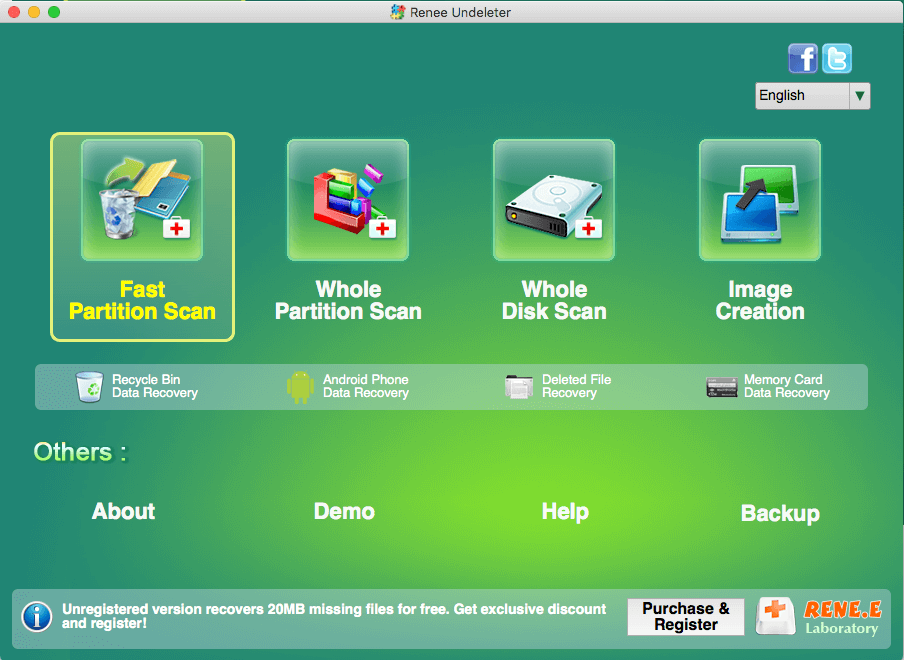
- Fast Partition Scan – Help you quickly retrieve files accidentally deleted or emptied from Recycle Bin .
- Whole Partition Scan – Quickly retrieve formatted or inaccessible files in partitions.
- Whole Disk Scan – Scan entire disk to get information from all partitions.
- Image Creation – Create a partition image to quickly get access to the partitions and back up.
How to run SD card recovery on Mac:
① Download and install Renee Undeleter. Don’t install on the target SD card where data is going to be retrieved.
② Insert the SD card into the slot or connect it to the computer with a card reader. Then, open the software and select [ Fast Partition Scan ]. Of course, you can select the other modes based on you needs.
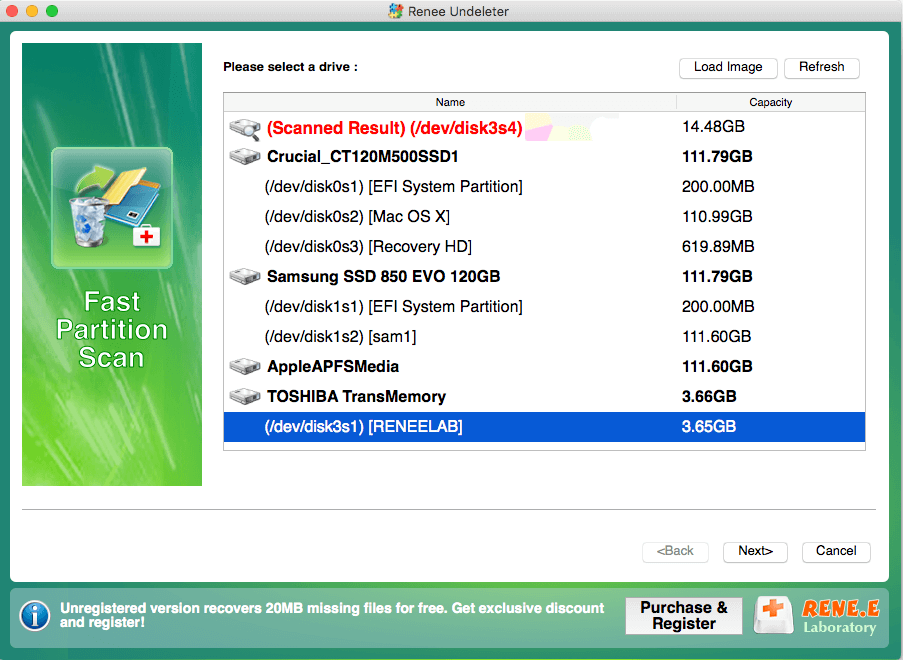
③ Then select the target partition. In this case, we select the target SD card, and then click [ Next ].
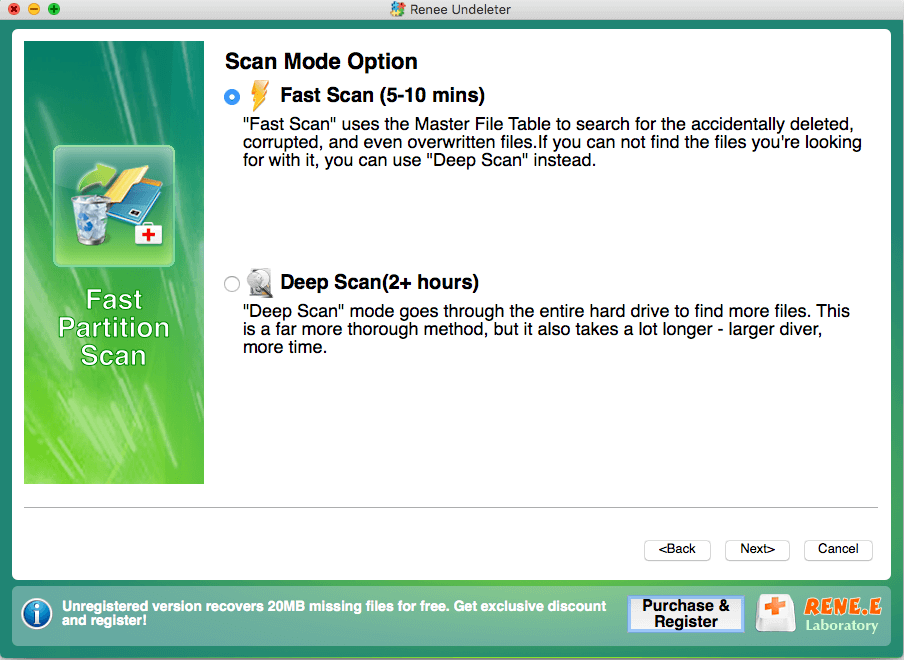
④ Select the scan mode. [ Fast Scan ] can save time while [ Deep Scan ] can go through the entire partition.
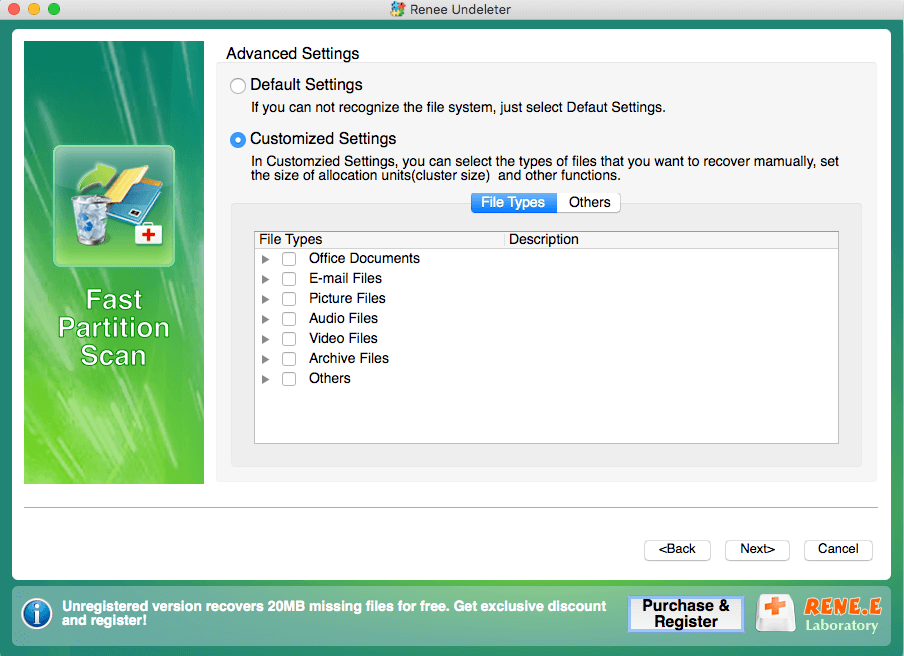
⑤ In [ Advanced Settings ], you can customize the file types you want to recover. If you are not sure, please select [ Default Settings ].
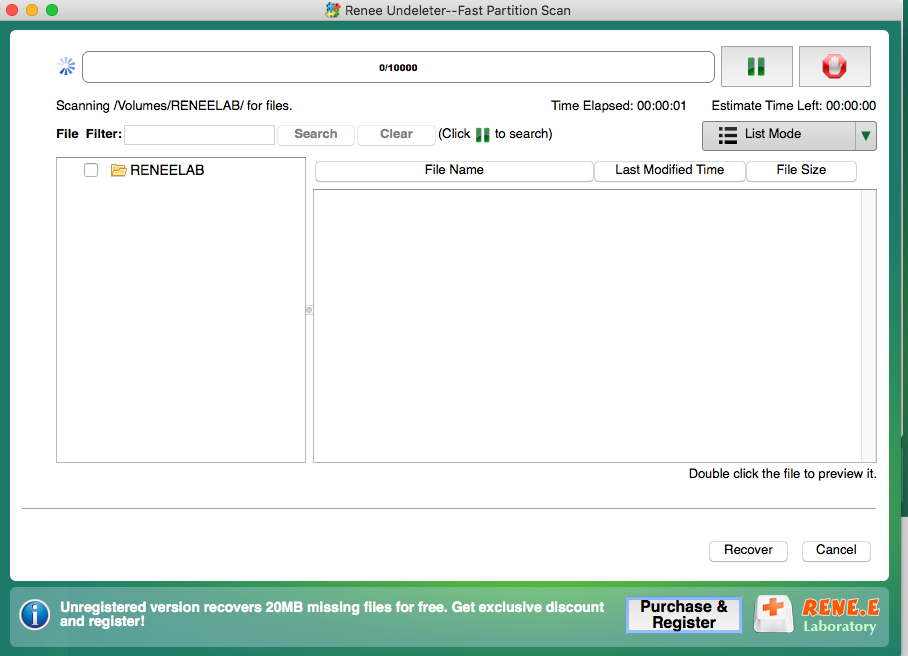
⑥ After that, wait for the scan. The scan time depends on the SD card storage. The larger the SD card storage, the longer the scan time.
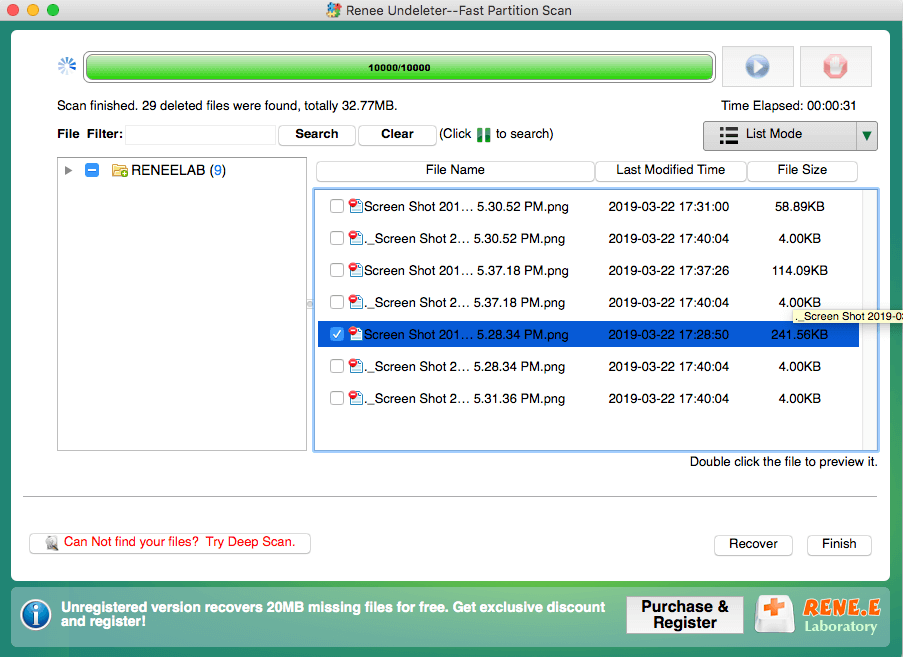
⑦ As the scan is finished, check the target files and click [ Recover ] to run.
What Renee Undeleter supports:
| Supported operating systems | Mac OS X 10.6, 10.7, 10.8 and the later version; Windows 10, 8.1, 7, Vista, XP and 2000. |
| Supported media | Hard disk, flash drive, storage card (SD card, MMC card) and computer. |
| Supported file systems | APFC, HFS +, FAT (FAT16,FAT32), ExFAT, NTFS |
| Supported languages | English, French, Chinese (Traditional), Chinese (Simplified), Japanese, Germany, Spanish, Arabic and Portuguese. |
| Supported file types | Picture, video, audio, Microsoft Office document, Outlook email and archive file. |
Relate Links :
How to Reset a MacBook to Factory Settings?

14-07-2020
Ashley S. Miller : MacBook runs so slow, but don’t know how to reset it to factory settings? Read this article and...
How to Solve External Hard Drive is not Showing Up in Mac?

30-07-2019
Jennifer Thatcher : Mac is highly integrated, with many unchangeable parts. Many people prefer to use an external hard drive when...
Comments
0 comments
Please sign in to leave a comment.