2024-08-05 John Weaver Senior Program Developer
Summary
When you insert the SD card or microSD card into the PC, it probably shows up “Secure Digital Storage Device”. What is it? This article will give you the answer and tell you how to solve it. By the way, it will talk about how to recover the lost data in SD and microSD cards.
SD card, namely Secure Digital Memory Card, is a portable device designed for data storage and data transmission, applicable to some portable devices, such as cameras, gamers, smartphones as well as computers and laptops.
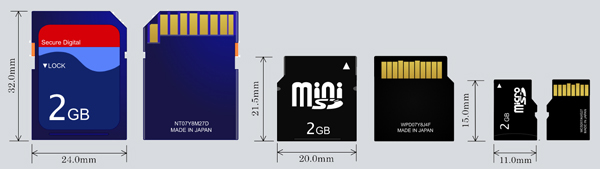
There are 3 sizes of SD card – the (full-size) SD card, the mini SD card and the micro SD card. The physical dimension of the SD card is the biggest and the microSD card is the smallest, and it usually appears in portable devices, such as smartphones and some small storage devices.
Hot Topic - ADs Renee Undeleter – Simple & Powerful Software for Data Recovery 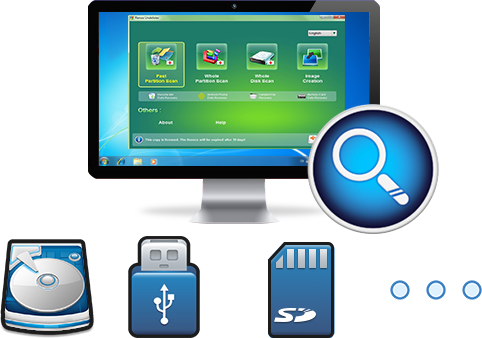
Easy to use Recover data by 3 steps;
Multiple scan modes Fast partition scan, whole partition scan and whole disk scan;
Supported file types Image, video, audio, text, email and so on;
Image creation Create a partition image to read and back up data;
Supported devices SD card, SDHC, SDXC, USB flash drive, hard disk and computer.
▽ Free Trial (Win) ▽ Free Trial (Mac) (Win)
Reasons of SD Card Shows up “Secure Digital Storage Device” in Windows?
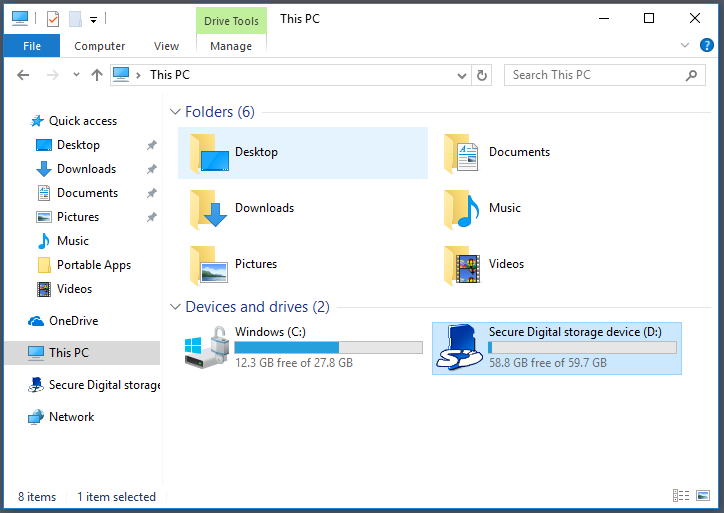
It shows up “Secure Digital Storage Device” as we insert the SD card into the PC. What does it means? Such problem should be discussed in two situations.
Situation 1. Can be Read by PC
If your SD card can be read by the PC, “Secure Digital Storage Device” maybe just the drive name defined by Windows. After all, this is the full name of SD card.
Situation 2. Cannot be Read by PC
If your SD card cannot be read by the PC, you can try the suggestions below:
1. Change another card reader. It could be incompatible with the card reader.
2. Change another port or slot. Maybe there is something wrong with the USB port or the slot.
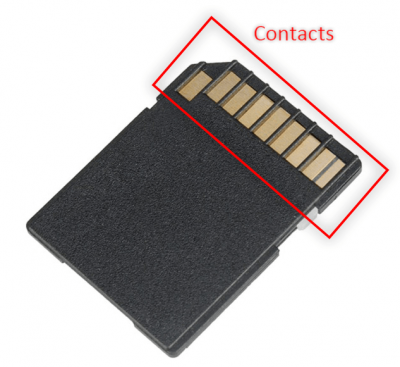
3. Reinsert the SD card or use an eraser to gently clean the contacts. The dirt on the SD card will cause higher electronic resistance, which will prevent connection.
4. Press the card a little harder or wrap it around a piece of paper. The contacts may be not elastic anymore, so it cannot connect to the port or the slot rightly.
5. Change a new SD card if the hardware is faulty.
6. Possibly, the SD card has been encrypted and enabled write-protection.
You can follow these methods to remove write-protection:
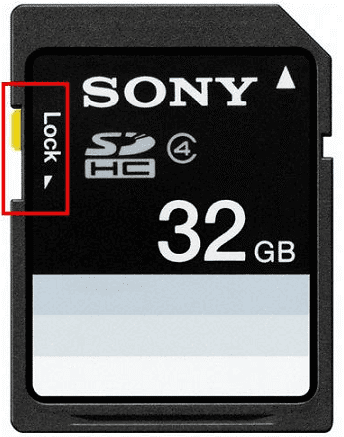
(1) Unlock SD card with the physical switch
Alongside the SD card, some manufacturers will add a switch. If it is locked, the file in the card cannot be modified. You can check and keep it unlocked if your SD card has such switch. Then you can insert the SD card again.
However, if your SD card doesn’t have such lock, please refer to the following methods.
(2) Use registry to remove write-protection
① Connect the SD card to the computer.
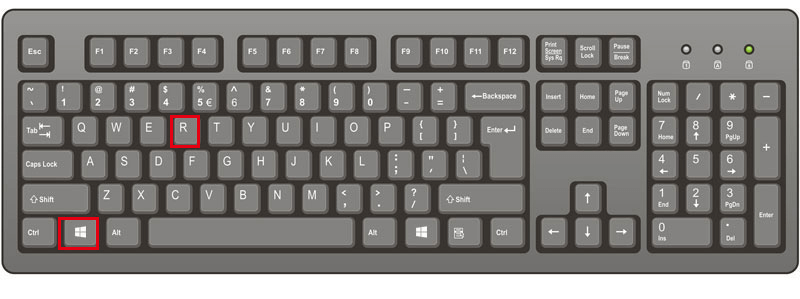
② Press the keys [ Win + R ] to open the Run box.
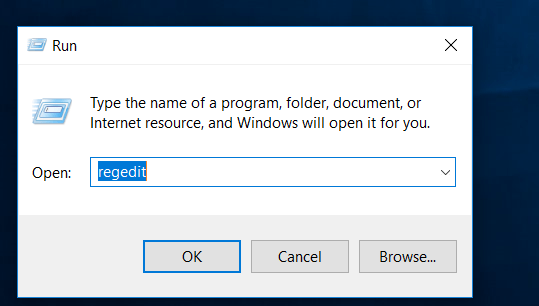
③ Type [ regedit ] and hit Enter to run Registry Editor.
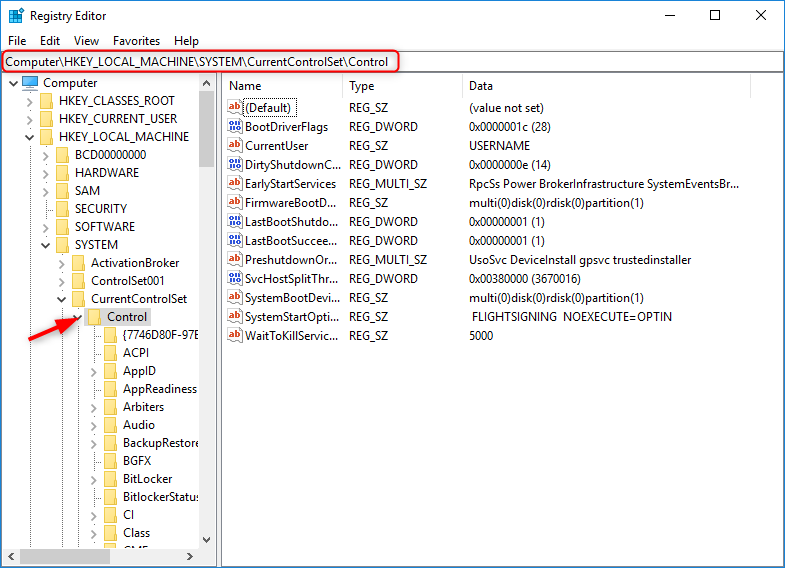
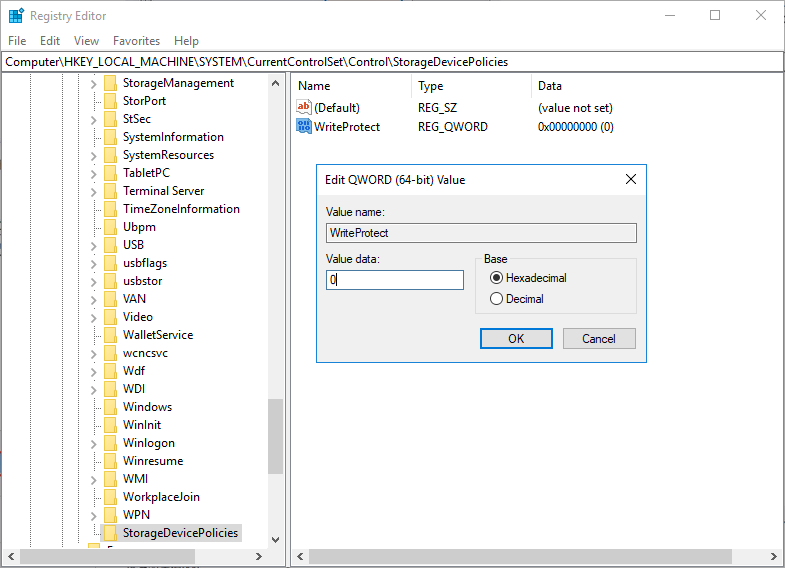
④ Navigate to [ HKEY_LOCAL_MACHINE\SYSTEM\CurrentControlSet\Control ]. Then check the key [ StorageDevicePolicies ] in Control. Then at the right side, double-click [ WriteProtect ] to change the value to “0”.
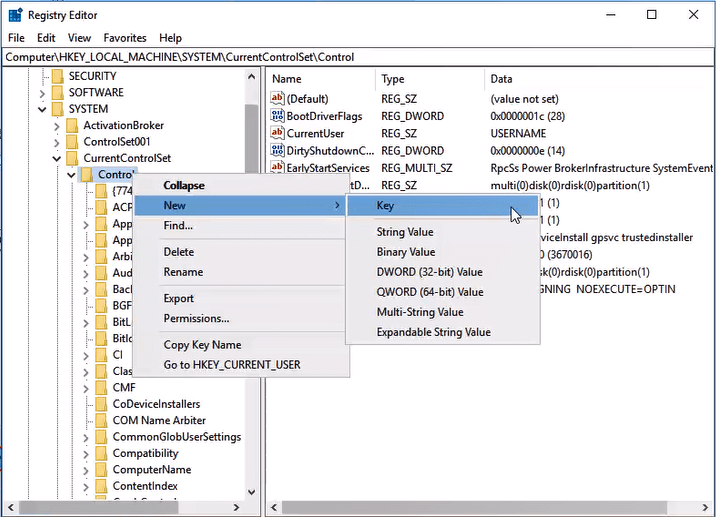
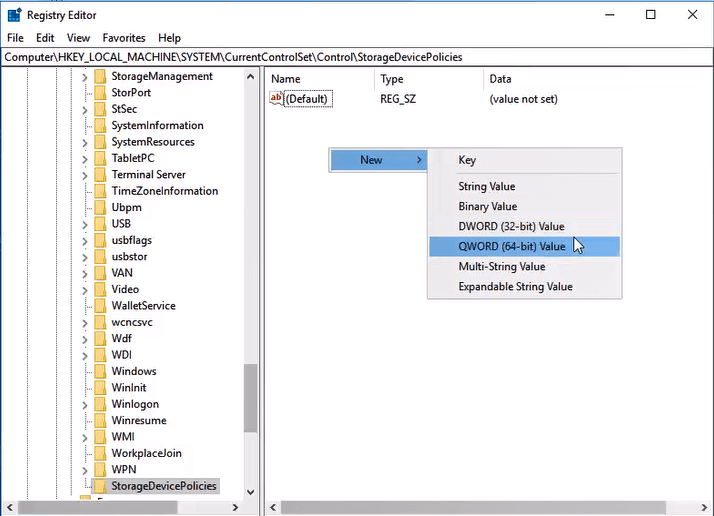
⑤ If you can’t find the item [ StorageDevicePolicies ], right-click at [ Control ] and add a new key named as [ StorageDevicePolicies ]. Then, right-click at the blank area to add [ DWORD (32-bit) Value ] or [ QWORD (64-bit) Value ] named as [ WriteProtect ]. The bit is based on your PC system.
⑥ Then double-click [ WriteProtect ] and change the value to 0. Reinsert the SD card to check.
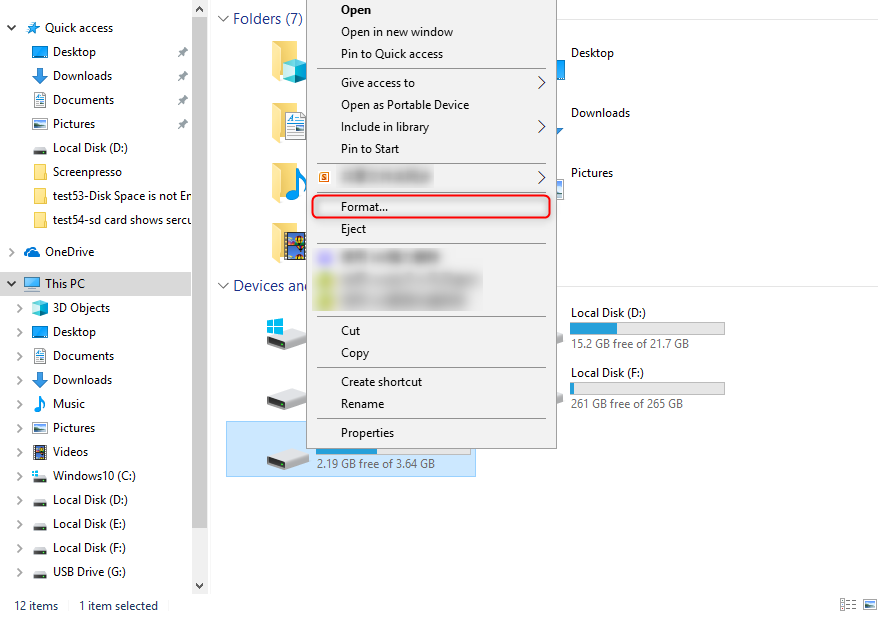
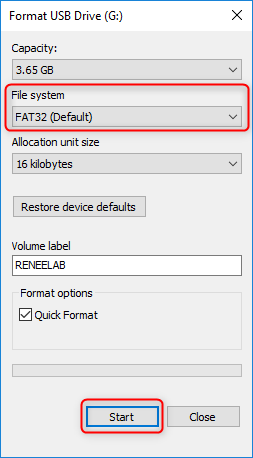
① Right-click at the SD card to select [ Format ].
② In the pop-up window, select the file system and click [ Start ].
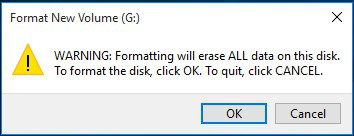
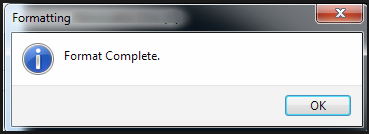
③ Then the system will notify you all data will be erased. Click [ OK ] to confirm.
If you lost important data in the SD card, you can follow these steps to recover them quickly.
How to Recover Lost Data in SD Card?
Data Recovery Software- Renee Undeleter
-
Files recovery – Recover the files after emptying Recycle Bin or deleted by mistake without data backup.
-
Formatted recovery – Scan the whole partition and list all files, especially for the formatted partition or inaccessible issue.
-
Partition recovery – Scan entire disk to find out all partitions’ information and simulate the partition table.
-
Image creation – Clone a partition image which can be used in case that reading partition is slow or need a backup.
① Download and install Renee Undeleter.
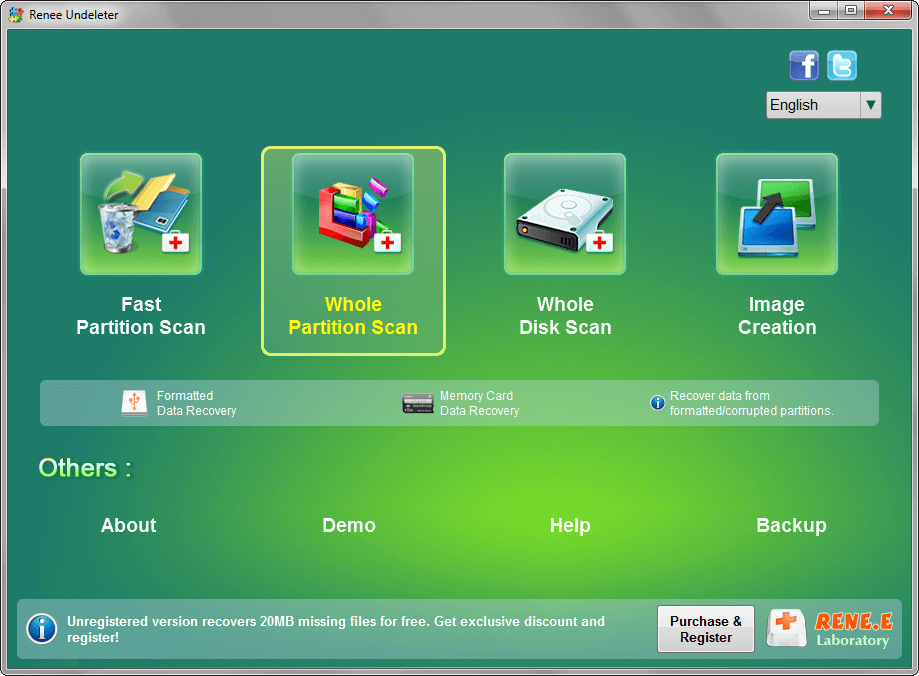
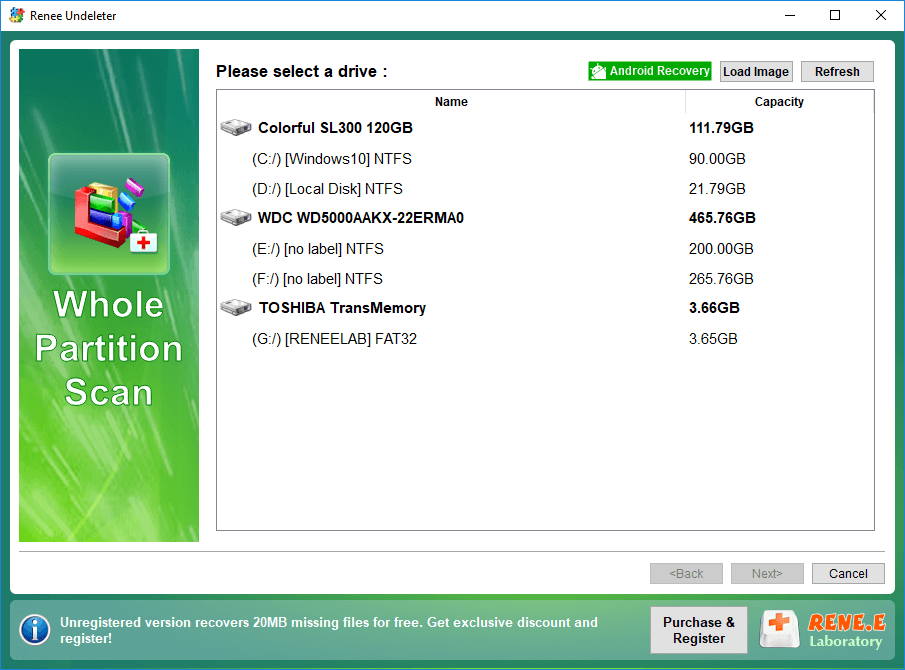
② Select [ Whole Partition Scan ]. Of course, you can select the other modes based on your own needs.
③ Select the partition where your data is lost. Then click [ Next ].
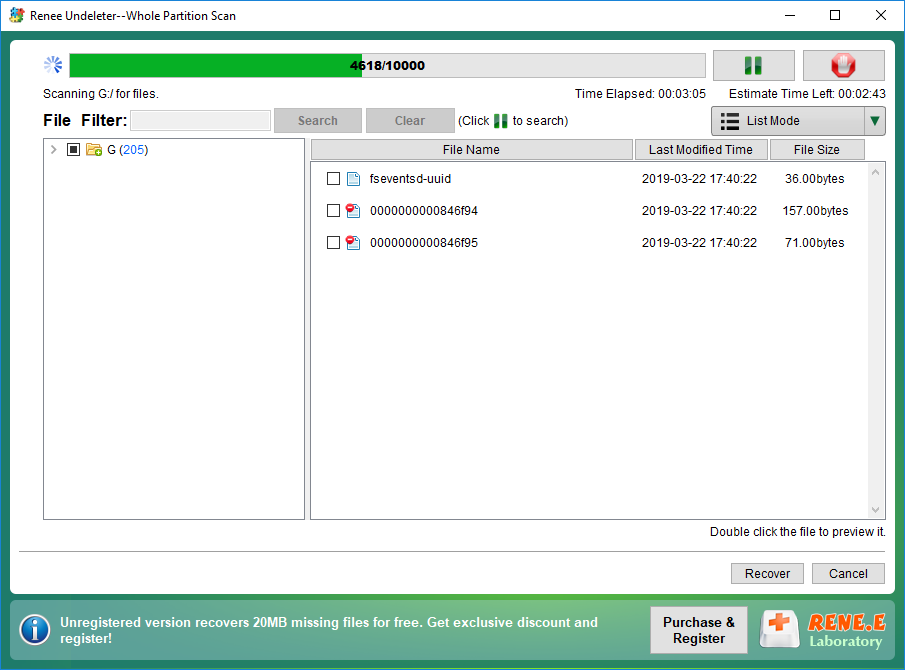
④ Then the partition will be scanned. You can preview the scanned files and check the target ones. Click [ Recover ] to bring them back!
Relate Links :
How to Format Flash Drive on Mac
29-07-2019
Amanda J. Brook : Formatting USB flash drive means emptying all files in the drive and returning to the initial state. How...




Comments
0 comments
Please sign in to leave a comment.