
Since the SD card is small, cost-effective and convenient, it has been widely used in digital devices like cameras and phones. Naturally, some problems may happen during using the SD card. Some people, at this time, will try to format the SD card.
- The SD card should be formatted before you can use it.
- Quick format is done on the SD card.
- Full format is done on the SD card.
Being asked to format - If the system tells you that you cannot use the SD card before formatting it, the SD card may have had errors in the file system. At that time, you should recover the data beforehand, and then try to format or fix it.
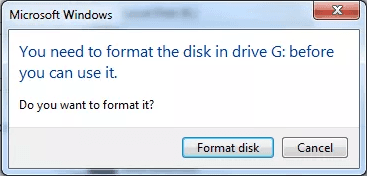
Quick format - It is a common way. Quick format merely clears the file allocation table, which leads the system not to detect files on the SD card. In fact, the files are still there and you can recover the formatted SD card via reliable data recovery software. After that, you can try to fix or format it again.
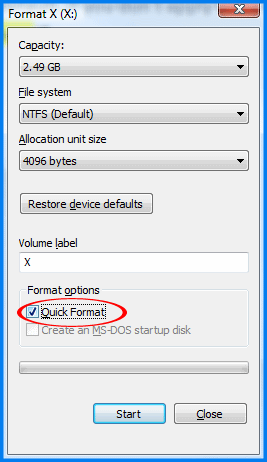
Full format —— Different from quick format, full format will scan the whole SD card, generate the new wizard, initialize the file allocation table and clear all data on the SD card. This is an irreversible process.
Renee Undeleter is professional, utility data recovery data. It supports in fingerprinting and rebuilding file system. No matter which sort of files, the files cleared from Recycle Bin or the formatted disk/USB/SD card, it can recover the data.
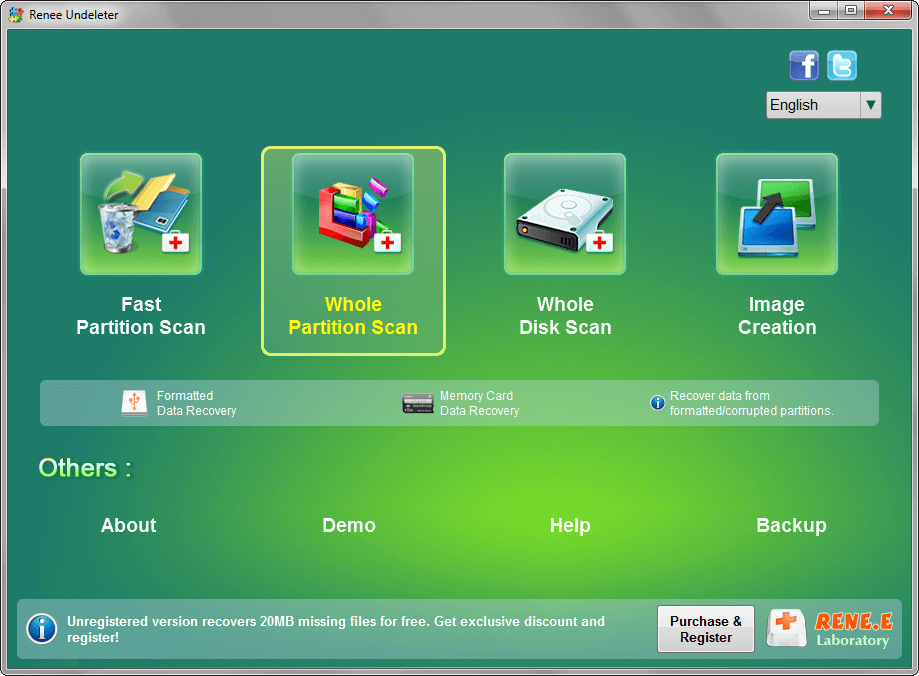
① Download and install Renee Undeleter. Launch it and select [ Whole Partition Scan ].
② Select the target SD card.
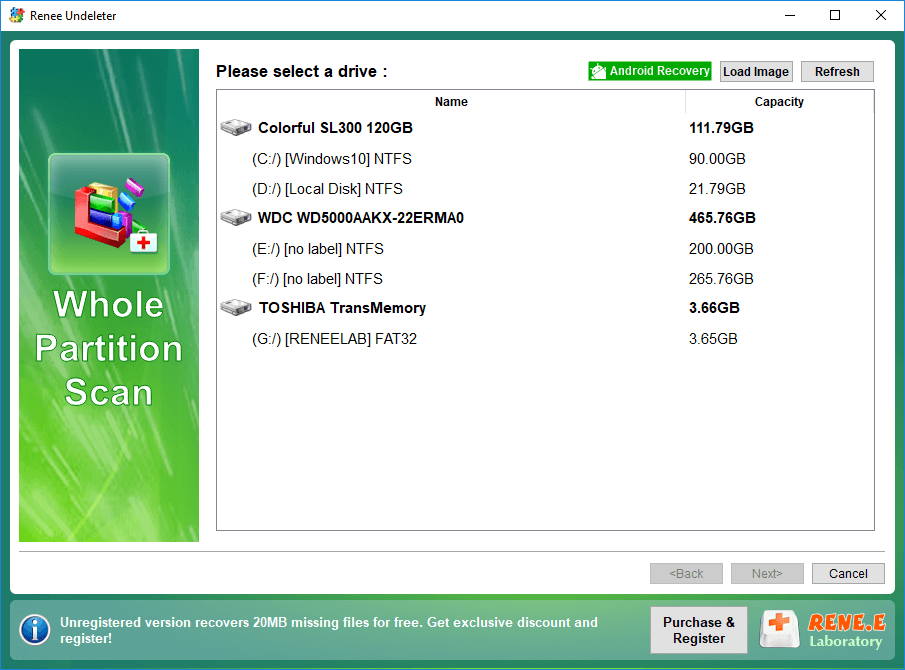
④ Wait for the scan. The scanning time depends on the capacity of the SD card.
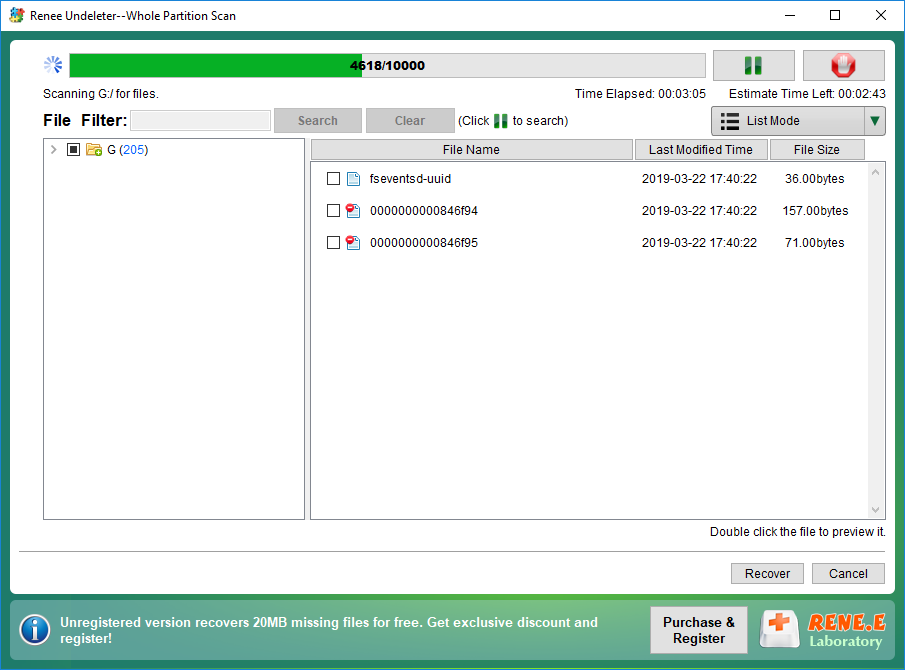
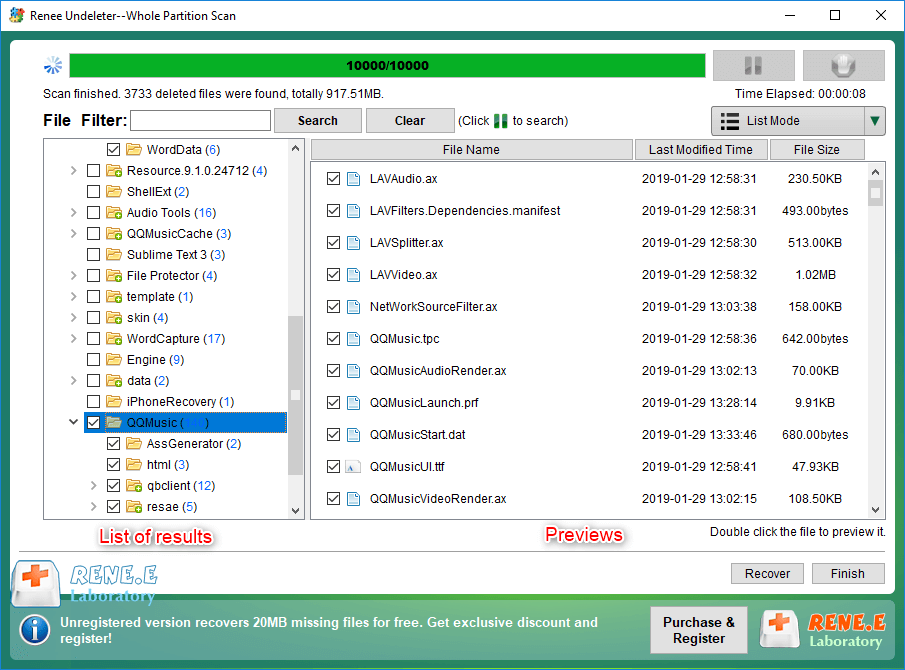
⑤ Preview the scanned results. Check the target files and click [ Recover ].
⑥ Select the target folder to save the files. As soon as you click [ Recover ], the files will come back!
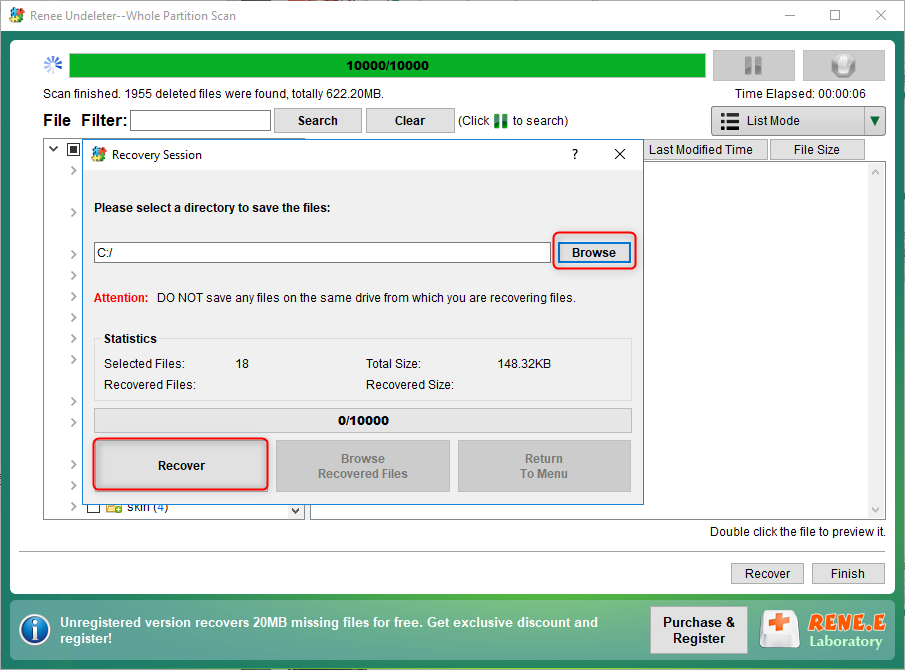
Note! To avoid the second data loss, please don’t save the retrieved data on the SD card. As you’ve recovered the formatted SD card, you can follow these steps to fix it.
CHKDSK, a free command tool in Windows, can check and fix errors on SD card. It is responsible for fixing the file system. In the recover process of CHKDSK, some dmaged files may be discarded or covered and finally get impossible to be retrieved anymore. Therefore, you must recover the formatted SD card before you run the CHKDSK command.
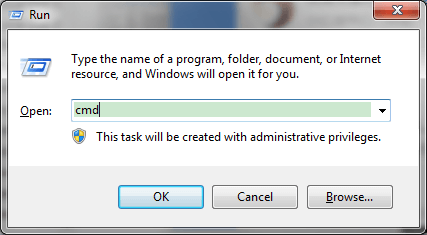
① Press the group keys [ Win+R ] to type [ cmd ] in Run.
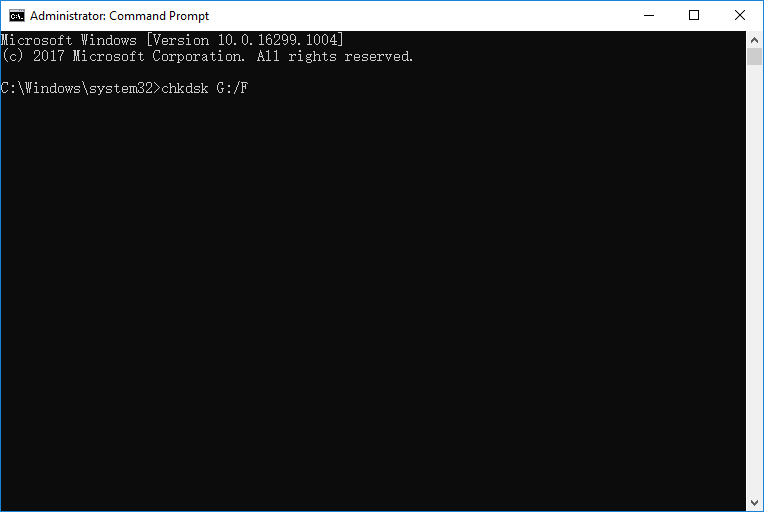
② Type [ chkdsk n:/f ]. Replace “n” with the target drive letter of the partition, and /f is the order telling the command to fix any errors.
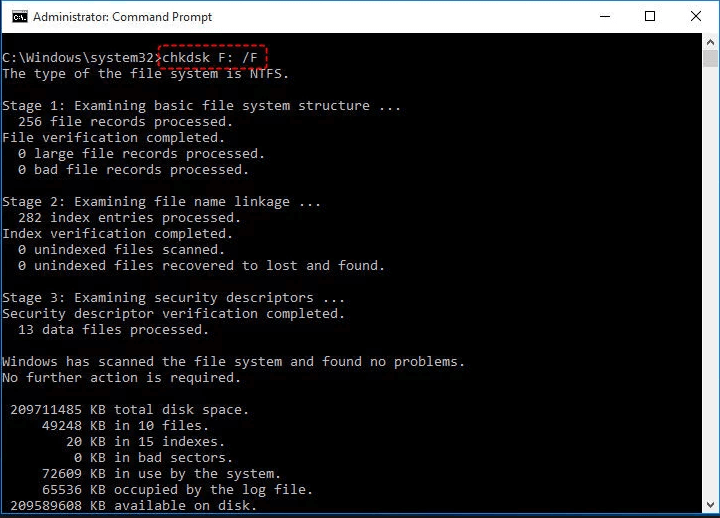
③ Then, press the key Enter to run. It will start to fix the corrupted SD card. Just follow the tips when prompted.
Note! Chkdsk doesn’t support all file systems of SD cards, only FAT and NTFS. If the micro SD card is not one of these systems, but HFS or EXT (used in Linux), you have to format the card.
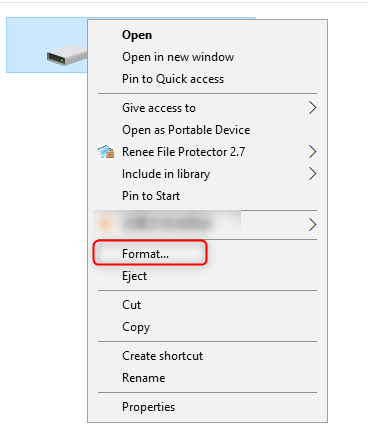
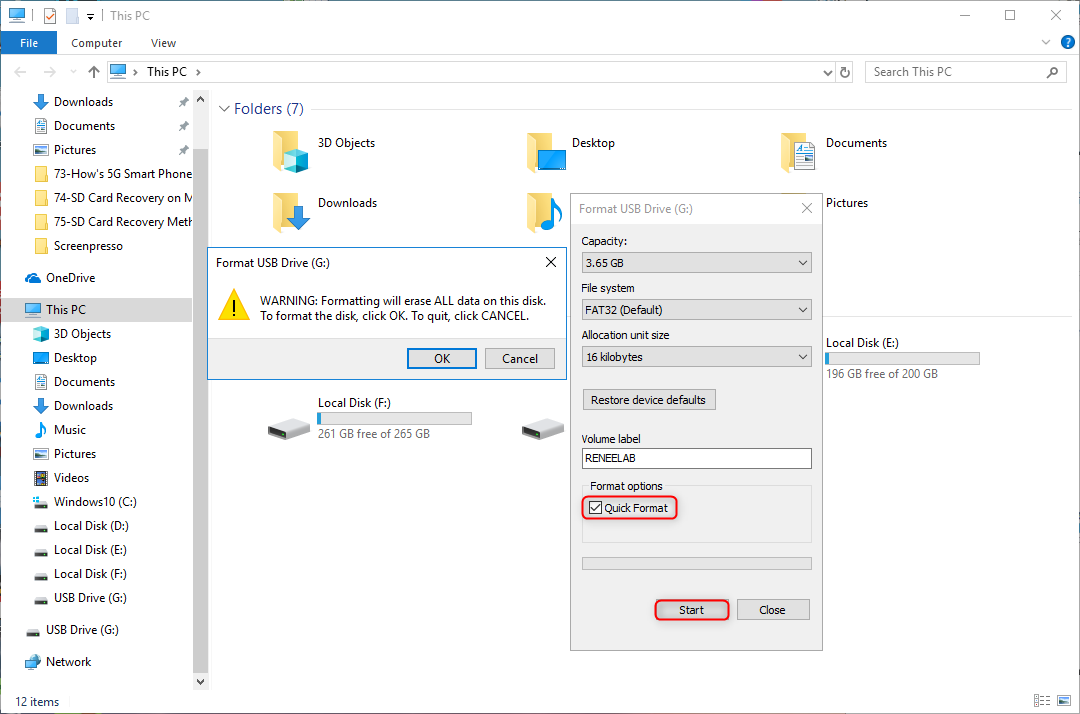
① Open [ This PC ] and find the drive letter for your micro SD card. Then right-click to select [ Format ].
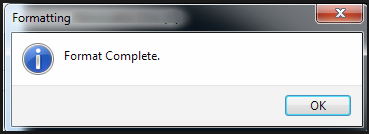
② Check [ Quick Format ] and click [ Start ]>[ OK ] to format the SD card.
Relate Links :
How to Fix a Corrupted or Not Detected Micro SD Card

08-05-2019
Amanda J. Brook : Micro SD card is the smallest, nonvolatile memory in SD cards. It is mainly used in phones to...
How to Recover SD Card with Recuva

07-05-2019
John Weaver : SD card is a portable storage device. Data inside the SD card, however, may be lost due to...
Comments
0 comments
Please sign in to leave a comment.