2024-08-07 Ashley S. Miller Specialist of Customer Service Dept.
Summary
Some people found that the SD cards cannot be detected when they have connected it to the computers. It is unable to give access to any data. How to repair a undetected micro SD card? In this post, we will share some approaches that will help you recover and fix SD card.
Why Micro SD Card cannot be Detected?
After connecting a SD card to a computer, we are reminded that the card cannot be detected. At this moment, it is impossible to give access to any data. What’s wrong with the SD card? Here are some reasons.
-
The card reader or the SD card slot is damaged. You can change a card reader or connect the SD card to another computer, and then check whether there is something wrong with the card reader and the port.
-
The driver is faulty. If the drier is outdated and corrupted, the SD card will not be detected. You can try to update or reinstall the driver.
-
The file system is incompatible with the operating system. At this situation, the system doesn’t give access to any data on the SD card. Please check whether the file system is compatible with the computer system. If not, format it to another suitable file system.
-
The SD card is attacked by virus. This case can also make a SD card undetected. You can use anti-virus tools to scan the SD card and delete the corrupted files. If it is attacked severely, you should format it or fix it with the professional repairing tools.
-
The file system goes wrong or gets corrupted. If the file system is corrupted, the computer cannot read the SD card. You should try to fix the file system.
Note! As for an undetected SD card, don’t format or fix it immediately. Try to recover the data so as not to overwrite the data or cause data lost.
Renee Undeleter is here to help you. It can recover data from SD data quickly and safely.
How to Recover Data from Undetected Micro SD Card?
Renee Undeleter is powerful software for data recovery. It has capacity to rebuilding the file system and skipping the bad blocks, so it can retrieve data from SD card as much as possible.
No matter which problems you meet with, data lost, formatting, inaccessible or corrupted SD card, Renee Undeleter can help you recover data. Besides, it is compatible with Windows and Mac OS.
Hot Topic - ADs Renee Undeleter - Professional Data Recovery Software 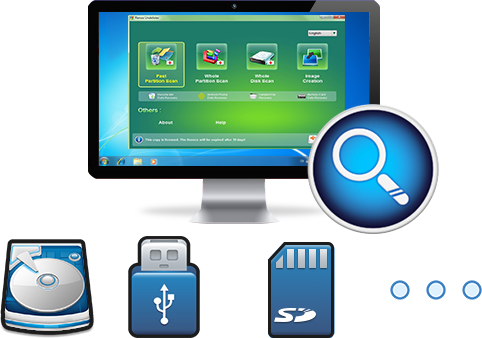
Easy to use Only simple steps to recover data from storage devices.
Multiple scan modes Fulfill different data lost and recovery needs.
File types Recover pictures, videos, audios, documents, mails, etc.
Supported storage devices Recover data from recycle bin, SD card, external disk, etc.
Supported System Windows 10, 8.1, 8, 7, Vista, XP, 2000 and Mac OS X10.6, 10.7, 10.8.
▽ Free Trial (Win) ▽ Free Trial (Mac)
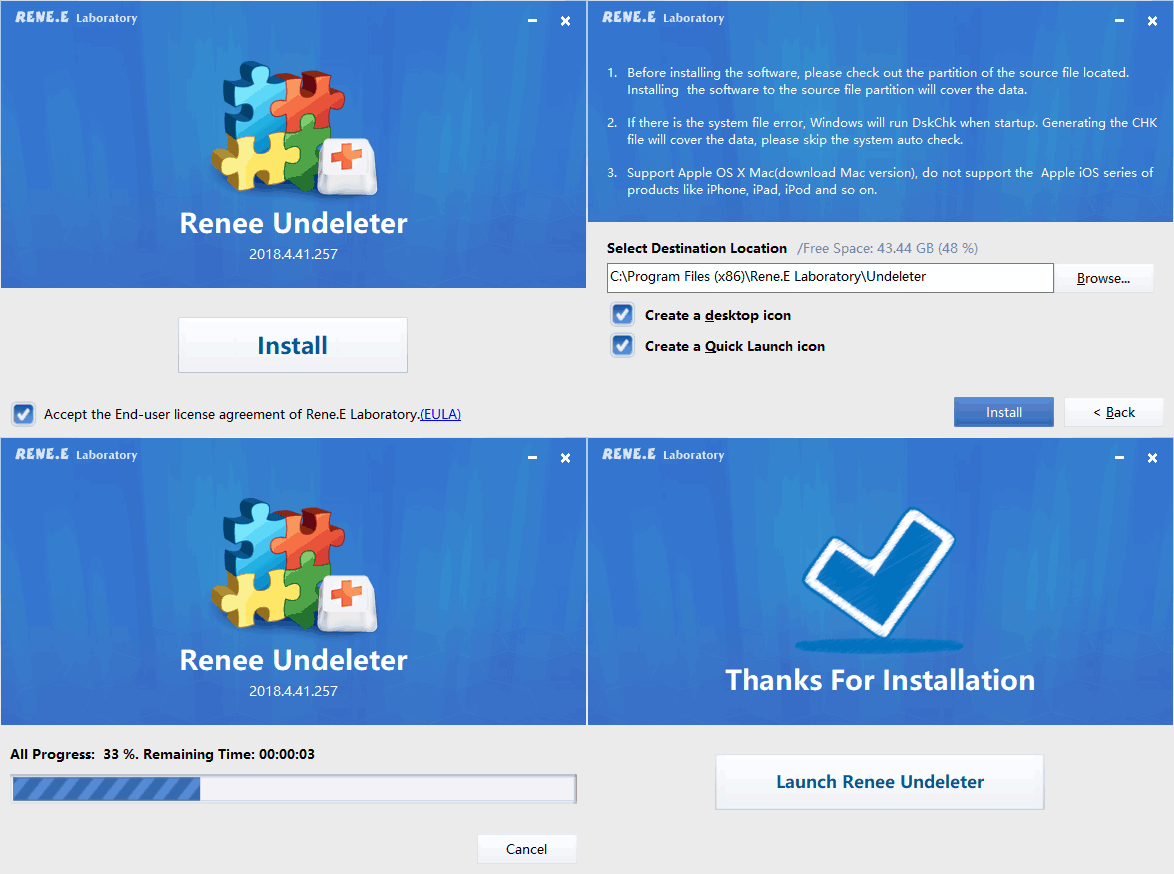
① Download and install Renee Undeleter. Then, launch the software.
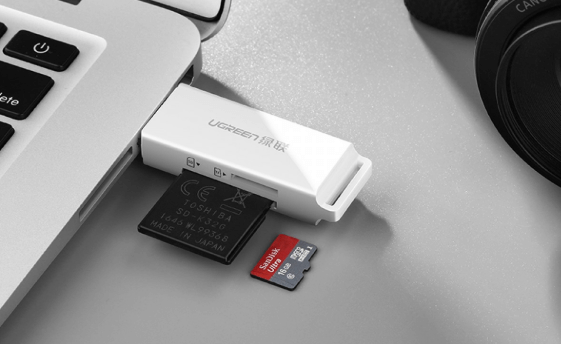
② Connect the target SD card to the computer with a card reader or through a SD card slot.
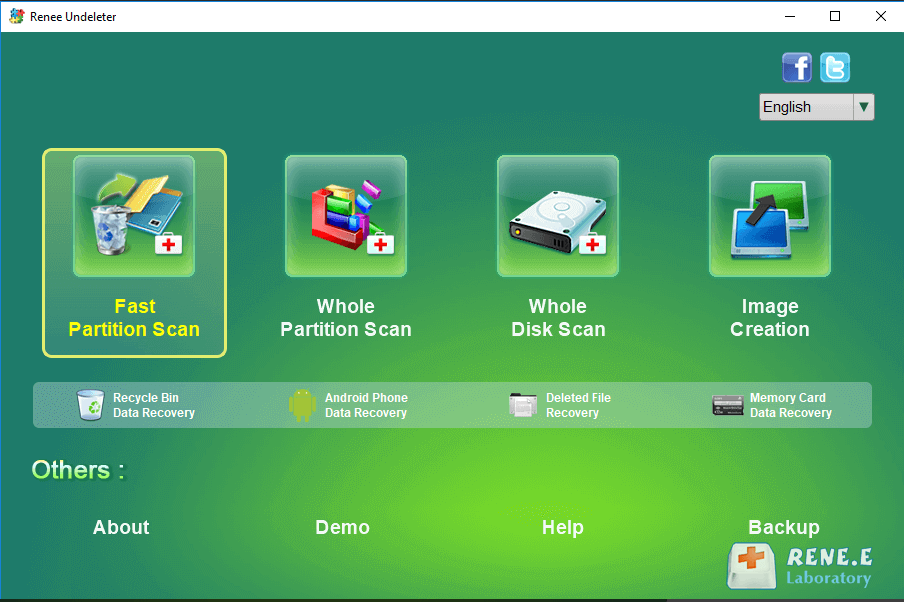
③ Select a suitable scan mode. We take [ Fast Partition Scan ] as an example.
④ Select the partition of the target SD card and then click [ Next ].
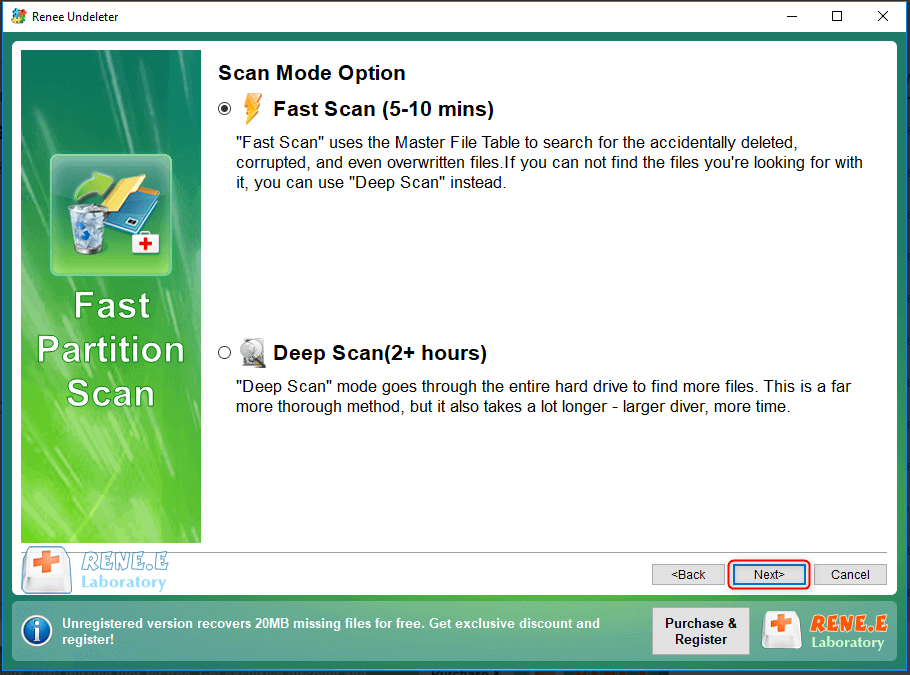
⑤ Select a scan mode, [ Fast Scan ] or [ Deep Scan ]. The fast scan can save time while the deep scan can go thoroughly the entire disk but takes a long time to process.
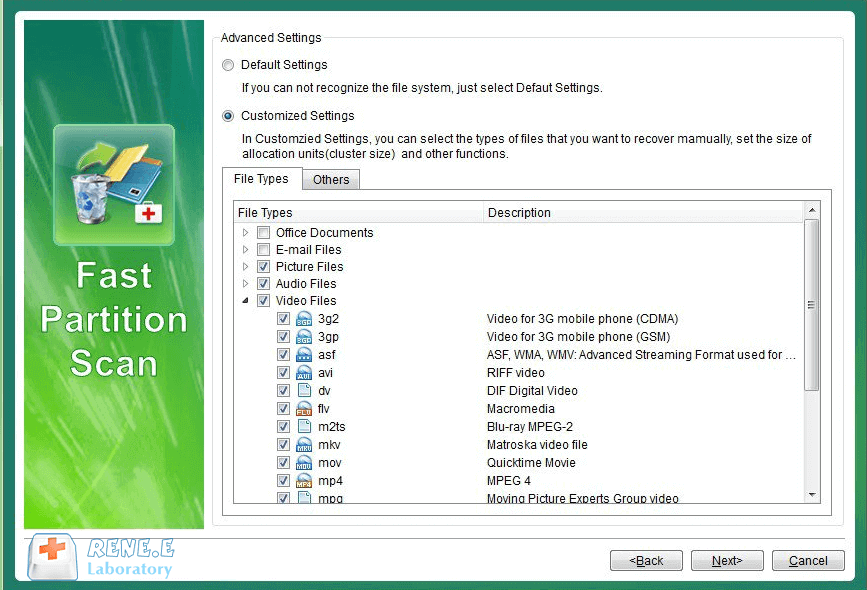
⑥ In Advanced Settings, select the file types that need to recover. Generally, select [ Default settings ].
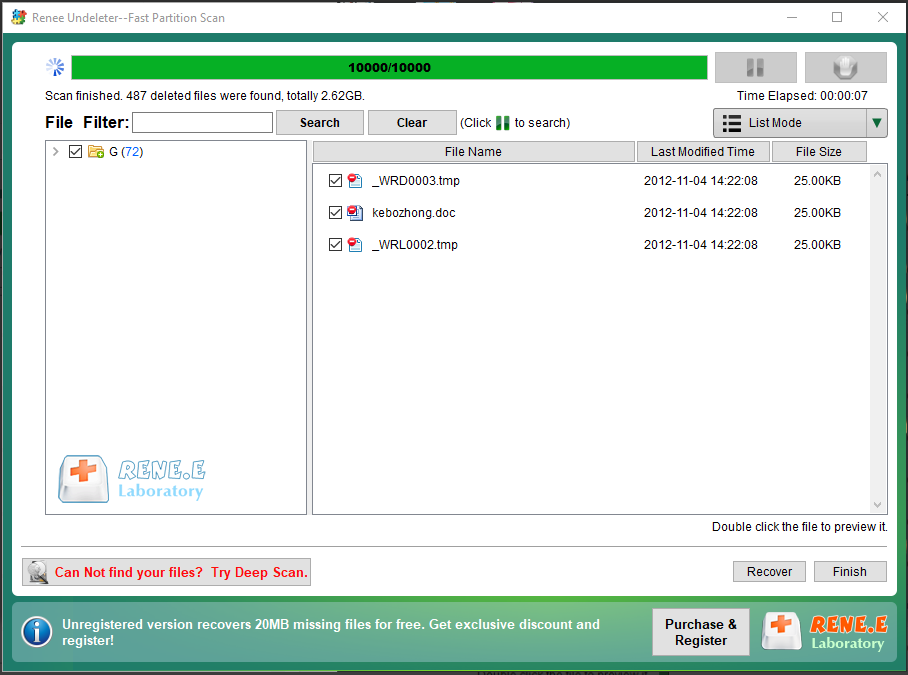
⑦ Wait for scanning. This process depends on how large the SD card is.
⑧ As it is finished, double-click the files to preview and check the target ones. Finally, click [ Recover ] to save them.
Attention! Don’t save the recovered data into the SD card again in fear the data is lost when the card is being fixed. After keeping the data well, do you know how to repair a undetected micro SD card? Follow the next part.
How to Repair Undetected Micro SD Card?
1. Update/Reinstall Driver
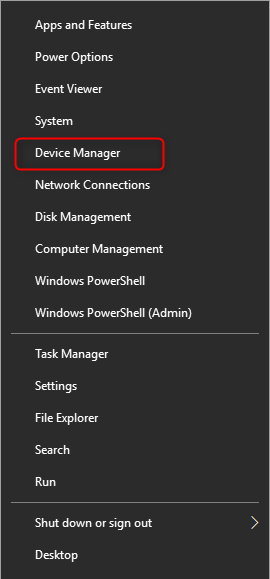
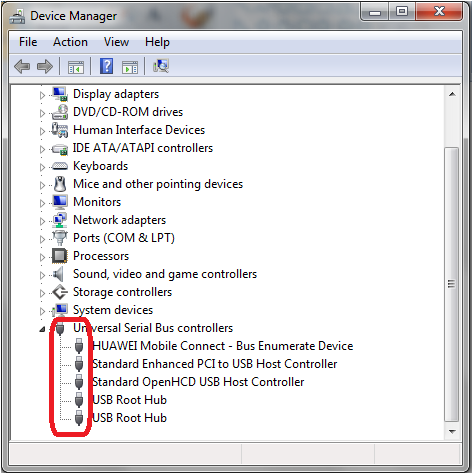
① Connect the target SD card to the computer. Then, press [ Win+R ] and select [ Device Manager ].
② In the list, find and expand [ Universal Serial Bus controller ].
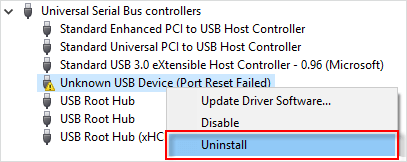
③ Right-click at each USB hub and select [ Update driver software ] or [ Uninstall ].
④ Finally, reboot the computer. The uninstalled drivers will be installed automatically during this process.
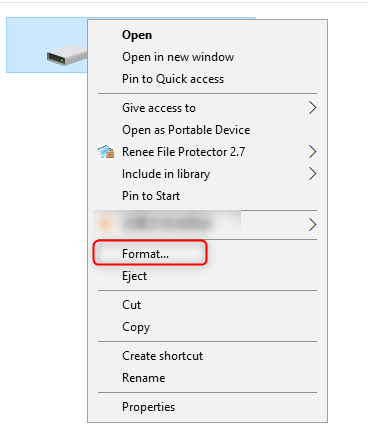
① Connect the target SD card to the computer. Find the letter of the card. Then right-click at it and select [ Format ].
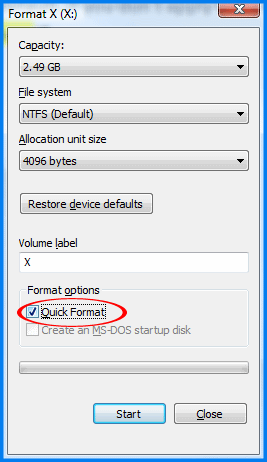
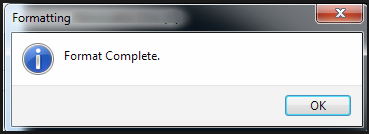
② In the window, select a suitable file system and check the option [ Quick Format ]. After that, click [ Start ].
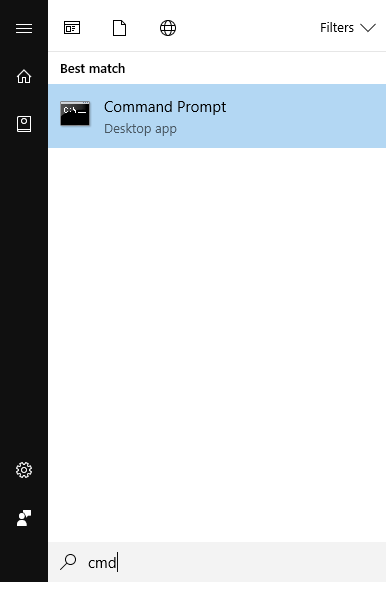
① Connect the SD card to the computer. Then, press [ Win+R ] and type [ cmd ] to search.
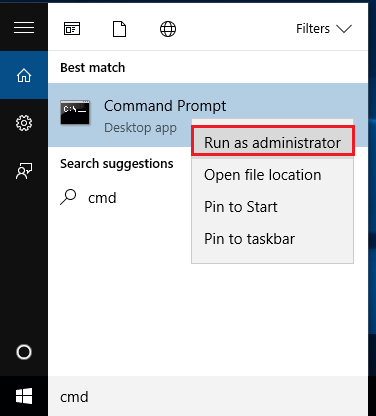
② Right-click at the search result [ Command Prompt ] and select [ Run as administrator ].
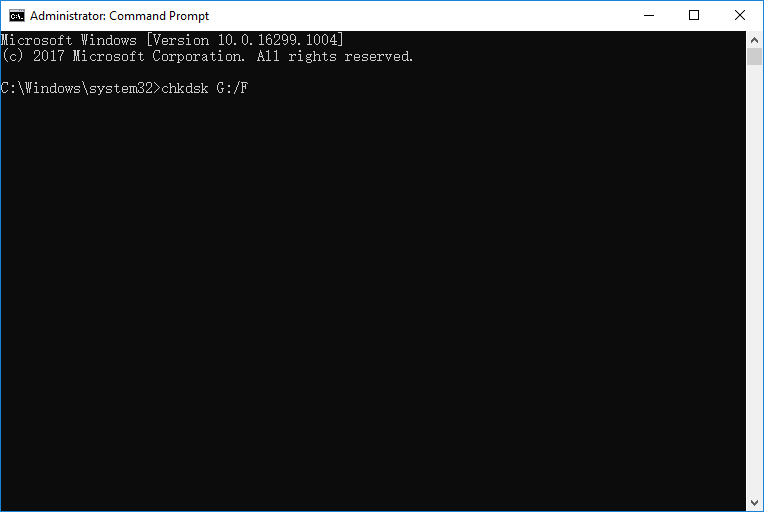
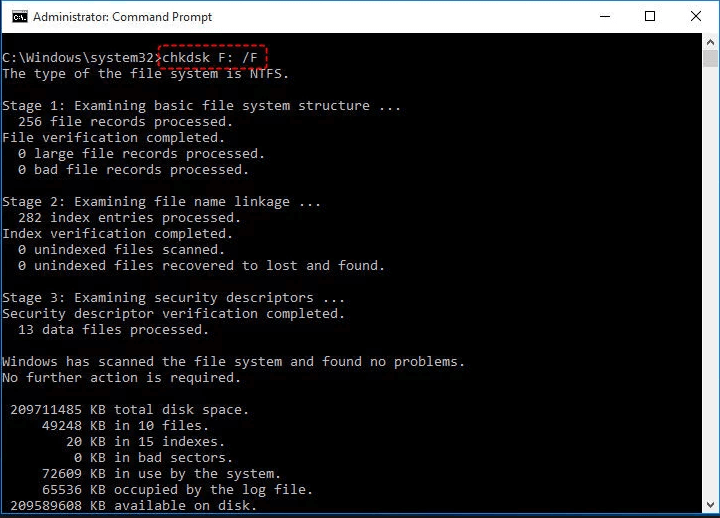
③ Type [ chkdsk n:/f ].”n:” means the letter of the SD card and “/f” is the order to fix disk.
④ Press the key Enter to run the command. During this process, all errors will be automatically discovered and repaired.
Relate Links :
How if USB Ports are not Working?
22-08-2019
Jennifer Thatcher : Sometimes, we may encounter “USB device not recognized” after connecting the USB splitter or portable disk to computer....


Comments
0 comments
Please sign in to leave a comment.