
We can set a SD card as external or internal memory in an Android phone. The internal storage is factory set to be internal memory. But, do you know how to use a SD card as internal memory? During this process, the SD card will be formatted and encrypted and then all data will be moved to the card. Remember to back up all data as you decide to modify the settings.
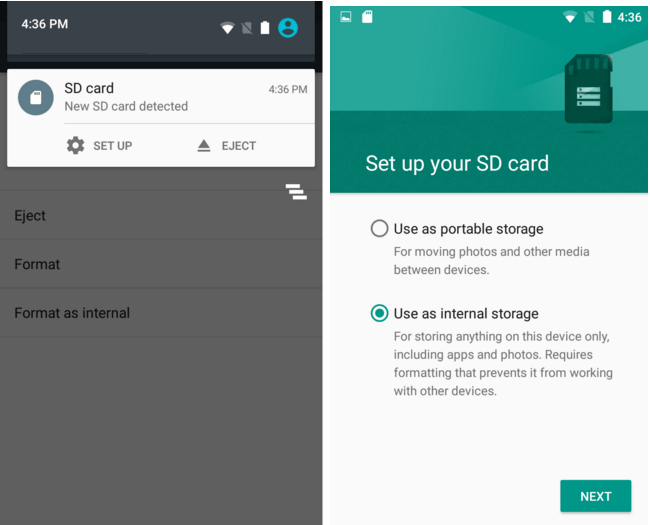
① Inset the SD card into the phone. Then, go to [ Settings ] > [ Advanced settings ] > [ Memory&storage ]. You can see two storage installations.
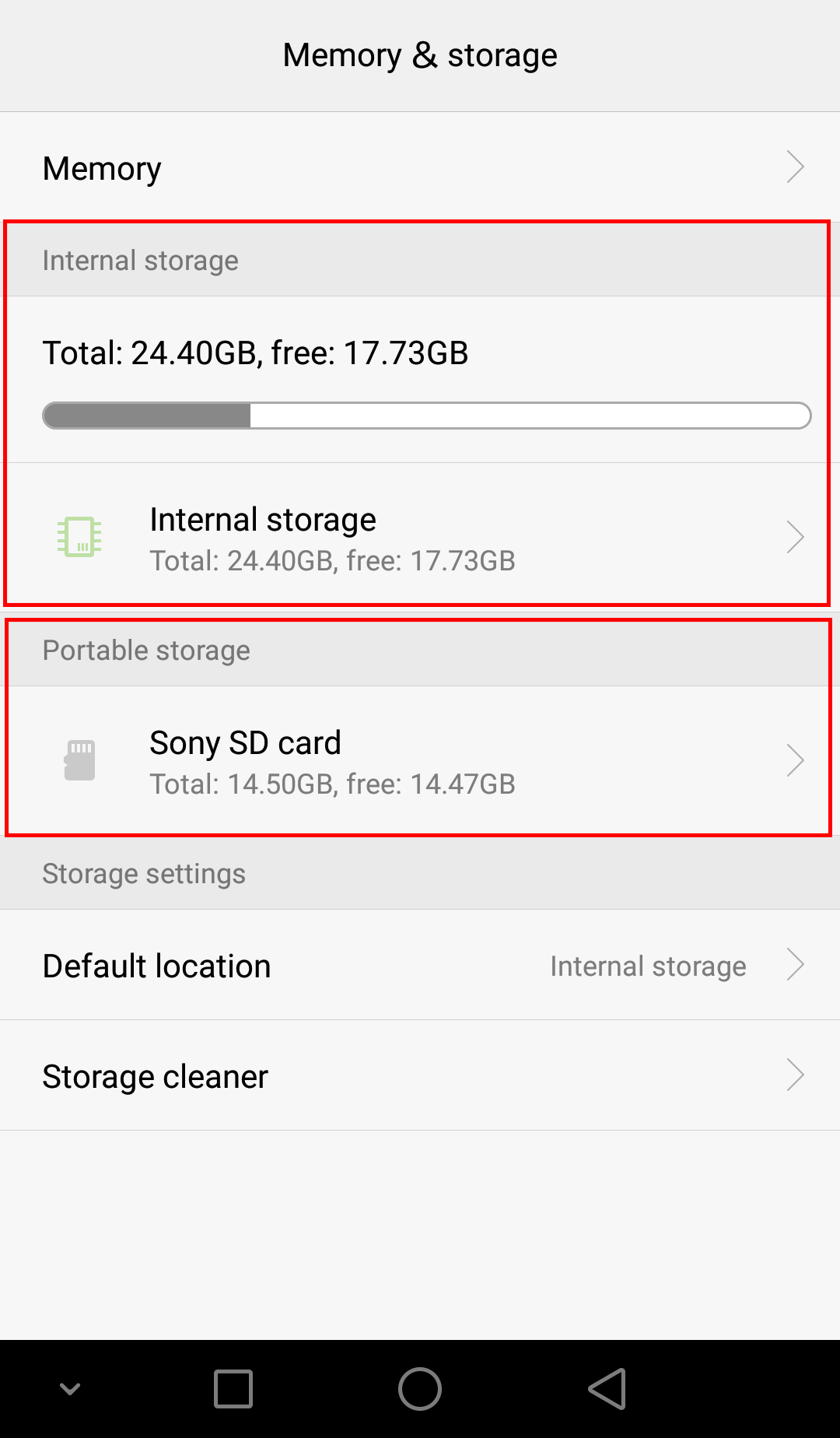
② So far, the SD card is still listed under [ Portable storage ]. If the SD card has been used as internal memory, you cannot see these words.
③ Tap the target SD card and then tap the three vertical dots on the top right of the screen. Select [ Storage settings ] > [ Format as internal ].
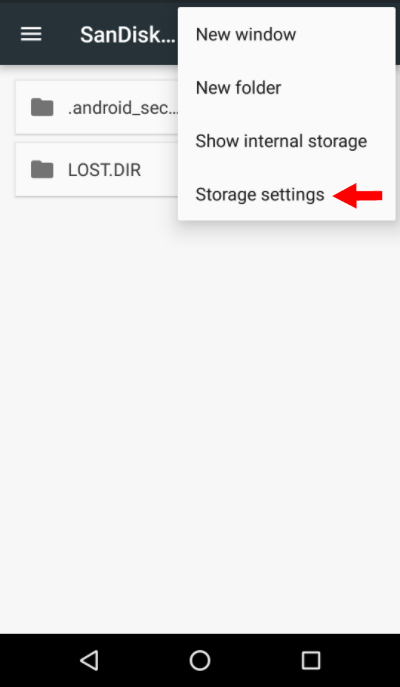
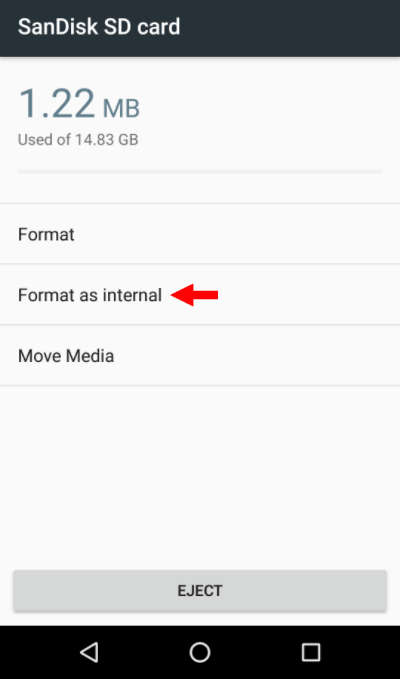
④ Tap [ ERASE&FORMAT ]. Then, you will be informed if the phone system finds that the card is slow. Tap [ OK ] to continue.
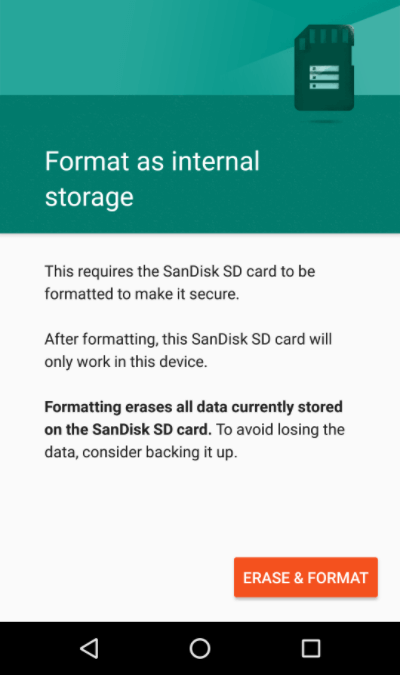
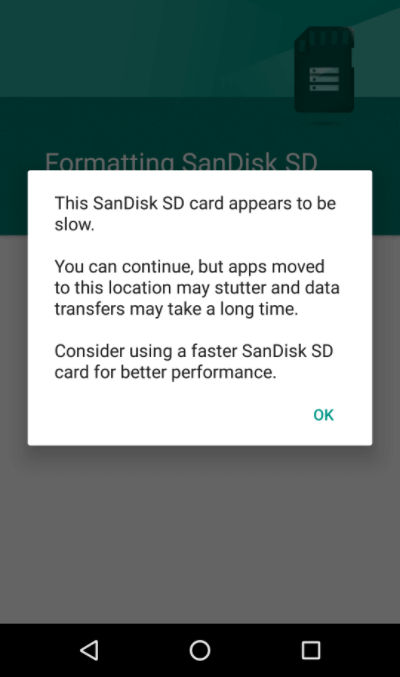
⑤ After that, the data will be migrated to the new storage location. Please tap [ Move now ] > [ NEXT ] > [ Move ] > [ DONE ].
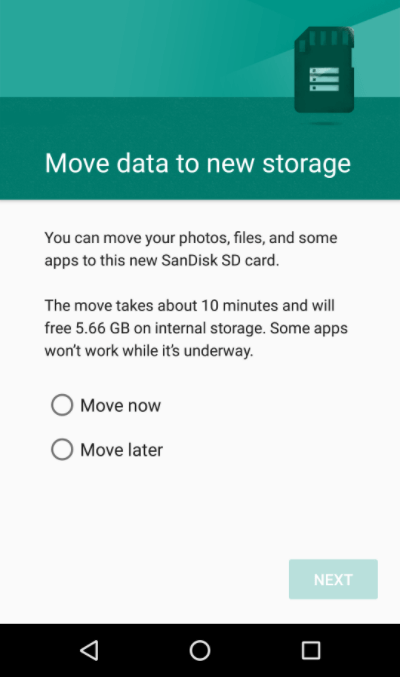
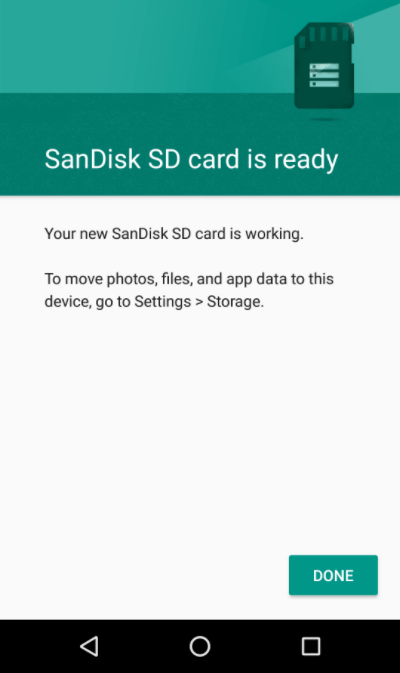
⑥ As you go through all these steps, the SD card will be used as internal memory.
Tips! Please note that not all SD cards can be used as internal memory. If you want to save all data on the SD card by default, you can set the SD card as the default storage location. You can follow this way: [ Settings ] > [ Storage ] > [ Default location ] > [ SD card ].
The internal storage is used to install the operating system and save the pre-installed apps, the other apps and the data generated from apps. The external storage is usually designated to the portable SD card. But, is it good to use a SD card as internal memory? Here are some merits and demerits.
Merits:
When a phone closely runs out of the storage space, a SD card can expand the space. Then, you can install more apps and save much more data.
Demerits:
Of course, using a SD card as internal memory can save tons of data when the space of the phone has run out of use. Compared with the internal storage, a SD card reads and writes slower. The SD cards at low speed class can even affect the phone’s daily running.
In addition, a SD card has a limited number of read-write cycles. Using a SD card as internal memory will require more frequent read/write operation. Gradually, that will degrade its performance and lead to data loss.
Summing-up:
These are pros and cons of adopting a SD card as internal memory in an Android phone. It is suggested you use the internal storage by default. If you really need to change this setting, please read the above contents carefully.
Tips! If you accidentally deleted files in the SD card or formatted the card, the following tutorial can help you safely recover the data.
Renee Undeleter is powerful software for data recovery. It supports to recover many file types and supports to scan files, partitions and disks, which performs well in formatted/deleted disks and SD cards. It is a good helper for you to recover data from the formatted, deleted and even damaged SD card.
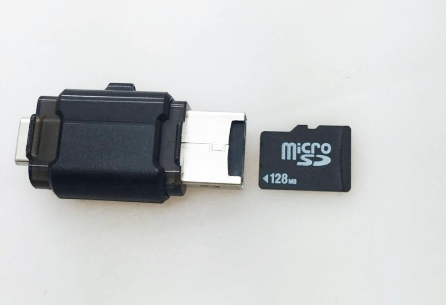
① Plug out the SD card. Then, use a card reader to connect it to the computer.
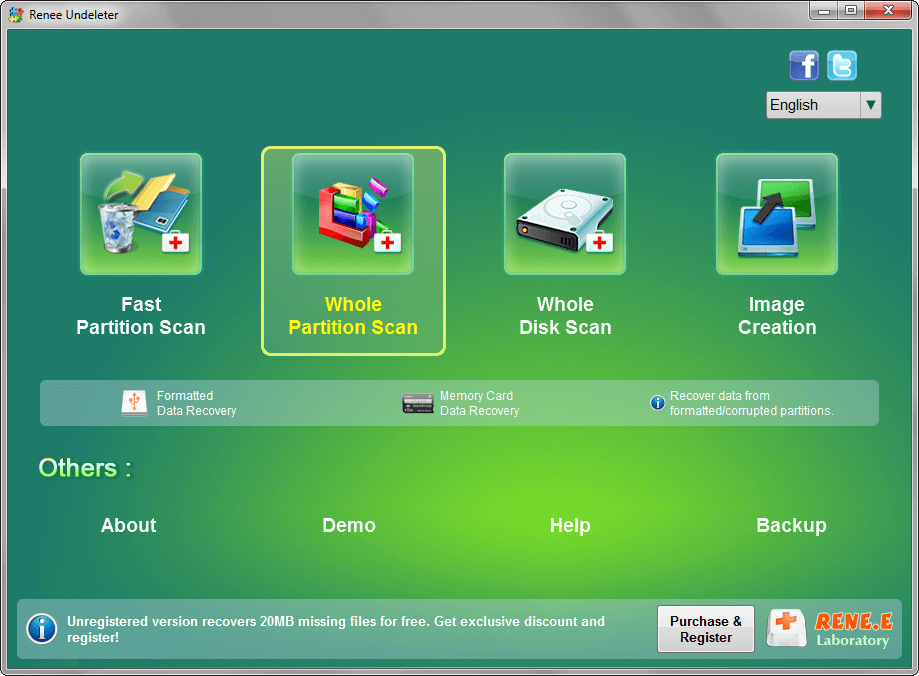
② Download and install Renee Undeleter. Then, select one of the scan modes. In this case, we select [ Whole Partition Scan ].
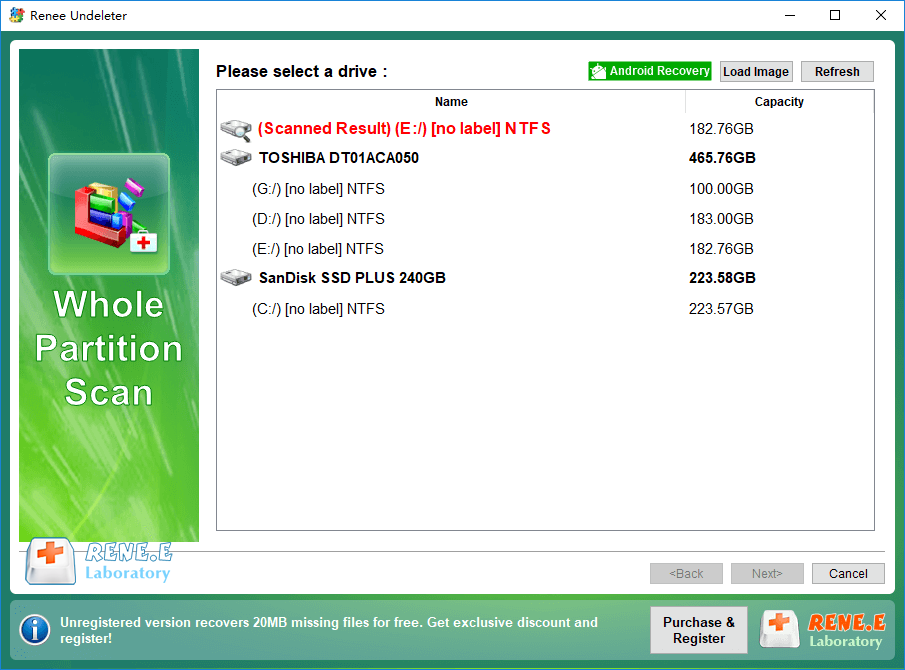
③ Select the target SD card and click [ Next ] to go on.
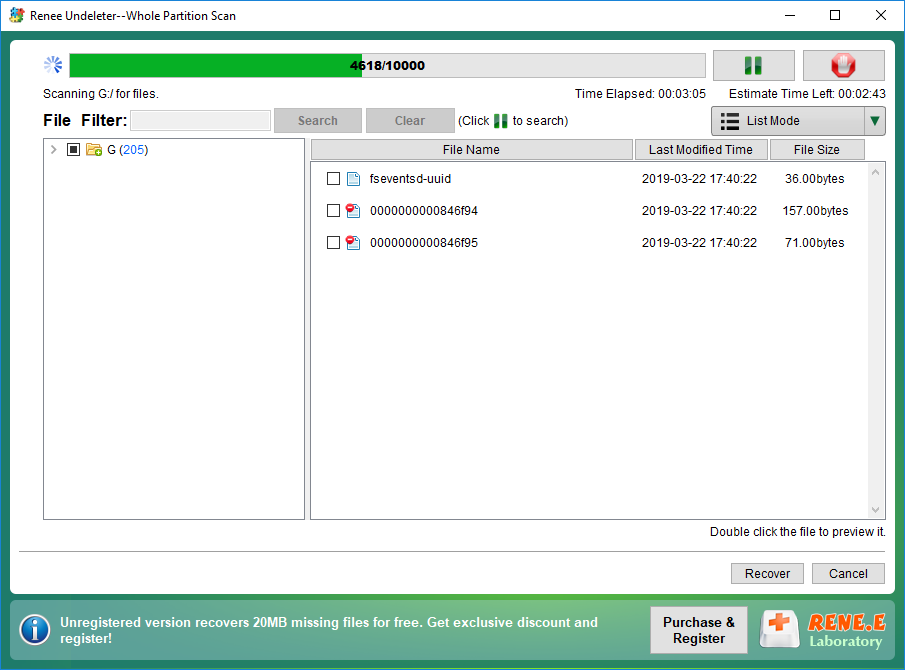
④ The SD card will be scanned. The larger SD card will be scanned for a longer time.
⑤ As it is finished, double click to preview the files and check the target ones. Then, click [ Recover ] to go on.
⑥ Set where the files will be saved and click the button [ Recover ] to save them.
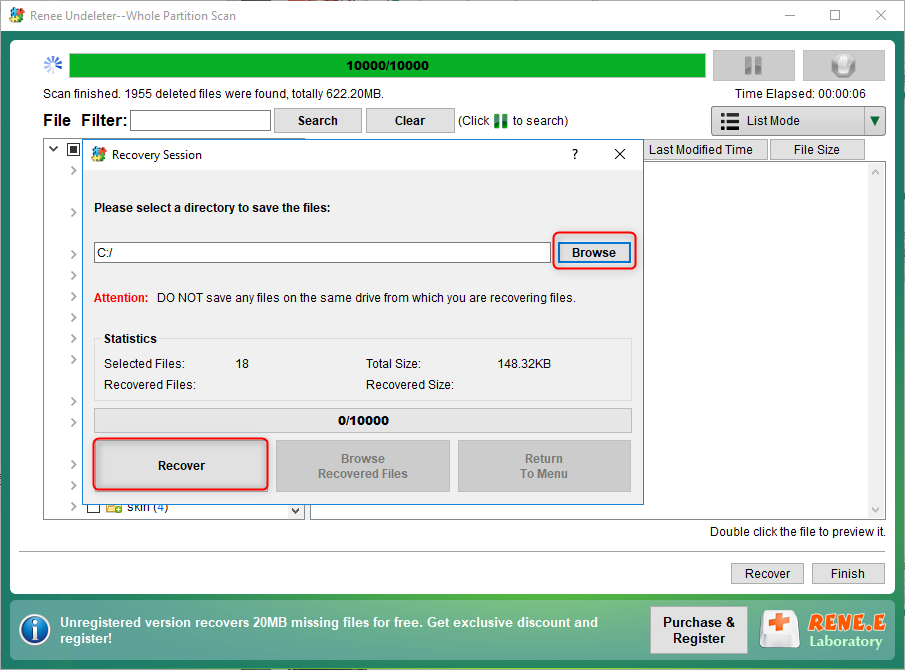
Tips! Please save the files to the other disk in fear that they are lost again.
Relate Links :
How to Format SD Card on Mac, Android and Windows

22-07-2019
Jennifer Thatcher : SD cards are now widely used in portable devices due to the tiny size and high-speed data transfer....
How to Transfer 3Ds Data in SD Card to Another

22-07-2019
Amanda J. Brook : NINTENDO 3DS, hereinafter referred to as 3DS, is the fourth-generation handheld game console released by Nintendo in 2011....
Comments
0 comments
Please sign in to leave a comment.