
Summary
It is easy and convenient to use the USB flash drive. When the USB is used for a long time, we will meet with some problems. For example, we cannot copy and paste the documents into the USB. Some files cannot be shown. At this situation, we should take out the files and then try to fix the USB. In this essay, we will talk about how to recover the data from the corrupted USB flash drive.

When the USB flash drive is corrupted, you should stop using the drive to avoid data being overwritten. We suggest that you use Renee Undeleter to recover the data from the USB flash drive.
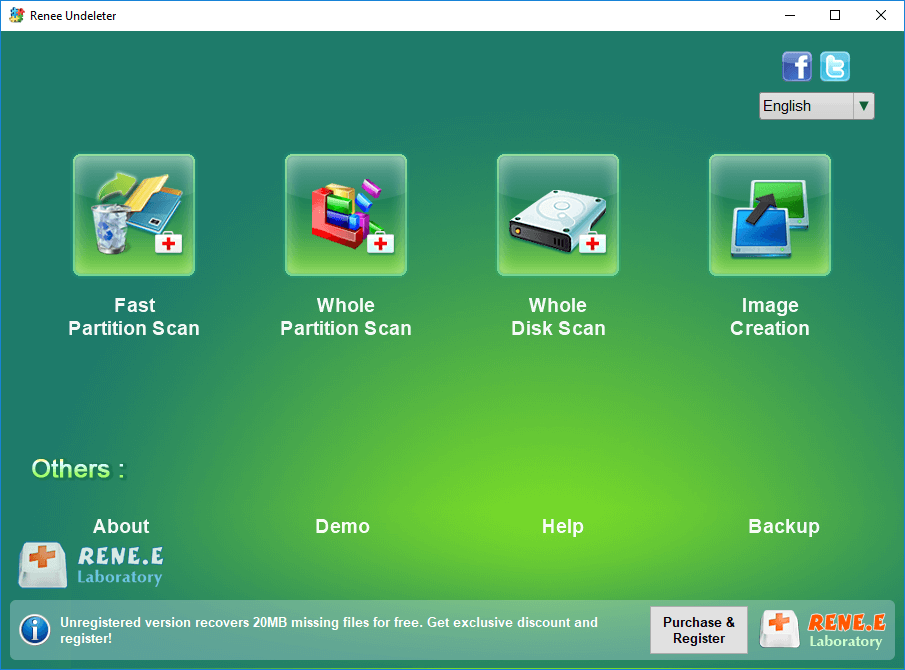
Renee Undeleter is the data recovery software. When the users accidentally delete the important files, empty Recycle Bin, or format the disk/drive, the software can retrieve the deleted data. It contains 4 options, namely fast partition scan, whole partition scan, whole disk scan and image creation. These functions can help the users easily recover the lost data.
You can follow these steps to recover the data from the corrupted USB flash drive. Here are the steps.
Step 1: Download and install Renee Undeleter. Open the software and select [ Whole Disk Scan ].
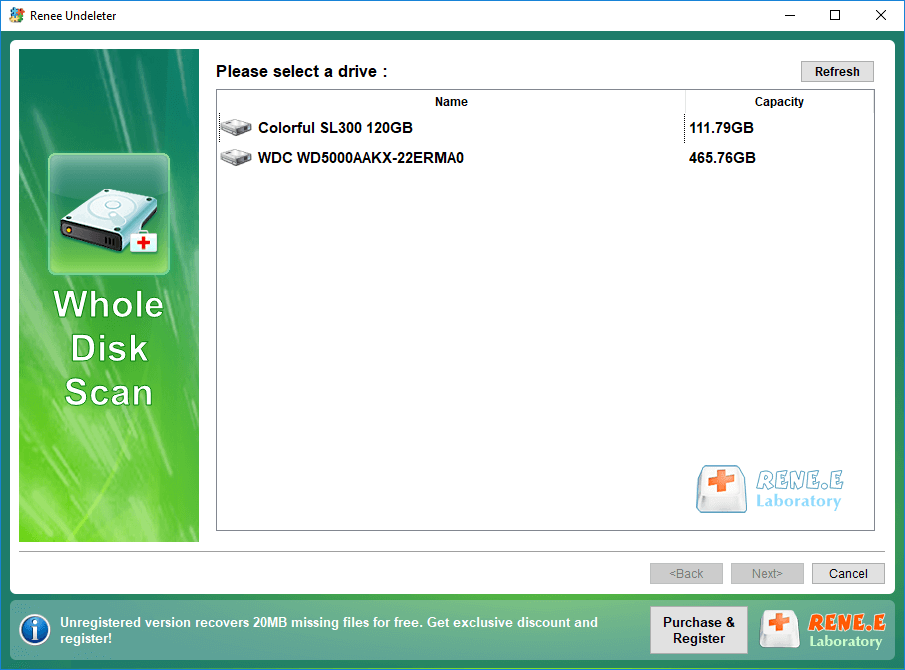
Step 2: Select the USB flash drive and click on [ Next ] to go on.
Step 3: Wait for scanning the USB.
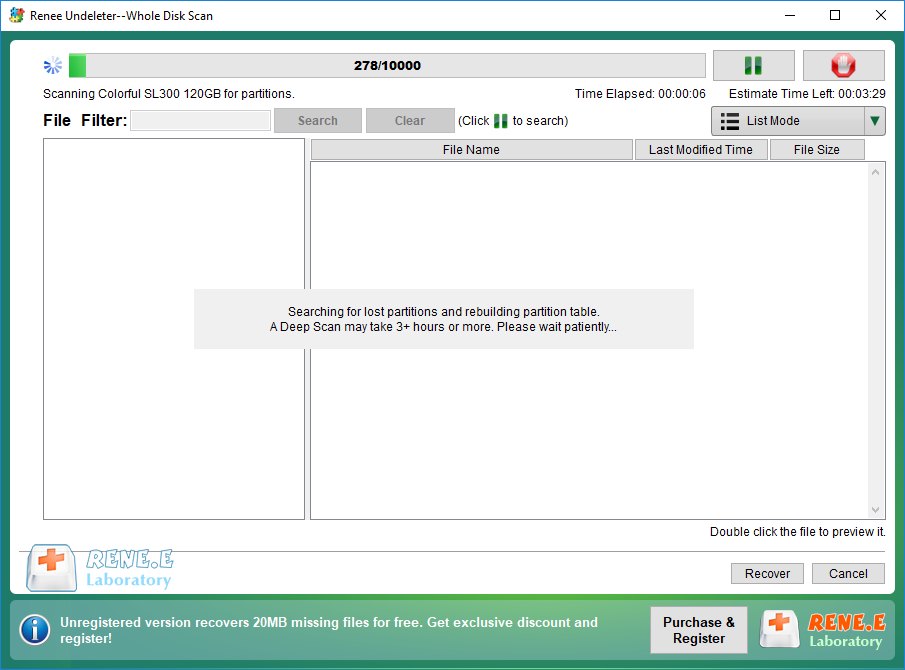
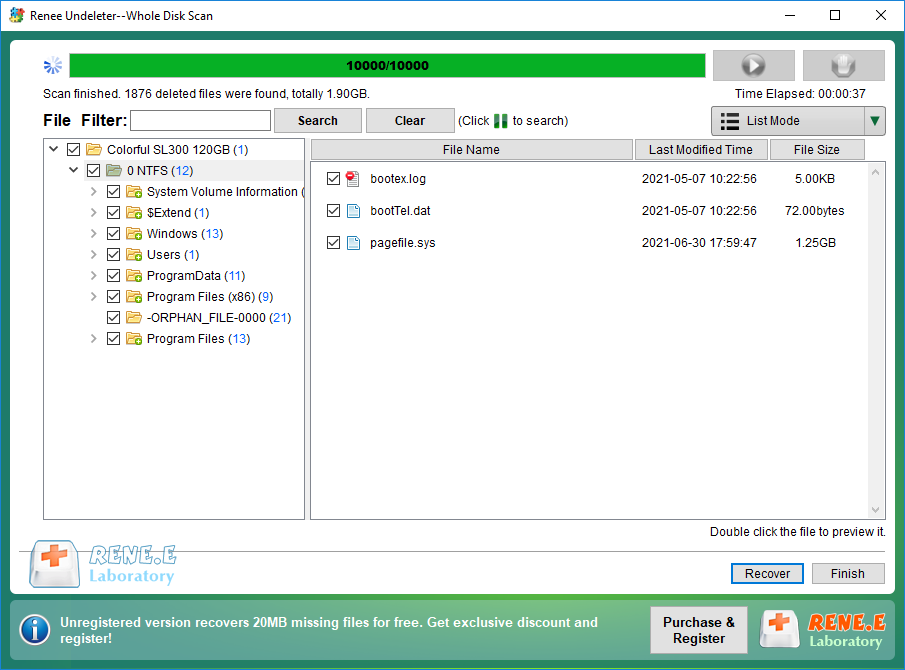
After that, preview the files and check the targets. Click on [ Recover ] to recover the targets.
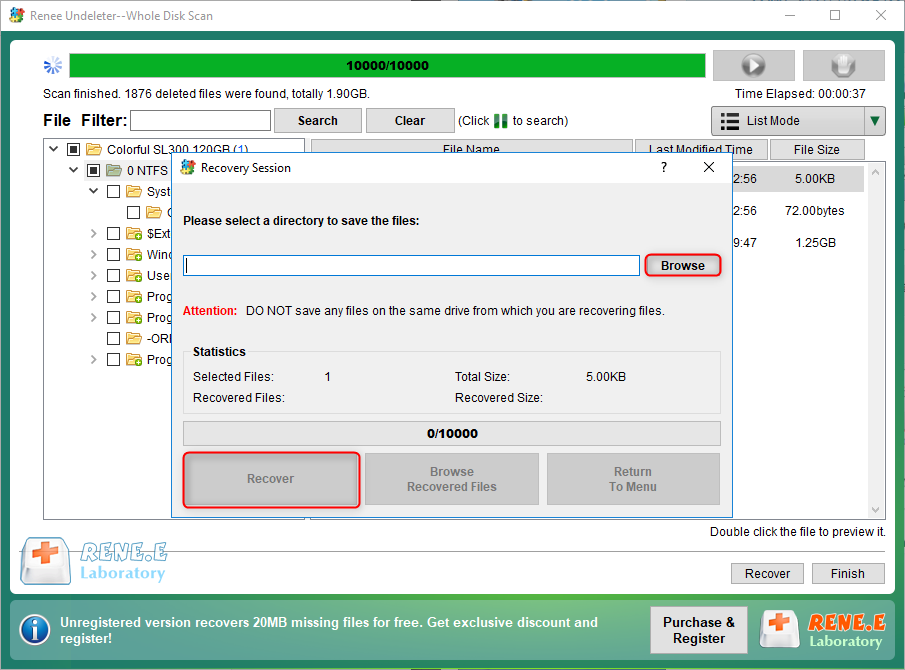
Step 4: Select a folder to save the files and finally click on [ Recover ] to output them.
These are the steps to recover the lost data from the corrupted USB flash drive. In the followings, we will talk about how to fix the drive.
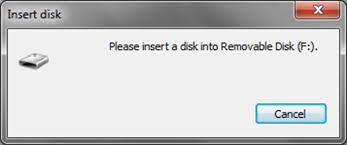
When you insert the USB flash drive into the computer, the system never pops up the notification saying that the USB has been recognized. Or, the system still asks you to insert a USB drive.
Solutions:
You can repeatedly plug in and out the USB at first. If the system still cannot recognize the device, you can follow these steps to do.
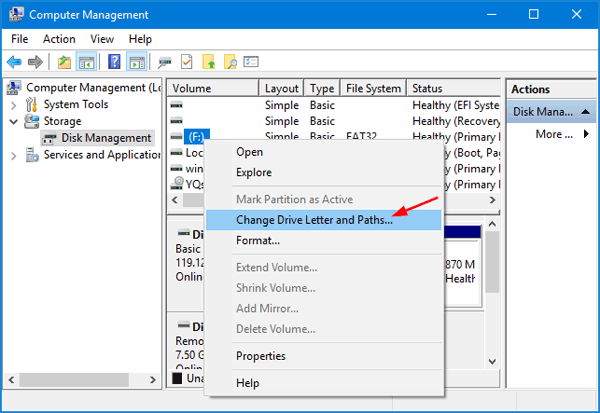
Step 1: Click on [ This PC ] and then right click at the icon to select [ Manage ]. Next, in Computer Management, select [ Storage ] – [ Disk Management ] at the left side.
Step 2: Right click at the target USB, and then select [ Change Drive Letter and Paths ]. After that, set a letter and then check whether the USB can be used normally.
You may not be able to copy and paste the specified files from the USB flash drive. At this situation, you can follow these steps to do.
Solutions:
Step 1: Open [ This PC ] and then right click at the USB icon. Next, select [ Properties ]. Switch to the tab [ Tools ] and select [ Check ]. After that, click on [ Repair this drive ].
Step 2: After fixing the USB, go to Properties again and select the tab [ Sharing ]. Then, click on [ Advanced Sharing ]. Finally, try to copy and paste the files into the USB.
If the system asks you to format the USB but you don’t want to cause data loss, you can follow these steps to do.
Solutions:
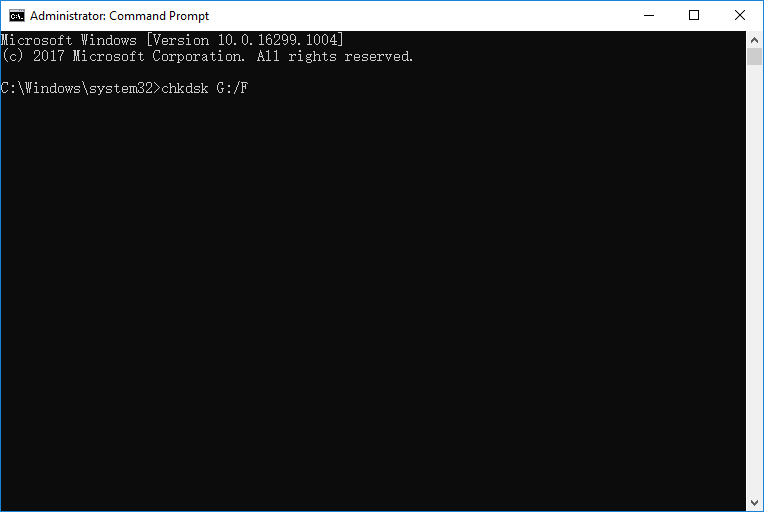
When the system asks you to format the USB, you should cancel the notification, then get into Command Prompt. Within the program, type [ chkdsk G:/f ] and press the Enter key to run the command. Finally, check whether the USB can be used normally.
When you want to format the USB, you may find the used space is shown as 0 byte. You can follow these steps to do.
Solutions:
Step 1: Insert the USB into the computer and get it restarted. Then, right click at [ This PC ] and select [ Manage ].
Step 2: Next, select [ Disk Management ]. After that, right click at the target USB and select [ Format ].
Step 3: Select a file system, FAT32 (for the driver between 2 GB and 32 GB) or exFAT (for drive over 32 GB). Finally, click on [ OK ] and follow the prompts to format the USB.
Relate Links :
How If SD Card is Blank or Has Unsupported File?

22-07-2021
Amanda J. Brook : In the recent years, SD card has been used in many fields. Since the SD card is easily...
Recommended Clone Software: HDD to SSD
26-07-2021
Amanda J. Brook : It is not easy to select useful clone software. In this essay, we will recommend the clone software...
Comments
0 comments
Please sign in to leave a comment.