
Table of contents

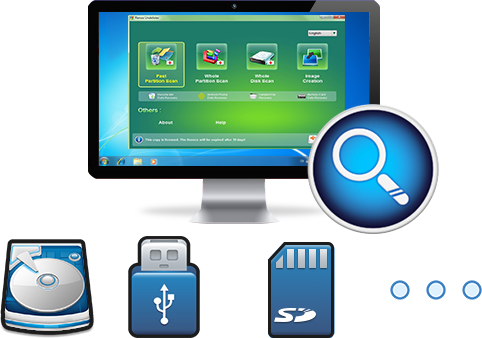
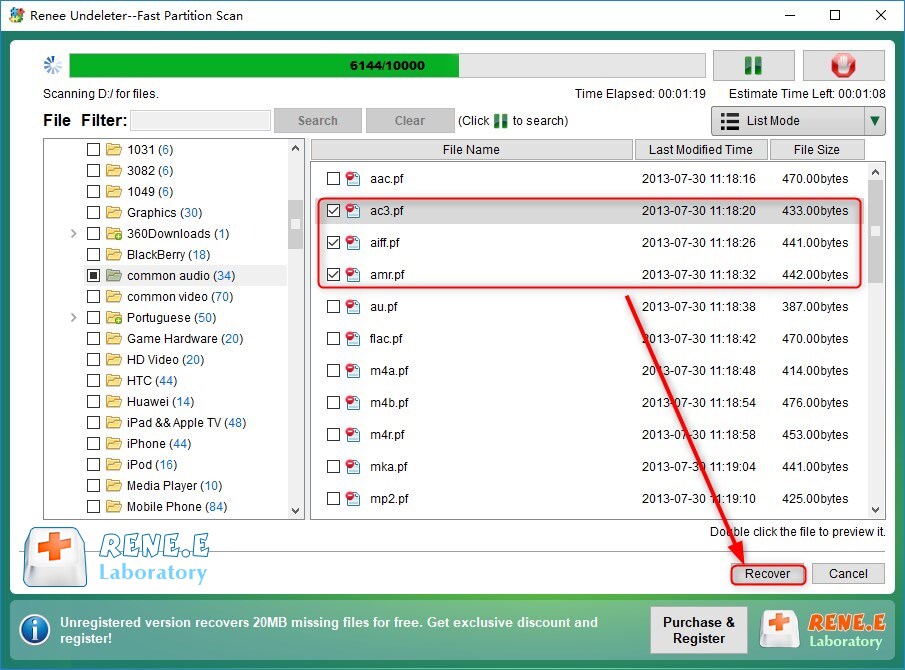
Easy to use Recover data by 3 steps;
Multiple scan modes Fast partition scan, whole partition scan and whole disk scan;
Supported file types Image, video, audio, text, email and so on;
Image creation Create a partition image to read and back up data;
Supported devices SD card, SDHC, SDXC, USB flash drive, hard disk and computer.
▽ Free Trial (Win) ▽ Free Trial (Mac)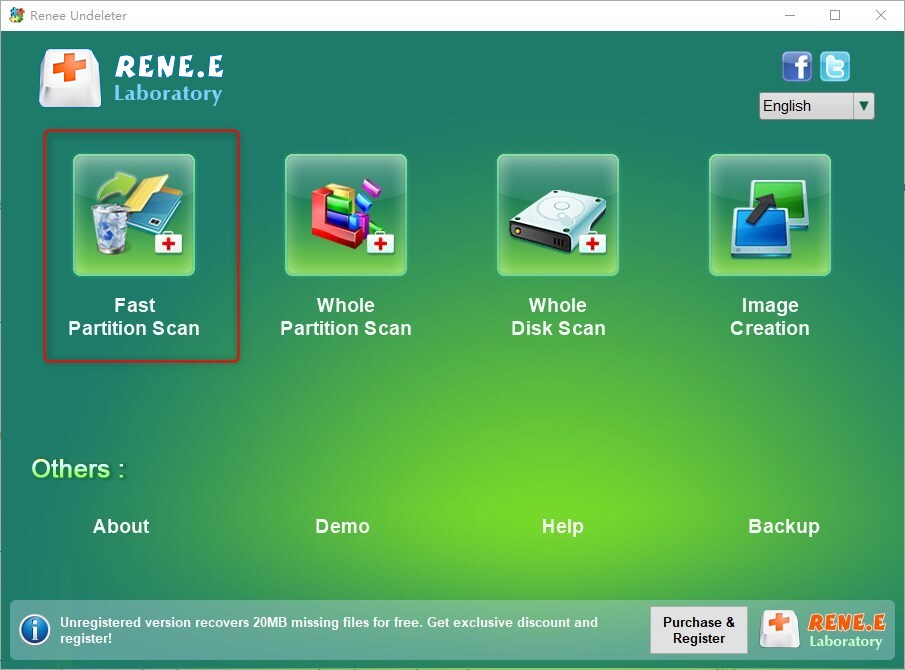
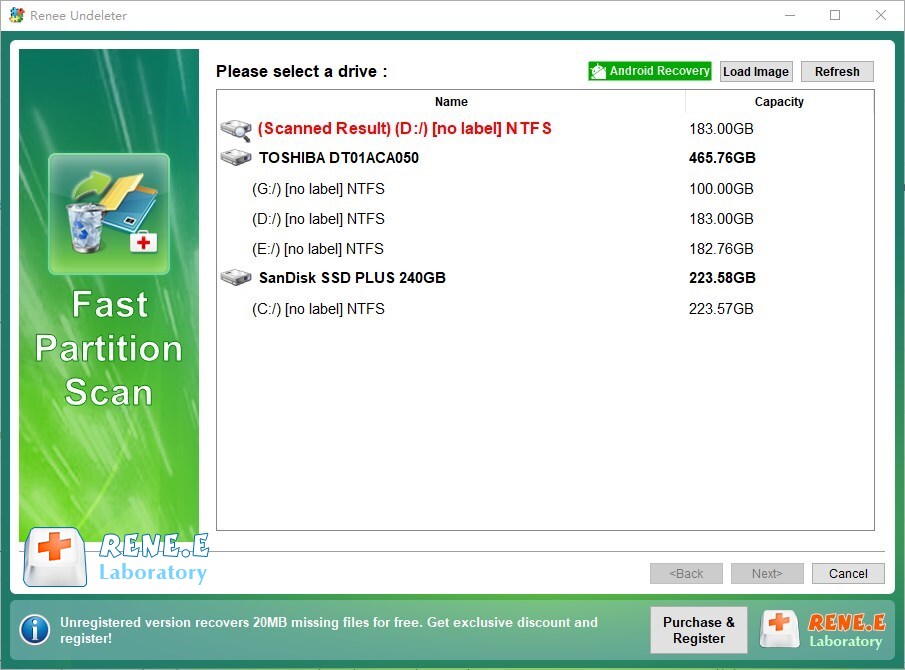
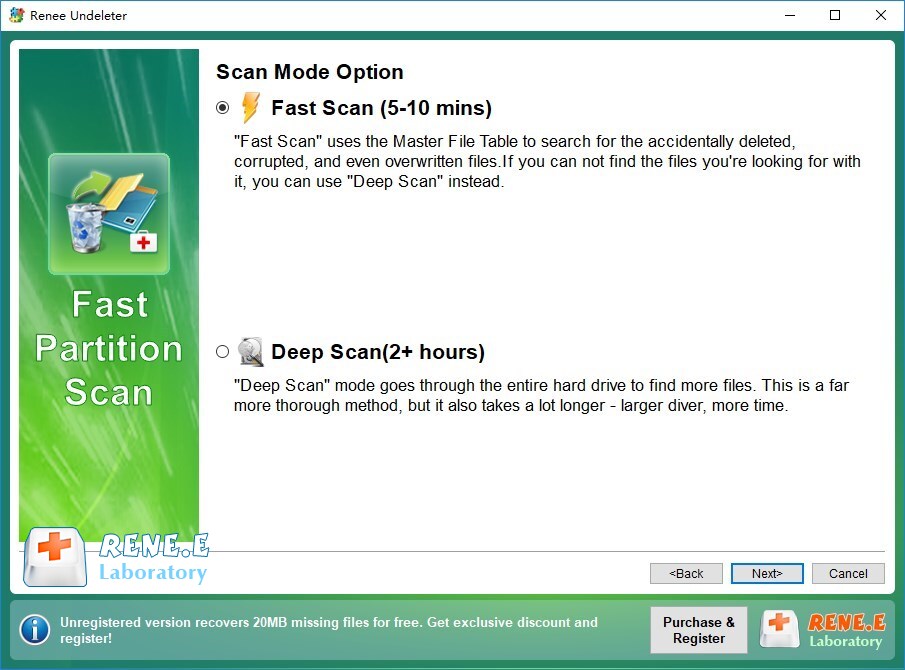
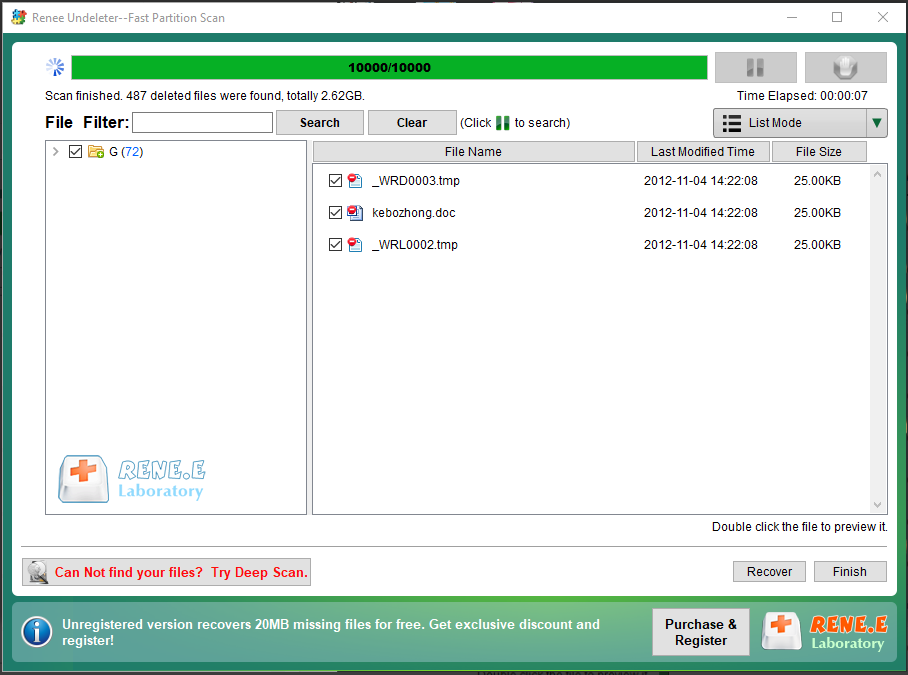
- Fast Partition Scan – Retrieve files lost due to accidental deletion or emptying the recycle bin.
- Whole Partition Scan – Recover files from inaccessible or formatted partitions.
- Whole Disk Scan – Perform a full scan of the entire partition and analyze partition information.
- Image Creation – Create image to back up the current partition state.
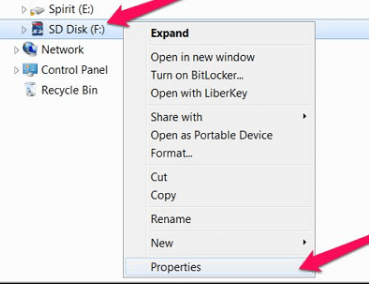
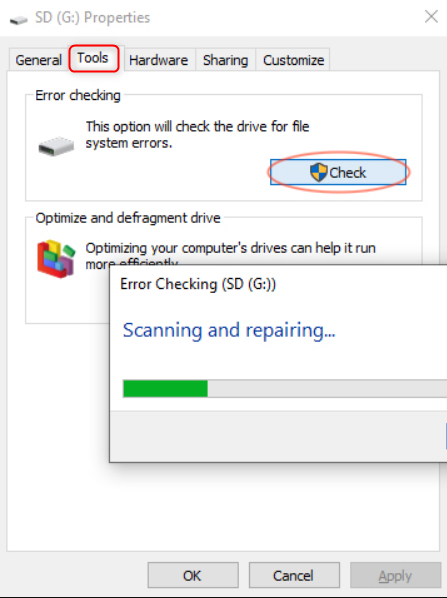
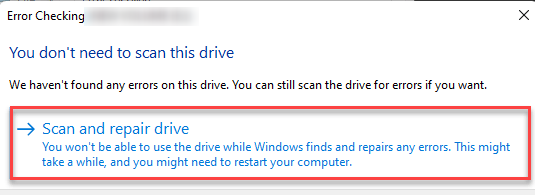
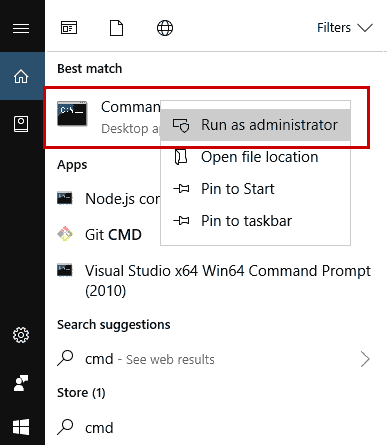
chkdsk H: /f
(H: is the SD card’s drive letter, /f is the repair parameter), then press Enter . The repair duration depends on the damage severity and storage size. Once complete, exit the command prompt and check if the issue is resolved.Relate Links :
Ultimate Guide for Data Recovery from RAW SD Card

11-04-2024
Ashley S. Miller : Discover effective strategies to retrieve data from a RAW SD card and return it to a functional condition...
Revive Lost Data: Best SD Card Recovery Software Mac

03-01-2024
Jennifer Thatcher : Learn about the top 5 SD card recovery software mac to retrieve lost data efficiently. Don't lose precious...
Free SD Card Recovery Software - Retrieve SD Card Data
14-05-2019
Jennifer Thatcher : SD card is the welcomed storage media of mobile device. But some accidents may occur when you are...
Effectively Recover Data From SD Card with Recommended SD Card Data Recovery Software

13-05-2019
Amanda J. Brook : When we lose data from SD card, how can we recover the lost data as much as possible?...
Fix Corrupted Android SD Card without Losing Data - Ultimate Guide
Comments
0 comments
Please sign in to leave a comment.