If the SD card is not connected well to the Android phone, the SD card files will not be shown. You can follow these steps to check the SD card connection.
● Go to [ Settings ] to select [ Unmount SD card ]. Take the SD card out of the phone after shutting it down.
● Insert the dismounted SD card into another phone, and then check whether the SD card files are showing up on this Android phone.
● Use a soft cloth to clean and then insert the SD card into the Android phone again.
● Get the Android phone restarted and check whether the SD card files are showing up.
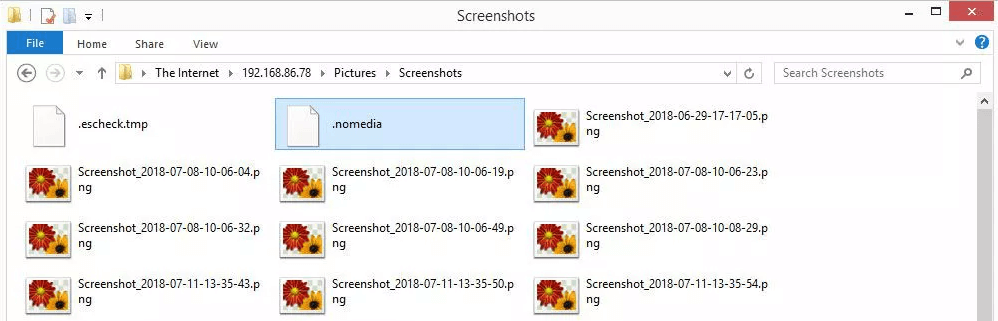
The .nomedia files tell the media apps to skip the folder when scanning for media files. When the .nomedia file is stored in the SD card, all the SD card files, such as images, videos and the other media files, is not showing up on the Android phone.
To remove the NOMEDIA file, you should connect the SD card to o the computer and delete the target files.
If the SD card files can be viewed in the computer, not on Android, the SD card may have a file system that the Android phone is not compatible with. You can check the file system in [ Properties ] within the computer. Android phone does not support the NTFS system. Under this situation, you should format the SD card to FAT32 or exFAT.
Step 1: Insert the SD card into the card reader and then connect it to the computer.
Step 2: Copy the SD card files to the other disks for data backup.
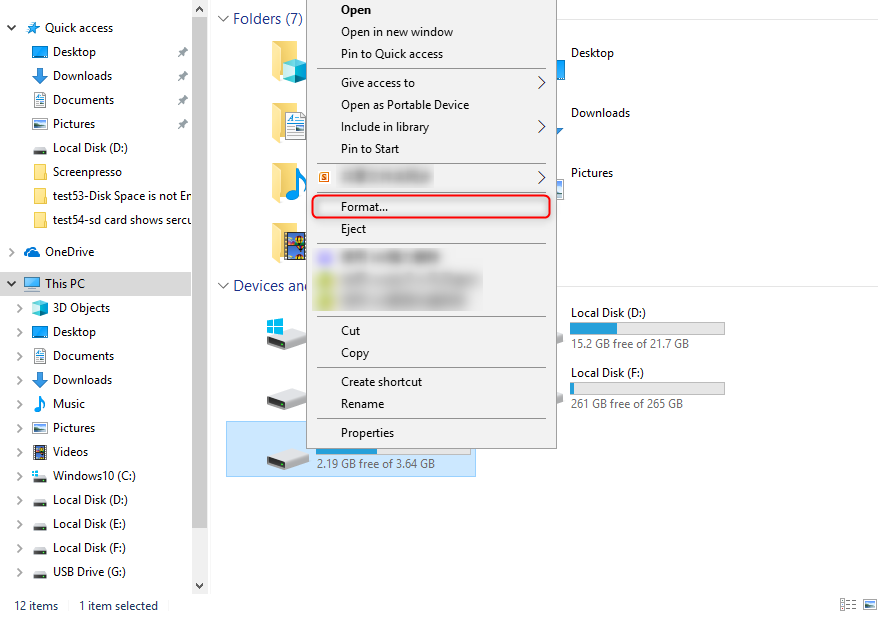
Step 3: Open File Explorer and then right click at the SD card. Select [ Format ].
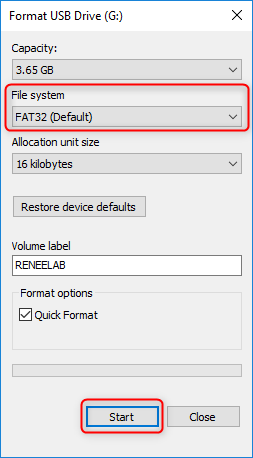
Step 4: Select a file system. If the SD card is not over 32 GB, FAT32 will be the suitable file system while exFAT is used for the SD card over 32 GB. Click
here to know more about the file systems.
Step 5: Click on [ Start ] to format the SD card.
If the SD card is attacked by virus and malware, this kind of programs will hide or delete the inside data. Under this situation, you should scan the anti-virus software to check the SD card and remove the malware.
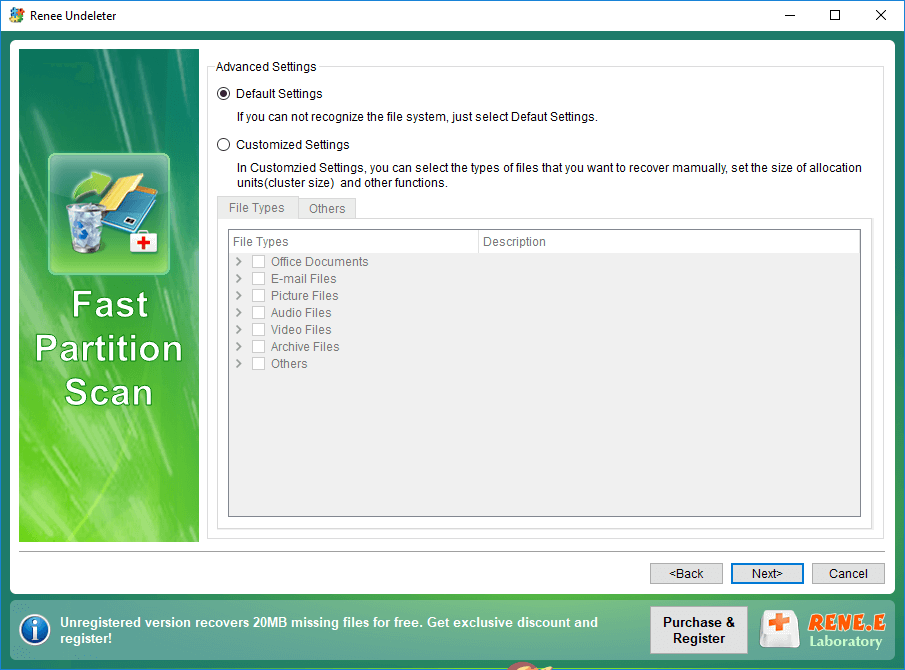
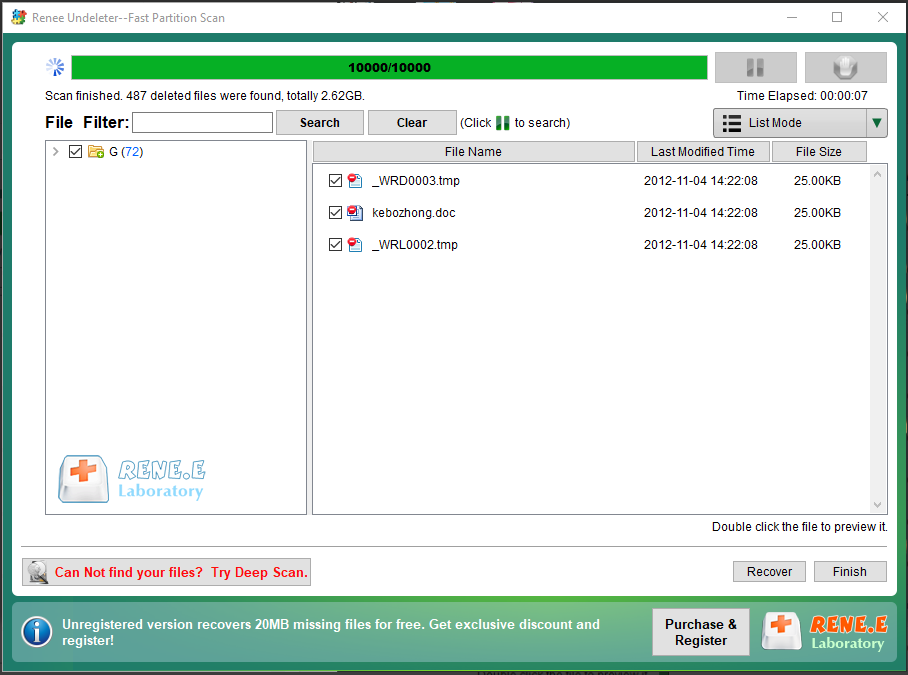
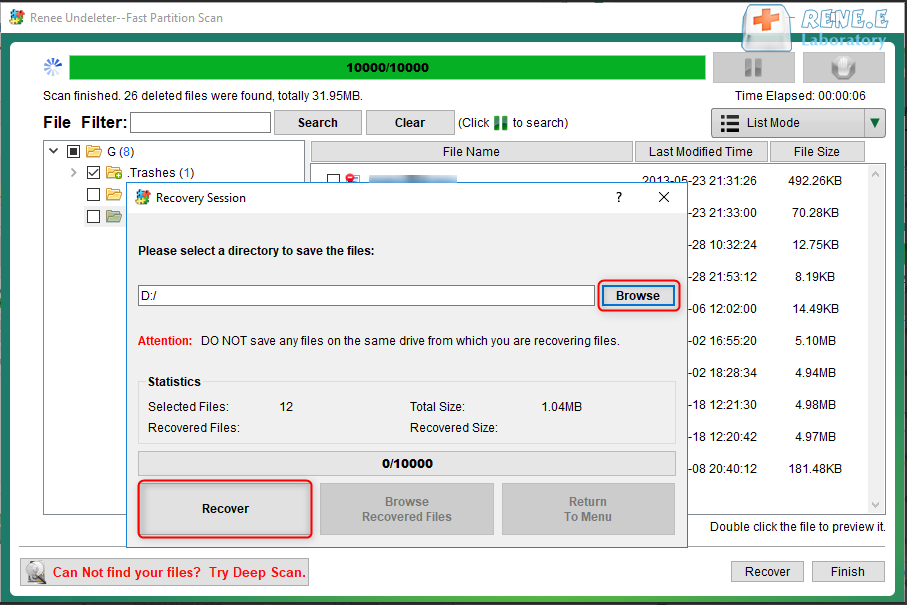
During this process, some of the data may be removed. To retrieve the lost data, you should stop using the SD card and follow the next part to recover data.


Comments
0 comments
Please sign in to leave a comment.