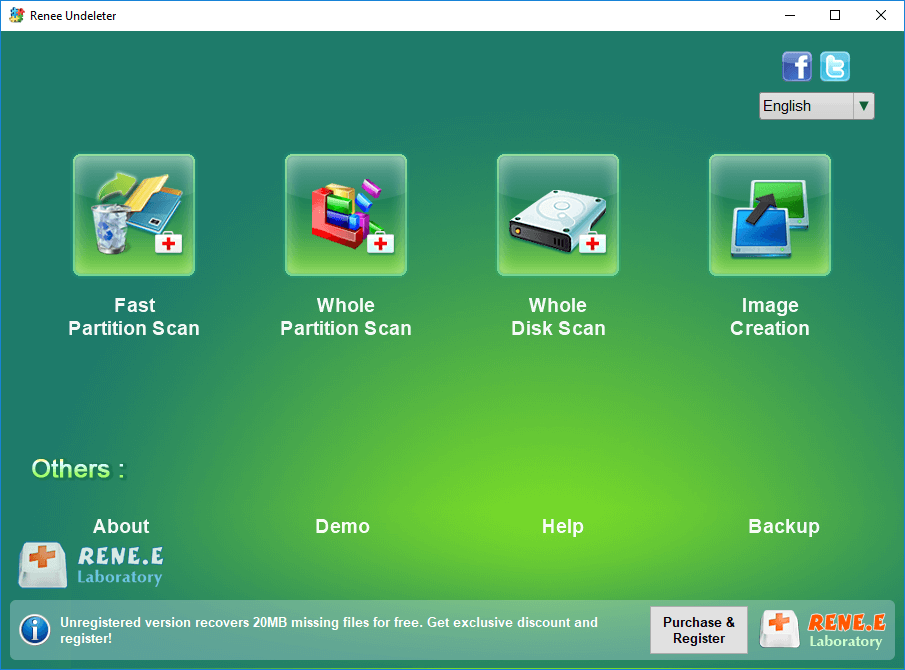
Renee Undeleter is the software specializing in data recovery. It can recover the deleted files and the lost files from the emptied Recycle Bin and the formatted disk. The software supports 4 scan modes including Fast Partition Scan, Whole Partition Scan, Whole Disk Scan and Image Creation, which provides comprehensive solutions for you to recover lost data easily.
Step 1: Connect SD card to the computer via card reader. Download and install Renee Undeleter on the computer. Launch Renee Undeleter and click on the option [Whole Disk Scan].
Note: Please do not install Renee Undeleter into the source disk in case that the data is overwritten.
Features of Data Recovery:
• Fast partition scan – Recover the files after emptying Recycle Bin or deleted by mistake without data backup.
• Whole partition scan – Recover lost files caused by inaccessible or formatted partitions.
• Whole disk scan – Analyze and access partition information, and scan the whole partition completely.
• Image creation – Create a partition image for partition to back up the current status of the partition.
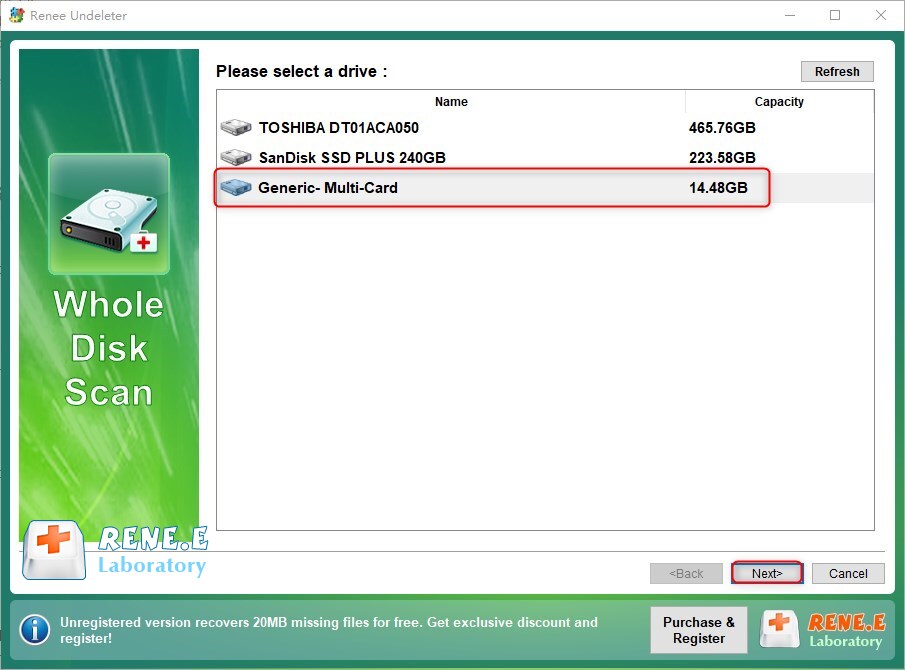
Step 2: Next, select the SD card and click on [Next] to go on.
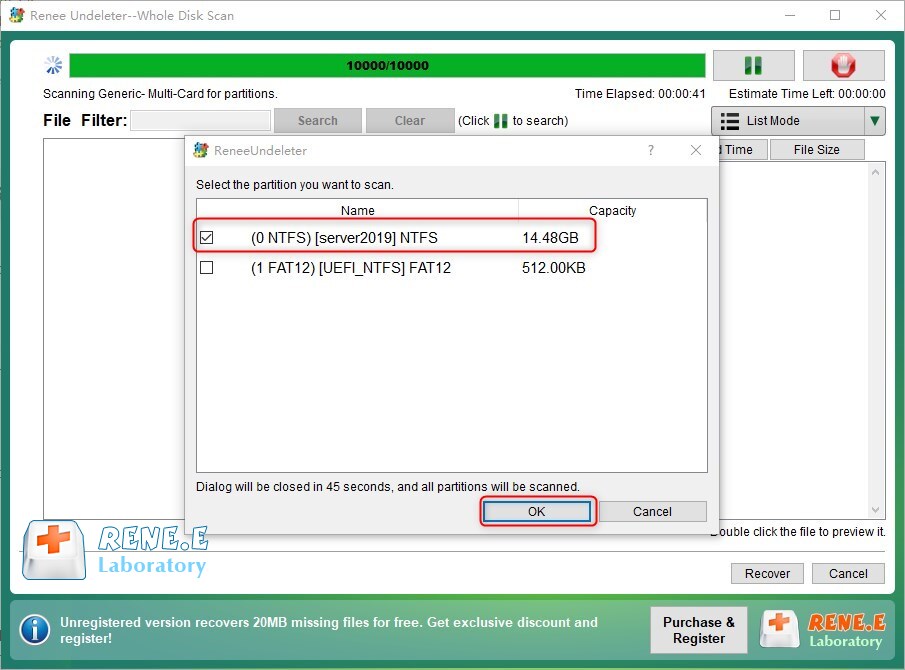
Step 3: Wait for the scan process. It will find out all partitions from the SD card. After that, the window “Select the partition you want to scan” will pop up, and you can select a target partition. Otherwise, all partitions will be scanned, which will take more time.
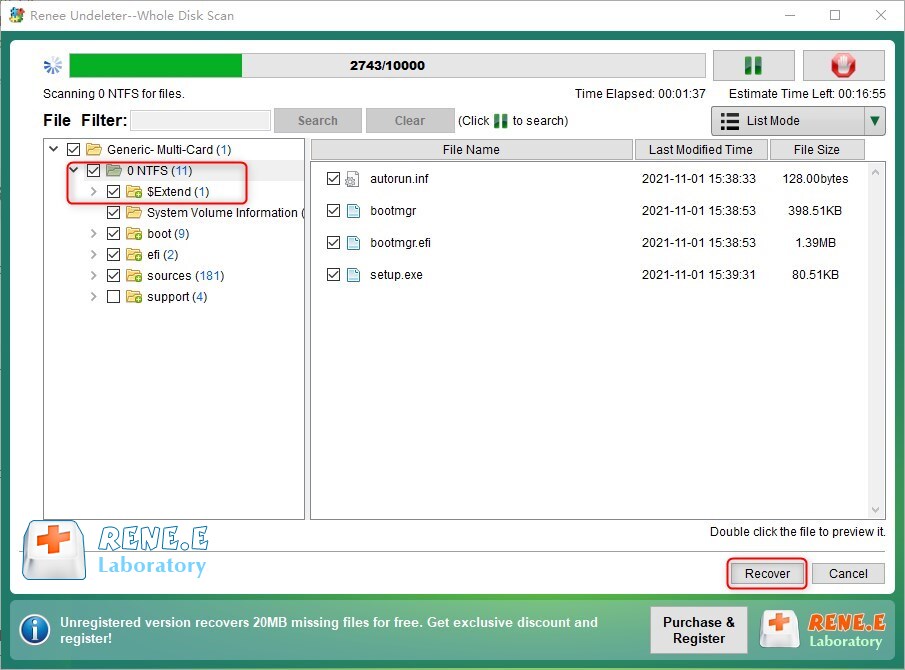
Step 4: Files can be previewed during the scan process. If target files have been found, you can check the box of target files, click on the [Recover] button, and recover data to other disk on the computer. If you intend to recover data to the source partition, you can refer to the following solution to rebuild partitions.
If there is no important data in the partition, you can recover the deleted partition directly in Disk Management. Here are the steps:
Step 1: Right-click on the [Start] menu, and click on Disk Management.
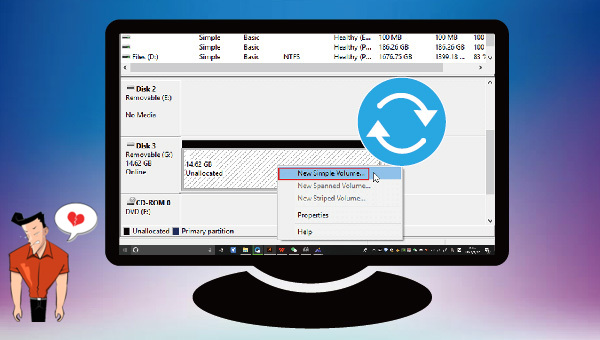
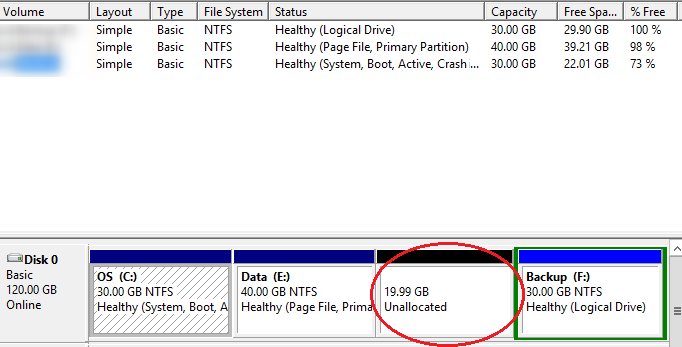
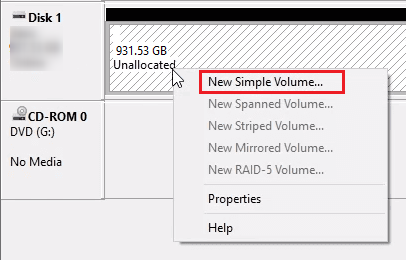
Step 2: Find out the disk of the SD card and right-click on the unallocated partition. Then, select the option [New Simple Volume]. After that, follow the wizard to set the capacity size, drive number, file system, etc.
Tips: If the SD card is used in the Android phone, it’s suggested to select the FAT32 or exFAT file system, because most Android phone doesn’t support NTFS.
Step 3: The partition will be recovered, and you could check it via File Explorer.



Comments
0 comments
Please sign in to leave a comment.