III. How to repair the failure of the external hard disk
1. Run antivirus software
Viruses and malware can cause hard drive failure. Scanning and removing them with antivirus software may fix corrupted drives. Connect the external hard disk to another Windows computer with reliable antivirus software to scan and remove viruses.
2. Use hard disk detection/repair software
If the hard disk has bad sectors, you can use special hard disk detection/repair software to detect and repair hard disk errors.
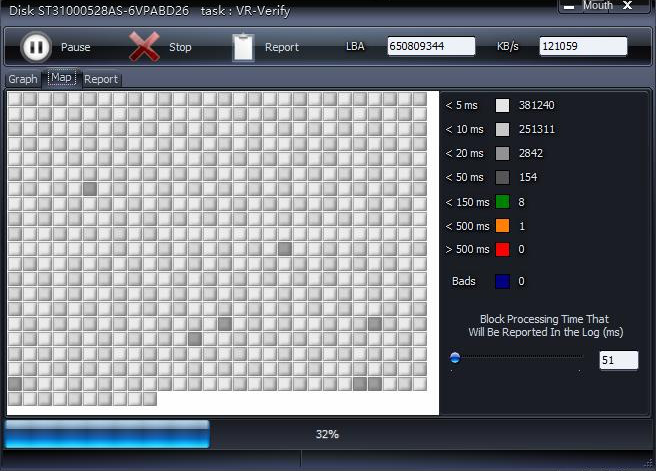
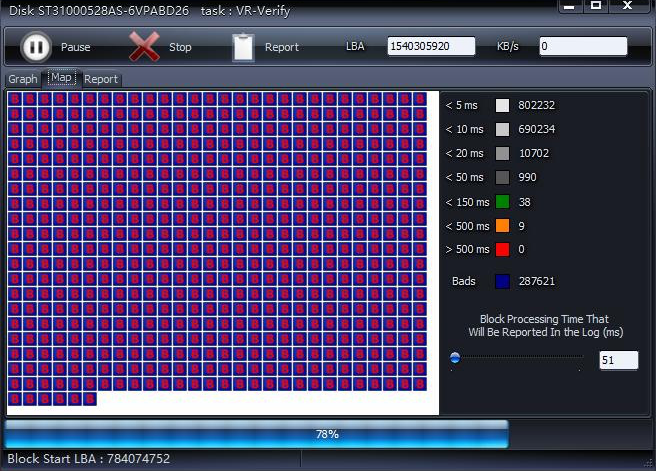
Step 1: Connect the external hard disk to the computer. Download, install, and run the HDD-SCAN tool, a free software for diagnosing hard disk drives, RAID array servers, flash USB, and SSD drives. It tests for errors (bad blocks and sectors), displays SMART attributes, and allows changes to HDD parameters like AAM and APM .
Official website link: https://hddscan.com/
Step 2: HDD-SCAN outputs the scanning status graphically. At around 78% completion, numerous bad sectors (B) are detected.
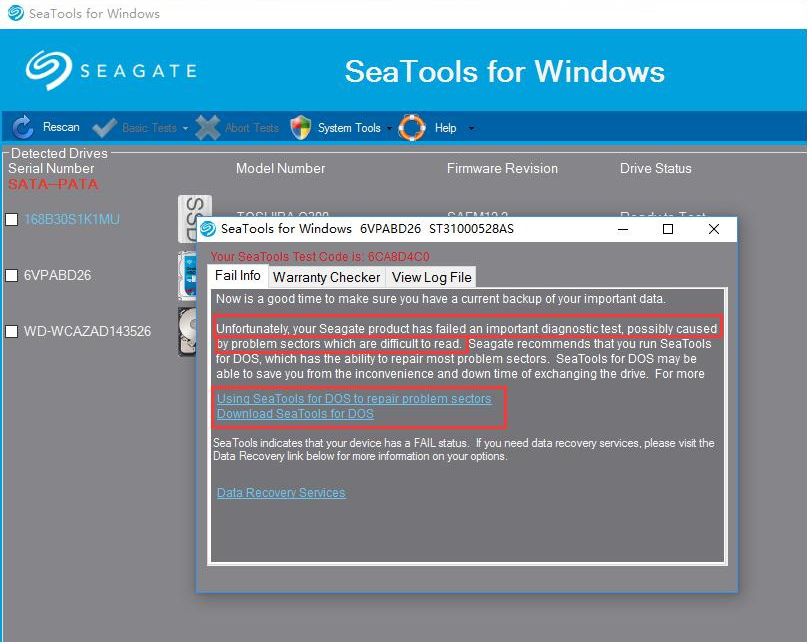
Step 3: HDD-Scan can output detailed scan logs. If bad sectors are found, use the brand’s repair software, such as SeaTools or Western Digital Data Lifeguard Diagnostic . Search online for the appropriate repair tools based on your hard disk brand. Note: Repairing with brand software may erase all data. Back up your data first to avoid loss.
3. Use Windows built-in disk checking tool
You can try to use the Windows built-in Disk Check tool to check and fix external hard drive errors. Please do the following:
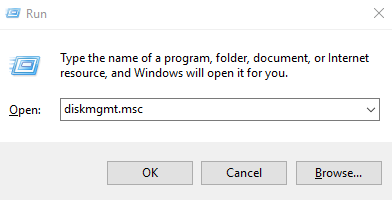
Step 1: Connect the external hard disk to the computer, press Windows + R , enter diskmgmt.msc in the input box, and click OK to open disk management.
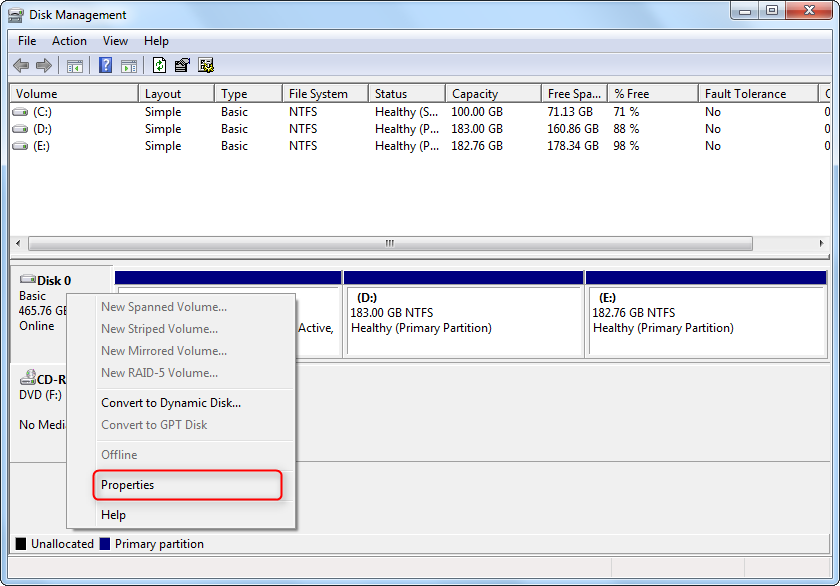
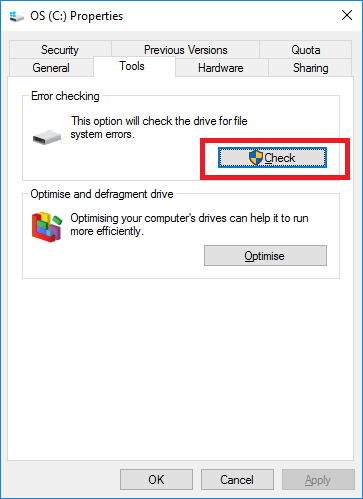
Step 2 : In Disk Management, right-click on the failed hard disk partition and select ( Properties ).
Step 3 : Go to the ( Tools ) tab, select ( Check ).
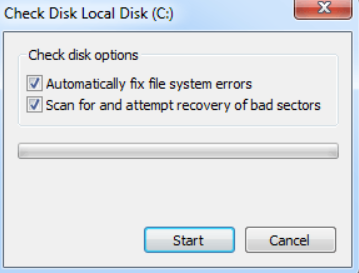
Step 4: For Windows 7 or Windows 8, check “Automatically fix file system errors” and “Scan for and attempt recovery of bad sectors.” Windows 10 repairs all errors by default. Wait for the process to complete.
The disk check function marks bad sectors as unusable at the file system level to prevent data from being written to unstable storage spaces. Even after repairs, bad sectors will still appear in detection software like HDD-Scan . To completely resolve bad sectors, you can replace the hard disk.
4. Run the chkdsk tool to repair hard disk errors
The chkdsk tool is a Windows command to check the disk’s current state. It displays disk state , memory state , and the number of discrete files in a specified path, and can also repair the disk. Repairing a hard disk failure with chkdsk is simple. The steps are as follows:
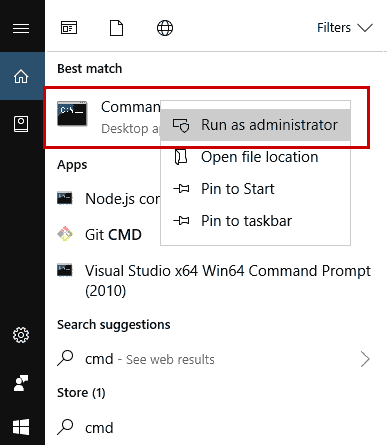
Step 1: Connect the faulty hard disk to the computer, search for cmd in the lower-left search box, and select Run as administrator to open the command prompt.
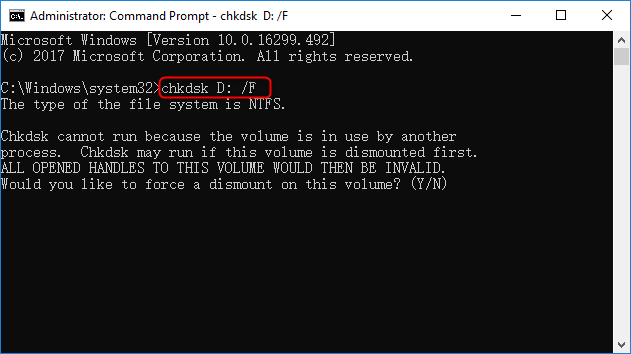
Step 2: In the command prompt window, enter
chkdsk D: /f
(where D is the disk letter) and press Enter to fix the error. After the repair is complete, check if the problem is resolved.
Tips If chkdsk D: /f doesn’t solve the problem, try chkdsk D: /r . The /r option finds bad sectors, restores readable information, and includes the /f feature with additional physical disk error analysis.
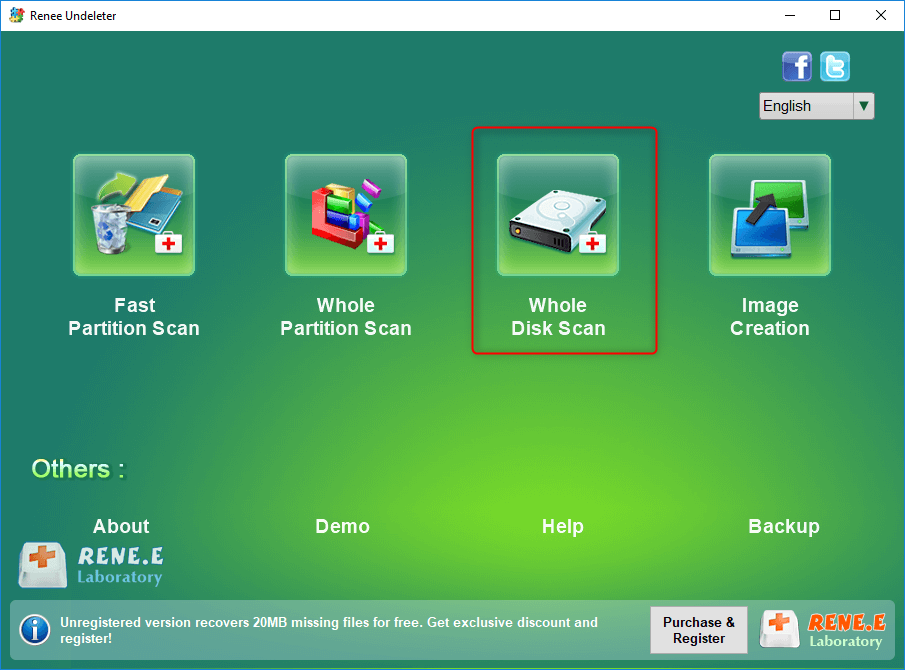
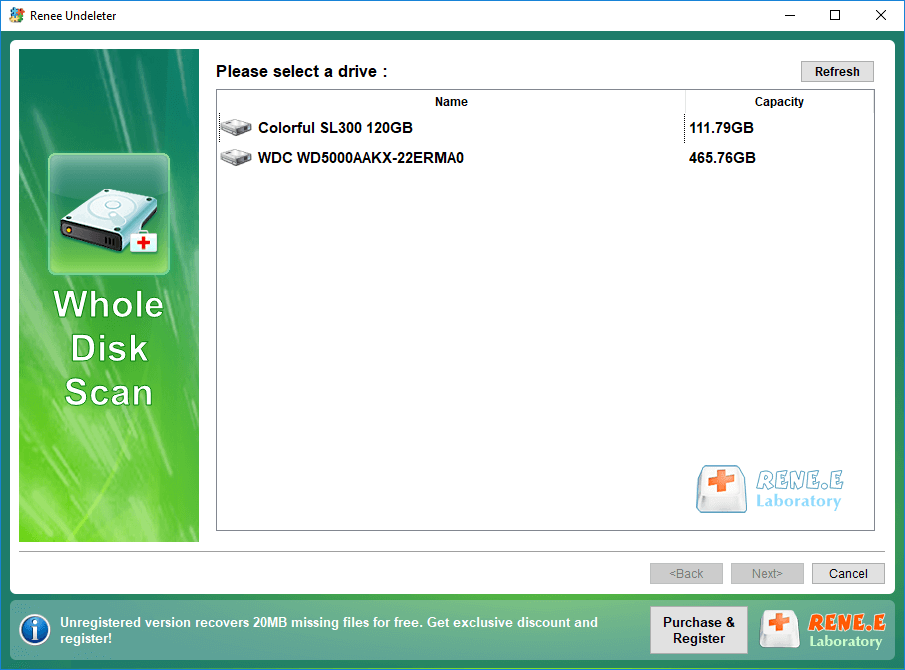
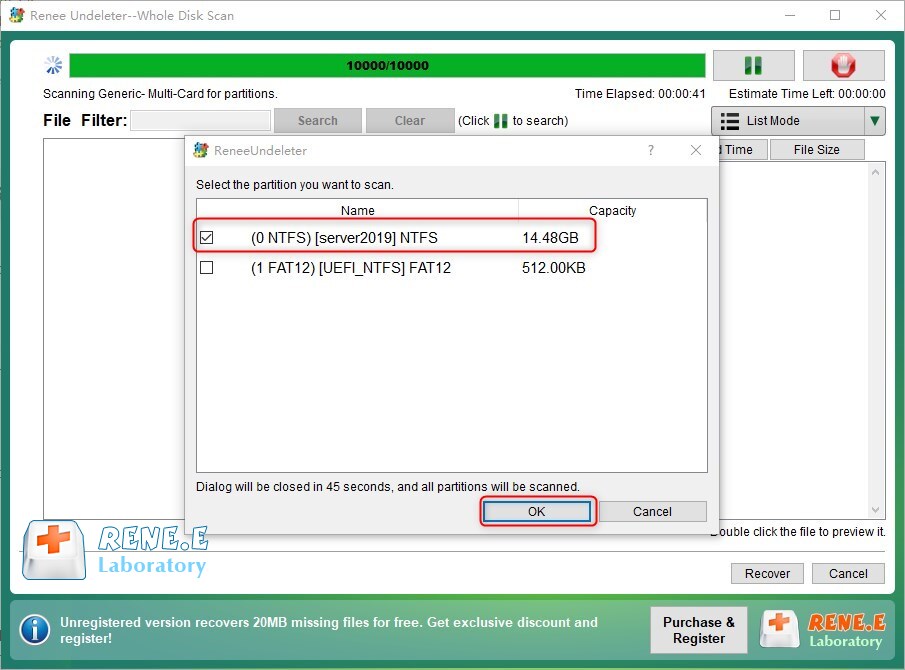
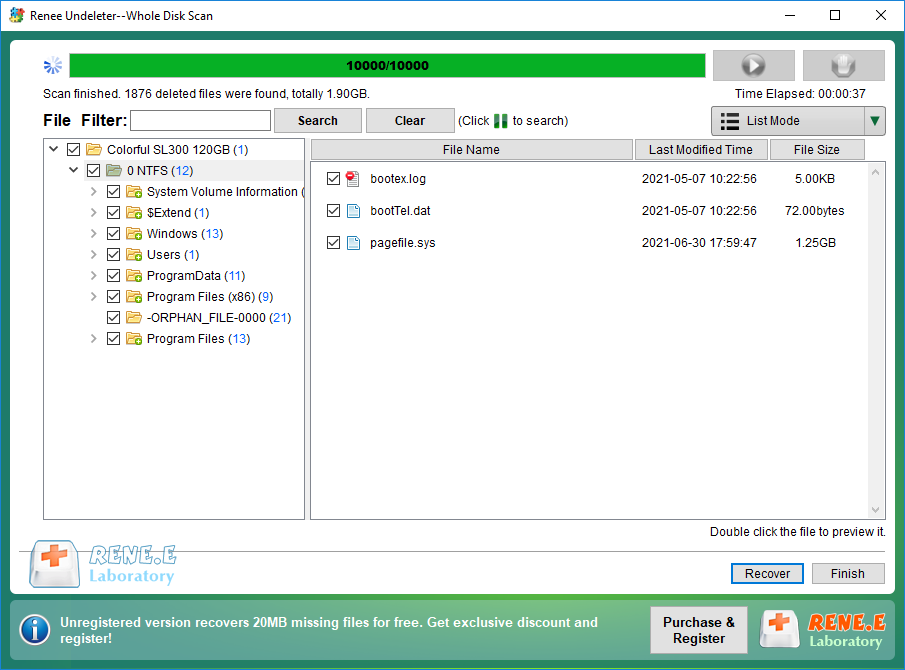
After repairing the external hard disk using the above steps, if data loss occurs, you can restore the data using the following methods.




Comments
0 comments
Please sign in to leave a comment.