
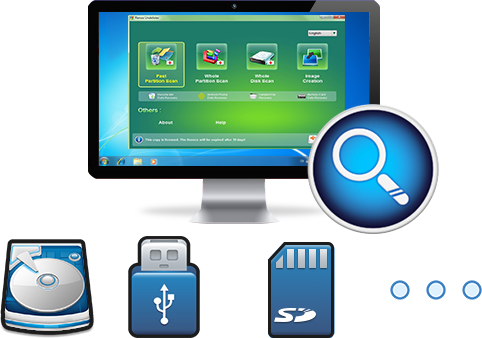
Easy to use Recover data by 3 steps;
Multiple scan modes Fast partition scan, whole partition scan and whole disk scan;
Supported file types Image, video, audio, text, email and so on;
Image creation Create a partition image to read and back up data;
Supported devices SD card, SDHC, SDXC, USB flash drive, hard disk and computer.
▽ Free Trial (Win) ▽ Free Trial (Win)
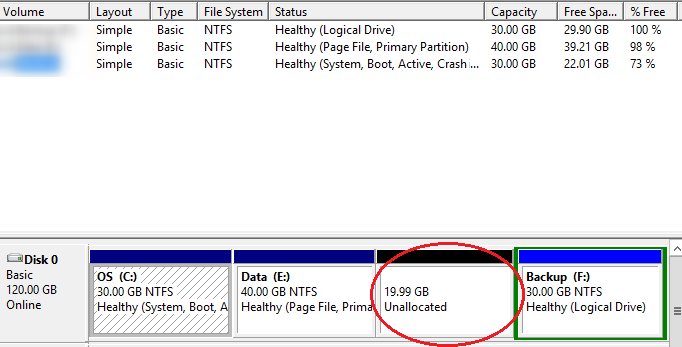
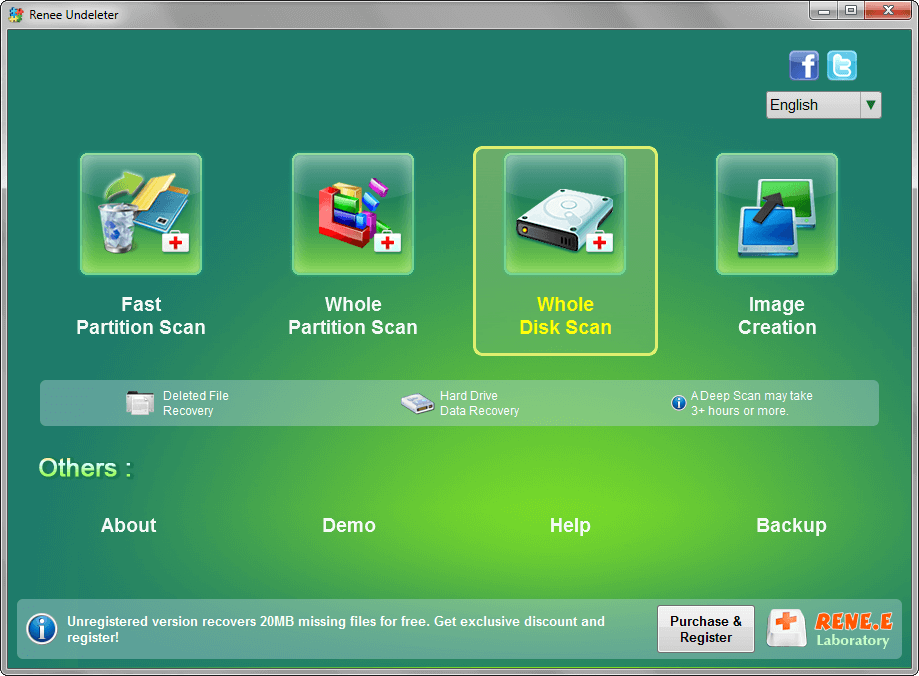
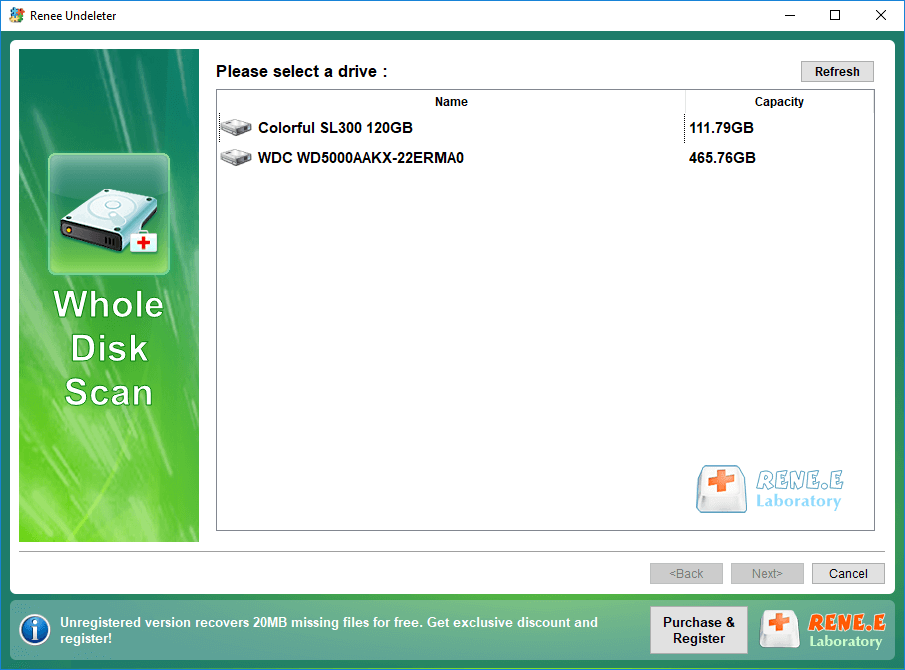
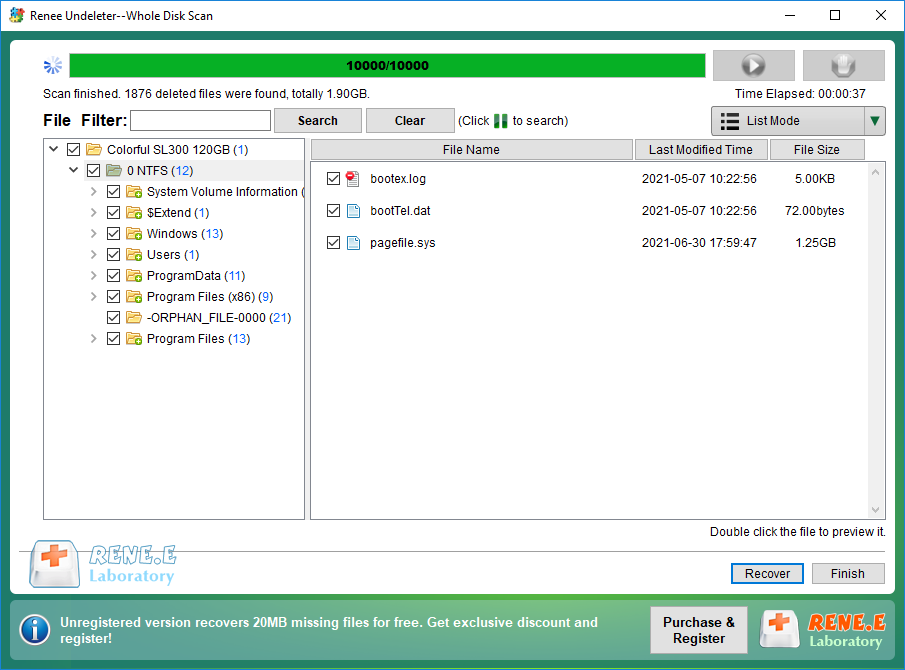
Select the (Whole Disk Scan) option on the main interface. This function can scan all the partition data that existed in the hard disk, even if the partition has “unallocated” space.
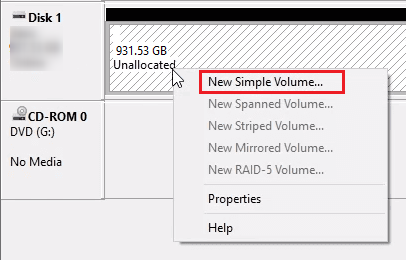
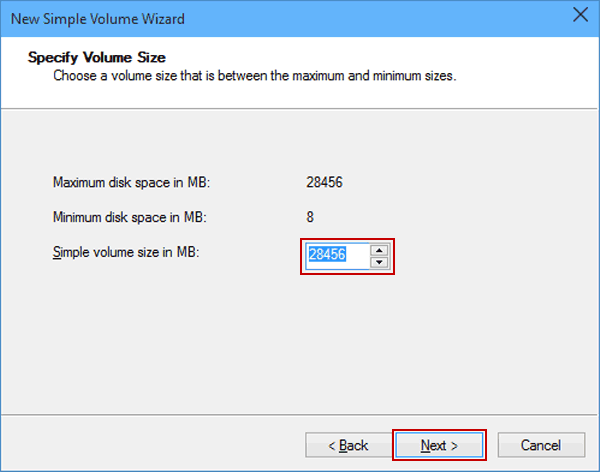
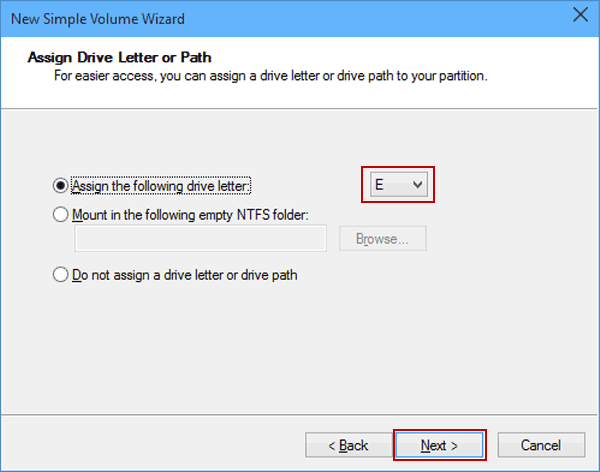
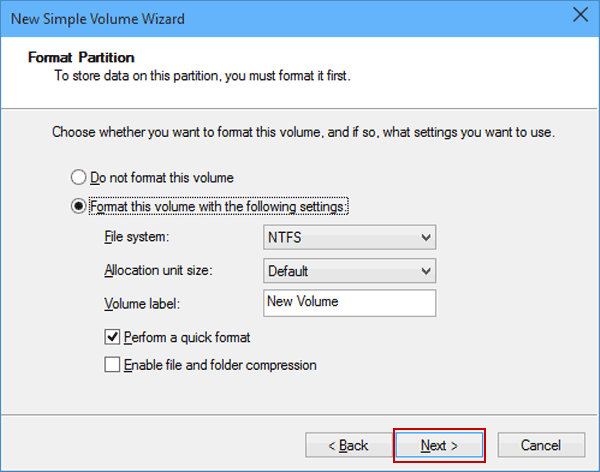
Then check the (Perform a quick format) option and click (Next).
Finally, click (Finish) and that’s it. If you don’t know which file system to choose, you can check: Features and differences of FAT32, exFAT and NTFS file systems .
Relate Links :
Maximize Your Hard Drive: Quick Fix for Full Capacity Access

21-02-2024
Amanda J. Brook : Understand and resolve your computer's failure to show your mobile hard drive's full capacity, and learn efficient data...
Hard Drive Won't Power Up - How To Fix and Recover Data

15-01-2024
Ashley S. Miller : Learn how to analyze and solve hard drive wont power up issues and restore lost data with the...
How To Find Pictures on Old Hard Drive Easily?

24-10-2023
Jennifer Thatcher : Learn how to find pictures from an old hard disk, even if it has problems. we will guide...
Maximize Space: How To Restore External Hard Drive To Full Capacity?

26-05-2024
John Weaver : Discover the reasons behind reduced hard disk capacity and find effective solutions for restoring factory hard drive capacity...
How To Fix Unallocated External Hard Drive without Losing Data?
Comments
0 comments
Please sign in to leave a comment.