Sometimes, viruses and malware can cause such errors. So, connect your mobile hard drive to your computer and scan your mobile hard drive with a reliable antivirus software.
You can try to use Windows built-in tools to check and fix external hard drive errors. In Windows 10, 8 or 7 do the following:
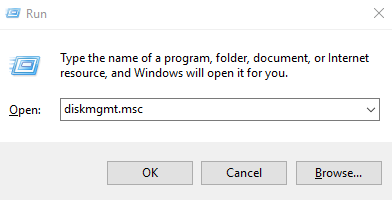
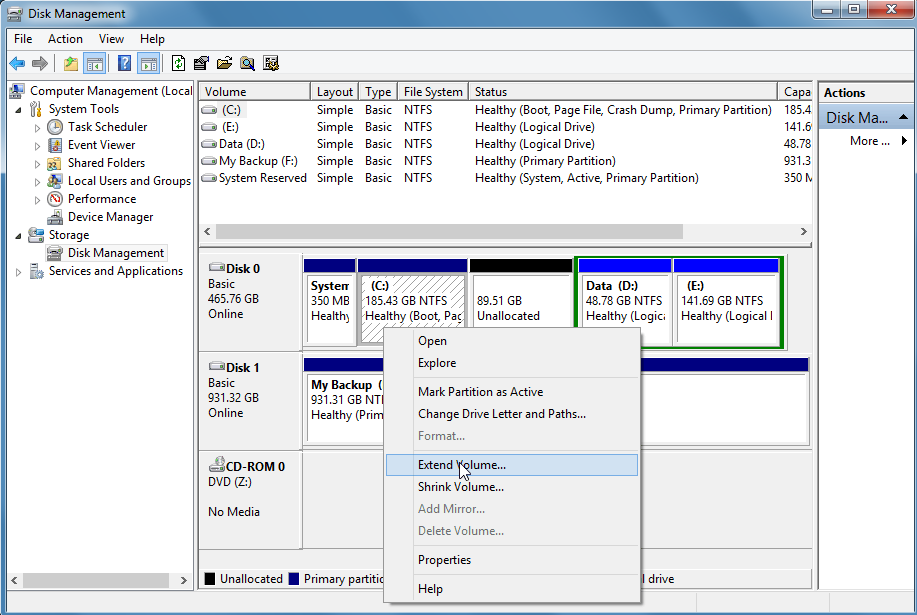
Step 1: Connect the mobile hard disk to the computer, press (Windows + R) keys at the same time, please enter (diskmgmt.msc) in the pop-up input box, and then click (OK) to enter the disk management.
Step 2: Right-click on the mobile hard disk, and then select (Properties) on the menu.
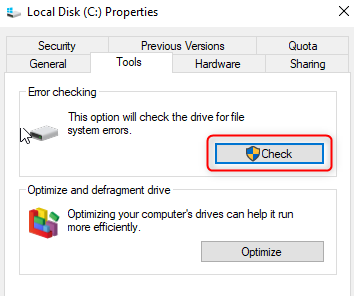
Step 3: In the (Tools) column, select (Check), and then wait for the scan and repair to complete. If there are file system errors, bad sectors, etc., you may need to restart the computer to complete the repair process.
If the mobile hard disk has bad sectors, you can use the chkdsk command to repair them. The operation steps are as follows:
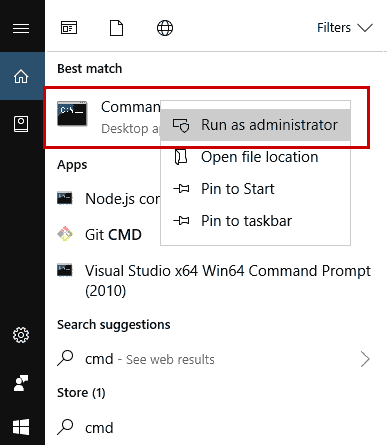
Step 1: Search (cmd) directly in the search box in the lower left corner, and select (run as administrator) to open the command prompt.
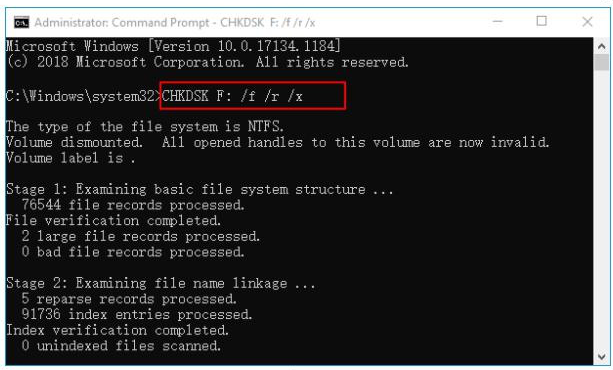
Step 2: Enter the command (chkdsk F: /f /r /x) in the command prompt and press the (Enter) key to fix the external hard disk error. After the mobile hard disk is repaired, please recheck whether the mobile hard disk works normally.
Chkdsk: Checks a volume’s file system and file system metadata for logical and physical errors.
F: Refers to the drive letter of the mobile hard disk partition;
/f will fix errors on disk;
/r will find bad sectors and restore readable information;
/x means to forcibly dismount the volume if necessary; any open handles to the drive will be invalidated.
Formatting the hard disk can solve many hard disk failure problems. Please do a good job of data backup before formatting. The specific steps are as follows:
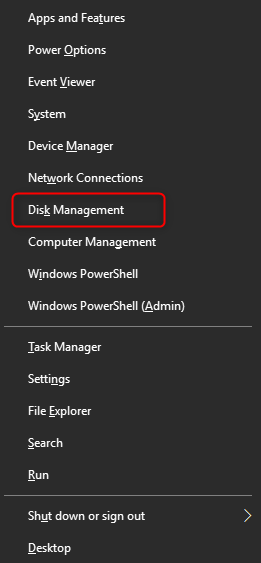
Step 1: Connect the faulty mobile hard disk to the computer, and press the (Windows+X) keys on the keyboard at the same time. Then in the pop-up list, select the (Disk Management) option.
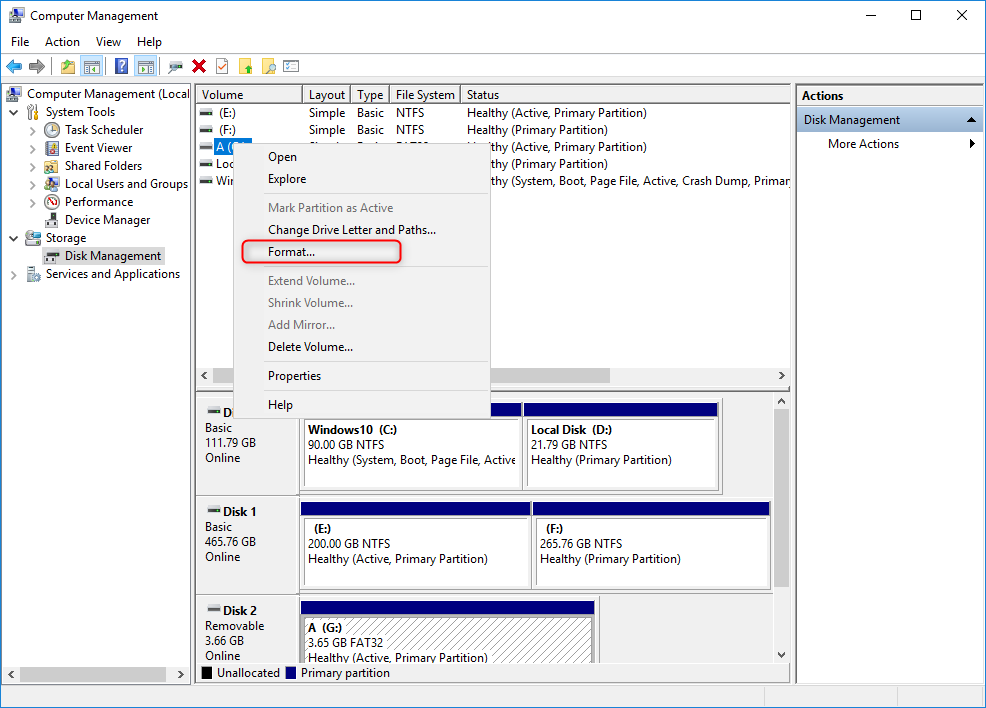
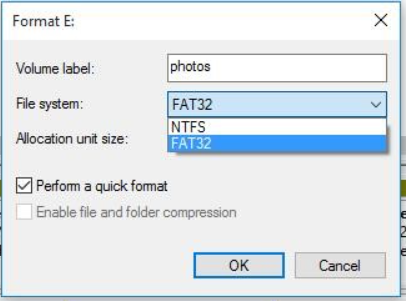
Step 2: Next, find the device that needs to be formatted, right-click on it and select the (Format) option.
Step 3: Select the required file system:
FAT32, NTFS or exFAT . If it is a mobile hard disk used in the Windows system, it is recommended to choose NTFS. Check (Perform a quick format), click (OK), and follow the instructions to complete the formatting process. After the formatting operation is completed, the mobile hard disk failure can be repaired.
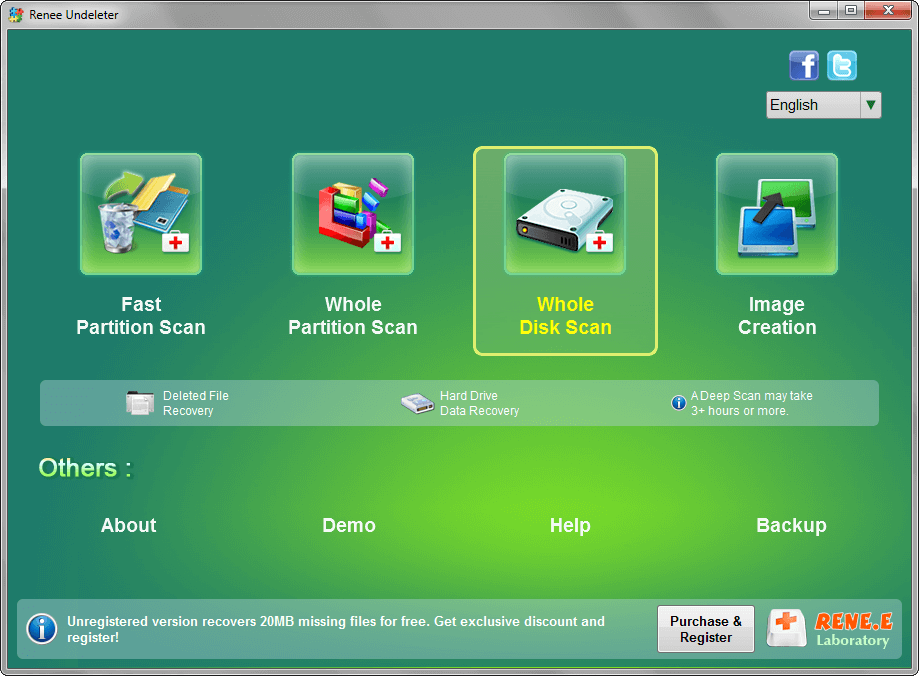
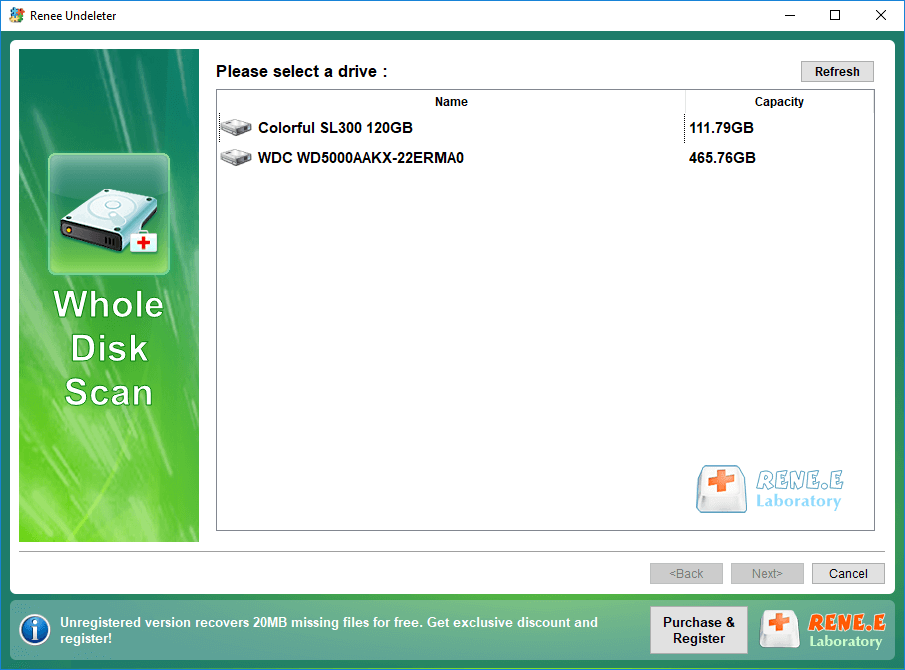
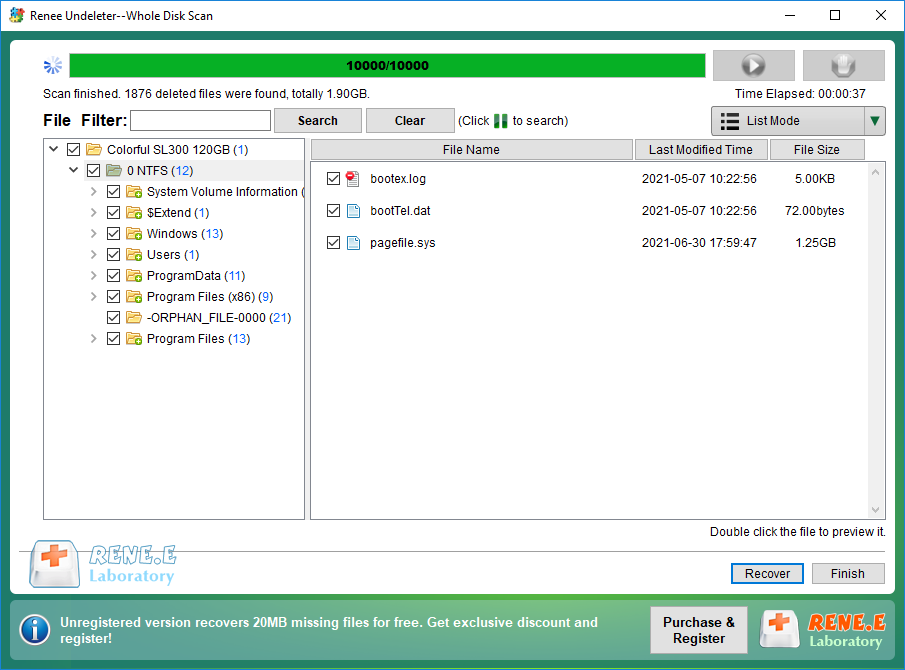
The above methods can help resolve issues with a stuck or frozen mobile hard disk. However, if the problem persists, it may be due to a high number of bad sectors, indicating that the hard disk is reaching the end of its lifespan. In such cases, it is advisable to backup your data and replace the portable hard drive. Additionally, if you have lost important data while formatting or using the hard disk, you can refer to the third-party data recovery options for mobile hard disks.




Comments
0 comments
Please sign in to leave a comment.