Table of contents

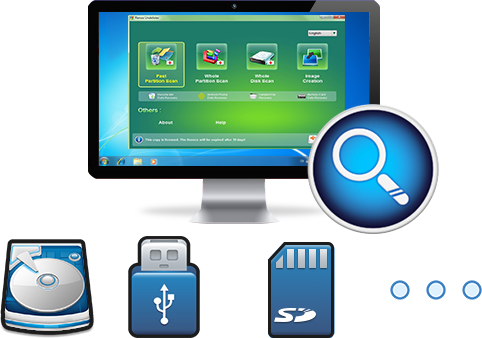
Easy to use Recover data by 3 steps;
Multiple scan modes Fast partition scan, whole partition scan and whole disk scan;
Supported file types Image, video, audio, text, email and so on;
Image creation Create a partition image to read and back up data;
Supported devices SD card, SDHC, SDXC, USB flash drive, hard disk and computer.
▽ Free Trial (Win) ▽ Free Trial (Win)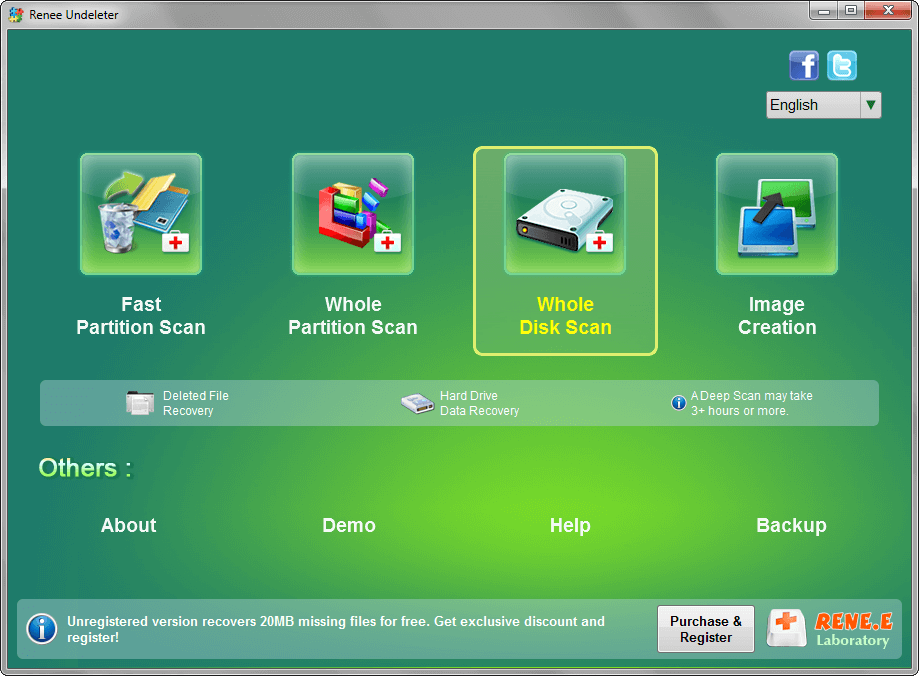
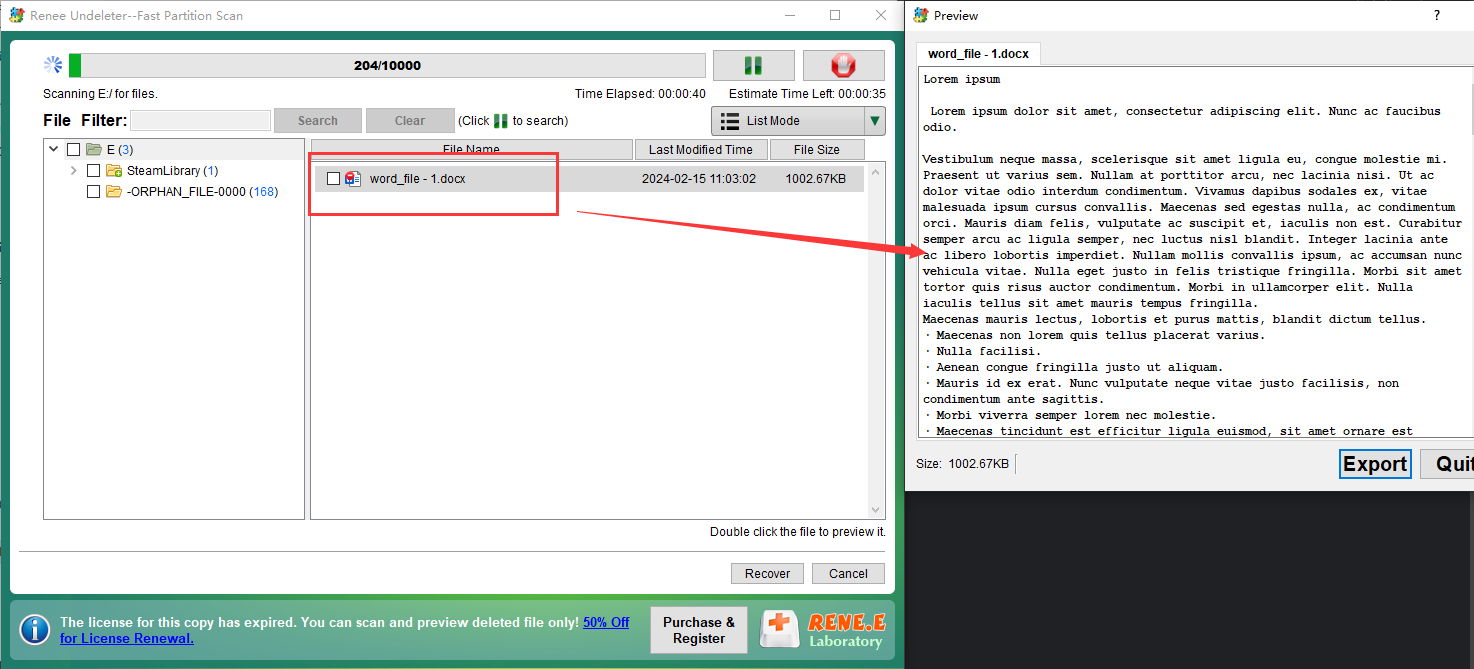
Fast Partition Scan – Quickly retrieve files lost due to accidental deletion or emptying the recycle bin.
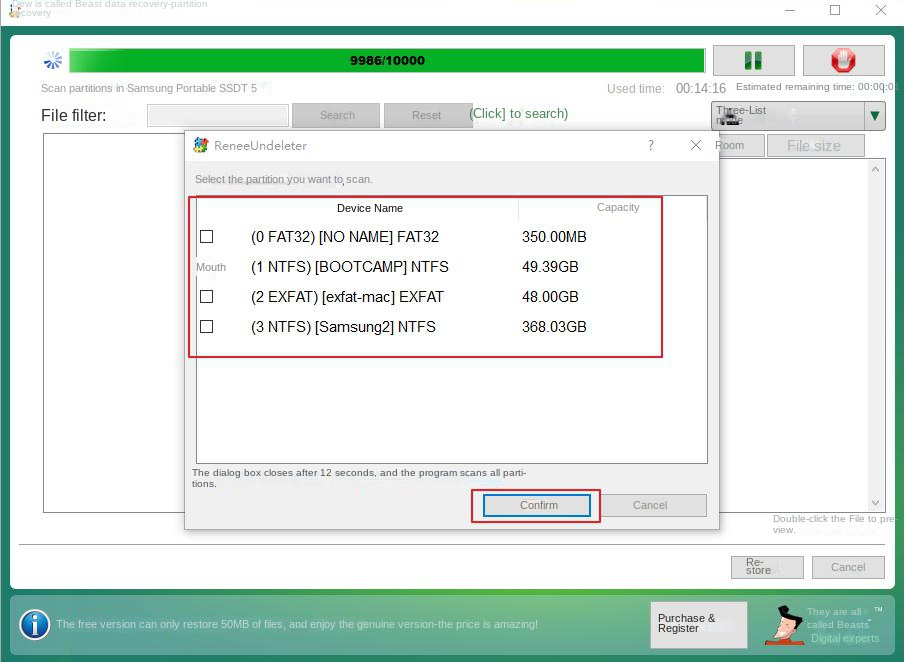
Whole Partition Scan – Quickly recover files lost due to inaccessible or formatted partitions.
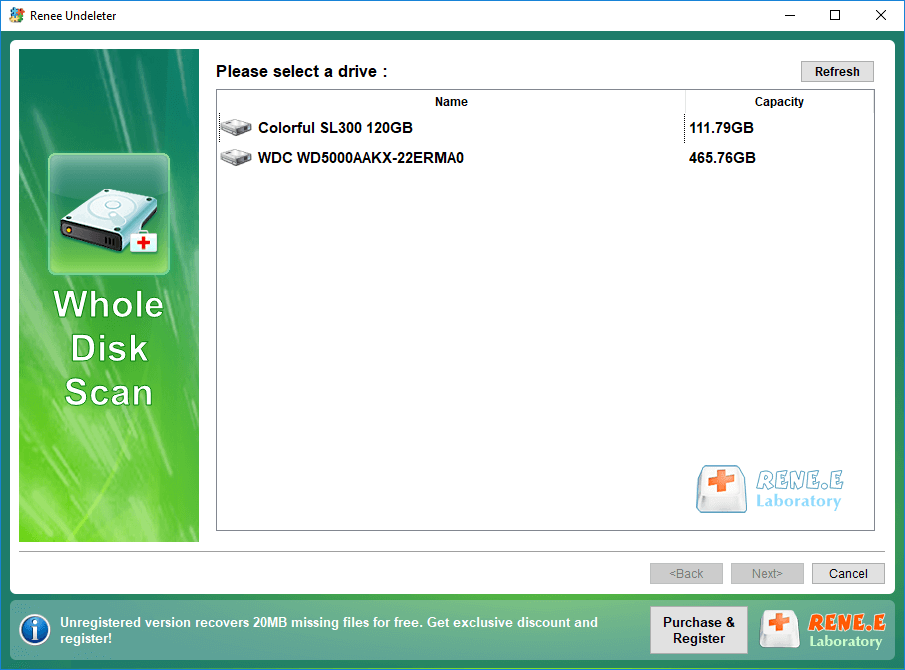
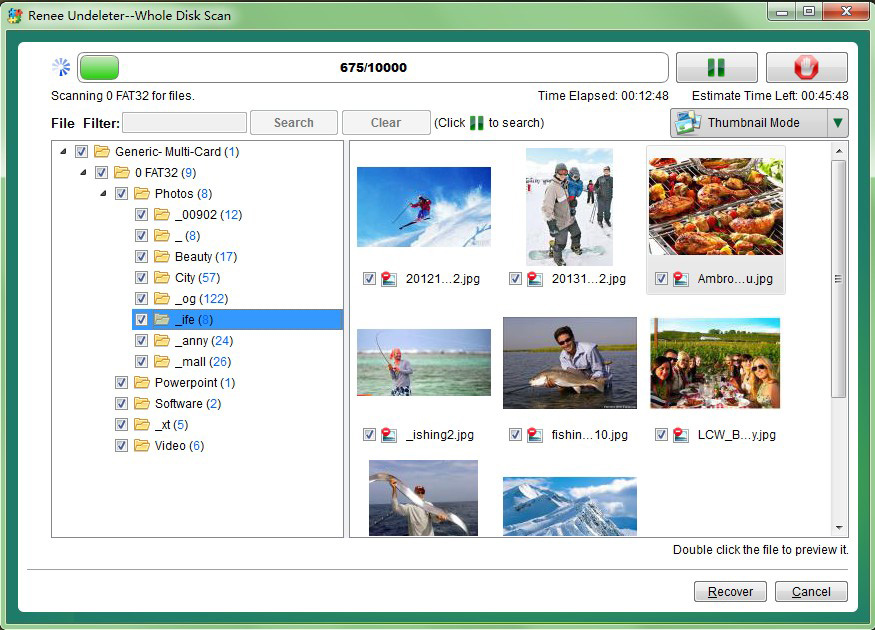
Whole Disk Scan – Analyze and get partition information and perform a full scan of the entire partition.
Image Creation – You can create a mirror image for a partition to back up the current partition state.
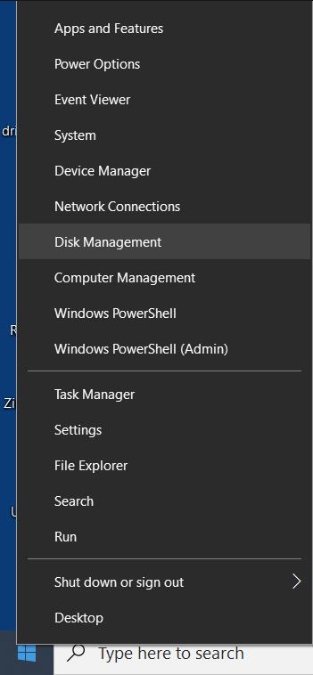
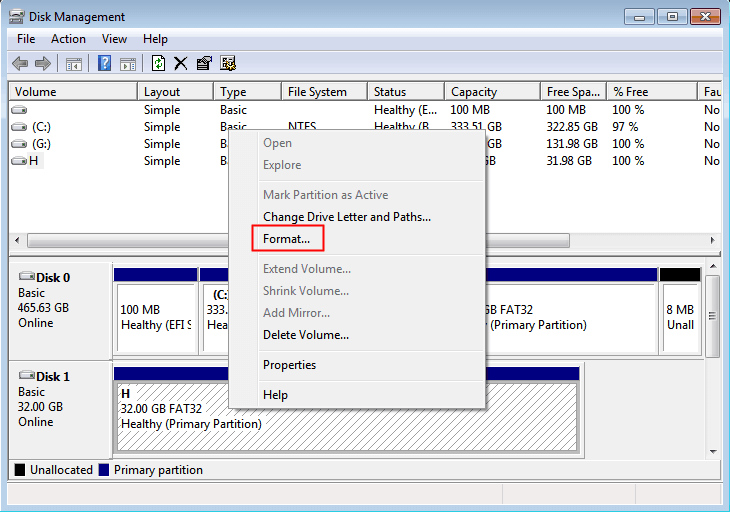
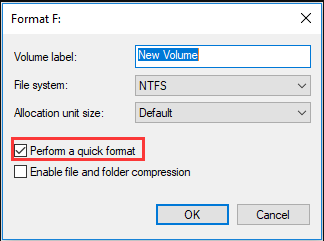
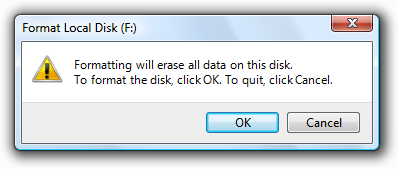
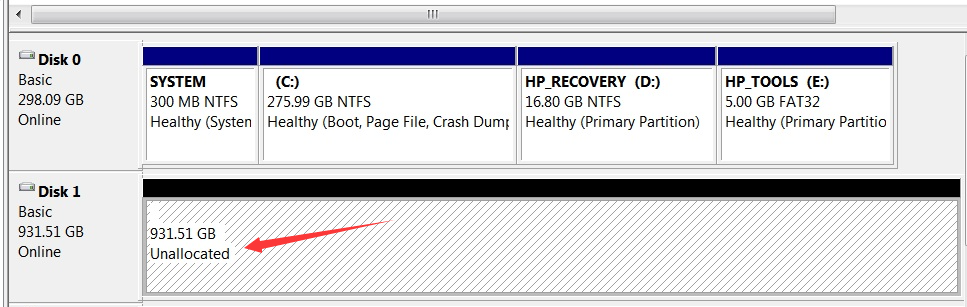
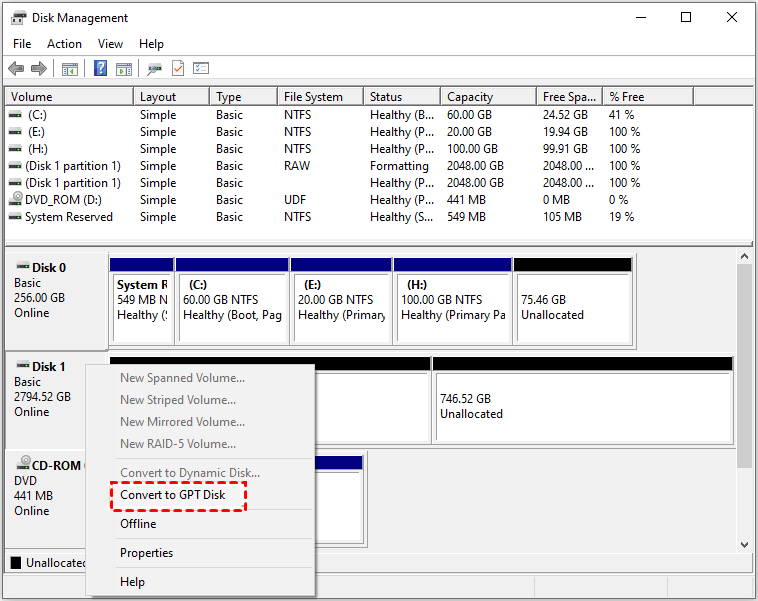
(diskmgmt.msc)
in the pop-up input box, and then click (OK) to enter Disk Management.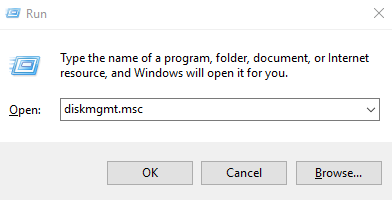
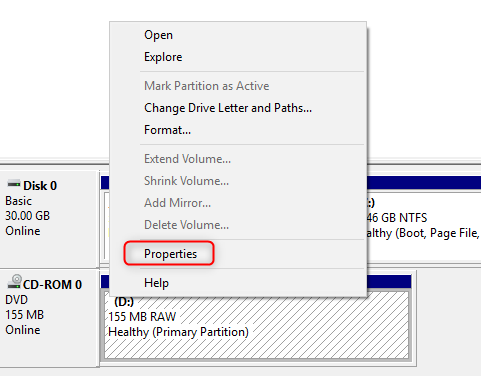
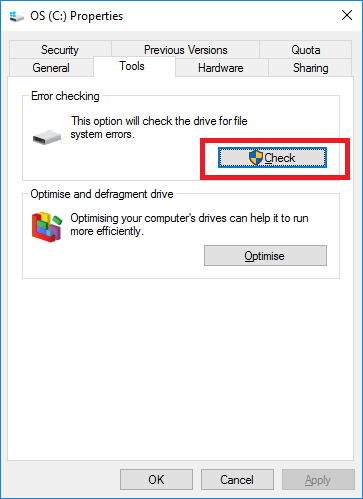
chkdsk
command. After repairing, the mobile hard disk’s capacity will display normally and can be used without issues: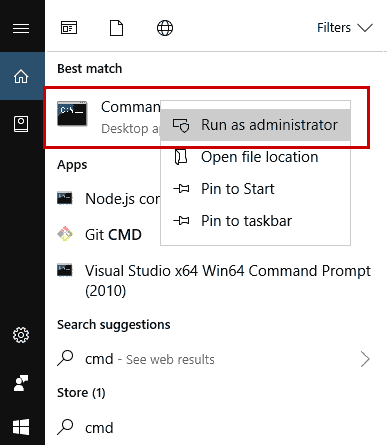
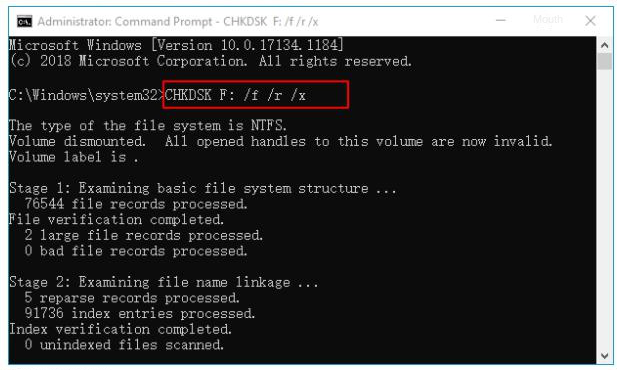
chkdsk F: /f /r /x
) command and press the ( Enter ) key to check and fix external hard drive errors.
Relate Links :
Hard Drive Won't Power Up - How To Fix and Recover Data

15-01-2024
Ashley S. Miller : Learn how to analyze and solve hard drive wont power up issues and restore lost data with the...
How To Find Pictures on Old Hard Drive Easily?

24-10-2023
Jennifer Thatcher : Learn how to find pictures from an old hard disk, even if it has problems. we will guide...
Maximize Space: How To Restore External Hard Drive To Full Capacity?

26-05-2024
John Weaver : Discover the reasons behind reduced hard disk capacity and find effective solutions for restoring factory hard drive capacity...
Recover Data from Formatted Hard Drive: Expert Tips

16-06-2024
Amanda J. Brook : Learn how to recover data from formatted hard drive using professional data recovery software, even if you haven't...
Maximize Your Hard Drive: Quick Fix for Full Capacity Access
Comments
0 comments
Please sign in to leave a comment.