Summary
Hard drive is the important hard drive in the computer. When the computer gets started, it is common that the running hard drive is slightly heated. But overheating is not good for the hard drive and the data may be lost. In this essay, we will talk about how to fix the overheating hard drive easily.

The normal temperature of the working hard drive is between 40℃ and 50℃, up to 70℃. Overheating can cause the data loss of the hard drive. Especially when the hard drive reaches to 100℃, it will be damaged. In addition, the hard drive will be overheated if it runs for a long time. Generally, you don’t need to repeatedly get the computer restarted until you see the warning notification pop up.
All in all, overheating can cause the hard drive to be damaged, crashed, and even the drive data is lost. Do you know why the hard drive is overheated? Here are the possible reasons.
1. Overheated environment. When the external environment is too hot, like 30℃ in Summer, the hard drive is easily overheated. You can clear the host case and turn on the air conditioner/fan to cool down the hard drive physically.
2. Too many running programs. If you launch too many programs, they will take up many CPU resources. That can cause the hard drive to be overheated. You can end up some of the running programs at this situation.
3. Damaged sectors in the hard drive. The hard drive will be overheated if there are too many bad sectors in the hard drive.
4. Virus attack. If the hard drive is attached by the virus, the data will be damaged and lost. What’s more, frequent read-write operations can cause overheating hard drive. You should use the anti-virus software to scan and fix the problems.
5. Damaged fan. If the computer fan doesn’t work, the hard drive will not cool down. Please shut down the computer and change the damaged fan.
From the above content, we’ve learned about the reasons and the consequences of the overheating hard drive. You can shut down the computer to cool it down. If the data is unfortunately lost, Renee Undeleter is here to help you. Windows and Mac users can easily recover the lost data with the software.
Renee Undeleter is the data recovery software. When the users accidentally delete the important files, empty Recycle Bin, or format the disk/drive, the software can retrieve the deleted data. It contains 4 options, namely fast partition scan, whole partition scan, whole disk scan and image creation. These functions can help the users easily recover the lost data.
It is easy to recover the lost data with Renee Undeleter. Here are the steps.
Step 1: Download and install Renee Undeleter. Open the software and then get into [ Whole Disk Scan ].
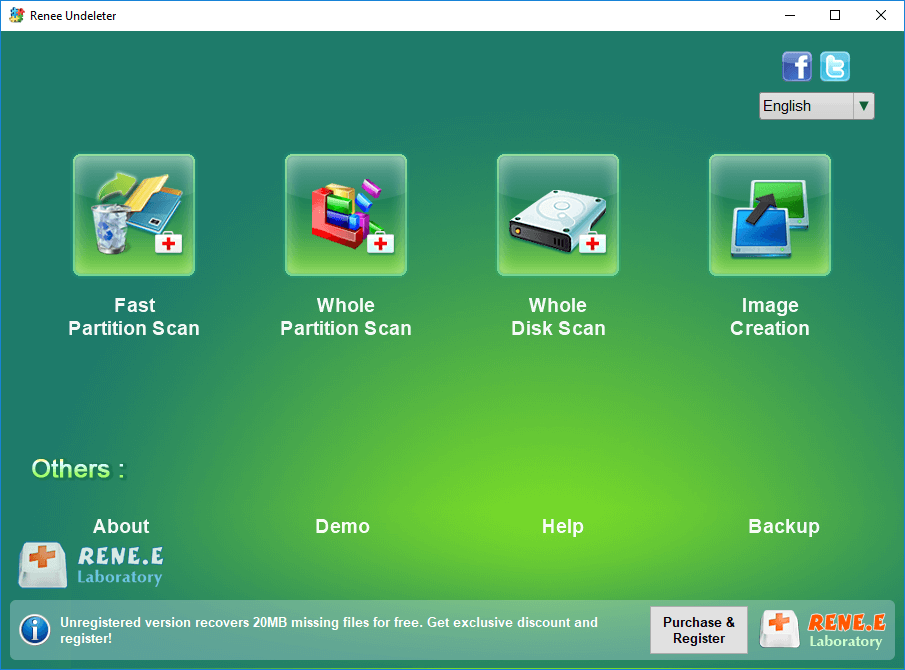
Functions of different recovery modes:
- Fast partition scan: Recover the files after emptying Recycle Bin or deleted by mistake without data backup.
- Whole partition scan: Scan the whole partition and list all files, especially for the formatted partition or inaccessible issue.
- Whole disk scan: Scan entire disk to find out all partitions’ information and simulate the partition table.
- Image creation: Clone a partition image which can be used in case that reading partition is slow or need a backup.
Step 2: Next, select the disk to scan and click on [ Next ] to go on.
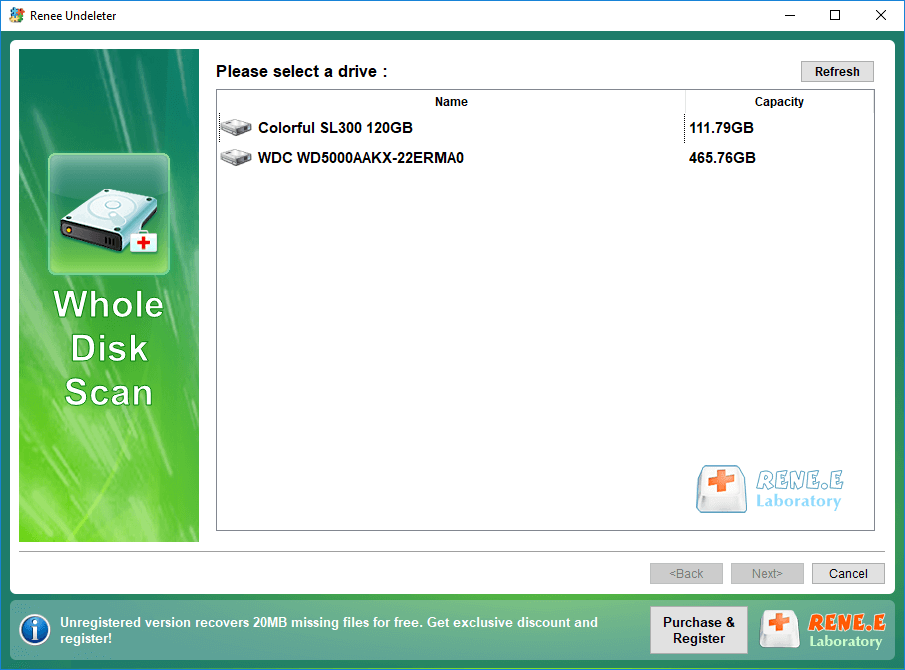
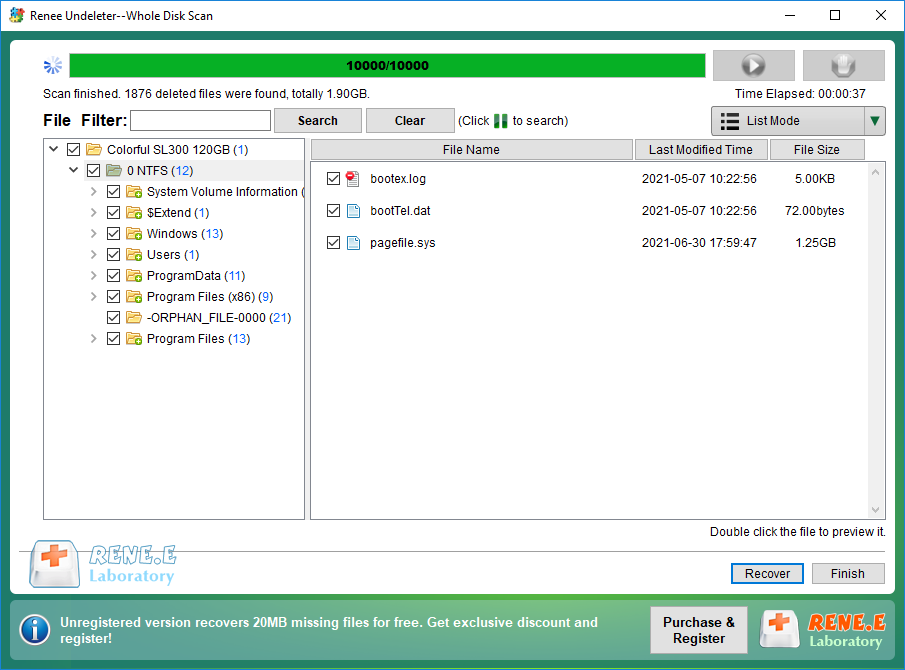
Step 3: After that, select the partition you want to scan. Wait for the scan and then select the file to be recovered. Then, click on [ Recover ] to recover the lost files.
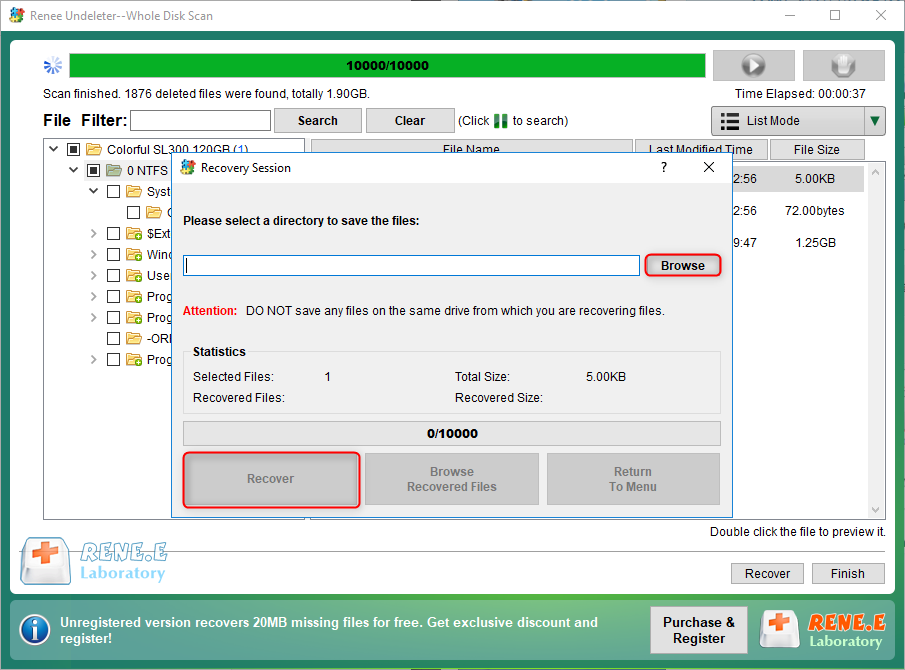
Step 4: Select a destination folder to save the recovered files and finally click on [ Recover ] to save the files.
When you recover the lost data, you continue to use the following methods to cool down the overheated hard drive.
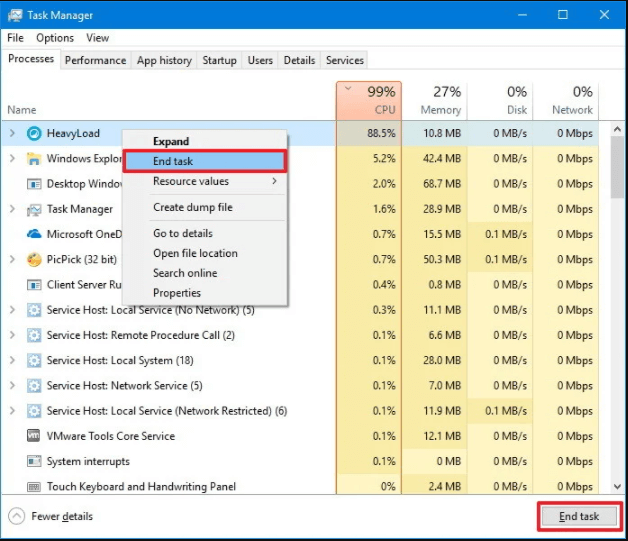
If you launch too many programs, you can shut down some of them to relief the burden on CPU.
Press the keys [ Ctrl + Alt + Delete ] to open [ Task Manager ]. Or right click at the task bar to open. Then, under the [ Processes ] tab, select the programs and click on [ End task ] to shut them down.
When you get the computer started, some unnecessary programs will run in the background. But they take up the CPU resources and cause the hard drive to be overheated. You can disable some of these startups. Here are the steps.
Right click at the task bar and select [ Task Manager ]. Switch to the [ Start-up ] tab. Then, select the unnecessary programs and click on [ Disable ].
Step 1: Open [ This PC ]. Right click at the target drive and select [ Properties ]. Switch to the [ Tools ] tab, and then click on [ Check ].
Step 2: Next, in the [ Error Checking ] window, select [ Scan drive ] and follow the prompts to fix the drive errors.
Relate Links :
How If Unknown USB Device Appears?

06-07-2021
Jennifer Thatcher : USB flash drive is the portable storage device saving the important content. Of course, it is easy to...
How to Free up C Disk Space When Running out of Space?

13-05-2024
Ashley S. Miller : C disk is exactly important for it is the default startup hard disk. Each time we launch the...
Comments
0 comments
Please sign in to leave a comment.