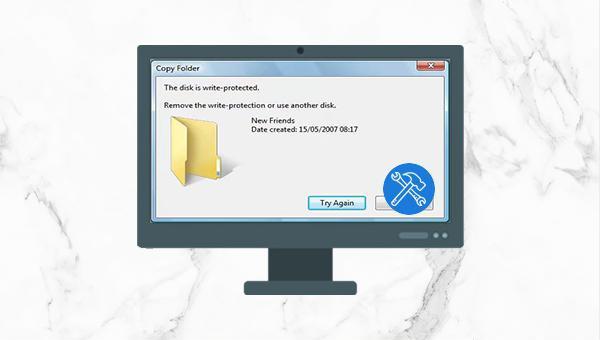
I. The solution that the U disk is write-protected and cannot copy files into it?
1. Check whether the U disk is infected with virus
When the U disk cannot copy files into it, it looks like the U disk is write-protected. In fact, it may also contain viruses in the U disk. It is recommended to use virus scanning software (such as Windows Defender or 360 antivirus software, Norton antivirus software, McAfee software, etc.) to conduct a comprehensive scan on the U disk to rule out virus infection. If the U disk is not infected with viruses, continue to deal with the problem of U disk write protection.
2. Turn off the write protection switch of the U disk
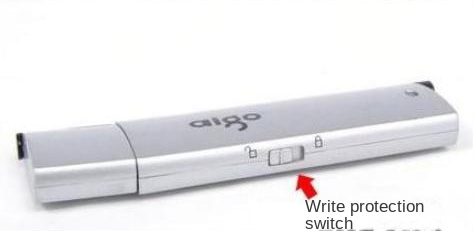
Some U disks have a write-protect switch. When you find that the U disk cannot be copied, modified or stored in new data, you can try to turn off the U disk write-protect switch. If the write protection switch is turned off, but the USB flash drive is still in the write-protected state, it may be that the operating system has protected the USB flash drive, and you can try the following methods to remove it.
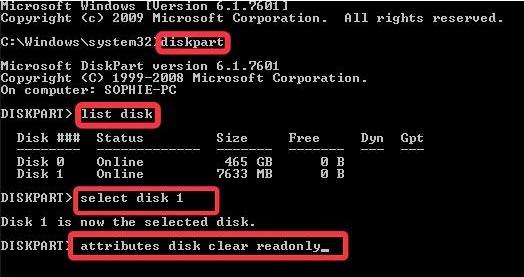
3. Use the Diskpart command to clear the read-only attribute of the U disk
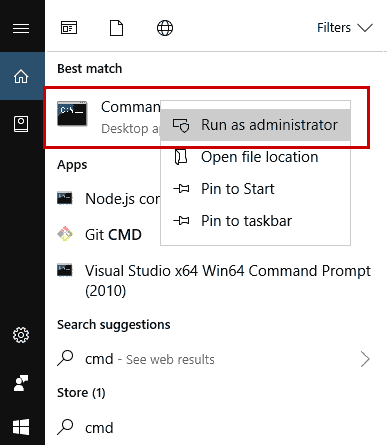
Step 1: Connect the U disk to the computer, enter (cmd) in the search box, right-click (command prompt), and select (run as administrator).
Step 2: Please enter the following commands in sequence, and press the (Enter) key once for each line of command input:
list disk (will list all disks in the computer)
select disk 1 (1 indicates the disk number of the U disk, which can be judged according to the capacity and modified accordingly)
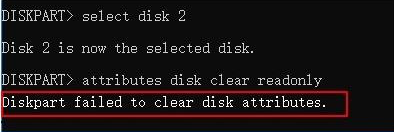
attributes disk clear readonly (clear the read-only attribute of the disk)
Kind tips If the prompt “Diskpart failed to clear disk attributes” appears after entering the (attributes disk clear readonly) command, it may be because the physical write protection switch of the U disk is still closed, or it may be because the U disk A bad sector or file system error has occurred, which can be checked and repaired using the Windows Error Checking tool.
4. Remove the write protection of the U disk in the registry
There are write-protected settings in the registry, which can prevent all mobile devices from writing any data. The following are the steps to remove the write protection of the U disk in the registry:
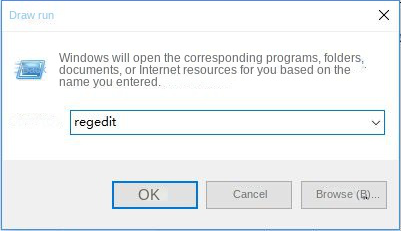
Step 1: Press the (Windows+R) key at the same time, enter (regedit) and click (OK).
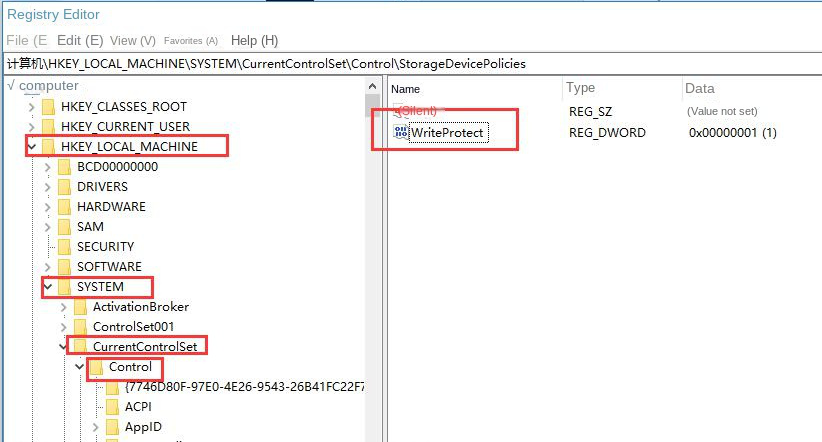
Step 2: Locate the WriteProtect value in the registry at the following path:
HKEY_LOCAL_MACHINE\SYSTEM\CurrentControlSet\Control\StorageDevicePolicies
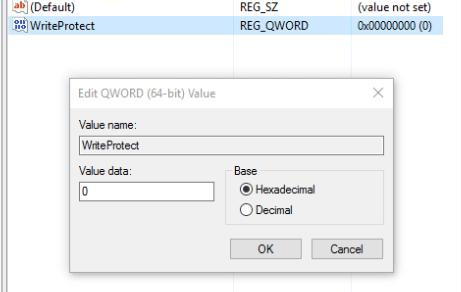
Step 3: Double-click WriteProtect and change its value from 1 to 0 to remove the write protection. After the modification is complete, please restart the computer.
Kind tips If you do not find the WriteProtect value in the registry, you can try to disable the (Removable Disk: Deny write permission) setting in the local group policy editor.
5. Check whether the copied file is read-only
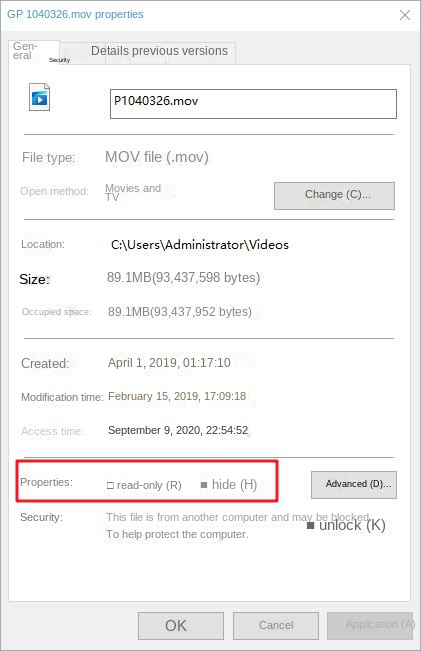
If the file you need to copy to the USB flash drive is in read-only mode, it will also cause the problem that it cannot be copied to the USB flash drive. You can right-click the target file, select (Properties), and check whether the properties at the bottom of the pop-up window are checked (read-only). If so, please cancel it and try again.
6. Reconnect the U disk and update the driver
When the U disk is not connected correctly or there is a problem with the driver, it may also cause the U disk to fail to copy files into it, and you can follow the steps below to deal with it.
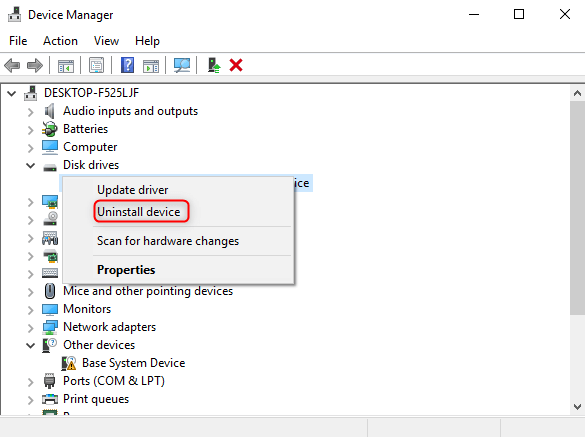
Step 1: Right-click on the Start menu and select (Device Manager).
Step 2: Expand (Disk Drive), right-click the USB flash drive, and select (Uninstall Device).
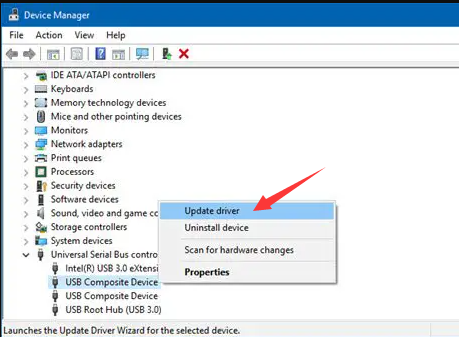
Step 3: Remove the U disk, and then reconnect it to the computer, the U disk will be automatically recognized in the device manager. In addition, you can also right-click on the U disk and select (Update Driver).
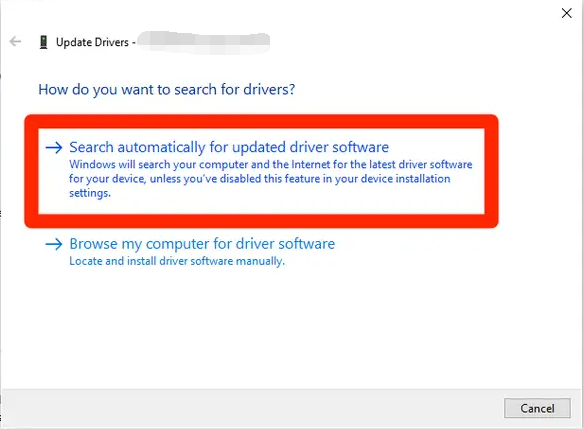
Step 4: Select (Automatically search for drivers) and wait for the update to complete. Then copy the file to the U disk again to see if the problem is resolved.
7. Try to format the U disk
If there are some faults in the U disk, it may also cause the files to be unable to be copied. You can try to format the U disk in Disk Management or File Explorer. The steps are very simple. Just right-click the U disk and select (Format), and then set the U The volume label, file system, and allocation unit size of the disk are sufficient. You can also format the USB drive through the command prompt. Please note that it is best to do a good job in advance before formatting the U disk file backup , so as not to lose important data .
Step 1: Search (Command Prompt) or (CMD) in the search bar, right-click (Command Prompt) and select (Run as administrator).
Step 2: Enter the (Format F: /x) command in the opened command prompt window (where F is the drive letter of the U disk, which can be entered according to your own situation), and press the (Enter) key to run. After the operation is complete, you can format your U disk.
 I. The solution that the U disk is write-protected and cannot copy files into it?



Comments
0 comments
Please sign in to leave a comment.