
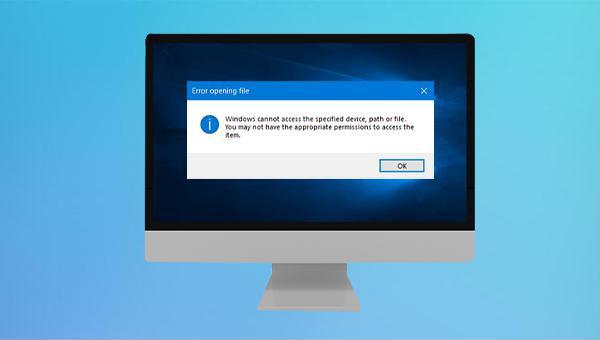
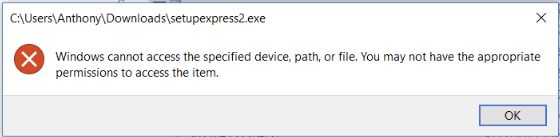
- The program or file is locked and cannot be opened.
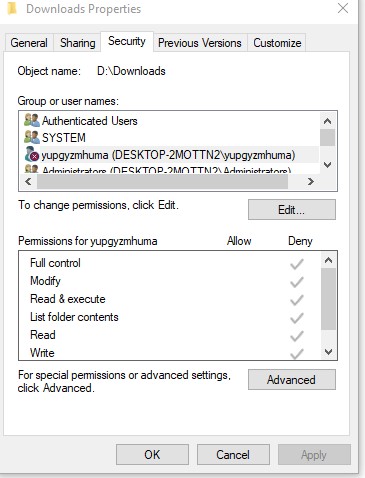
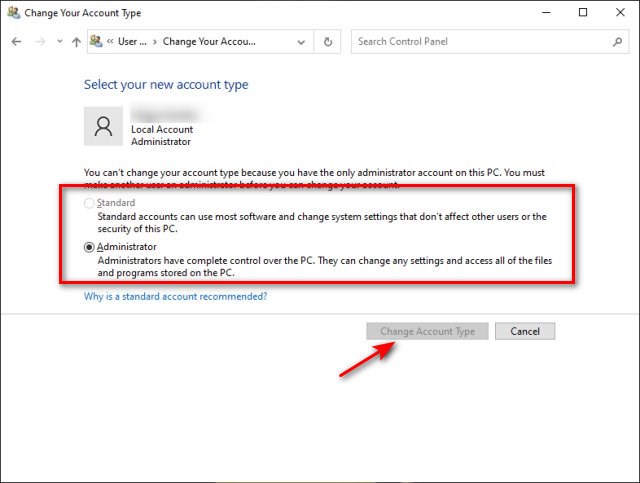
- The user account lacks administrator privileges, which are required for certain programs or files.
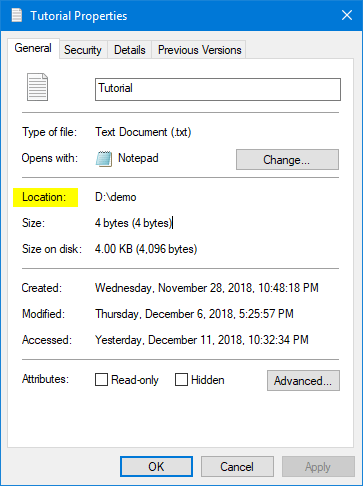
- The program or file has been moved to a different folder or there is an error in the file path, preventing access.
- Poor connection with an external device can also hinder access to programs or files stored on the device.
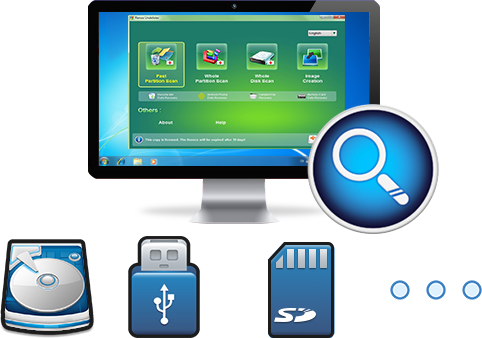
Easy to use Recover data by 3 steps;
Multiple scan modes Fast partition scan, whole partition scan and whole disk scan;
Supported file types Image, video, audio, text, email and so on;
Image creation Create a partition image to read and back up data;
Supported devices SD card, SDHC, SDXC, USB flash drive, hard disk and computer.
▽ Free Trial (Win) ▽ Free Trial (Mac)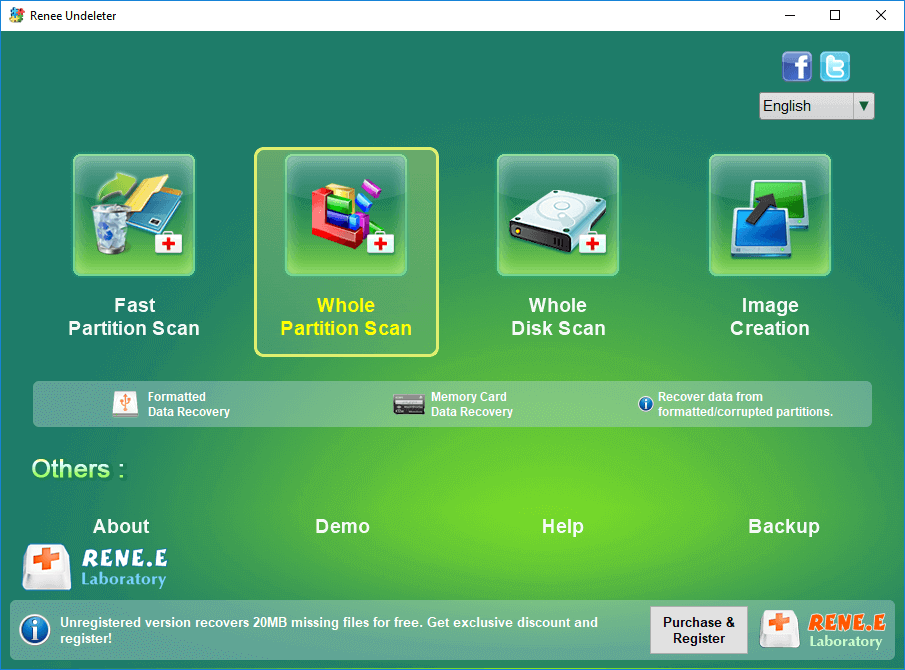
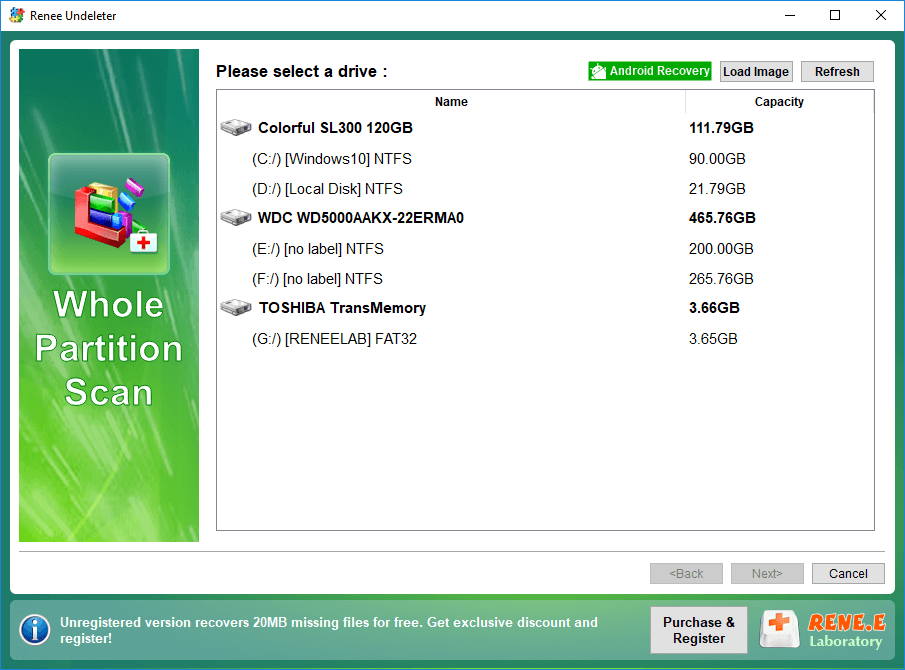
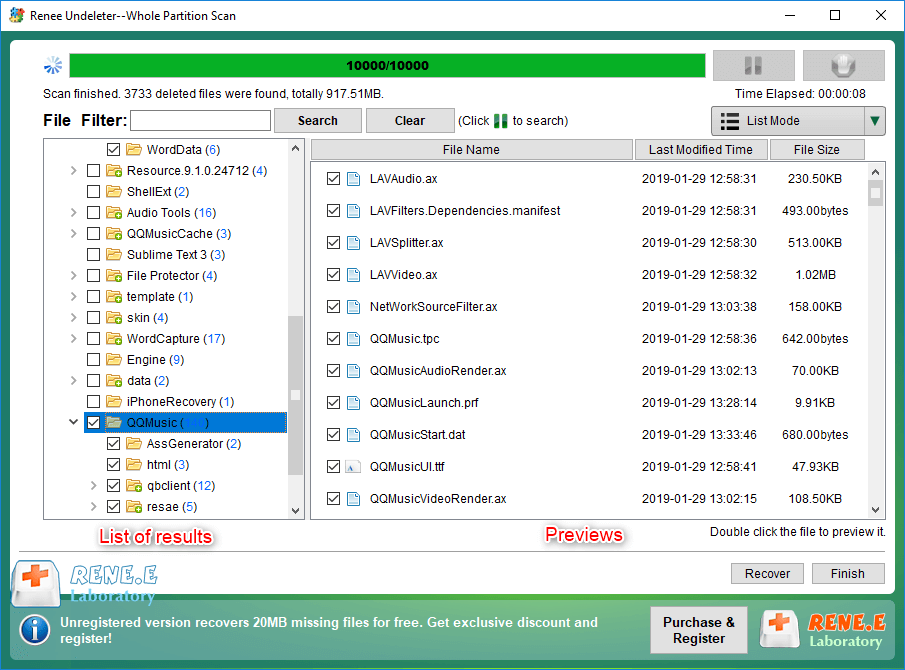
Easy to use Recover data by 3 steps;
Multiple scan modes Fast partition scan, whole partition scan and whole disk scan;
Supported file types Image, video, audio, text, email and so on;
Image creation Create a partition image to read and back up data;
Supported devices SD card, SDHC, SDXC, USB flash drive, hard disk and computer.
▽ Free Trial (Win) ▽ Free Trial (Mac)Relate Links :
SATA Interface Hard Drive: Data Recovery Guide

26-05-2024
John Weaver : Dive into the specifics of SATA hard drives. Explore proficient strategies for data recovery from seemingly lost or...
Seagate External Hard Drive Data Recovery: Find Your Lost Files Easily

01-03-2024
Ashley S. Miller : Seagate, a renowned hard drive manufacturer, offers beloved mobile hard drives. If you encounter data loss on a...
Top Data Recovery Software for Hard Drives

07-06-2024
Jennifer Thatcher : Discover top hard drive data recovery software tailored to various needs, preventing data loss and restoring deleted files...
Hard Drive Data Recovery on Mac: Recommended Solutions
24-04-2024
John Weaver : Learn effective solutions for Mac hard drive recovery from accidental deletions, disk failures, or disruptions in our comprehensive...
Fix: Windows Cannot Access The Specified Device Path or File
Comments
0 comments
Please sign in to leave a comment.