II. How to recover lost/deleted partitions and the data in them?
Avoid
unnecessary read and
write operations on the
lost partition to prevent data overwriting. Use data recovery software like
Renee Undeleter for successful recovery.
1. Use Renee Undeleter to restore partition data
Renee Undeleter is a software designed to restore various data files. It covers four functional modules:
file recovery ,
format recovery ,
partition recovery , and
image creation , providing a comprehensive solution for all data loss issues.
Renee Undeleter - Powerful Data Recovery Software 
Easy to use Only simple steps to recover data from storage devices.
Multiple scan modes Fast partition scan, whole partition scan and whole disk scan for different recovery needs.
File types Support to recover pictures, videos, audios, documents, mails, etc.
Supported storage devices Recover data from recycle bin , SD card , external disk , etc.
Supported systems Windows 10, 8.1, 8, 7, Vista, XP, 2000 and Mac OS X10.6, 10.7, 10.8.
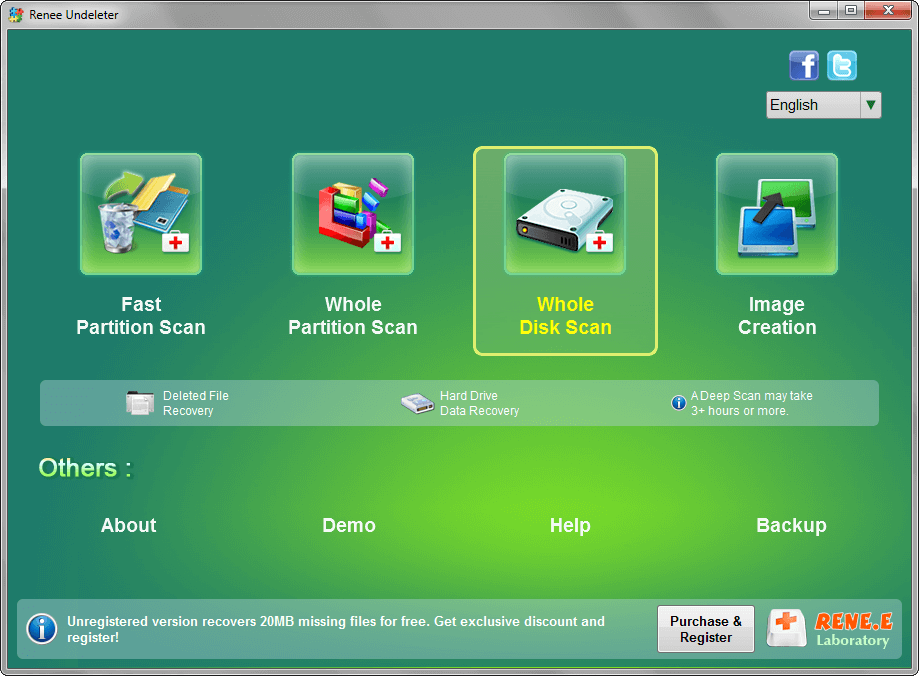
Step 1: Download, install and run Renee Undeleter on the computer, and select the ( Whole Disk Scan ) option on the main interface.
Notice : Do not install Renee Undeleter in the disk where data is lost to avoid data overwriting.
Data recovery function introduction:
Fast Partition Scan: Quickly retrieve files lost due to accidental deletion or emptying the recycle bin.
Whole Partition Scan: Quickly recover files lost due to inaccessible or formatted partitions.
Whole Disk Scan: Partition information can be analyzed and obtained, and the entire partition can be fully scanned.
Image Creation: A mirror can be created for a partition to back up the current partition state.
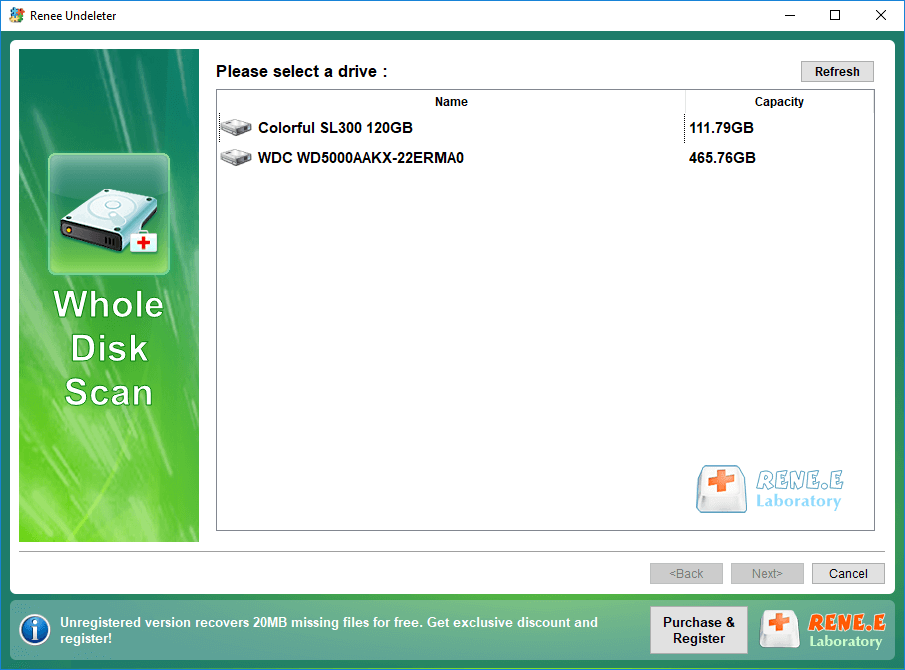
Step 2: Next, you can select the corresponding disk (that is, the disk where the lost partition is located) according to the disk capacity. After the selection is complete, click (Next).
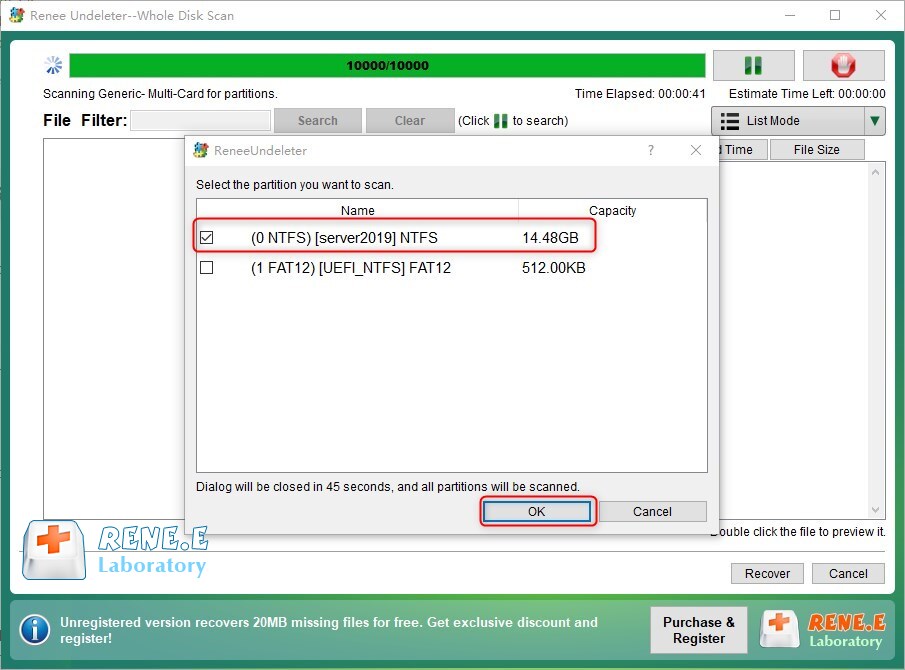
Step 3: Please wait patiently for the scan to find all existing partitions on the disk. Select the lost partition to scan, or all partitions will be scanned for more data.
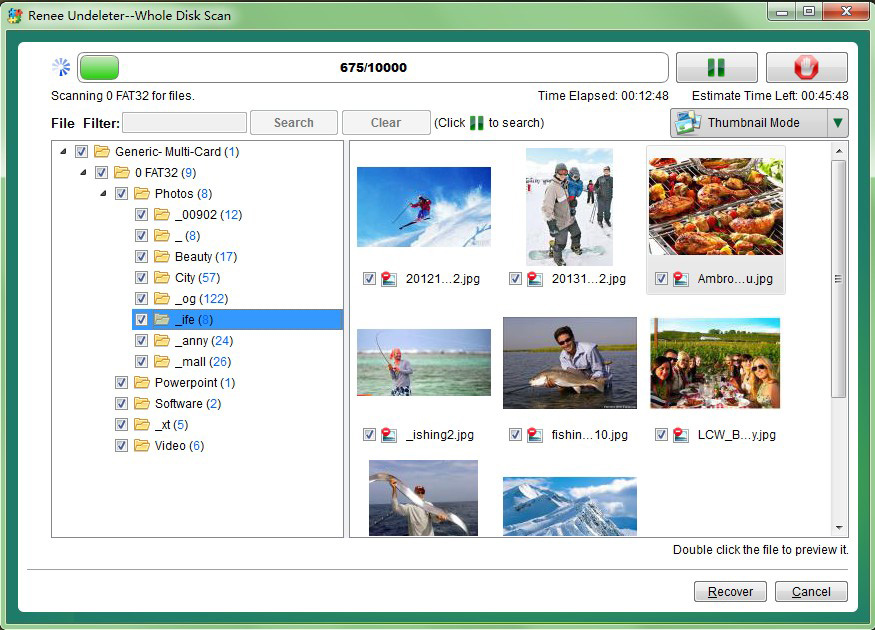
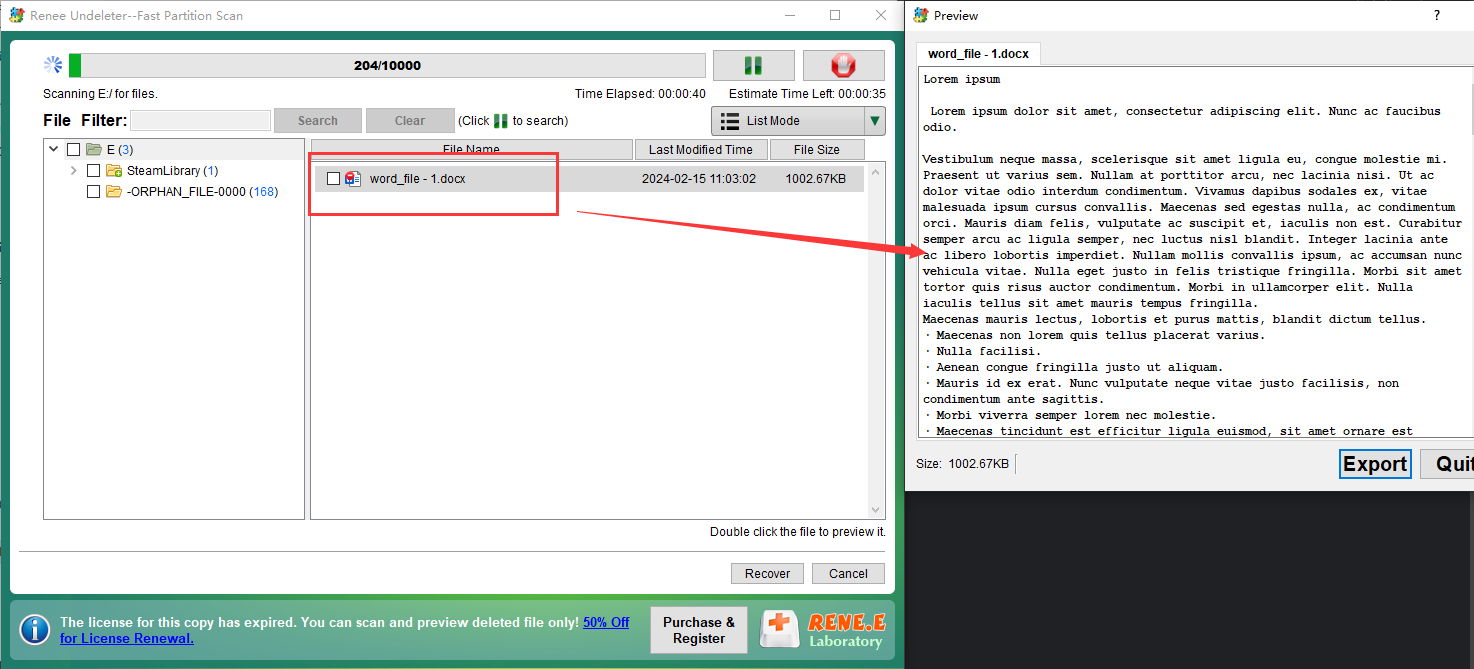
Step 4: Preview files during scanning, select target file, and click Recover button to restore data to other computer disks.
Renee Undeleter - Powerful Data Recovery Software
Easy to use Only simple steps to recover data from storage devices.
Multiple scan modes Fast partition scan, whole partition scan and whole disk scan for different recovery needs.
File types Support to recover pictures, videos, audios, documents, mails, etc.
Supported storage devices Recover data from recycle bin , SD card , external disk , etc.
Supported systems Windows 10, 8.1, 8, 7, Vista, XP, 2000 and Mac OS X10.6, 10.7, 10.8.
2. Restore the partition in Disk Management
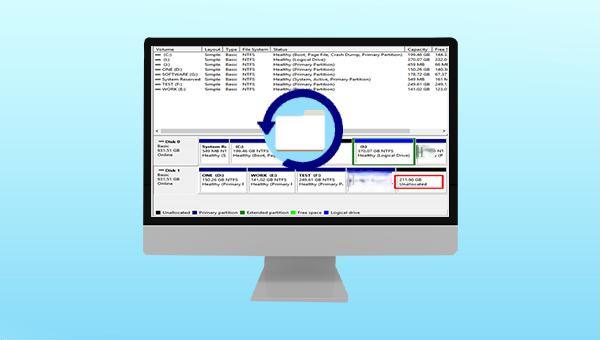
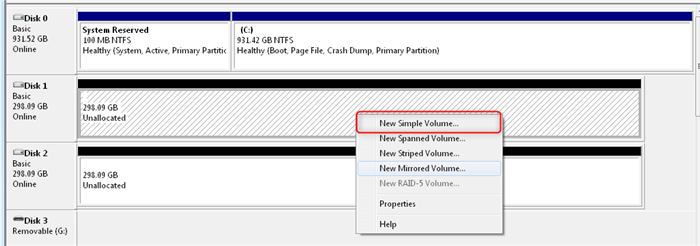
When a partition is lost and appears as “ unallocated ” in black color in disk management, you can restore it by creating a simple volume after recovering important data.
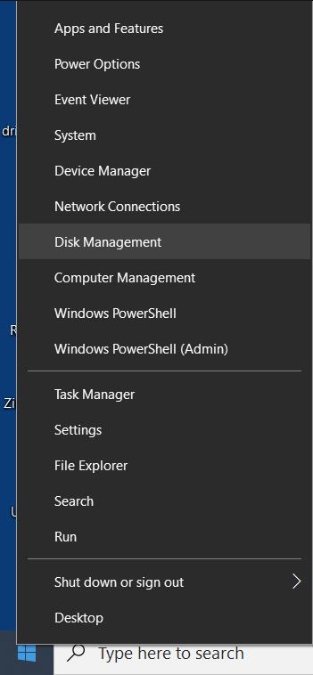
Step 1: Press the (
Windows+X
) keys on the keyboard at the same time. Then in the pop-up list, select the ( Disk Management ) option.
Step 2: Then right-click on the unallocated space on the disk and select the ( New Simple Volume ) option.
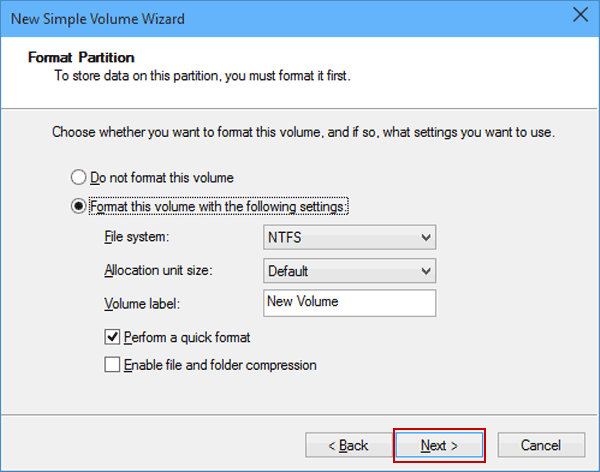
Step 3: Customize the partition size, drive letter, file system, and other parameters. Refer to: Features and differences of
NTFS, exFAT, FAT32 to choose the appropriate file system. Click the
(Finish) button to complete the creation of the partition. Access the partition in the file explorer and migrate back the previously restored original partition data.
3. Recover the partition by adding a drive letter to the partition
If the drive letter of the partition is incompatible or the system does not assign a drive letter to the partition, it cannot appear in the file explorer. You can add a drive letter to the partition through the following two methods.
①Add a drive letter through Disk Management
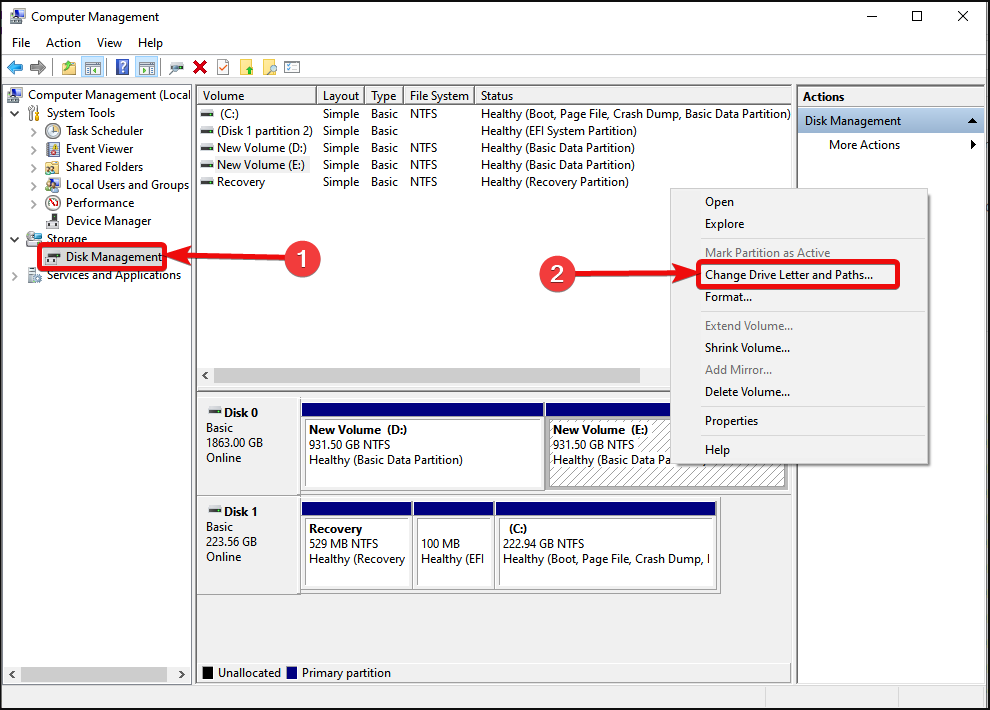
Disk Management can not only create a new simple volume, but also assign a drive letter. If you find that the disk partition does not have a drive letter in Disk Management, you can follow the steps below.
Step 1: Press the Windows icon + X key at the same time, select (Disk Management) in the menu, right-click the partition without a drive letter, and select (Change drive letter and path).
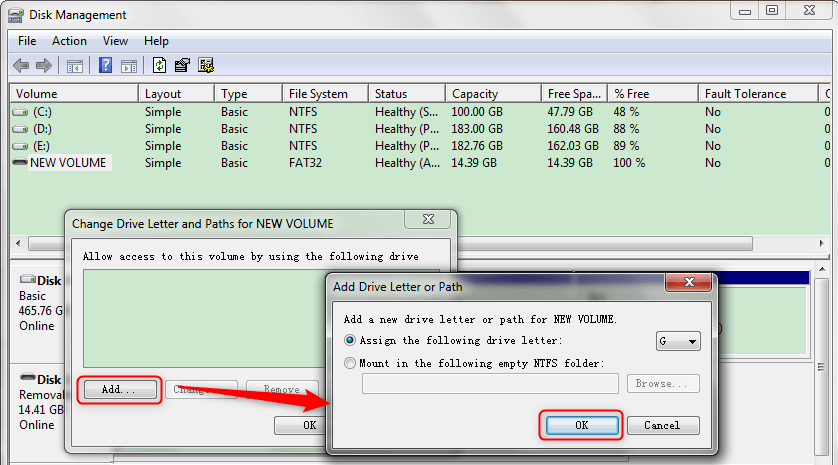
Step 2: Click (Add), assign a drive letter to the partition/volume, and click (OK).
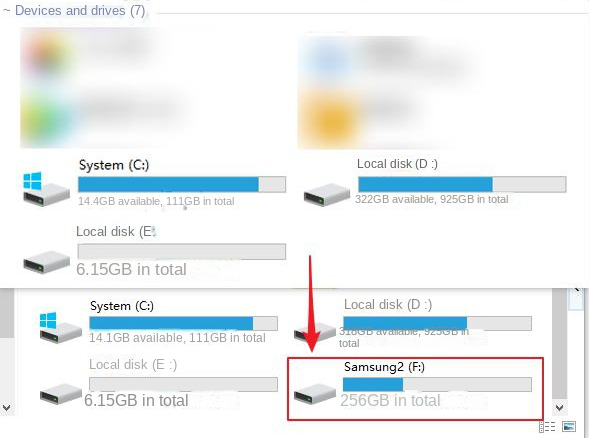
Step 3: Then open “My Computer/This Computer” on the desktop, and you can see the hard disk partition that had disappeared, which means that the partition has been restored to normal.
② use cmd add drive letter
cmd.exe is the command prompt, through which we can add a drive letter to the partition.
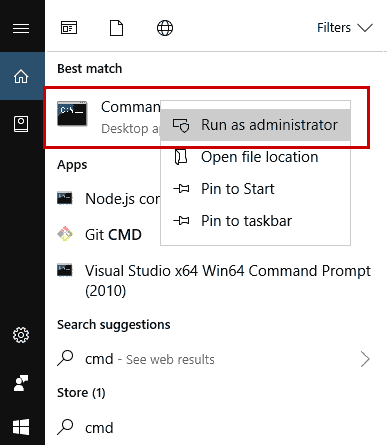
Step 1: Start the computer, enter (cmd) in the search box, right-click (Command Prompt), and select (Run as Administrator).
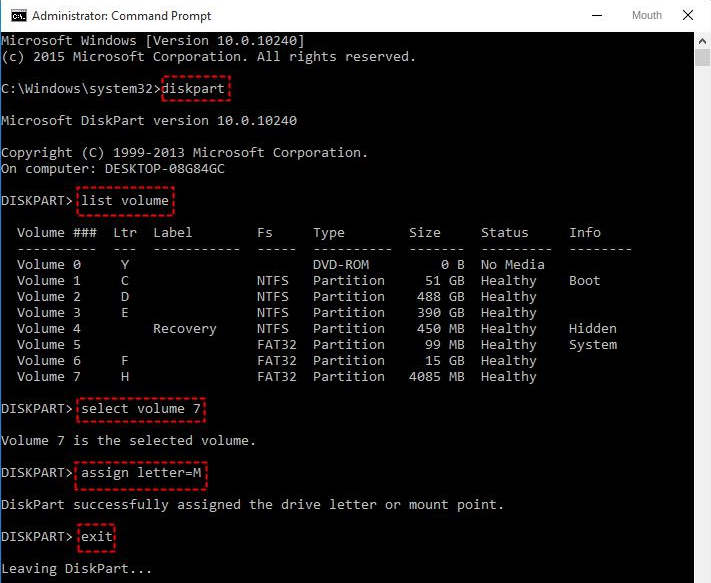
Step 2: Please enter the following commands in sequence, and press the (Enter) key once for each line of command input:
(will list all volumes/partitions in the computer)
(7 means the partition number that needs to add a drive letter, which can be judged according to the capacity and modified accordingly)
(add drive letter M, M can be replaced by other unused English letters)




Comments
0 comments
Please sign in to leave a comment.