II. How to recover deleted or unsaved PPT files?
1. Use Renee Undeleter to restore deleted PPT
Renee Undeleter is software designed to restore various data files. It can recover lost data from
accidental deletion ,
emptying the recycle bin , or
disk/storage formatting . The software includes four functional modules for
file recovery ,
format recovery ,
partition recovery , and
image creation , providing comprehensive solutions for various data loss scenarios during system use.
Renee Undeleter - User friendly & Helpful Formatted Data Recovery Software 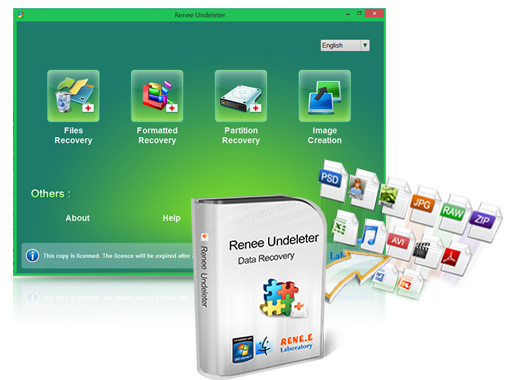
Easy to use 3 steps to recover formatted data back.
Multi Recovery Modes File recovery, Whole partition recovery and Whole disk recover are available.
Support Different File Types Photos, videos, audios, files, emails, etc.
Image Creation Creat image for disk or parititon.
Compatible with Different Devices SD card, SDHC, SDXC, USB disk, computer, etc.
Restoring PPT files with Renee Undeleter is very simple, the specific steps are as follows:
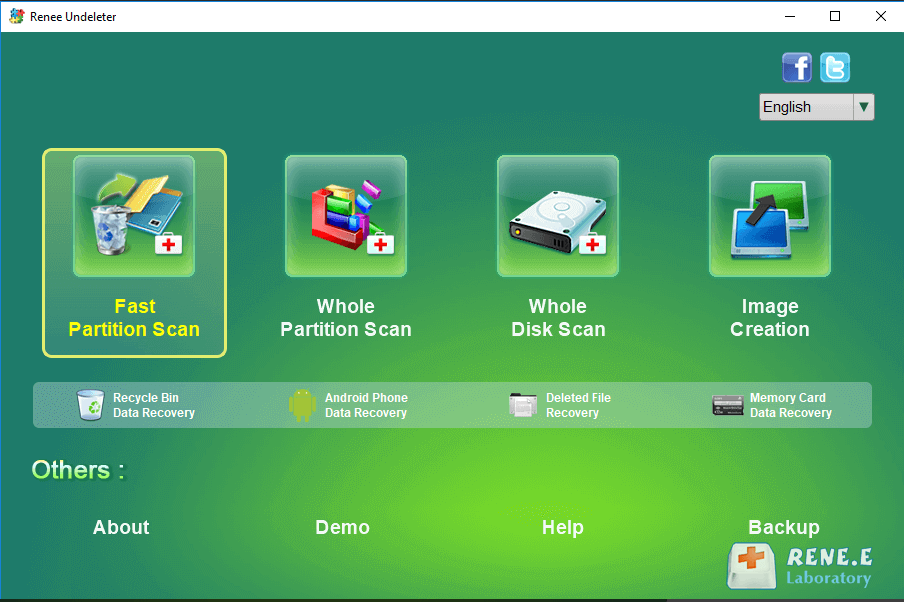
Step 1: Download, install and run Renee Undeleter, select the ( Fast Partition Scan ) option in the main interface.
Avoid installing on the disk requiring data restoration to prevent data overwriting. If ( Fast Partition Scan )does not locate the needed files, consider using ( Whole Partition Scan ) and ( Whole Disk Scan ) for a thorough scan.
Data recovery function introduction:
-
Fast Partition Scan: Quickly retrieve files lost due to accidental deletion or emptying the recycle bin.
-
Whole Partition Scan: Quickly recover files lost due to inaccessible or formatted partitions.
-
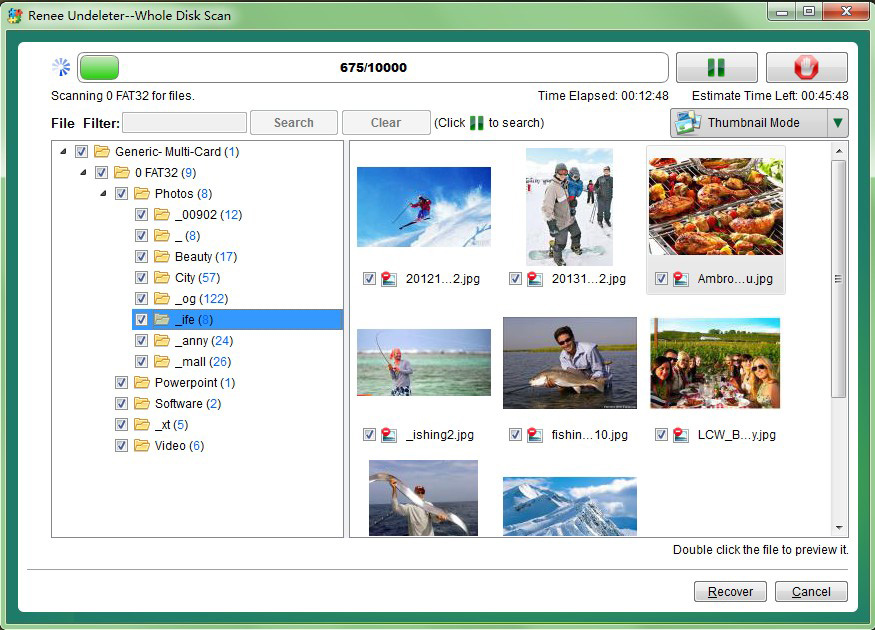
Whole Disk Scan: Analyze and obtain partition information, and fully scan the entire partition.
-
Image Creation: Image Creation image for a partition to back up the current partition state.
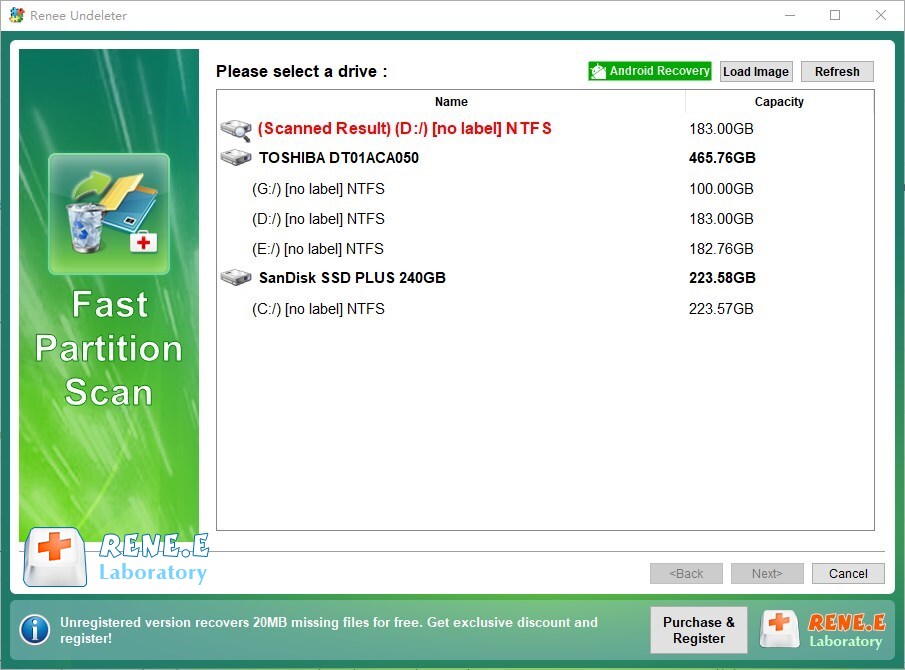
Step 2: Next, select the partition to be scanned, that is, the location where the PPT file was originally saved. Then click (Next).
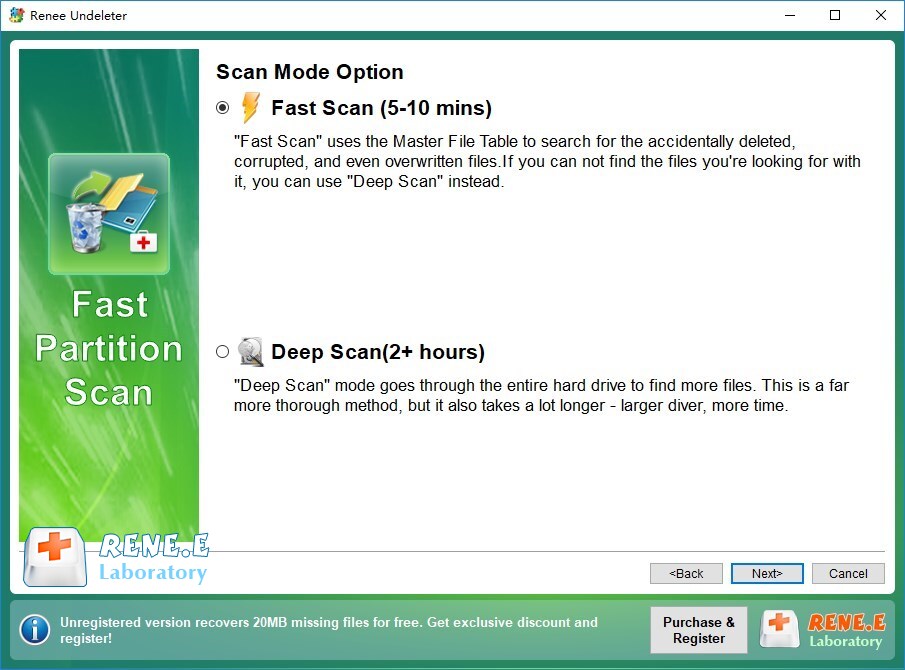
Step 3: Choose the Fast Scan option and click Next . Note that “Fast Scan” scans only the first 30GB of the remaining disk space. If the file is not found, use “Deep Scan” for a more thorough search, though it will take longer. Select Default Settings on the Advanced Settings interface and click Next .
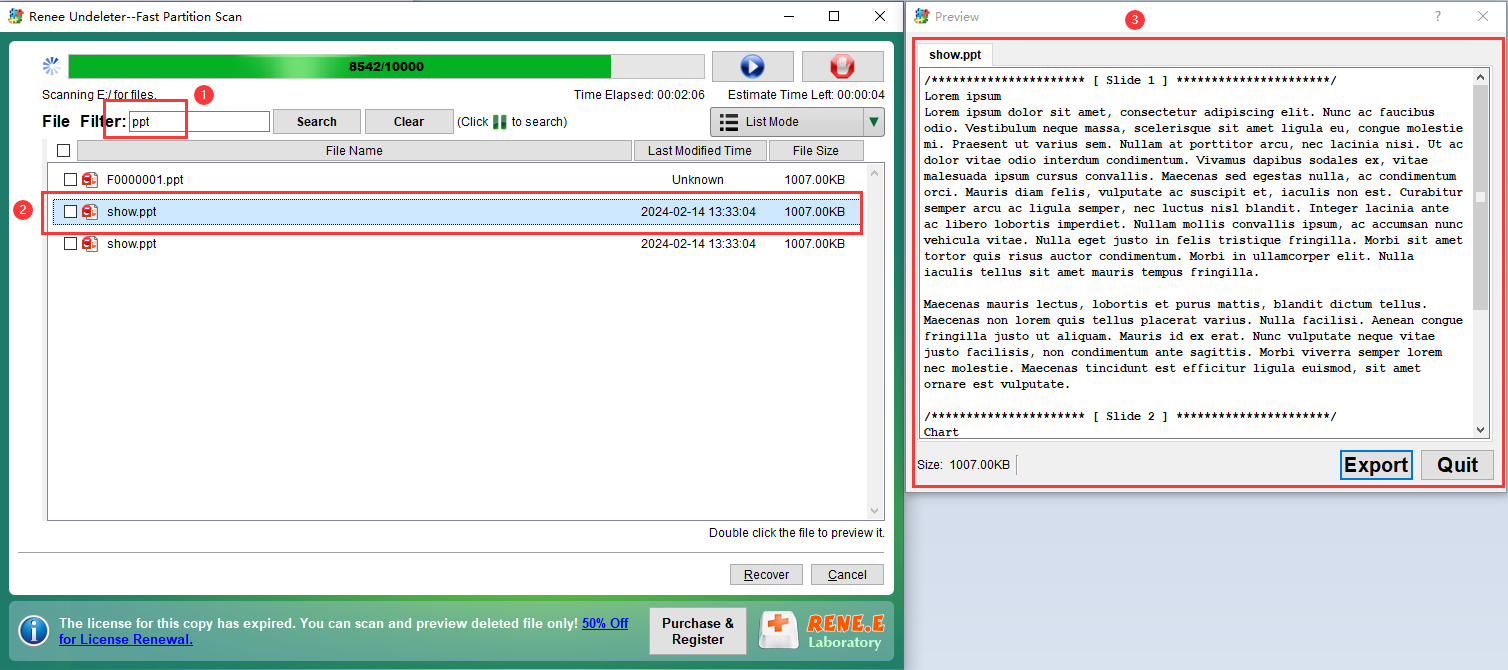
Step 4: Scan, enter (ppt) in the file filter, click (Search) , double-click the file to preview, select the PPT file to recover, and click (Recover) to restore it to other disks.
2. Recover deleted PPT files from Recycle Bin
To recover a deleted PPT file, check the “Recycle Bin” first as deleted files are usually stored there temporarily:
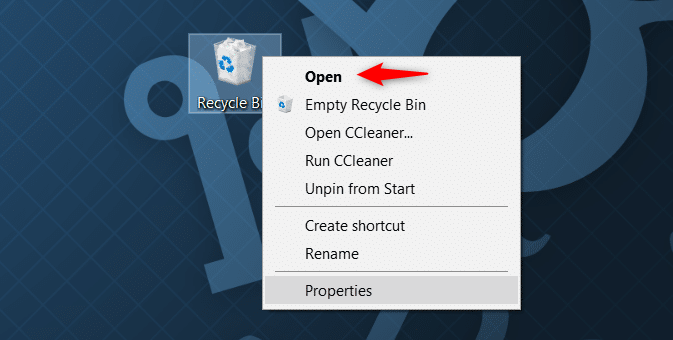
Step 1: Run the computer, find the ( recycle bin ) program icon on the desktop and double-click to open it.
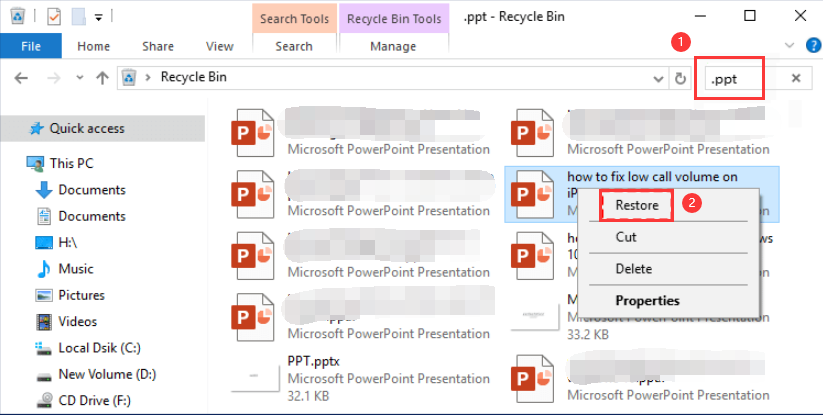
Step 2: Next, find the deleted PPT file, right-click the file you want to restore, and select ( Restore ) to restore the file to the location before it was deleted.
3. Recover unsaved PPT from auto-recovery file location
The PPT software has a built-in automatic file recovery function. Users can set and view the automatic save time interval and save location in the “PowerPoint Options”. The following are the detailed operation steps:
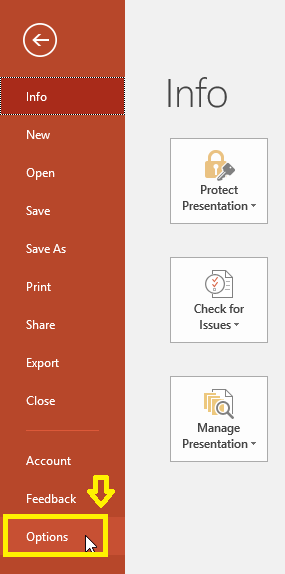
Step 1: Run the PowerPoint program, click the (File) button in the upper left corner, find (Options) and open it.
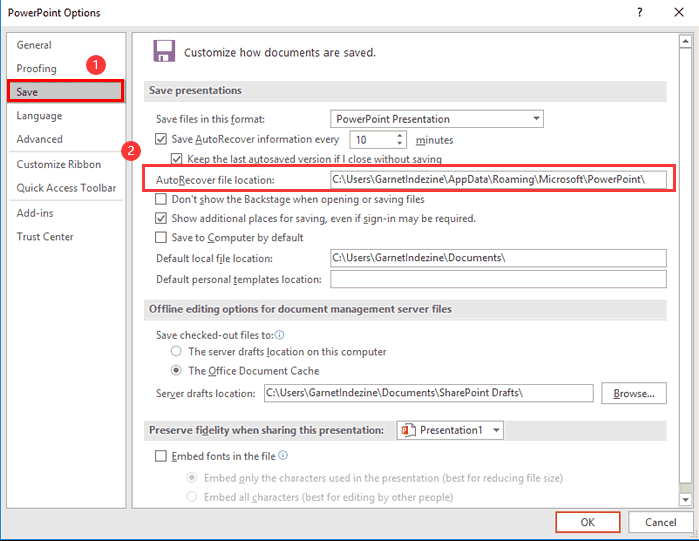
Step 2: In PowerPoint Options , navigate to (Save) – (Save Presentation) – (Automatic Recovery File Location) to access the auto-recovery file location
(C:\Users\Administrator\AppData\Roaming\Microsoft\PowerPoint\)
. Customize the time interval for saving PPT files in (Save Auto-Recovery Information Interval) for more frequent automatic saving. Click (OK) after adjusting settings.
4. Recover with the help of document recovery list or recover unsaved presentation button
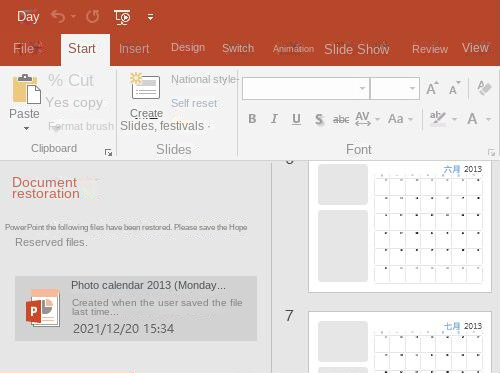
When the PowerPoint application suddenly closes, open any PPT file to access the “ Document Recovery ” list on the left. If the edited content is lost , it may be due to the time interval for saving auto-recovery information. Adjust the settings to ensure content is saved automatically .
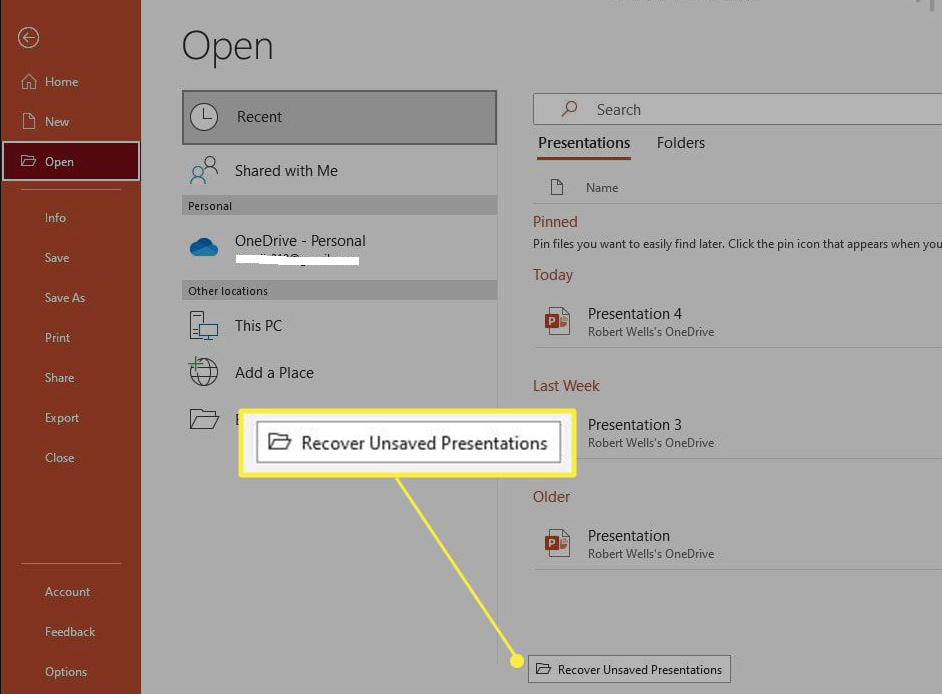
If the “Document Recovery” list is not displayed, you can click (File) > (Open) > (Recent) , and find the (Recover Unsaved Presentation) button to open the path of the unsaved presentation. Default path:
C:\Users\Administrator\AppData\Local\Microsoft\Office\UnsavedFiles
.
The PowerPoint application’s automatic save/document recovery function has limitations. It is recommended to develop the habit of timely saving when editing files by pressing (Ctrl+S) . If a file is accidentally deleted and cannot be restored from the recycle bin, immediately stop using the disk that originally saved the file to avoid data overwriting. Use professional data recovery software to scan and restore the target disk as soon as possible. Download a free trial of Renee Undeleter .
Hot Topic - ADs Renee Undeleter – Simple & Powerful Software for Data Recovery 
Easy to use Recover data by 3 steps;
Multiple scan modes Fast partition scan, whole partition scan and whole disk scan;
Supported file types Image, video, audio, text, email and so on;
Image creation Create a partition image to read and back up data;
Supported devices SD card, SDHC, SDXC, USB flash drive, hard disk and computer.
▽ Free Trial (Win) ▽ Free Trial (Mac)




Comments
0 comments
Please sign in to leave a comment.