
| parameter | illustrate |
| assign | Assign a drive letter or mount point to the selected volume. |
| attributes | Display, set, or clear disk or volume attributes. |
| active | Mark the disk partition that has focus as active. |
| create | Create a partition on a disk, a volume on one or more disks, or a VHD (virtual). |
| clean | Removes all partition or volume formats from the selected disk. |
| select | Move focus to a disk, partition, volume, or virtual hard disk (VHD). |
| convert | Converts the file allocation table of a FAT (FAT) FAT32 volume to the NTFS file system, leaving existing files and directories intact. |
| delete | Delete a partition or volume. |
| detail | Displays information about the selected disk, partition, volume or virtual hard disk (VHD). |
| exit | Exit the diskpart command interpreter. |
| extend | Extends the volume or partition with focus and its file system onto (frees up) space on the disk. |
| format | Format the disk to accept Windows files. |
| inactive | Marks the system partition or boot partition that has focus as basic primary (logging) activity in MBR disks. |
| list | Displays a list of disks, disk partitions, disk volumes, or VHD (virtual). |
cmd
in the search box, right-click (command prompt) , and select (Run as administrator) .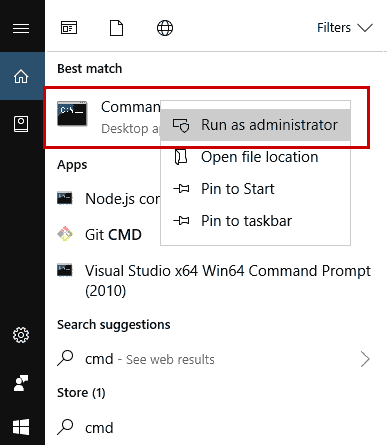
"DISKPART"
and press Enter to execute the command.
(diskpart)
in the text box and click the (OK) button, then enter the corresponding parameters behind
(DISKPART>)
and press (Enter) to execute the command.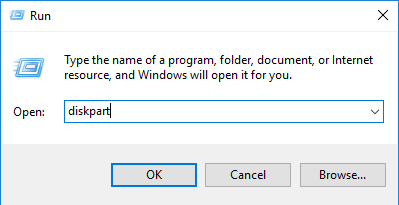
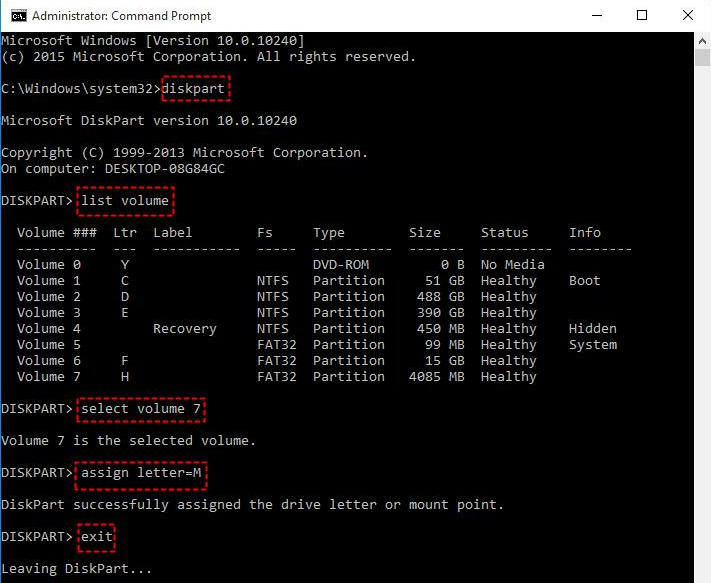
diskpart
list volume
Select volume 7
assign letter=M
exit
list disk
select disk 0
list partition
select partition 1
active
exit
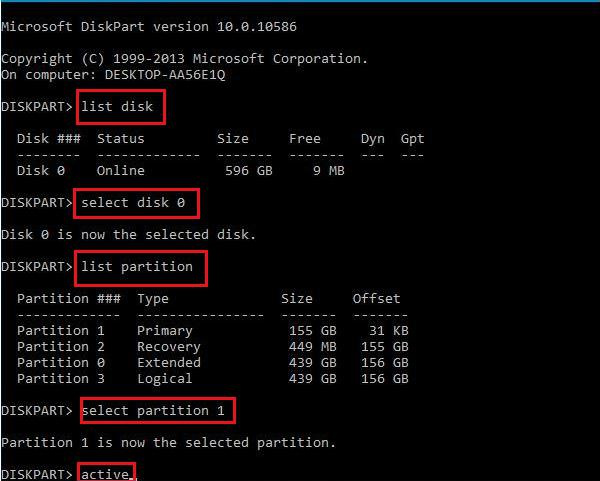
diskpart
list disk
select disk 1
clean
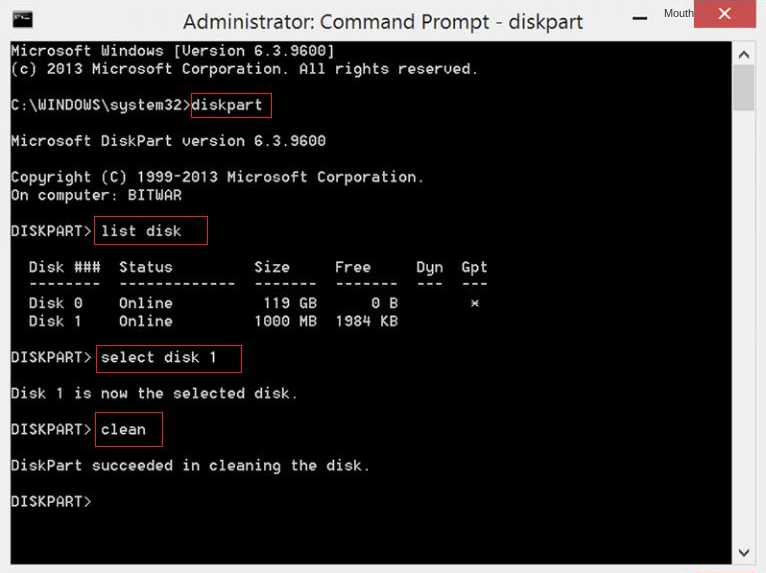
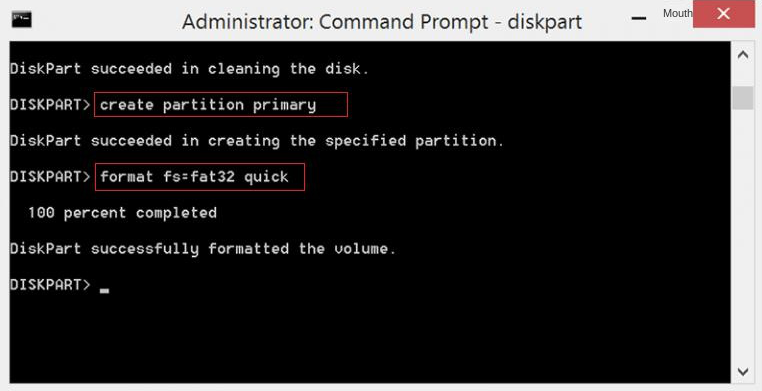
create partition primary
format fs=fat32 quick
exit
diskpart
list disk
select disk 2
detail disk
command
and press (Enter) after each line.diskpart
list disk
select disk 0
list partition
select partition 2
detail partition
Diskpart
command to resolve the issue.diskpart
list disk
select disk 1
attributes disk clear readonly
exit
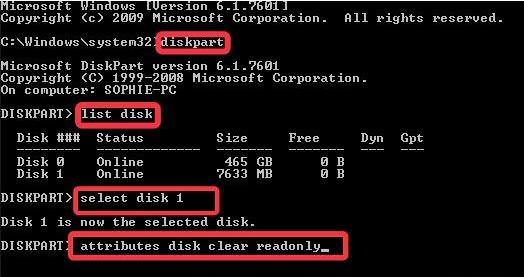
Diskpart
command.diskpart
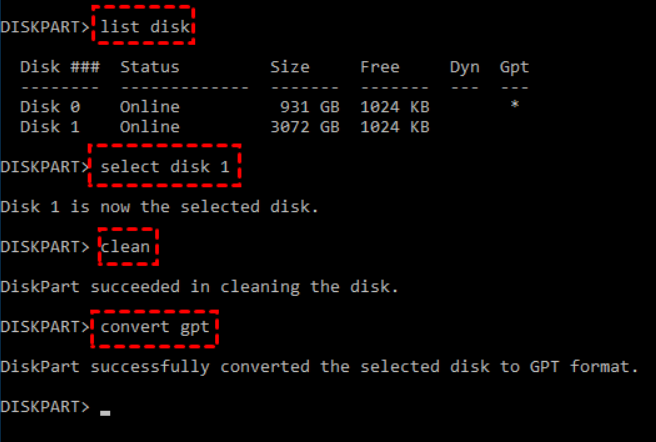
list disk
select disk 1
clean
convert gpt
exit
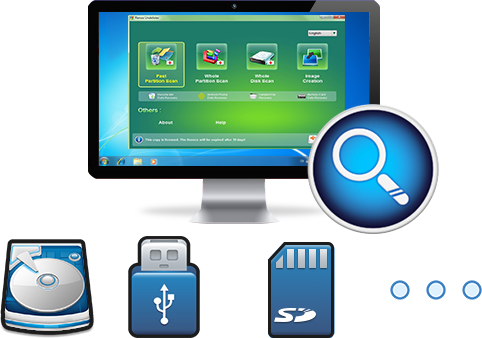
Easy to use Recover data by 3 steps;
Multiple scan modes Fast partition scan, whole partition scan and whole disk scan;
Supported file types Image, video, audio, text, email and so on;
Image creation Create a partition image to read and back up data;
Supported devices SD card, SDHC, SDXC, USB flash drive, hard disk and computer.
▽ Free Trial (Win) ▽ Free Trial (Mac)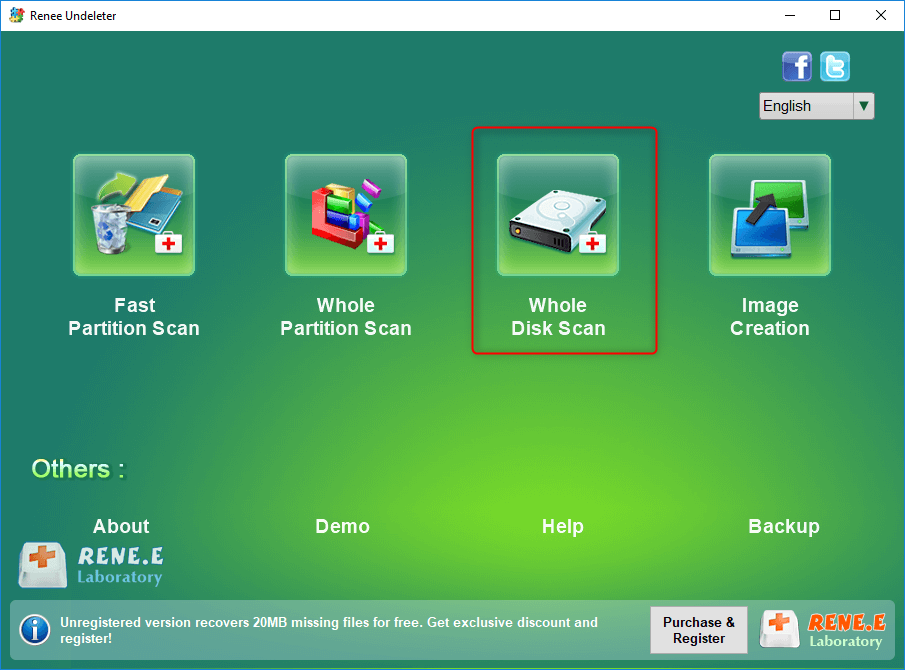
- Fast Partition Scan – Quickly retrieve files lost due to accidental deletion or emptying the recycle bin.
- Whole Partition Scan – Quickly recover files lost due to inaccessible or formatted partitions.
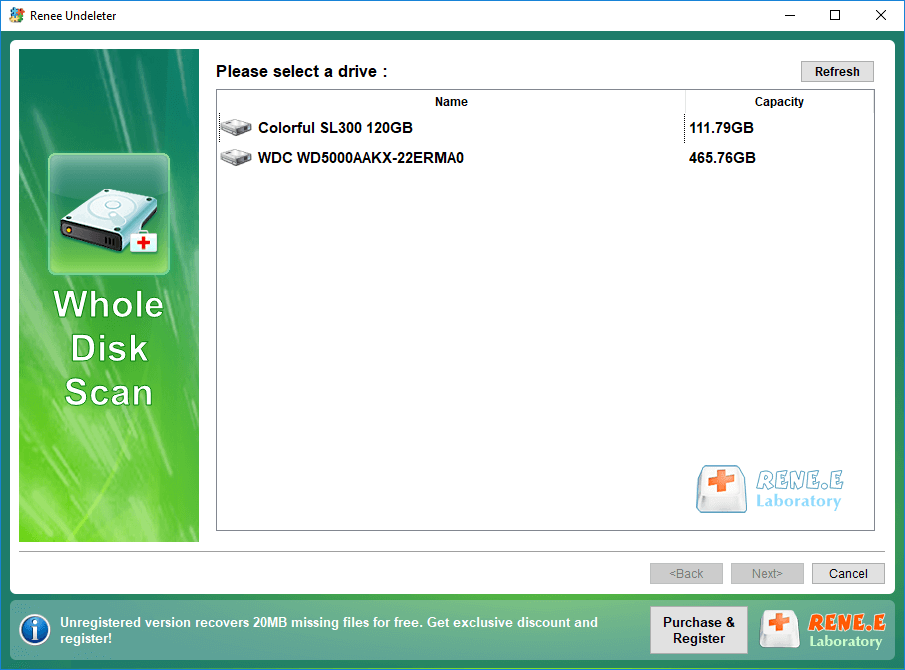
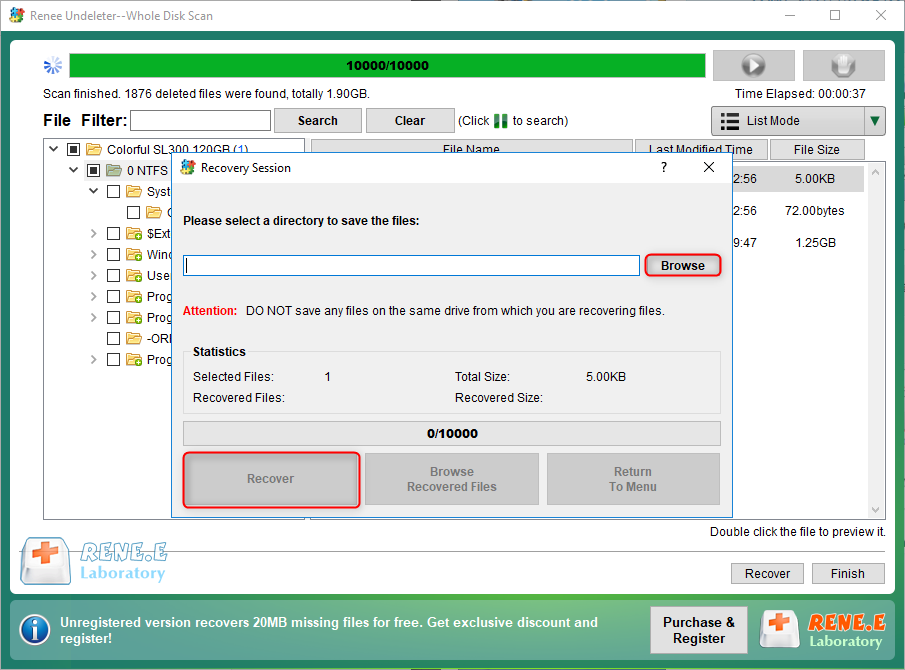
- Whole Disk Scan – Analyze and get partition information and perform a full scan of the entire partition.
- Image Creation – You can create a mirror image for a partition to back up the current partition state.
Relate Links :
How to boot from CD in Windows 10?

03-04-2024
Ashley S. Miller : Discover the straightforward process for booting directly from a CD in Windows 10, whether you're aiming to repair...
Easy Solutions for Fixing the error BOOTMGR is Compressed

01-03-2024
Jennifer Thatcher : Discover effective methods to resolve the "BOOTMGR is compressed" error on Windows PCs and retrieve inaccessible data without...
Fixing "Advapi32.dll Missing" Error on Windows System

09-12-2023
John Weaver : When you meet the error Advapi32.dll missing on your computer, you can fix it with the solutions presented...
Tips and Tricks for Solving KMODE_EXCEPTION_NOT_HANDLED on Blue Screen

03-04-2024
Amanda J. Brook : If you're facing the KMODE_EXCEPTION_NOT_HANDLED error on your Windows system, this guide offers a range of solutions to...
Comments
0 comments
Please sign in to leave a comment.