How to Fix a Corrupted External Hard Drive on Windows Without Formatting
When facing issues with a corrupted external hard drive, several approaches can help you address the root cause of your problem and recover your files without resorting to formatting.
Method 1: Scan for viruses
A computer virus can seep into an external hard disk without much difficulty. If your external hard drive has become corrupted as a result of a malware infection, then you need to remove the malware using an
antivirus software solution like Microsoft Defender:
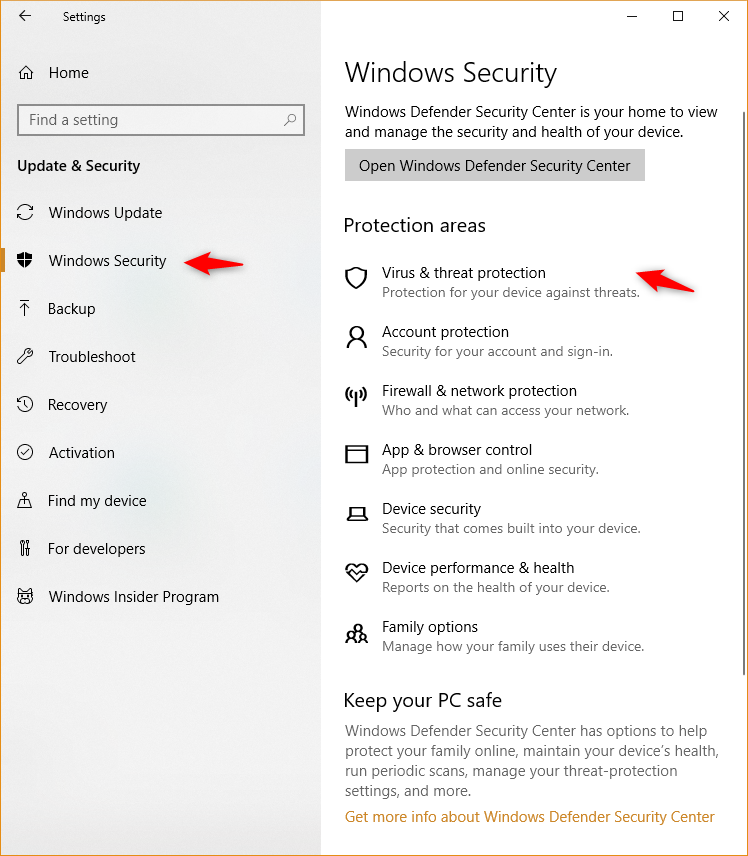
1. Press the Win key and search for Windows security . Click on the first search result.
2. Windows Security app will launch. Click on the Virus and Threat Protection option on the home page.
3. Scroll down and click on the Scan options label. Then select the Customized scan option on the next page.
4. Click the Scan now button located at the bottom. The app will ask you to select a location to scan. Select the external hard drive and click on the Select folder button.
5. Windows Defender will begin the virus scan. Let it complete and check if it found any threats on the drive.
The Windows operating system comes with the
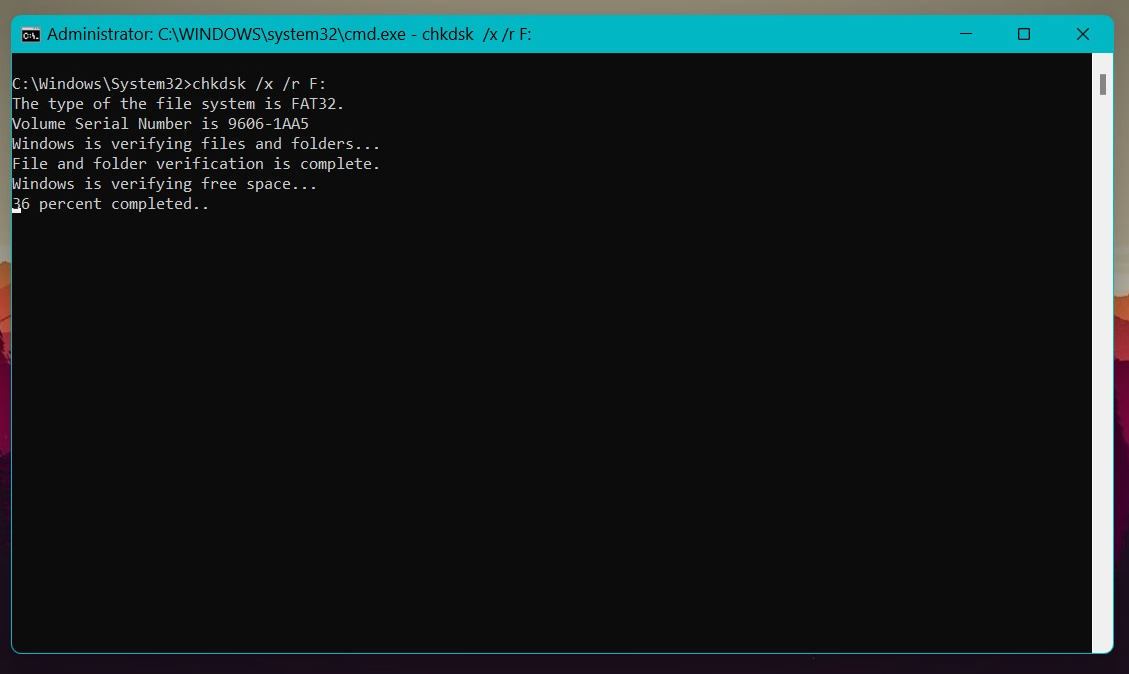
chkdsk utility , and you can use it to scan for logical errors and bad sectors on the external hard drive. Here’s how to run it from the command prompt:
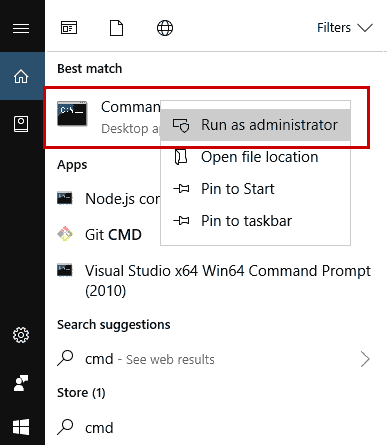
1. Press the Win key and type cmd . Then, right-click on it and select the Run as administrator option.
2. Now, input the chkdsk /x /r Drive letter: command.
Replace the Drive letter with the letter assigned to your external hard drive and press the enter key.
3. Wait for the scan to complete and check if it reports any errors.
Method 3: Change the drive letter
In some cases, Windows may not assign a drive letter to an external hard drive, or it may assign an incorrect letter that conflicts with an existing drive, which can prevent the external hard drive from being recognized and accessible. To resolve this issue, you can manually change the drive letter to an available and unused letter:
1. Press Win + X to launch the Power Menu . Locate the Disk Management option and click on it.
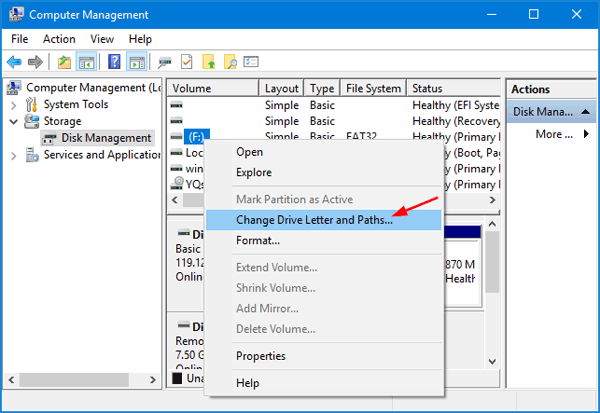
2. Locate your external hard drive in the Disk Management tool.
3. Right-click on the external hard drive and select the Change Drive Letter and Paths option.
4. Click the change button and pick a different drive letter from the list. Then click on the OK button.
5. Windows will warn you about the change. Click on the Yes button to apply changes.
Method 4: Update the Drivers
Hard disks and other hardware devices need drivers to function correctly. If drivers are corrupted or outdated, it becomes difficult for the OS to access the devices. Fortunately, you can use Device Manager to update the drivers and fix your corrupted external hard drive.
1. Press Win + X to launch the Power Menu and select the Device Manager option.
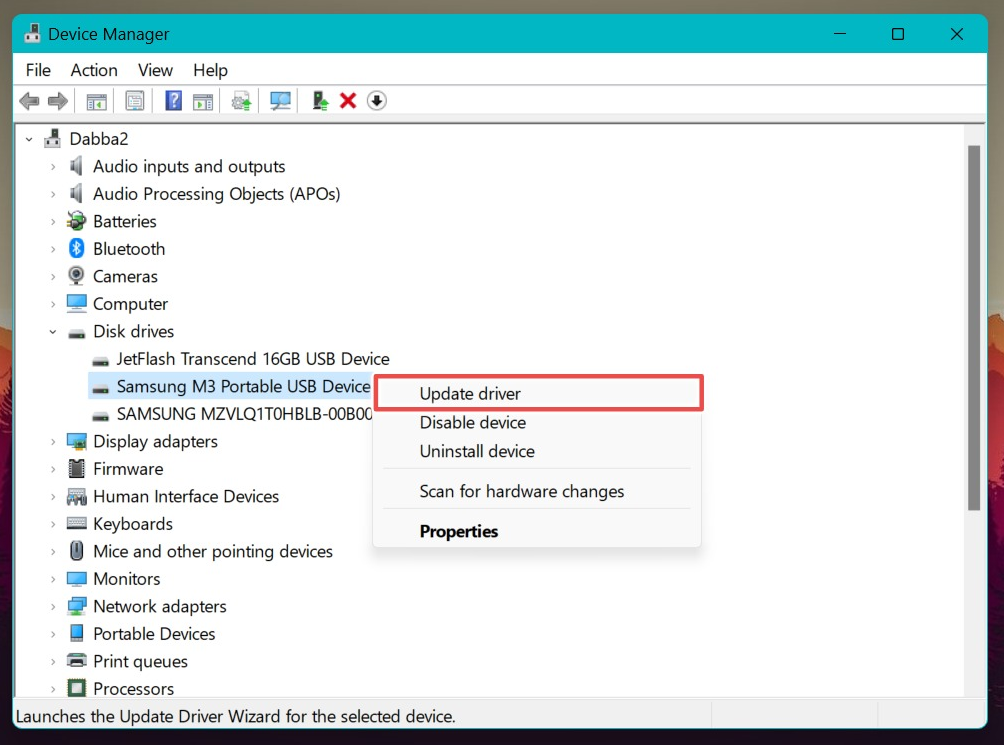
2. Expand the Disk Drive section and right-click on the external hard drive device.
3. Select the update driver option from the context menu.
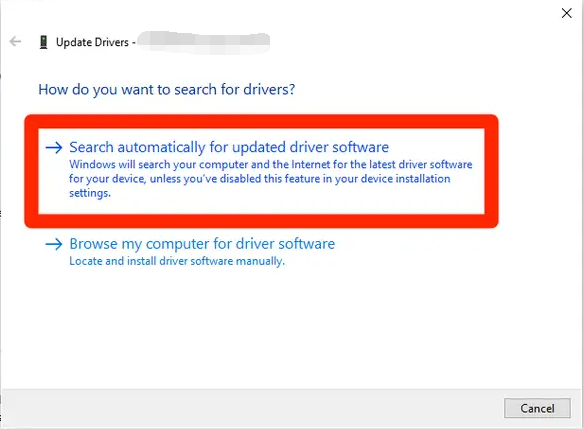
4. Then choose the Search automatically for drivers option.
5. It will find and install the latest drivers for your external hard disk.
Method 5: Run an SFC scan
SFC is a built-in Windows utility that repairs corrupted system files. If system files are corrupt, they can pose issues while accessing connected external hardware.
1. Search for CMD and click on it while holding the Shift + Enter key. It will launch the command prompt with admin privileges.
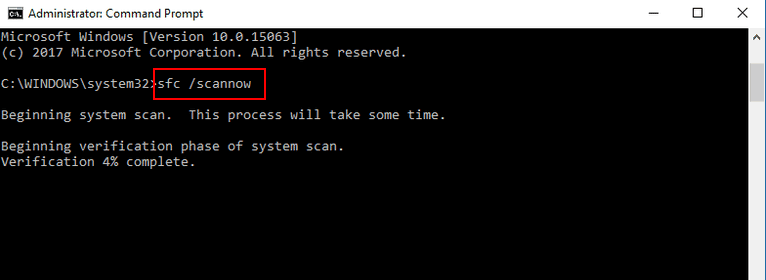
2. Enter sfc /scannow command and then press the enter key.
3. Wait for the scan to finish. Exit the cmd window and restart your computer.
4. Try to access the hard drive to check if this method was successful in fixing the external hard drive or not.







Comments
0 comments
Please sign in to leave a comment.