How to Recover Overwritten Files on Windows 10/11
Now that you have a better understanding of how files are overwritten and the underlying mechanisms involved, it’s time to explore the practical steps you can take to recover your overwritten files on Windows 10/11. We’ll be covering three effective methods that can help you retrieve your valuable data.
Method 1: Recover Overwritten Files on Windows 10/11 with Renee Undeleter
Renee Undeleter is a professional data recovery tool that can help you retrieve lost or deleted files from your computer. It is a user-friendly and comprehensive tool that offers a high success rate for file recovery.
With Renee Undeleter, you can find and recover around 400 file formats after overwriting, and the process is incredibly simple thanks to its modern user interface and numerous quality-of-life features.
In addition to signature scanning, Renee Undeleter also supports file system-based recovery, with support for all major Windows file systems, so you can use it to also find files that haven’t actually been overwritten but simply misplaced.
Step 1: Download, install and run Renee Undeleter on your Windows computer.
Renee Undeleter - Powerful Data Recovery Software 
Easy to use Only simple steps to recover data from storage devices.
Multiple scan modes Fast partition scan, whole partition scan and whole disk scan for different recovery needs.
File types Support to recover pictures, videos, audios, documents, mails, etc.
Supported storage devices Recover data from recycle bin , SD card , external disk , etc.
Supported systems Windows 10, 8.1, 8, 7, Vista, XP, 2000 and Mac OS X10.6, 10.7, 10.8.
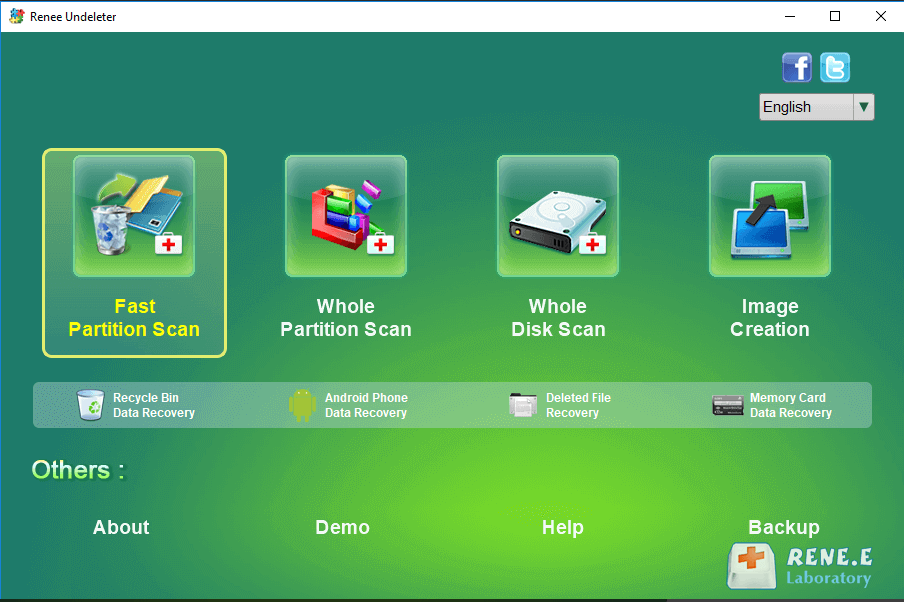
Step 2: Select the [ Fast Partition Scan ] option in the main interface.
Tips: Please
avoid installing the software on the disk containing the data to be recovered in order to prevent
data overwriting . Also, refrain from saving new data to the same disk partition after a file is lost to avoid further damage or complete loss of the lost file.
Fast Partition Scan: Recovers files from accidental deletions or recycle bin clearance.
Whole Partition Scan: Restores files from inaccessible or formatted partitions.
Whole Disk Scan: Analyzes partition information for a comprehensive disk scan.
Image Creation: Generates a partition mirror image for backup purposes.
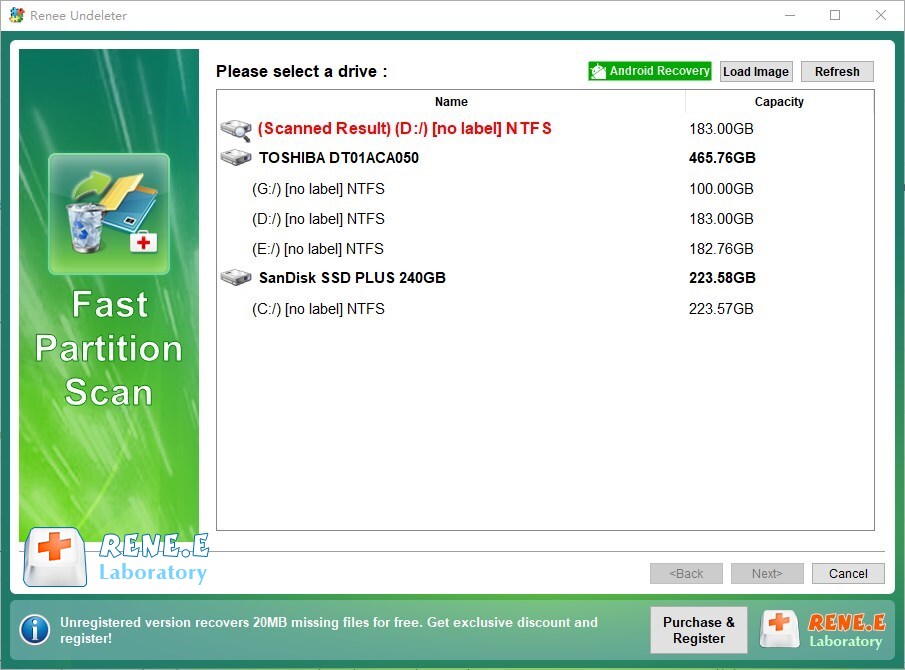
Step 3: Next, select the partition where the lost data is located, and click [ Next ] .
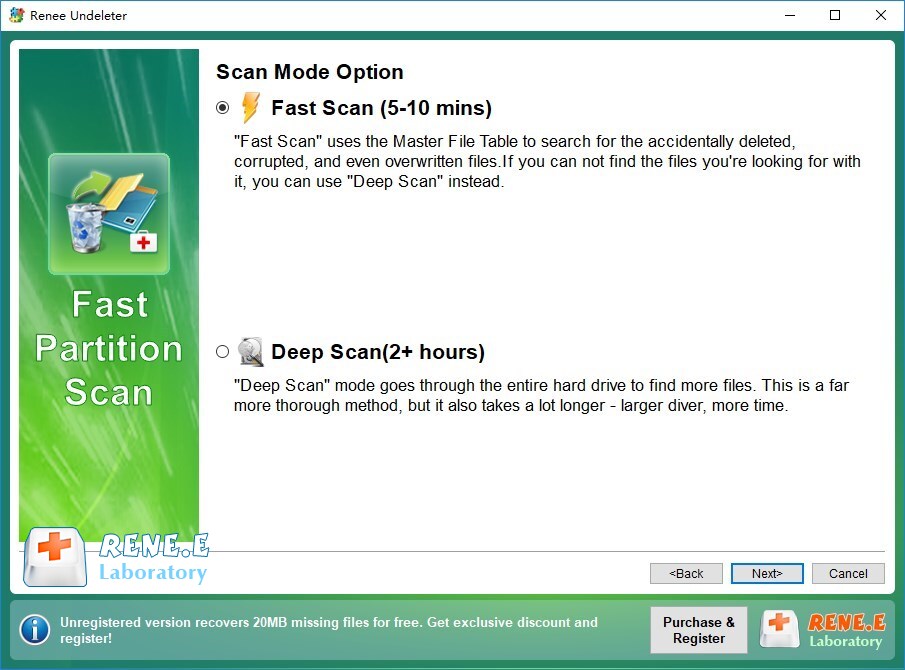
Step 4: Select the [ Fast Scan ] option and click the [ Next ] button to scan.
The [ Fast Scan ] mode scans the initial 30GB of available space on the chosen disk. If desired files are not found, the [ Deep Scan ] mode can be used for a thorough scan of the hard disk partition, though it will require additional time.
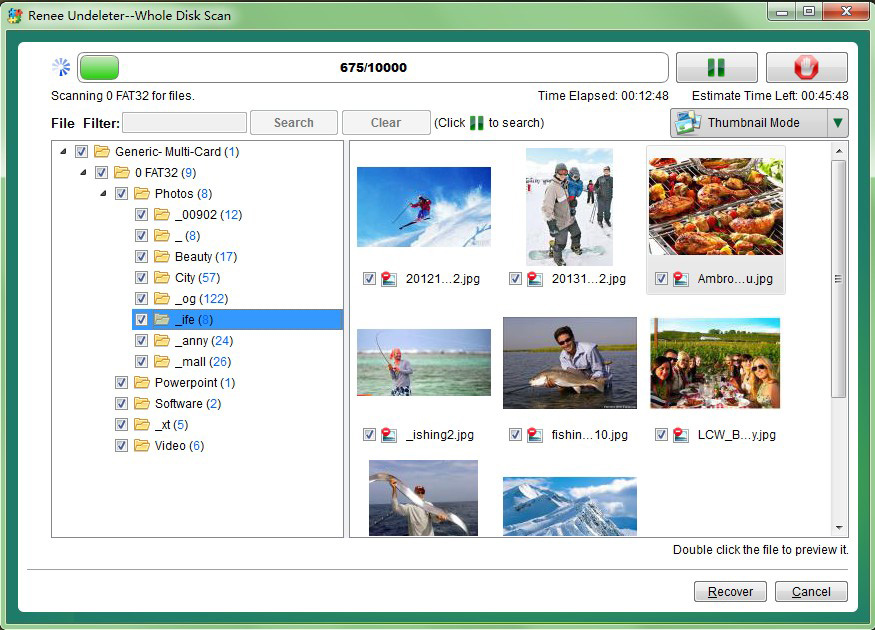
Step 5: Wait for the scan to complete.
You can double-click the file to preview, then check the files that need to be recovered, and click the [ Recover ] button to recover the files to other disks.
Please select a disk without any important data when installing the software to avoid overwriting it. If the quick scan mode doesn’t find the necessary files, we suggest trying the deep scan mode for a full search. Using a professional software like Renee Undeleter can greatly increase your chances of successful file recovery. It is important to note that the longer you wait to use this method, the lower your chances of successful recovery become.
Method 2: Look for Previous Versions of Your Files
If your goal is to recover an overwritten file that you’ve created in the past as a Windows 10/11 user, then the
Previous Versions feature can be of use. For this feature to be useful, it must have been enabled at the time the file was overwritten. That’s because Previous Versions are either copies of files and folders created by Windows Backup or copies of files and folders that Windows automatically saves as part of a restore point. To attempt to recover an overwritten file using the Previous Version feature, follow these steps:
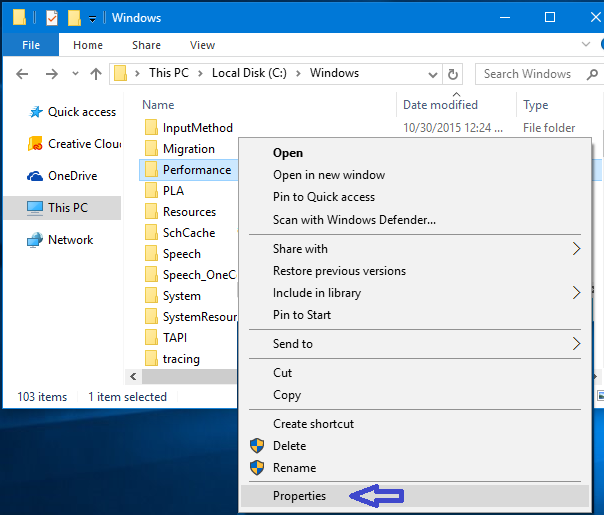
1. Right-click on the overwritten file or the folder that contained the file, and select “Properties” from the context menu.
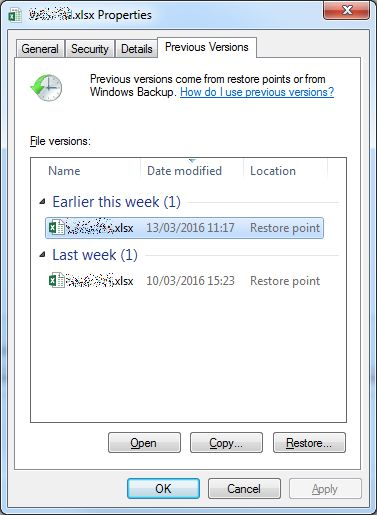
2. In the Properties window, navigate to the “Previous Versions” tab. Windows will search for any available previous versions of the files in that folder.
3. If previous versions are found, select the version of the file you want to restore, and click the “Restore” button.
4. As the screenshot above shows, there’s no guarantee that Previous Versions will be available. In such situations, we recommend you go through your cloud and manually created backups and look for copies of your overwritten files there.
Method 3: Restore from Backup
If you have been regularly backing up your files, you can restore the overwritten file from a backup. This could be a cloud backup, an
external hard drive , or another backup solution you have been using.
Renee Undeleter - Powerful Data Recovery Software
Easy to use Only simple steps to recover data from storage devices.
Multiple scan modes Fast partition scan, whole partition scan and whole disk scan for different recovery needs.
File types Support to recover pictures, videos, audios, documents, mails, etc.
Supported storage devices Recover data from recycle bin , SD card , external disk , etc.
Supported systems Windows 10, 8.1, 8, 7, Vista, XP, 2000 and Mac OS X10.6, 10.7, 10.8.






Comments
0 comments
Please sign in to leave a comment.