Table of contents
Summary
Discover the best ways to extract tables from PDF in 2025 using free tools and advanced AI methods, perfect for professionals in the US and India. Get precise, secure conversions of PDF tables to Excel, CSV, Markdown, and more.
Tired of manually copying data from PDF tables? You’re not alone. In 2025, with billions of PDFs in circulation across business, finance, and research, extracting clean, structured data remains a top frustration for professionals and students alike. Whether you’re dealing with a 50-page financial statement, a scanned invoice, or a dense research report, getting that data into Excel, CSV, or Markdown shouldn’t feel like solving a puzzle.
The good news? Modern tools—powered by AI and advanced OCR—make table extraction faster, smarter, and more accurate than ever. This guide walks you through the best methods, from privacy-first desktop apps like Renee PDF Aide to cutting-edge AI assistants and developer-grade scripts. Let’s turn your PDF tables into actionable data—effortlessly.

Desktop Tools for Secure & Accurate Table Extraction
When your documents contain sensitive information—like financial records, client data, or internal reports—you need tools that keep your files on your machine. Desktop applications offer speed, reliability, and full data privacy, making them ideal for everyday data extraction tasks.
Our Top Pick: Extract Tables with Precision Using Renee PDF Aide
For the best blend of power, privacy, and user-friendliness, Renee PDF Aide stands out as our top recommendation. This isn’t just a basic PDF converter—it’s a full-featured desktop suite built to handle even the trickiest table extraction scenarios.
Thanks to its advanced OCR (Optical Character Recognition) engine, it works seamlessly with both native PDFs (text-based) and scanned PDFs (image-based). You can convert your tables directly into a wide range of formats:
- Excel (.xlsx) – perfect for analysis and reporting
- CSV (.csv) – ideal for databases, Python scripts, or Power BI
- Markdown – great for documentation, GitHub, or AI training
- TXT – simple and universal
- Editable Word (.docx) documents
- And more: HTML, ePub, JPG, TIFF, etc.
Since everything runs locally on your Windows PC, your files never leave your device—ensuring complete confidentiality.
Renee PDF Aide is easy to use and converts up to 80 pages per minute. It supports conversion from PDF to Excel/CSV, Word, PowerPoint, ePub, Text (txt/markdown), HTML, JPG, TIFF, and beyond.
Beyond conversion, it also offers PDF repair, optimization, merging, splitting, and encryption—all through a clean, intuitive interface. Its batch processing and one-click OCR make it a productivity powerhouse, and it’s free to try with a generous quota.
Bonus: Renee PDF Aide fully supports XFA (XML Forms Architecture)—a format used by many banks and government agencies. Most other tools fail on XFA forms, showing only a blank page or error message.
How to Extract Tables Using Renee PDF Aide
① After installing Renee PDF Aide, open it and select “Convert PDF”.

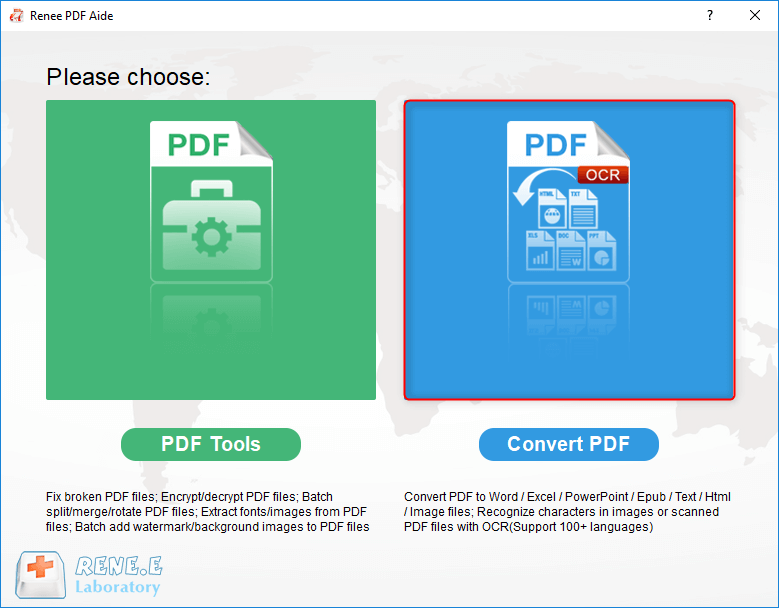
② Click the “Add Files” button to import your PDFs. The software supports batch conversion, so you can process multiple files at once. Once added, file details appear in the list. Use the “Selected Pages” dropdown to choose specific pages if needed.
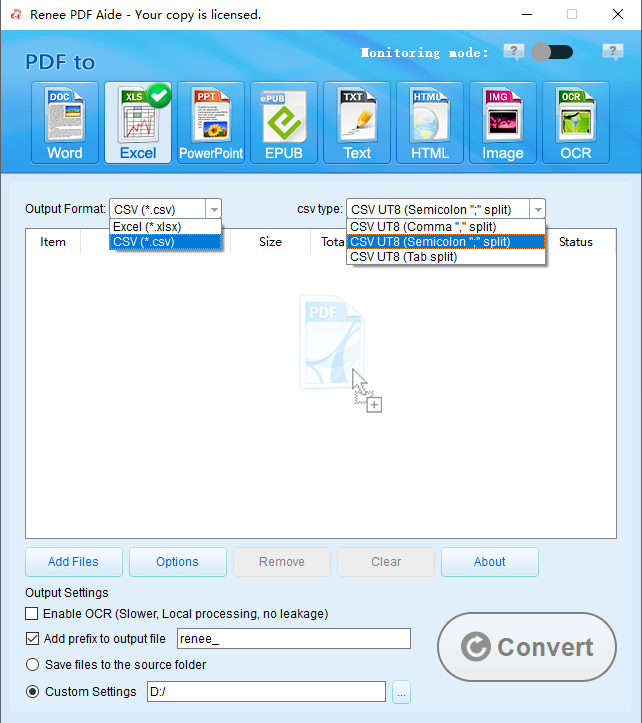
③ Choose your output format. In the top menu, select your target format. For tables:
- Under the Excel tab, pick Excel or CSV
- Under the TXT tab, choose Markdown or TXT for plain-text output
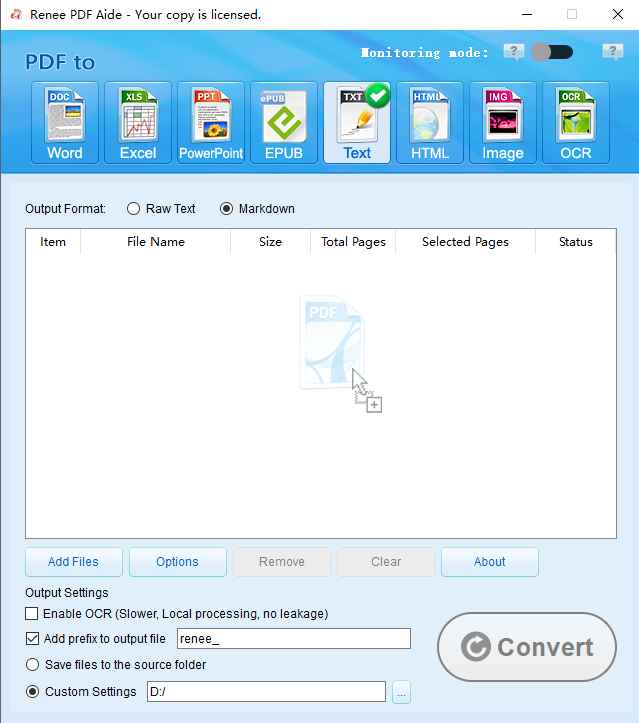
Need ASCII-style tables? Renee PDF Aide can generate clean, aligned ASCII output—great for terminal use or legacy systems.
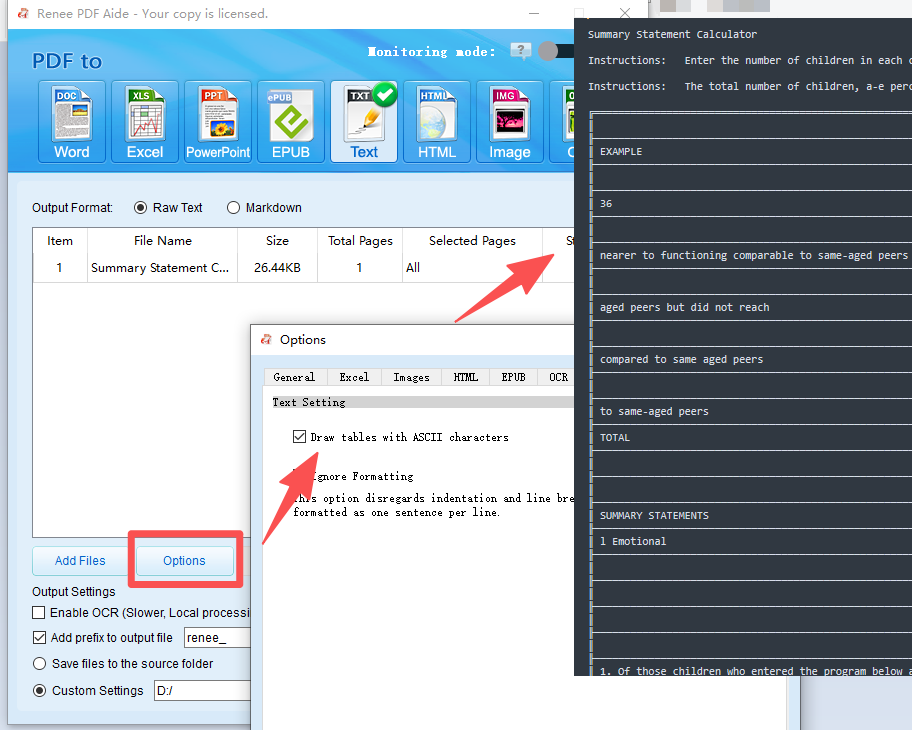
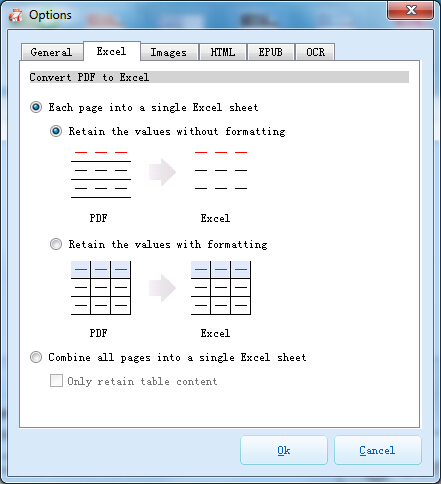
Pro Tip: Click “Options” next to your chosen format. For Excel exports, you can choose to place all pages on one sheet or create separate sheets per page—perfect for multi-page reports.
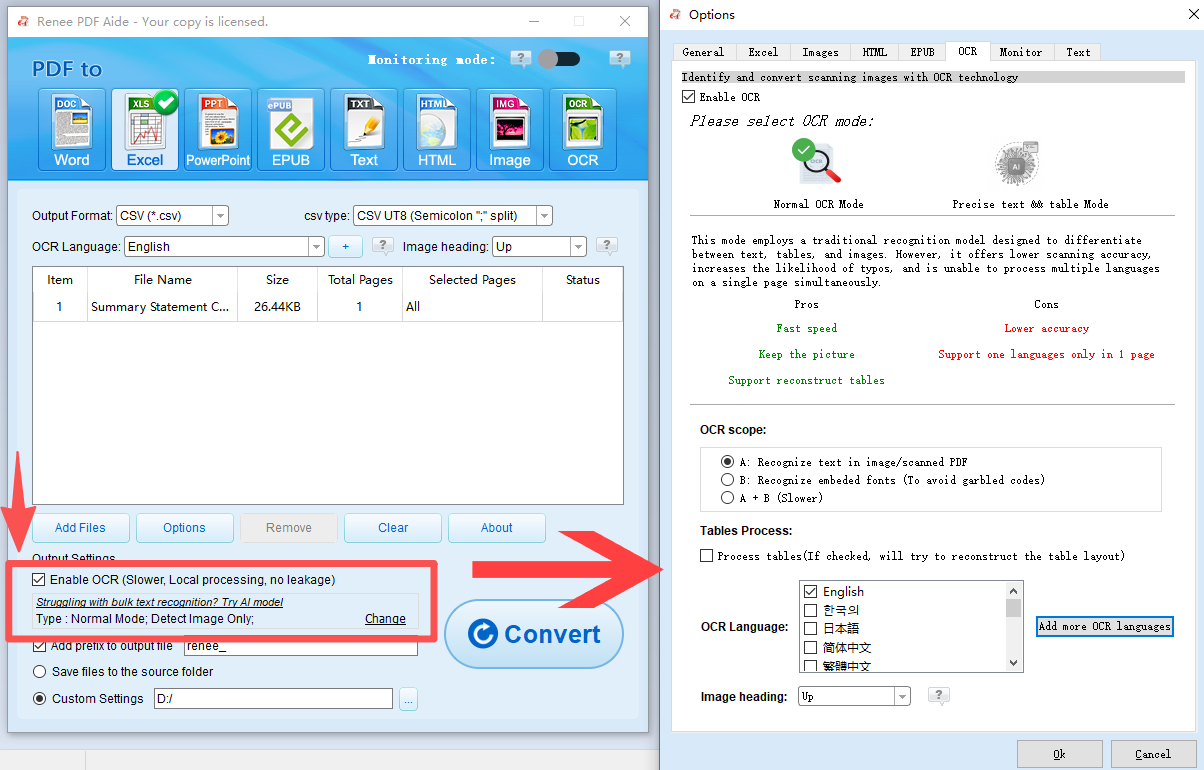
④ If your PDF is a scanned document (i.e., an image), enable “Enable OCR”. Skip this step for native PDFs.
Understanding OCR Modes:
- A: Recognize text in pictures or PDF scans – Best for image-based PDFs. Select the document language for higher accuracy.
- B: Identify built-in fonts (to avoid garbled characters) – Converts embedded fonts to images first, then applies OCR.
- A+B (slower) – Automatically detects font type and applies the best method. More accurate but takes longer.
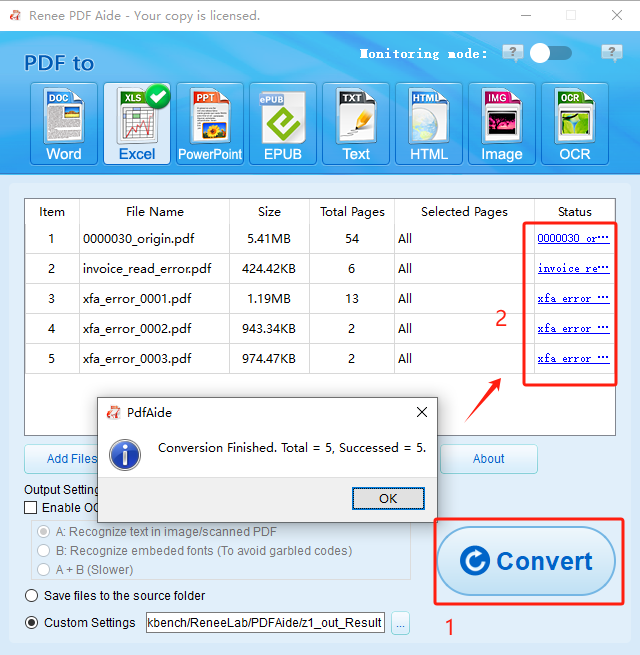
⑤ Click “Convert”. Once complete, a summary shows how many files were processed successfully. Click the links in the “Status” column to open your new Excel, CSV, or Markdown files instantly.
With its speed, accuracy, and local processing, Renee PDF Aide is a go-to solution for professionals who need reliable table extraction—without compromising security.
Free & Open-Source Option: Extract Tables with Tabula
Note: Tabula is no longer actively maintained (last update: June 4, 2018, v1.2.1). For a more modern alternative, consider Camelot (Python-based).
If you’re on a tight budget and working with straightforward, text-based PDFs, Tabula is a solid free option. This open-source tool runs locally on Windows, Mac, or Linux, so your data stays private. It’s built for one purpose: extracting tables from native PDFs by letting you visually select the area you want.
While it doesn’t handle scanned documents, it’s perfect for students, researchers, or analysts needing a quick, no-cost way to pull data into CSV or TSV format.
System Note: Windows and Linux users need Java installed. Mac users get it bundled.
✅ Pros:
- 100% free and open-source
- Runs offline—no data leaves your machine
- Simple drag-to-select interface
- Exports to CSV, widely supported by spreadsheets and databases
⚠️ Cons:
- Fails on scanned/image-based PDFs
- Struggles with merged cells, nested tables, or complex layouts
- Requires Java
- No updates or bug fixes since 2018
Steps to Use Tabula:
- Download and extract the Tabula ZIP file.
-
Open the extracted folder and run the “Tabula” executable.

- Your default browser will open to http://localhost:8080 (if not, enter it manually).
- Click “Browse”, select your PDF, and click “Import”.
- Once loaded, click and drag to draw a box around your table.
-
Click “Preview & Export Extracted Data”.

- Review the preview. If correct, choose CSV and click “Export”.
Tabula is a great starting point for simple jobs—but for anything more advanced, you’ll want a tool with OCR and layout intelligence.
Professional-Grade Power: Adobe Acrobat Pro
If you’re already using Adobe’s ecosystem, Adobe Acrobat Pro is the industry standard for PDF handling. Its “Export PDF” feature can convert tables into Excel (.xlsx) with remarkable fidelity—even preserving fonts, colors, and cell formatting.
It handles both native and scanned PDFs using high-quality OCR, making it a favorite in corporate, legal, and finance settings. However, it comes with a monthly subscription fee, so it’s best justified if you need its full suite of editing, signing, and collaboration tools.
✅ Pros:
- Exceptional accuracy on complex layouts
- Best-in-class formatting retention in Excel
- Full PDF editing capabilities beyond extraction
- Trusted, regularly updated, and enterprise-ready
⚠️ Cons:
- Expensive ($14.99+/month)
- Overkill if you only extract tables occasionally
- Heavy on system resources
How to Extract Tables with Acrobat Pro:
- Open your PDF in Adobe Acrobat Pro.
-
In the right-hand pane, click “Export PDF”.

- Choose “Spreadsheet” → “Microsoft Excel Workbook”.
- If it’s a scanned PDF, Acrobat will auto-run OCR. Click the gear icon to adjust settings if needed.
- Click “Export”, choose a save location, and you’re done.
Great if you already have it—but hard to justify for table extraction alone.
For Scanned Documents: ABBYY FineReader
When your PDF is just a photo of a printed table, you need specialized OCR. ABBYY FineReader is a leader in document AI, using deep learning to reconstruct tables from low-quality scans, skewed images, or faded text.
It’s widely used in archival, banking, and legal digitization projects where accuracy is non-negotiable.
✅ Pros:
- Unmatched OCR accuracy, even on poor-quality scans
- Smart table structure detection (handles merged cells, headers, footers)
- Supports 190+ languages
- Batch processing for large volumes
⚠️ Cons:
- High cost (starts at ~$199 one-time or subscription)
- Steeper learning curve
- Slower due to intensive analysis

Basic Workflow:
1. Open your scanned PDF in FineReader.
2. Let it auto-process the document.
3. Use the “Table” tool to verify or correct detected regions.
4. Export directly to Excel, Word, or CSV.
For mission-critical scanned data, ABBYY is worth the investment. For occasional use, Renee PDF Aide offers 90% of the power at a fraction of the cost.
Fast & Easy: Online PDF-to-Table Converters
Need a quick fix and don’t mind uploading your file? Online tools like Smallpdf, ILovePDF, or PDF2Go let you drag, drop, and download in seconds.
They’re perfect for non-sensitive, native PDFs—like public reports or open datasets. Most offer a few free conversions per day, with paid plans for heavier use.
✅ Pros:
- No installation—works on any device with a browser
- Extremely simple: upload → convert → download
- Fast for basic tables
- Free tier available
⚠️ Cons:
- Privacy risk: Your file goes to a third-party server
- Poor performance on scanned PDFs (unless you pay for OCR)
- File size and page limits on free plans
- Requires stable internet
Never use online tools for confidential, financial, or personal documents.
AI-Powered Extraction: The Future Is Here
What if your PDF is a screenshot, a photo, or has a complex multi-column layout? Enter AI assistants like Copilot, ChatGPT, and Grok.
These tools use multimodal AI to analyze images, recognize table structures, and output clean Markdown tables—ideal for developers, researchers, or technical writers.
Try them here:
- Copilot: https://copilot.microsoft.com/chats/
- ChatGPT: https://chatgpt.com/
- Grok: https://grok.com/
📊 AI Tool Comparison for Table Extraction
| Tool | PDF Upload? | OCR Support | Free Limits | Paid Benefits |
|---|---|---|---|---|
| Copilot | ❌ (Screenshots only) | ✅ | One image per message | Unlimited images, better formatting |
| ChatGPT | ✅ (GPT-4o only) | ✅ | GPT-3.5 (no image support) | Full GPT-4o with PDF/image parsing |
| Grok | ✅ (via upload or paste) | ✅ (Grok 3+) | Free with daily quotas on x.com | Extended memory, voice, AI companions |
How to Use AI for Table Extraction:
1. Take a screenshot of your table (or export a page as PNG).
2. Upload it to your preferred AI assistant.
3. Prompt: “Convert this table into a Markdown table.”

4. Copy the output into your notes, docs, or code.
AI tools shine when traditional converters fail—and since many run in secure environments (like Microsoft or OpenAI), they can be safer than random online converters.
For Developers: Automate with Python
Need to extract tables from hundreds of PDFs daily? Go programmatic.
Libraries like Camelot and Tabula-py let you write Python scripts that:
- Auto-detect tables
- Handle multi-page spans
- Clean and validate data
- Export to CSV, JSON, or databases
Example (using Tabula-py):
import tabula
tables = tabula.read_pdf("report.pdf", pages="all")
tables[0].to_csv("output.csv", index=False)
✅ Pros:
- Fully automated and scalable
- Integrates into data pipelines
- Free and open-source
⚠️ Cons:
- Requires Python knowledge
- Debugging layout issues can be time-consuming
- Not beginner-friendly
Use this method for large-scale, repeatable workflows—otherwise, stick with GUI tools.
What Are XFA Forms—and Why Do They Break Extractors?
Ever tried to copy data from a PDF form and got nothing? You might be dealing with an XFA (XML Forms Architecture) form.
Unlike standard PDFs, XFA forms store data in dynamic XML fields. Most extractors see only a blank template—not the filled-in values.
To extract XFA data, you need software that can flatten the form first—like Adobe Acrobat or Renee PDF Aide.

FAQs: Your Top Questions Answered
Q: Why can’t I just copy-paste a PDF table?
A: PDFs store text as positioned snippets—not structured grids. Pasting loses all row/column alignment, resulting in jumbled text.
Q: What’s the best way to extract tables from scanned PDFs?
A: Use a tool with OCR—like Renee PDF Aide, Adobe Acrobat, or ABBYY FineReader.
Q: Are online extractors safe?
A: Only for non-sensitive documents. Never upload confidential data to unknown servers.
Q: Can I extract multiple tables at once?
A: Yes! Tools like Renee PDF Aide process entire documents and extract all detected tables automatically.
Q: Native vs. scanned PDF—what’s the difference?
A: Native PDFs have selectable text (created digitally). Scanned PDFs are images—you can’t highlight text.
Q: My table has merged cells—what tool should I use?
A: Avoid basic tools like Tabula. Use Renee PDF Aide or Adobe Acrobat—they preserve complex layouts accurately.
Final Thoughts
From quick online fixes to enterprise-grade OCR and AI-powered extraction, 2025 offers more ways than ever to liberate your data from PDFs. But for most users—especially those handling sensitive or mixed-format documents—a local desktop tool strikes the perfect balance.
Renee PDF Aide delivers speed, security, and versatility in one package, supporting everything from Excel exports to Markdown and ASCII tables—all without sending your files to the cloud. Whether you’re a student, analyst, or small business owner, it’s a smart, future-proof choice for reliable table extraction.
Comments
0 comments
Please sign in to leave a comment.