Table of contents
Summary
Discover why PDF to Word conversions frequently result in garbled text or “tofu” boxes, and learn the most effective strategies to bypass font encoding errors. This comprehensive guide walks you through utilizing specialized OCR tools, evaluating online converters, and troubleshooting native software to ensure your documents remain perfectly readable and fully editable.
Imagine opening a newly converted Word document, only to be greeted by scattered symbols, hollow squares, or complete gibberish instead of crisp, readable text. This frustrating issue is not just a random glitch; it is a classic font rendering and character encoding failure that frequently occurs during PDF-to-text extraction. Most standard conversion tools rely heavily on the text and font information embedded within the original PDF file. If that underlying data is missing, corrupted, or mapped incorrectly by the software, you will inevitably end up with unreadable output.

The primary technical causes behind this issue include:
-
Missing system fonts: The original PDF references specific fonts that were not embedded in the file, and your local computer does not have them installed. The converter attempts to substitute a generic font, which misaligns the characters and breaks the text.
-
Corrupted or non-standard CMap tables: The PDF’s internal mapping of character codes to visual glyphs is damaged or utilizes a custom encoding scheme. This is especially common in older documents or files containing multiple languages.
-
Custom fonts and ligatures: PDFs created with proprietary fonts or special typographic ligatures often break during conversion because the software cannot accurately reconstruct the original layout and character mappings.
-
Poor OCR on scanned documents: If your PDF is entirely image-based, a basic Optical Character Recognition (OCR) pass can easily misread characters, resulting in random symbols, blank boxes, or completely nonsensical words.
To accurately identify your specific scenario, refer to the diagnostic table below before choosing the most appropriate fix.
| PDF Type | What You See | Best Fix Method | Recommended Approach |
|---|---|---|---|
| Scanned / Image-based | Text cannot be selected; the page looks like a flat photograph. | OCR Mode A (Recognize text in pictures) | Any standard OCR tool |
| Native with Embedded Fonts | Text can be selected, but renders as garbled symbols or tofu. | OCR Mode B (Identify built-in fonts) | Renee PDF Aide |
| Damaged / Corrupted | Error messages, missing content, or application crashes. | File repair | Specialized repair tools |
If your PDF looks perfectly normal in a viewer but turns to gibberish immediately after conversion, the root problem lies within the font layer. In this specific situation, OCR Mode B is your most reliable and effective solution.
The Recommended Solution
Renee PDF Aide and its OCR Mode B
When a PDF conversion results in garbled text due to underlying encoding errors, a typical “PDF to Word” conversion simply is not enough. Because the underlying text layer is compromised, the most effective solution is to bypass the damaged text stream entirely. By converting each page into a high-resolution image and then applying a specialized OCR engine, you can extract clean, accurate text without relying on the faulty font data. This is precisely what Renee PDF Aide achieves with its dedicated OCR Mode B: Identify built-in fonts (to avoid garbled characters).
Renee PDF Aide is a comprehensive desktop PDF tool designed specifically for Windows to tackle these complex extraction issues, all while ensuring your documents remain entirely local and private.
- ✓ Versatile Convert to Word/Excel/PPT/Text/Image/Html/Epub
- ✓ Secure 100% local conversions ensure zero risk of data leaks
- ✓ Efficient Batch Process dozens of PDF files in seconds
- ✓ Comprehensive Seamlessly convert PDFs to Excel, PowerPoint, Text, and more
- ✓ OCR Support Extract Text from Scanned PDFs, Images & Embedded Fonts
Why Renee PDF Aide stands out for fixing garbled text:
-
OCR Mode B: Instead of attempting to read from broken font tables, the software treats embedded fonts as visual images. It then runs precise OCR to generate clean, editable text, completely sidestepping encoding errors.
-
100% local processing: All conversion work happens directly on your computer, meaning sensitive files and confidential data never leave your device.
-
Fast batch conversion: The software can convert up to 80 pages per minute and allows you to process multiple files in a single batch.
-
Versatile output options: Export your converted files to Word, Excel, CSV, Markdown, HTML, plain Text, ePub, and more.
-
XFA form compatibility: It seamlessly handles specialized interactive PDFs from banks and government agencies that most standard converters cannot process.
While Renee PDF Aide also includes powerful optimization, repair, merge, split, and encryption features, when it comes to fixing garbled text and frustrating tofu boxes, OCR Mode B is your absolute essential tool.
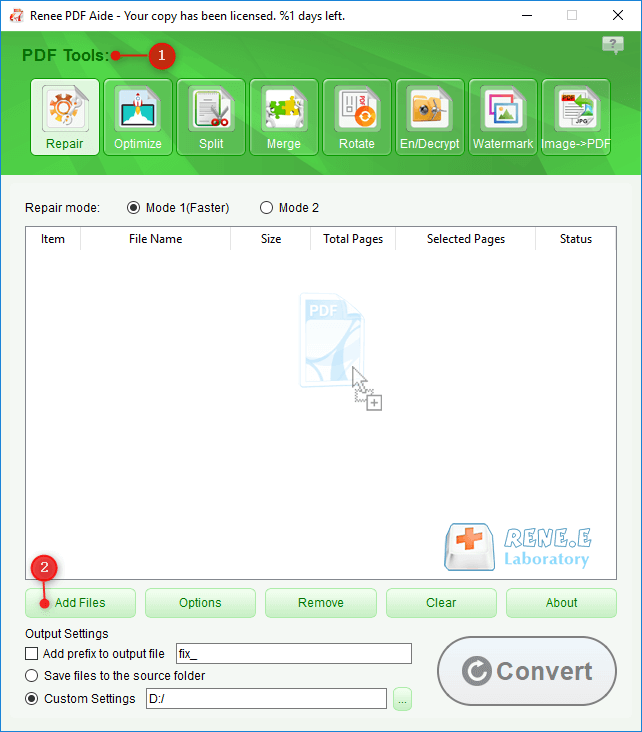
Step-by-Step: Fixing Garbled Text with Renee PDF Aide
Follow these straightforward steps to restore your PDF’s text to a clean, fully editable state:
- ✓ Versatile Convert to Word/Excel/PPT/Text/Image/Html/Epub
- ✓ Secure 100% local conversions ensure zero risk of data leaks
- ✓ Efficient Batch Process dozens of PDF files in seconds
- ✓ Comprehensive Seamlessly convert PDFs to Excel, PowerPoint, Text, and more
- ✓ OCR Support Extract Text from Scanned PDFs, Images & Embedded Fonts
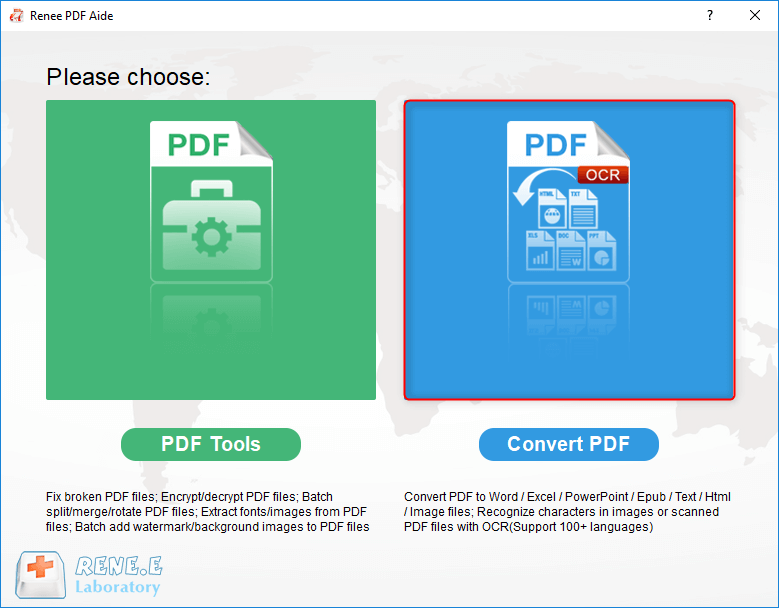
Step 1: Open and Select the Module
Launch Renee PDF Aide on your computer. On the main interface, click the “Convert PDF” tab to initiate the conversion process.

Step 2: Add Your Garbled PDF Files
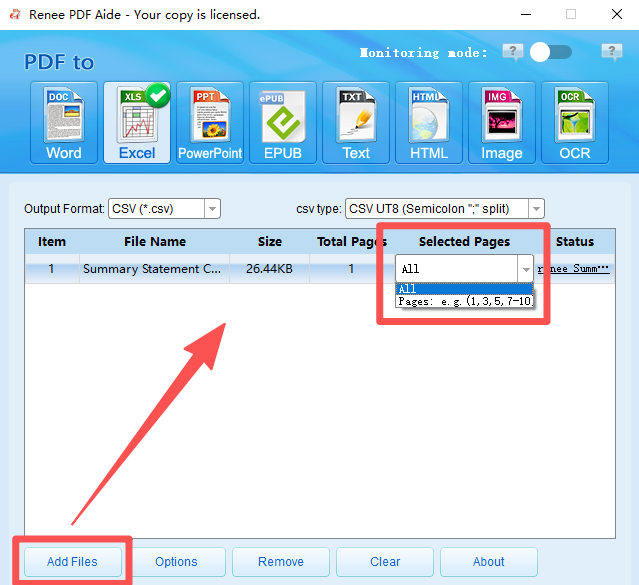
Click the “Add Files” button to import one or more PDFs—batch conversion is fully supported. If you only need to fix specific pages within a large document, use the “Selected Pages” dropdown menu to specify your desired page range.
Step 3: Choose Output Format and Options
Select your preferred output format (such as Word or Excel) from the top navigation bar. Click on “Options” to access additional settings, such as merging all pages into a single spreadsheet for Excel or adjusting specific export preferences for Word documents.
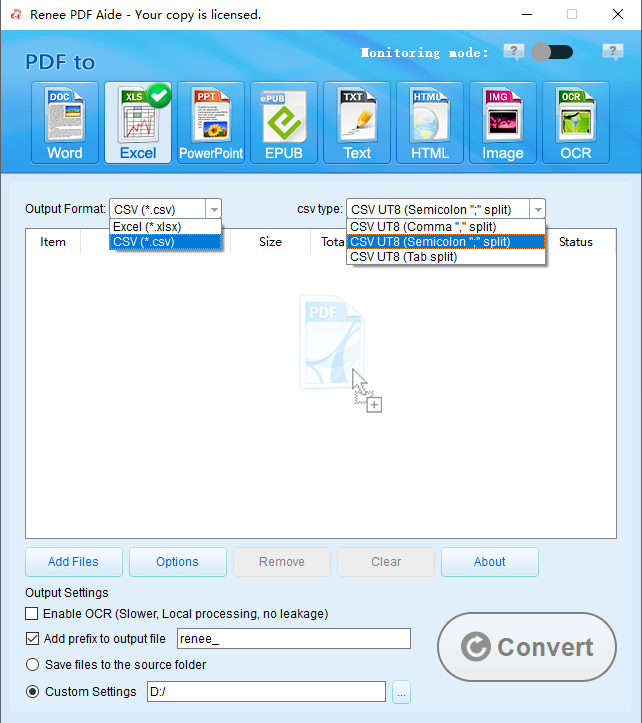
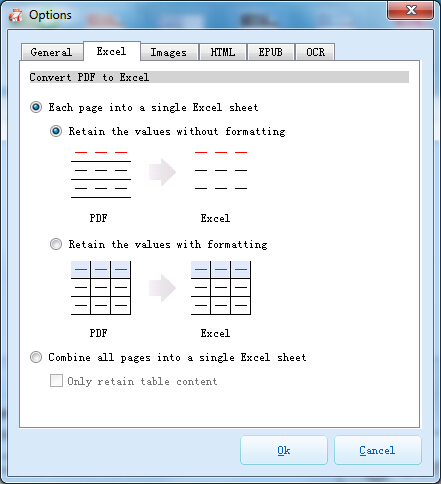
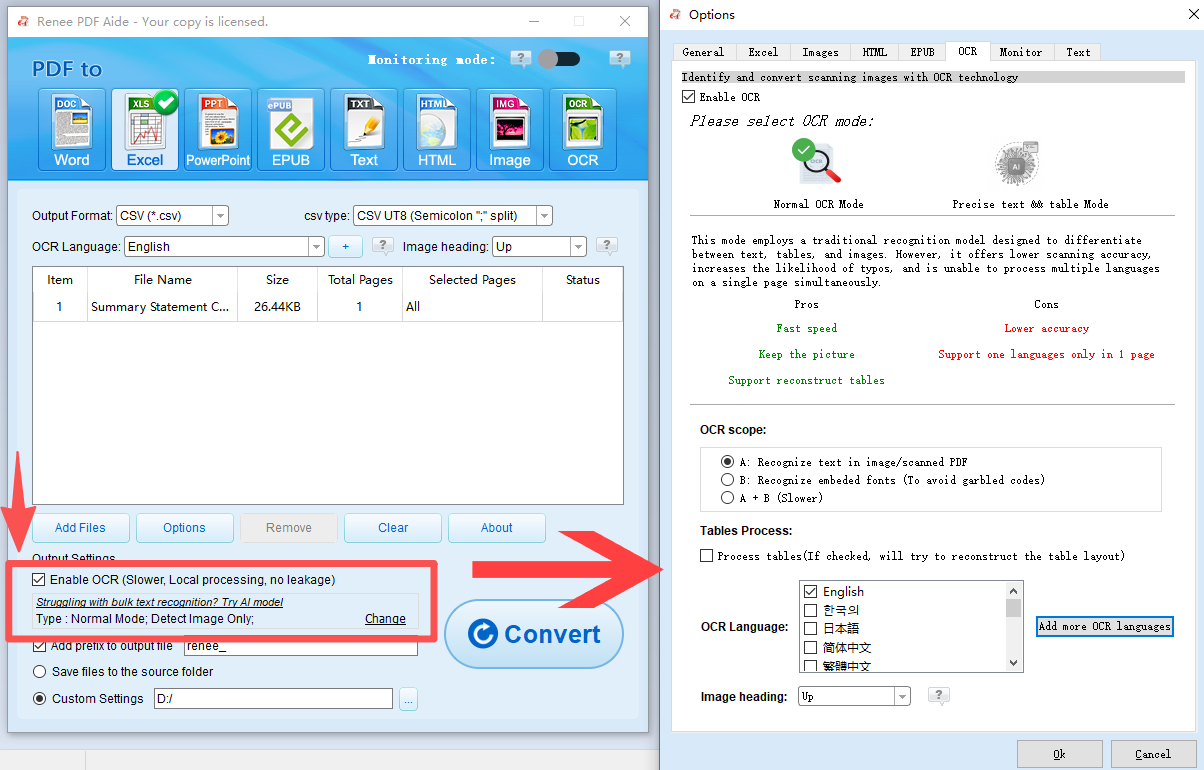
Step 4: Enable OCR and Select Mode B (Crucial Step)
Check the “Enable OCR” box. Within the OCR settings panel, select Mode B: Identify built-in fonts (to avoid garbled characters). As mentioned earlier, this mode treats embedded fonts as images and applies advanced OCR to extract clean text, effectively bypassing font encoding issues. Ensure you select the correct document language from the dropdown list to achieve the best recognition accuracy.
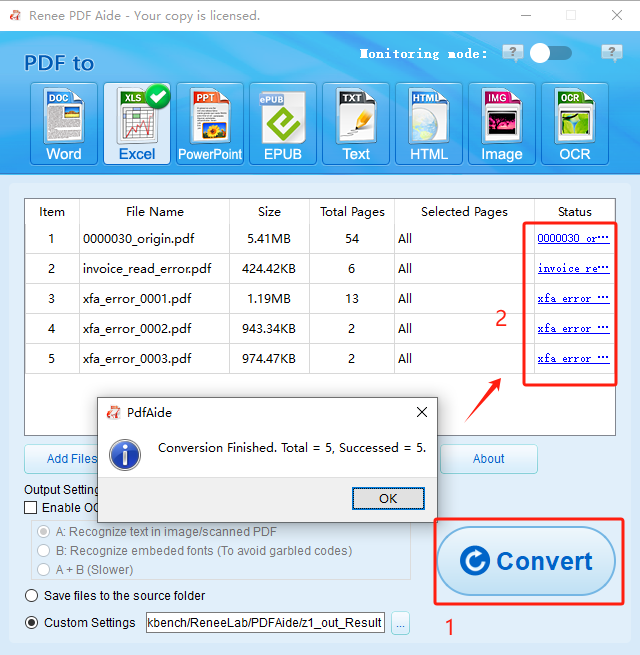
Step 5: Convert and Retrieve Your Files
Click the “Convert” button to start the process. Once the conversion is finished, a summary window will display your results. In the “Status” column, simply click the file link to open your newly cleaned, fully editable document.
- ✓ Versatile Convert to Word/Excel/PPT/Text/Image/Html/Epub
- ✓ Secure 100% local conversions ensure zero risk of data leaks
- ✓ Efficient Batch Process dozens of PDF files in seconds
- ✓ Comprehensive Seamlessly convert PDFs to Excel, PowerPoint, Text, and more
- ✓ OCR Support Extract Text from Scanned PDFs, Images & Embedded Fonts
Alternative Methods: Online Tools and Native Software
While Renee PDF Aide is the most reliable and secure method for resolving font encoding errors, there are alternative options available for simple or non-sensitive documents. Here is how they compare:
Online Converters
Online services like Smallpdf, iLovePDF, and Zamzar are incredibly popular for quick, no-install conversions. While they offer undeniable convenience, these tools rely on standard PDF parsing. This means they read the exact same broken text layer that causes garbled output in the first place. As a result, your converted file will usually look just as messy as the original, or the service might fail to process the file outright.
Privacy is another significant concern. Uploading confidential documents to third-party cloud servers means surrendering control over your data. When you add in daily usage limits, strict file size restrictions, and a complete lack of advanced font recognition, online tools are best reserved for non-sensitive, straightforward PDFs.
✅ Advantages: ❌ Disadvantages:
Native Office & Built-in OS Options
If you already have Microsoft Word or Adobe Acrobat installed, you might consider trying their built-in PDF conversion features. Adobe Acrobat Pro can export PDFs to Word, but if fonts are missing or the encoding is corrupted, it often replaces characters with hollow rectangles or generic symbols. It does not convert fonts to images or re-OCR them. Similarly, Microsoft Word can open PDFs and attempt to reconstruct them, but it struggles heavily with complex layouts, missing fonts, or non-standard encodings, frequently resulting in scrambled or entirely missing text.
✅ Advantages: ❌ Disadvantages:
How to try these native methods (results may vary):
Adobe Acrobat Pro: Open the PDF, navigate to File > Export To > Microsoft Word > Word Document.
Microsoft Word: Open Word, select File > Open, and choose your PDF. Word will prompt you to convert the file into an editable document.
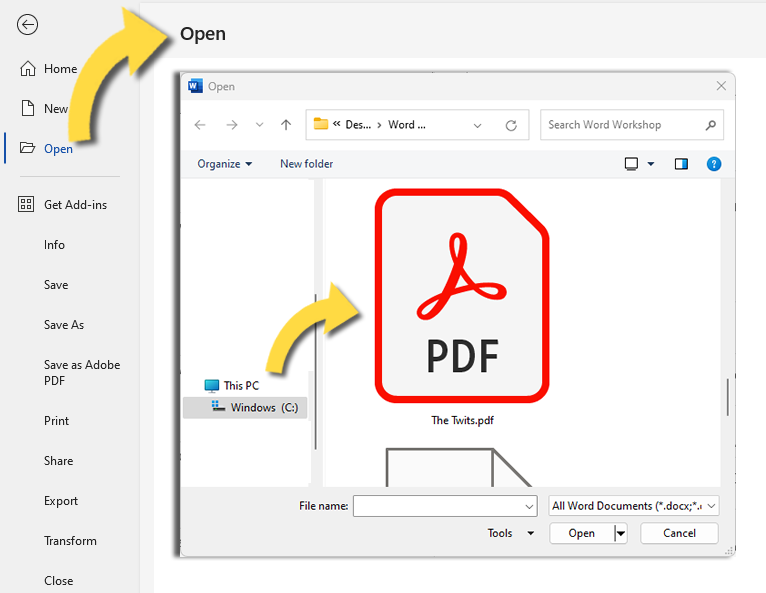
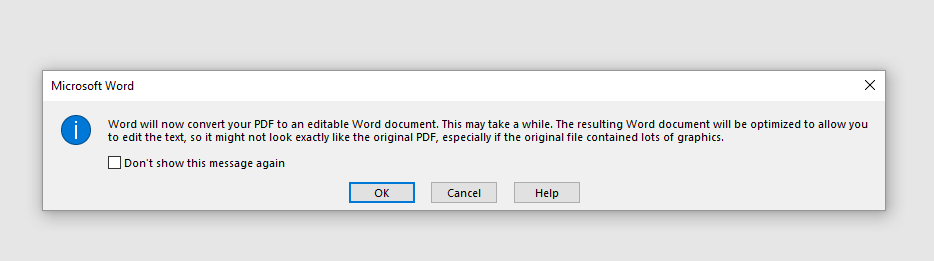
Browser Print-to-PDF Workaround: Open the PDF in your preferred web browser, press Ctrl+P (or Cmd+P on a Mac), and save it as a new PDF. Then, open this newly created PDF in Word.
If the converted text remains garbled after trying these workarounds, your best option is to use a tool that bypasses the text layer entirely—Renee PDF Aide with OCR Mode B.
Native tools are perfectly fine for quick, straightforward conversions where the source PDF is already well-formed. However, for persistent font encoding errors, they simply fall short.
Comparison and Best Practices for Future Conversions
Here is a quick comparison table to help you choose the right method for your specific needs:
| Method | Garbled Font Accuracy | Privacy (Local/Cloud) | Batch Support | Cost |
|---|---|---|---|---|
| Renee PDF Aide (Mode B) | High – bypasses encoding errors entirely | Fully local | Yes, one-click batch | Paid (free trial available) |
| Online Converters | Low – reuses broken text layer | Cloud (privacy risk) | Limited or subscription | Freemium / subscription |
| Adobe Acrobat / MS Word | Medium – good for well-encoded PDFs | Local (if installed) | Product dependent | Paid (or included with Office) |
For any PDF that displays tofu boxes, scrambled symbols, or unreadable text after conversion, Renee PDF Aide offers the most accurate results while keeping your files completely secure.
- ✓ Versatile Convert to Word/Excel/PPT/Text/Image/Html/Epub
- ✓ Secure 100% local conversions ensure zero risk of data leaks
- ✓ Efficient Batch Process dozens of PDF files in seconds
- ✓ Comprehensive Seamlessly convert PDFs to Excel, PowerPoint, Text, and more
- ✓ OCR Support Extract Text from Scanned PDFs, Images & Embedded Fonts
Frequently Asked Questions
How can I determine which OCR mode is right for my specific PDF?
To choose the correct mode, refer to the diagnostic table provided earlier in this guide. You should use Mode A for scanned or image-based PDFs where the text cannot be highlighted or selected. If you are dealing with a native PDF where the text can be selected but appears garbled or turns into symbols after conversion, Mode B is the correct choice. If you are unsure or have a document that contains a mix of both scanned pages and embedded-font pages, Mode A+B will attempt both methods, though it will take slightly longer to process.
What exactly happens behind the scenes when OCR Mode B fixes garbled text?
When you activate OCR Mode B, the software completely ignores the corrupted or broken text layer of the document. Instead of trying to read faulty font mapping tables, it renders each page as a high-resolution image and then applies advanced Optical Character Recognition to extract the text. This process effectively rebuilds the document’s content from scratch, which eliminates those frustrating tofu boxes and jumbled symbols caused by underlying encoding errors.
Comments
0 comments
Please sign in to leave a comment.