Table of contents
Summary
A scanned PDF is essentially an image, meaning its text cannot be selected or edited directly. To modify the content, you must first use Optical Character Recognition (OCR) to convert the image into editable text. For simple additions like watermarks or notes, you can overlay elements without OCR. This guide covers both methods: using LibreOffice for quick annotations and Renee PDF Aide for comprehensive, offline text editing with high accuracy and privacy.
A scanned PDF isn’t real text—it’s essentially a photograph of a page. Every “character” is just a cluster of pixels, not selectable or editable content. In contrast, a native PDF exported from Word contains actual text you can click, select, and modify. When dealing with a scanned contract or book page, there’s no text cursor because the file is only an image. To edit the content, you must first run Optical Character Recognition (OCR) to convert that image into editable text. If your goal is simply to add notes, watermarks, or basic annotations, you can skip OCR entirely and use a tool like LibreOffice to draw directly on the PDF.
Quick Check: If you cannot select text with your mouse in a PDF viewer or Google Chrome, the PDF is a scanned document.
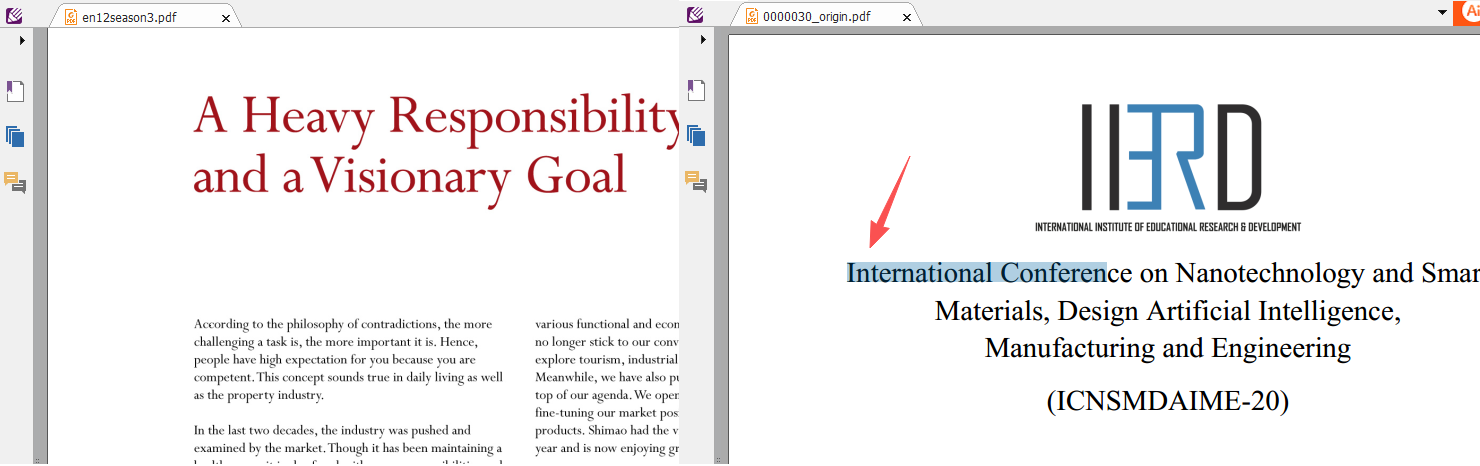
Main ways to edit text in a scanned PDF
1. Free online OCR editors (e.g., Smallpdf, iLovePDF)
Fast, convenient, and no installation required.
Limitations: file size restrictions, potential privacy issues, and lower accuracy—especially with complex layouts.
2. Convert to Word / Google Docs
Upload the scanned PDF to Google Drive or use a converter to generate an editable document.
Limitations: formatting often breaks, and multi-column pages or tables may not convert cleanly.
3. Desktop PDF editors with OCR
Work offline, offer stronger privacy, and typically preserve the original layout more accurately.
Limitation: requires downloading and installing software.
For quick, low‑risk tasks, online tools are perfectly convenient. But if you’re handling confidential documents or editing complex, multi‑page scans, a desktop solution—such as LibreOffice or Renee PDF Aide—delivers higher accuracy and full control without uploading your files to the cloud.
Quick Solution: If you just need to add text or a watermark in a PDF
If you simply want to overlay new text, labels, or a watermark—without editing the original scanned text—LibreOffice is a free and easy choice. LibreOffice Draw opens your PDF as a page of shapes, letting you add text boxes, arrows, stamps, or image-based watermarks wherever you like. This doesn’t perform OCR, so the underlying scan stays unchanged.
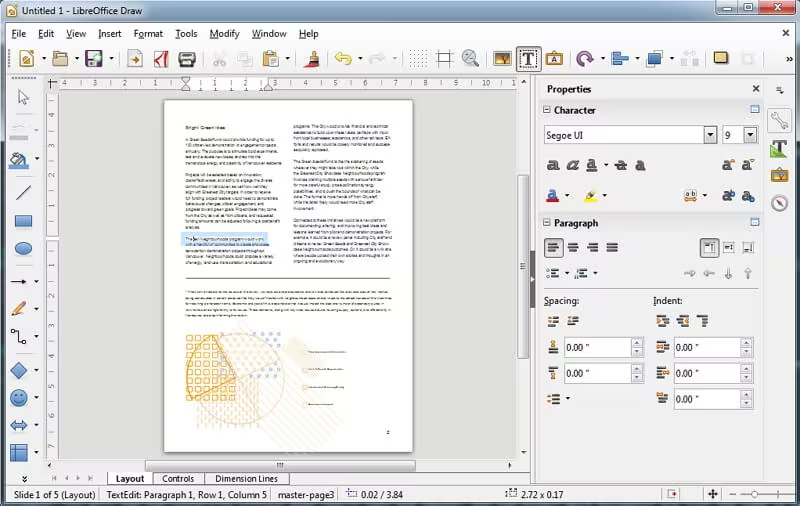
Steps
1. Download and install LibreOffice.
2.
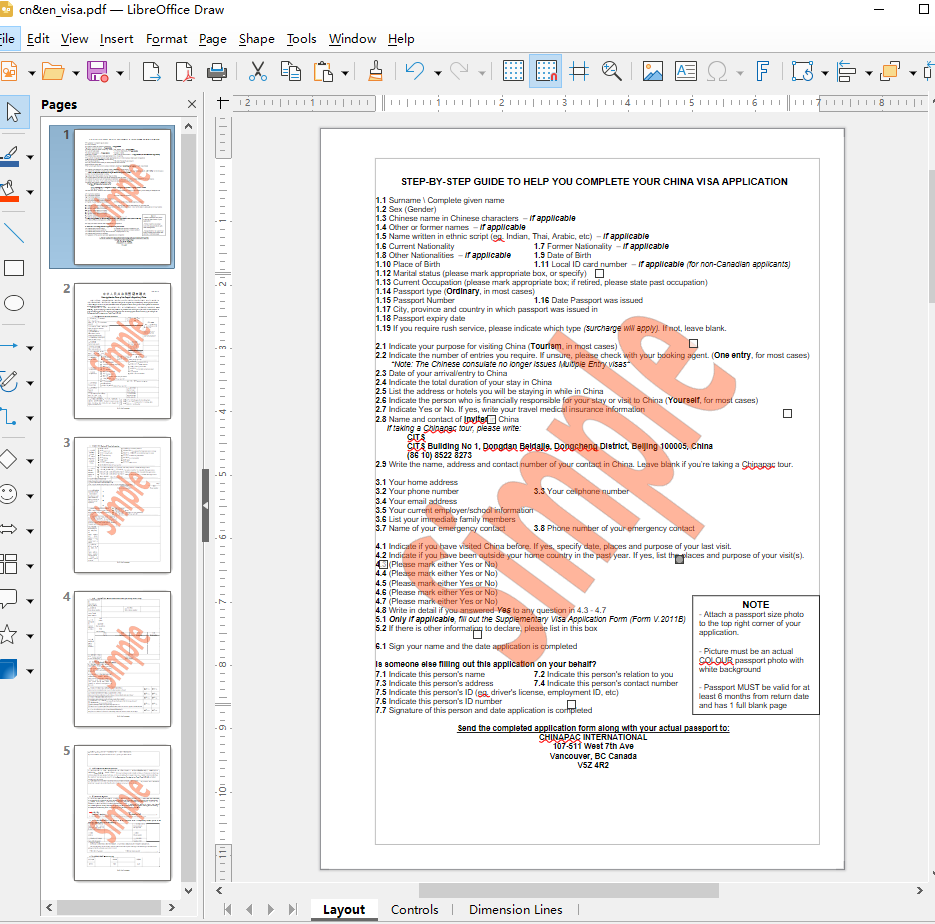
Open LibreOffice Draw (File → Open → select your scanned PDF).
3.
Use the Text Box tool to click and type any additional information. Adjust font, size, and color as needed.
4.
To add a watermark, insert an image (like a logo) or a semi-transparent text box, then position it as desired.
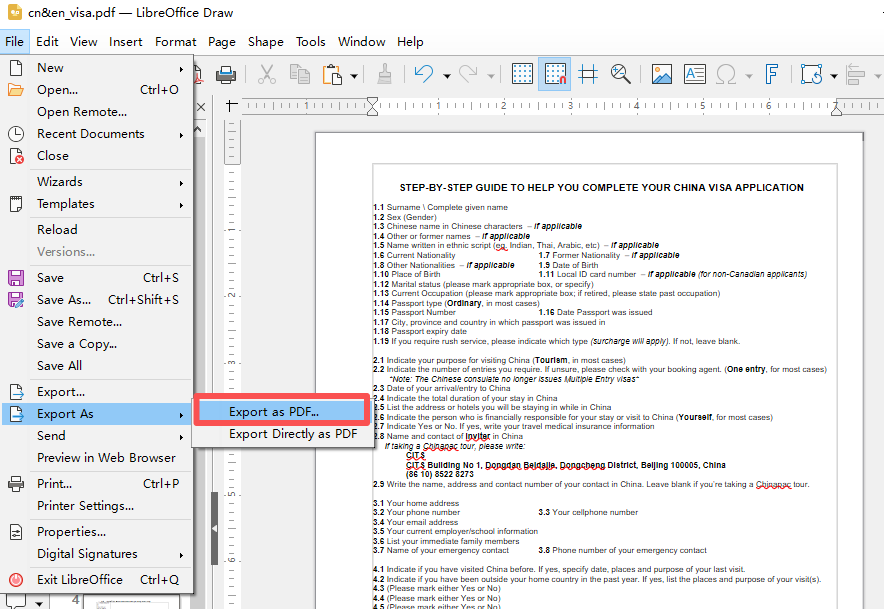
5. Save or export: File → Export As → Export as PDF…. The original scan remains untouched.
This approach is perfect for filling in a scanned form or stamping “Draft” across a document. However, it does not let you edit, delete, or search the existing scanned text—you’re only adding layers on top. For true text editing, you’ll need OCR, covered in the next section.
✅ Advantages:
- Completely free and open-source
- No internet connection required
- Great for adding simple text or watermarks
❌ Disadvantages:
- Cannot edit or delete existing scanned text
- Layouts may shift when opening complex PDFs
- Not a dedicated PDF editor
A simple way to make a scanned PDF editable with Renee PDF Aide
For the best results with privacy and accuracy, Renee PDF Aide is a powerful offline tool that quickly turns scanned PDFs into fully editable files. Its advanced OCR recognizes text even from older or lower-quality scans, and exports clean Word, Excel, TXT, or Markdown files that you can freely edit.
- ✓ Versatile Convert to Word/Excel/PPT/Text/Image/Html/Epub
- ✓ Secure 100% local conversions ensure zero risk of data leaks
- ✓ Efficient Batch Process dozens of PDF files in seconds
- ✓ Comprehensive Seamlessly convert PDFs to Excel, PowerPoint, Text, and more
- ✓ OCR Support Extract Text from Scanned PDFs, Images & Embedded Fonts
Key benefits at a glance:
-
100% Offline Privacy – Your confidential documents never leave your computer.
-
High Speed – Converts up to 80 pages per minute, with the ability to process multiple files at once.
-
Handles Tricky Formats – Supports XFA forms from banks and government agencies that many other converters can’t open.
-
Flexible Outputs – Export to Word, Excel, TXT, Markdown, and more, so you can edit in your preferred application.
-
Batch Processing – Convert entire folders of scanned files in one go.
How to edit text in a scanned PDF step by step
Here’s how to convert your scanned PDF into an editable document using Renee PDF Aide. We’ll use Word as an example, but you can choose Excel for tables or TXT/Markdown for plain text.

1. Open and add files
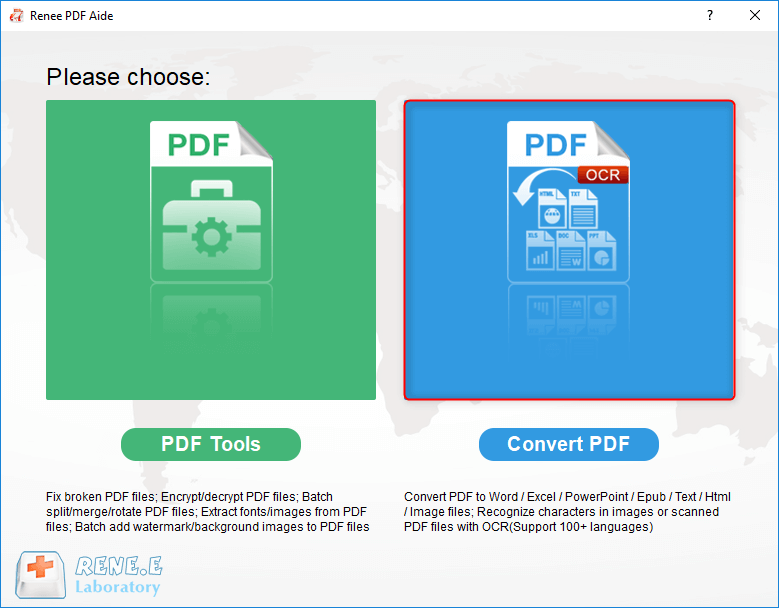
Launch Renee PDF Aide, select Convert PDF from the main menu, and click Add Files to import your scanned PDF. You can add several files at once for batch processing.
2. Choose output format
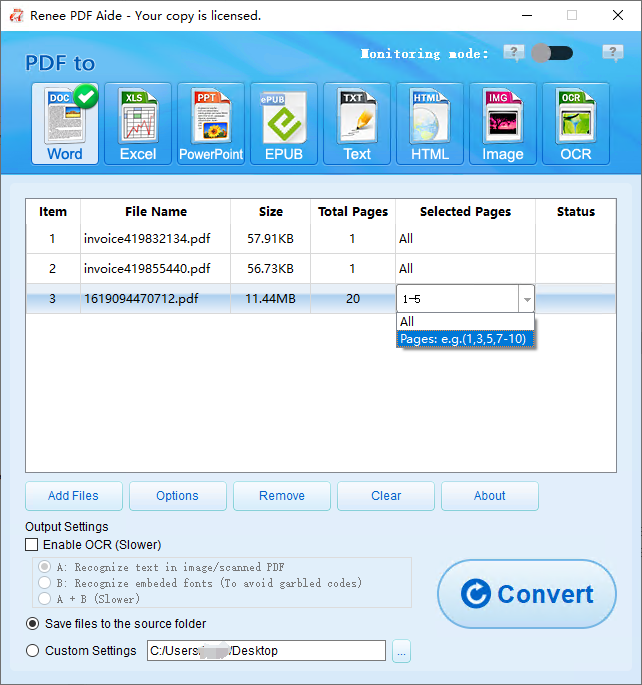
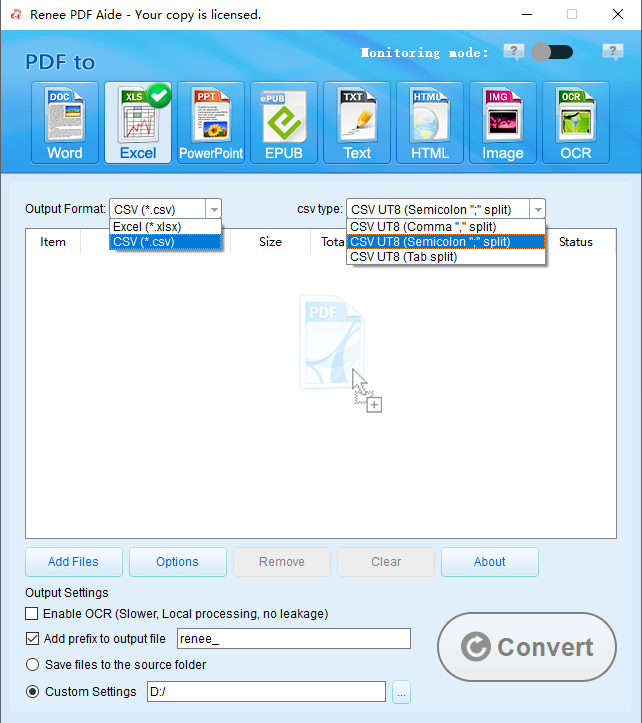
At the top, select Word for text editing. If your document is mostly tables, choose Excel, CSV, or Markdown.
3. Enable OCR
Check the Enable OCR box. Choose the recognition mode that fits your file:
-
Mode A: Best for standard image scans.
-
Mode B: Use if your PDF has embedded fonts that become garbled.
-
Mode A+B: Safest for mixed or tricky documents (may be slower).
Also, select the document’s language to improve recognition accuracy.
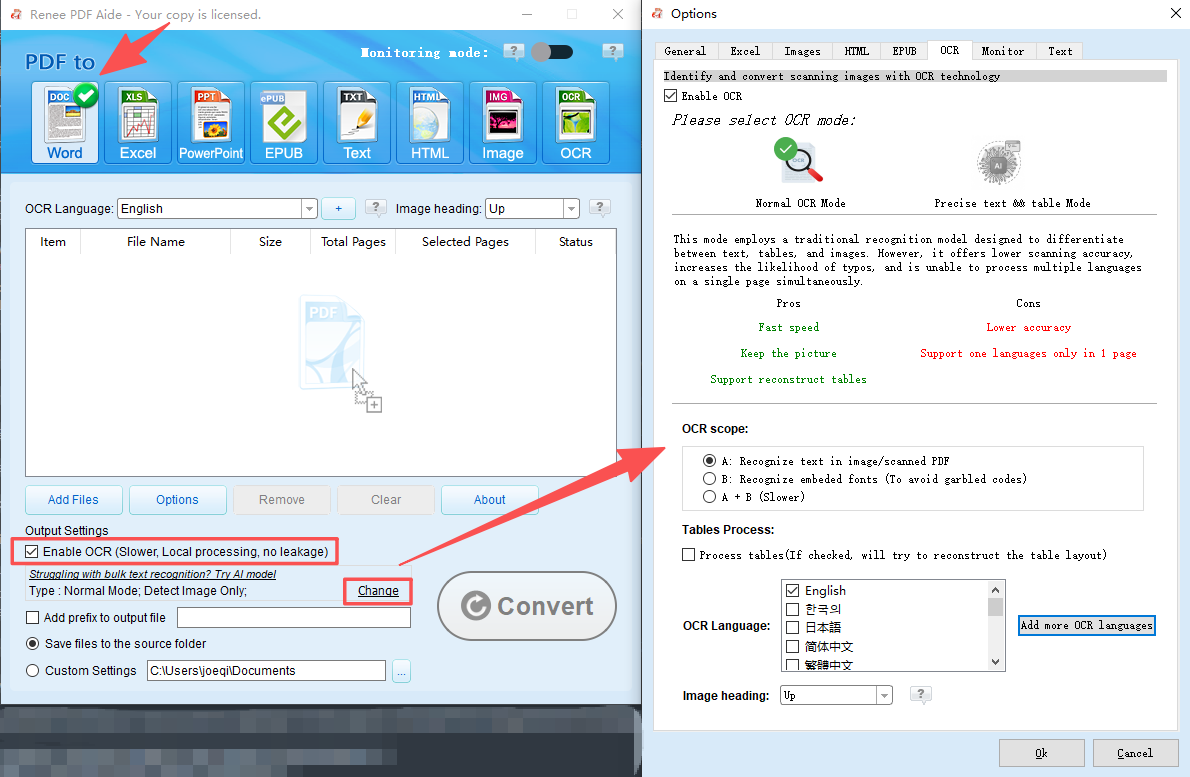
4. Convert
Click Convert. You’ll see a progress bar, and a summary message will confirm how many files were processed successfully.
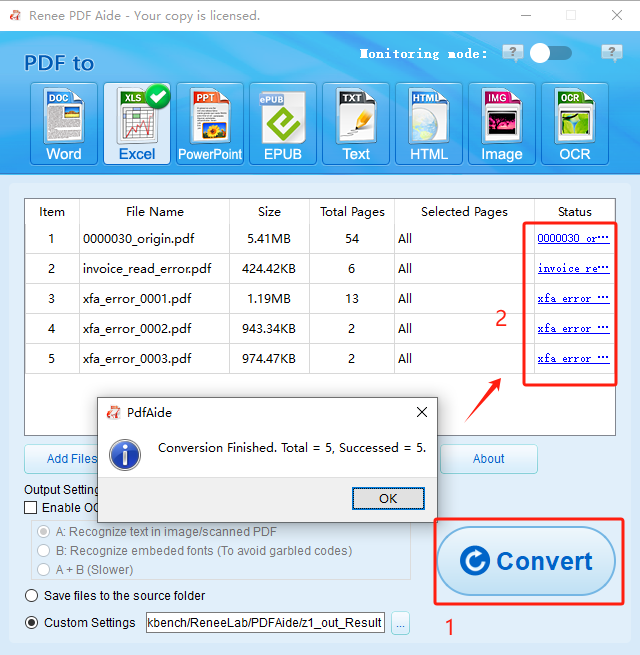
5. Edit the text
Open the new Word (or Excel) file. Now you can fully edit the text—fix typos, update details, or rewrite sections. The original scanned PDF remains unchanged.
6. Save and, if needed, export back to PDF
After making your changes, save the document. If you need a new PDF, use File → Save As and select PDF. Your layout will closely match the original.
How to check whether the scanned PDF was converted accurately
Once OCR is complete, take a moment to verify the results:
-
Select and copy a sentence – Paste it into Notepad. If it appears as real text, OCR worked; if it’s garbled, recognition failed in that area.
-
Look for garbled text – Pay special attention to small fonts, numbers, or special characters.
-
Check the layout – Make sure columns, tables, and paragraphs line up with the original scan.
-
Inspect images – Signatures, stamps, and handwritten notes usually remain as images and aren’t editable.
If the output contains many mistakes, try rescanning the original paper at 300 dpi or higher—text is much clearer in black-and-white mode than color. Then run OCR again for better results.
FAQ
Does OCR handle handwriting or signatures?
Handwritten notes and signatures are generally not converted into editable text; instead, they remain as images within the output document. If you need to preserve a signature, it will appear as a movable image box. You can resize or reposition it, but you cannot edit the handwriting itself as if it were typed text.
Is it safe to upload sensitive scanned contracts to free online OCR tools?
Generally, no. Free online tools process files on remote servers, and their privacy policies may not guarantee immediate deletion. For confidential documents—such as tax returns, legal contracts, or medical records—an offline tool like Renee PDF Aide is significantly safer, as your files never leave your local computer.
Can I edit a scanned PDF without using OCR?
Only in a limited capacity. You can overlay extra text, lines, or watermarks using tools like LibreOffice Draw or a PDF annotation viewer. However, you cannot correct, delete, or search the original scanned text without performing OCR. For genuine text editing, OCR is essential.
How can I improve OCR accuracy for a blurry or low-quality scan?
Rescan the document at 300 dpi or higher using a flatbed scanner rather than a phone camera. Ensure the page lies flat and is well-lit. Most desktop OCR software, including Renee PDF Aide, allows you to specify the document’s language, which significantly boosts recognition accuracy. For minor errors, you can always manually correct them in the output file.
- ✓ Convert to Editable Word/Excel/PPT/Text/Image/Html/Epub
- ✓ Multifunctional Encrypt/decrypt/split/merge/add watermark
- ✓ OCR Support Extract Text from Scanned PDFs, Images & Embedded Fonts
- ✓ Quick Convert dozens of PDF files in batch
- ✓ Compatible Support Windows 11/10/8/8.1/Vista/7/XP/2K
Comments
0 comments
Please sign in to leave a comment.