Table of contents
- I. Understanding PDF and Excel Files
- II. How to Convert PDF to Excel
- Method 1: Renee PDF Aide (Offline, Accurate, and Private)
- Method 2: Excel’s Built-in PDF Import (Microsoft 365 Only)
- Method 3: PDF2Go (Fast Online Conversion)
- Method 4: Google Docs (Free Indirect Method)
- Method 5: Tabula (Free Open-Source Table Extractor)
- Method 6: Adobe Acrobat Pro (Premium Precision)
- AI Assistants (For Tricky or Scanned Files)
- III. More PDF Editing with Renee PDF Aide
- IV. FAQ
- V. Summary
Summary
This guide breaks down six effective ways to convert PDFs to Excel, from free online tools to pro software.
Ever get stuck with a PDF loaded with tables and numbers, wishing you could just dive into the data in a spreadsheet? Whether it’s bank statements, sales reports, or research stats, knowing how to convert PDF to Excel makes editing, analyzing, and sharing a breeze. This guide walks you through trusted methods—from free tools to premium picks—that keep your data accurate and structured, so you can focus on insights, not formatting fights.

I. Understanding PDF and Excel Files
What Is a PDF?
A PDF (Portable Document Format), developed by Adobe, locks in your document’s layout, fonts, and images so it looks identical on any screen. It’s the go-to for sharing manuals, forms, eBooks, invoices, and reports that must stay consistent.
What Is Excel?
Microsoft Excel is a powerful spreadsheet app for organizing, calculating, and visualizing data. With support for formulas, charts, pivot tables, and VBA automation, Excel files (typically “.xlsx”) are essential for budgeting, forecasting, dashboards, and financial modeling.
Why Convert Between PDF and Excel?
PDFs excel at preserving static content, while Excel thrives on dynamic data work. Converting PDFs to Excel is a daily task in finance, research, education, and analytics—especially when pulling tables from reports or forms. But not all Excel formats are the same. Here’s a breakdown of key file types, their strengths, and which tools in this guide support them:
| File Format | Key Features | Best For | Supported Tools |
|---|---|---|---|
| .xlsx | Open XML format; supports 1M+ rows; keeps formulas, charts, formatting; no macros (safer); universal compatibility. | Daily reports, budgets, collaborative editing. | Renee PDF Aide, Excel (M365), PDF2Go, Google Docs (indirect), Adobe Acrobat Pro |
| .csv | Plain-text, comma-separated; no formulas or styling; lightweight and import-friendly. | Moving raw data between apps; contact lists, sales logs. | Renee PDF Aide, Tabula, Google Docs (indirect), Excel (M365) |
| .xlsm | Like .xlsx but enables VBA macros; great for automation; may trigger security alerts. | Interactive dashboards, custom calculators. | Excel (M365), Adobe Acrobat Pro |
| .xlsb | Binary format; faster with large datasets; supports macros; smaller files. | Heavy data models needing speed. | Excel (M365), Adobe Acrobat Pro |
| .xls | Legacy format; max 65K rows, 256 columns; basic features. | Older systems or pre-2007 files. | PDF2Go |
II. How to Convert PDF to Excel
Method 1: Renee PDF Aide (Offline, Accurate, and Private)
For precision, speed, and full control, Renee PDF Aide is our top pick. This desktop tool isn’t just a converter—it’s a complete PDF solution that extracts tables flawlessly from both digital and scanned files using advanced OCR (Optical Character Recognition).
It converts PDF tables directly to:
- Excel (.xlsx)
- CSV (.csv) – ideal for databases or analysis
- Markdown – perfect for docs or AI datasets
- TXT
- Editable Word
- …and more formats.
Since everything processes locally, your files never leave your device—perfect for sensitive data.
- ✓ Versatile Convert to Word/Excel/PPT/Text/Image/Html/Epub
- ✓ Secure 100% local conversions ensure zero risk of data leaks
- ✓ Efficient Batch Process dozens of PDF files in seconds
- ✓ Comprehensive Seamlessly convert PDFs to Excel, PowerPoint, Text, and more
- ✓ OCR Support Extract Text from Scanned PDFs, Images & Embedded Fonts
Renee PDF Aide is intuitive, blazing fast (up to 80 pages/min), and supports conversion to Excel/CSV, Word, PowerPoint, ePub, Text (TXT/Markdown), HTML, JPG, TIFF, and beyond.
It also bundles repair, optimization, and PDF encryption tools. The clean interface hides powerful features like one-click batch processing and OCR for scanned docs—all free to try.
Renee PDF Aide fully supports XFA forms (common in banking and government PDFs). Most tools fail here, producing blank pages or errors.
Step-by-Step: Extract Tables with Renee PDF Aide
① Launch Renee PDF Aide and click “Convert PDF”.

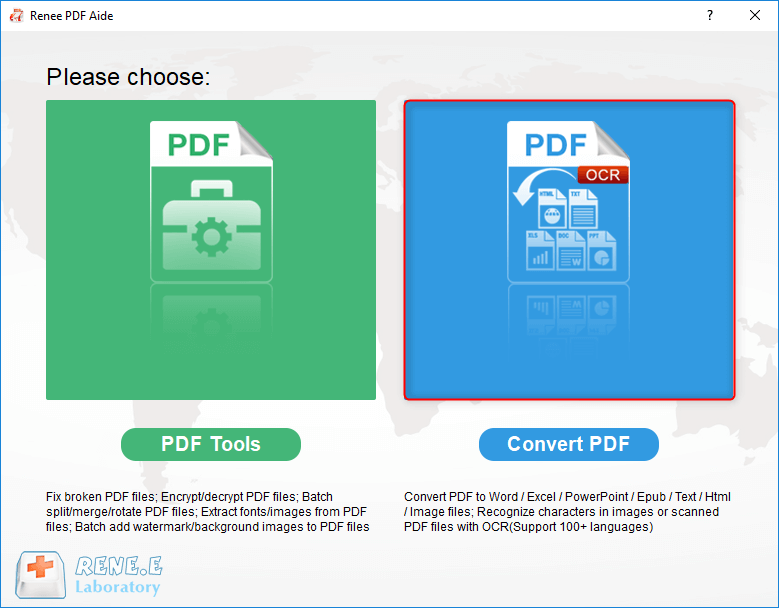
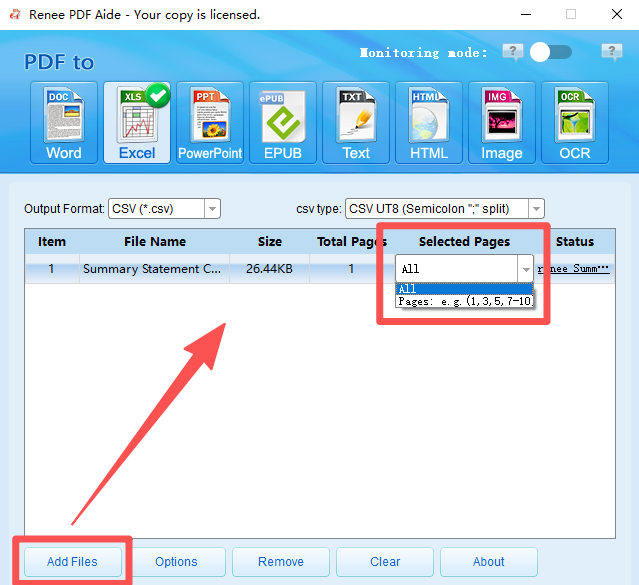
② Click “Add Files” to upload PDFs. Batch mode lets you load multiple files at once. Use the “Selected Pages” dropdown to pick specific pages.
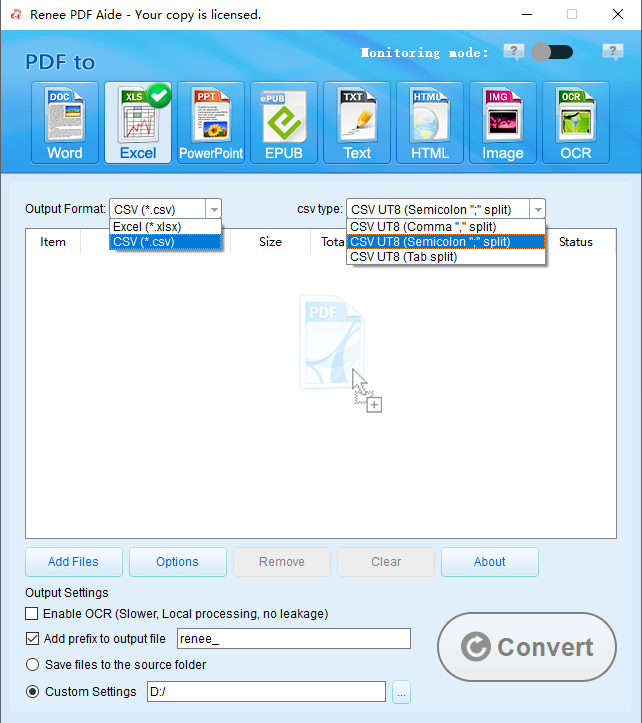
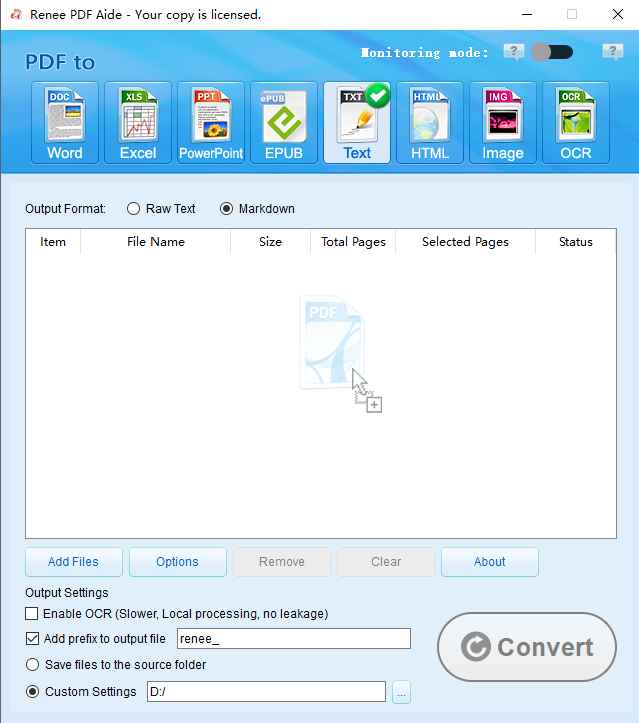
③ Choose output: Excel or CSV under the Excel tab; Markdown or TXT under the TXT tab.
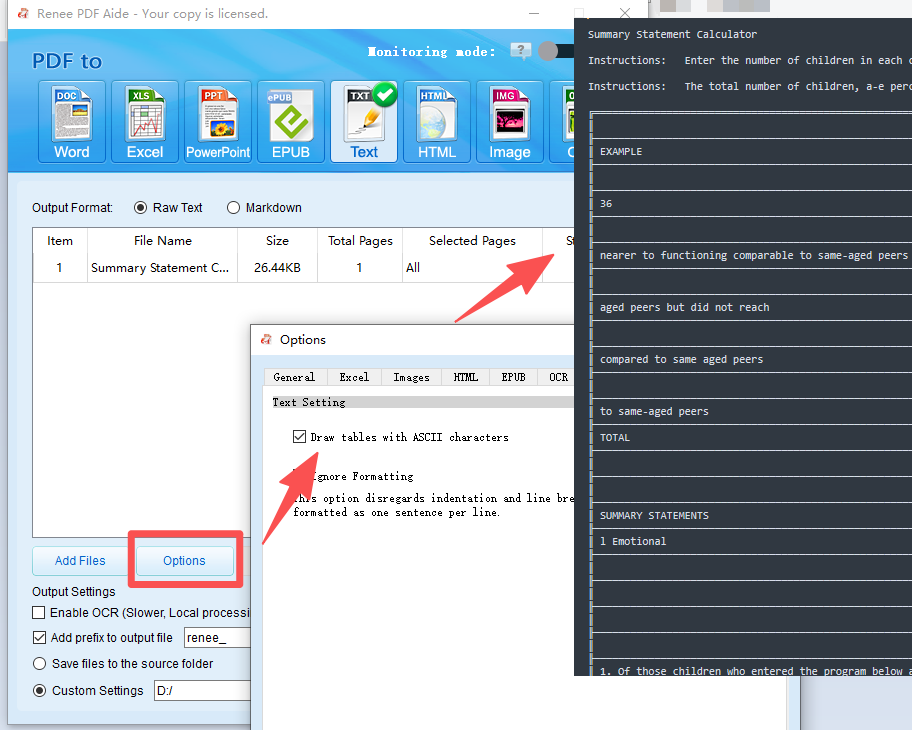
Need ASCII tables? Renee PDF Aide does that too.
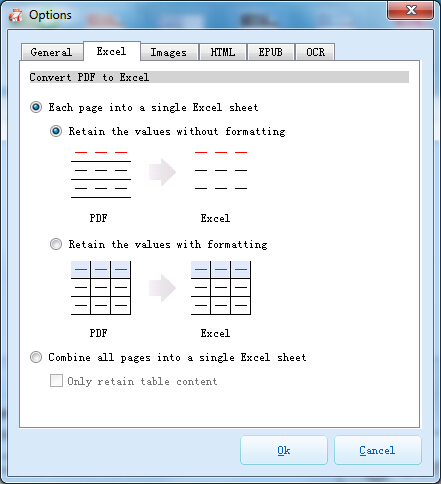
Pro Tip: Click “Options” to place all pages in one sheet or split by page—handy for long reports.
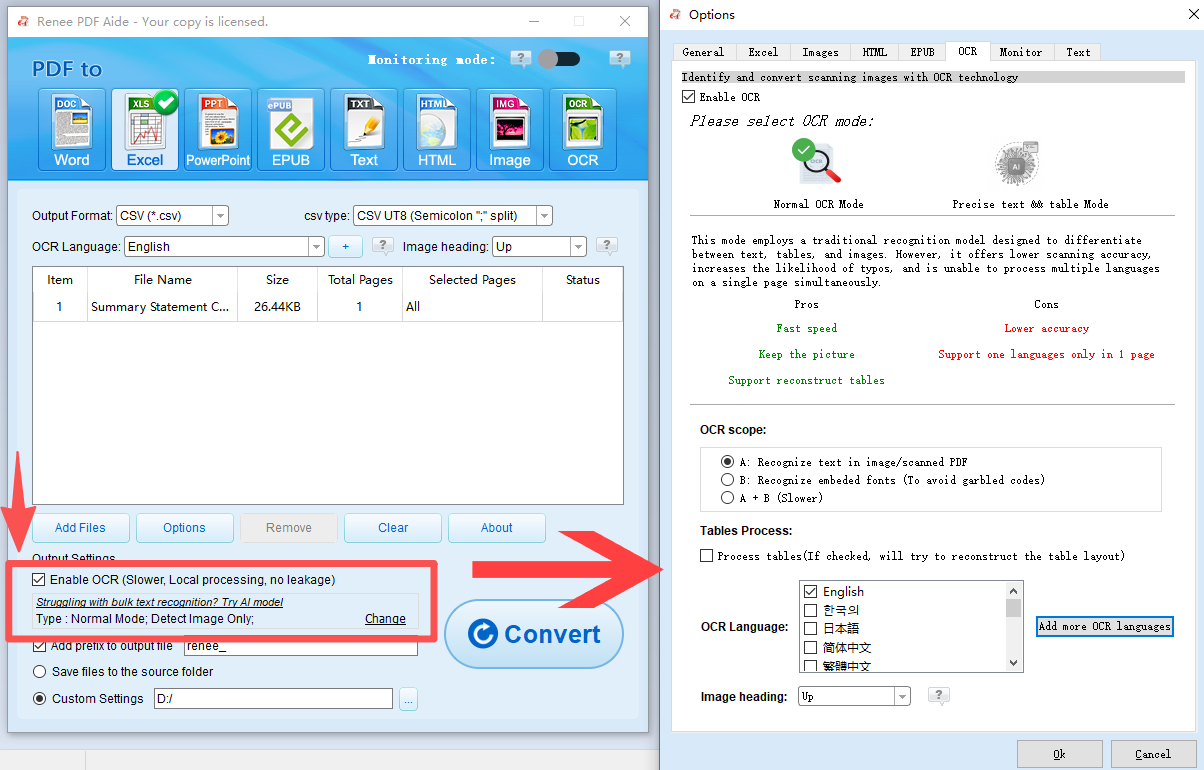
④ For scanned PDFs, enable “OCR”. Choose the right mode:
* A: OCR for image-based text
* B: OCR for embedded fonts (prevents garbled text)
* A+B: Auto-detect (slower but thorough)
⑤ Hit “Convert”. Check results in the “Status” column—click to open.
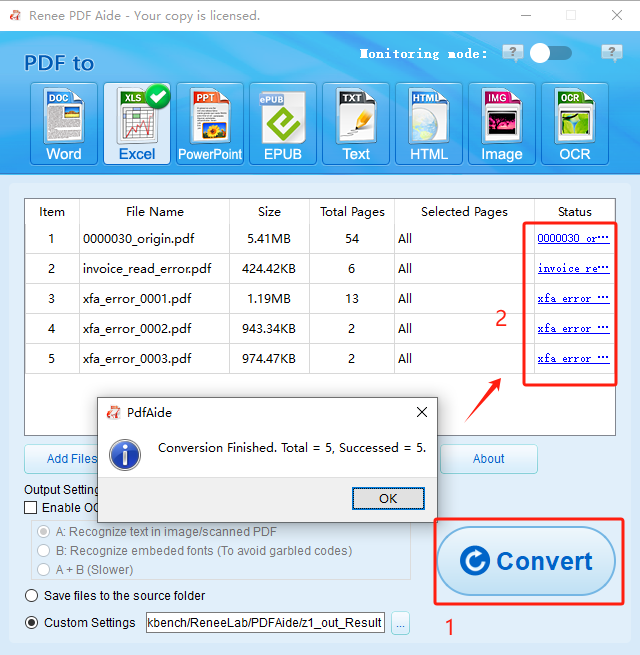
Renee PDF Aide delivers clean, editable spreadsheets fast—ideal for complex or private files.
If you prefer built-in tools or online speed, keep reading.
Method 2: Excel’s Built-in PDF Import (Microsoft 365 Only)
Microsoft 365 users can import PDFs directly into Excel using Power Query—no third-party apps needed. It detects tables, lets you clean data on the fly, and supports refreshable connections.
Works best with text-based PDFs. Scanned files need add-ins or preprocessing.
Steps:
1. In Excel, go to Data > From File > From PDF.
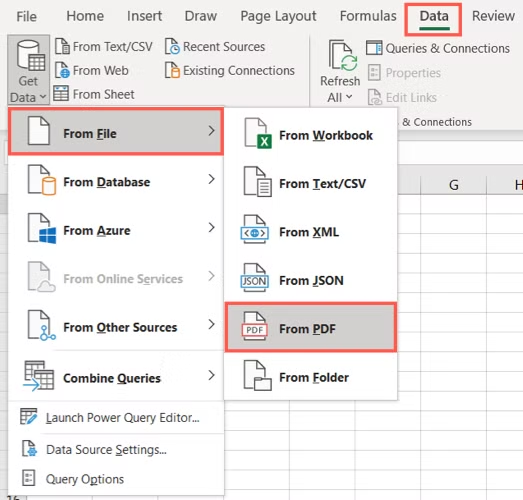
2. Select your PDF and click Import.
3. In the Navigator, preview and select tables. Click Transform Data to clean (remove rows, split columns, etc.).
4. Click Load to populate the sheet.
Perfect for M365 workflows, but need something free and instant? Try an online tool next.
Method 3: PDF2Go (Fast Online Conversion)
No software? PDF2Go converts PDFs to Excel right in your browser—works on phones, tablets, and laptops. Free tier includes OCR for scanned files and exports to .xlsx or .xls.

Extra tools: compress, merge, password-protect. Files are encrypted and auto-deleted, but avoid sensitive data. Free users face file size/daily limits.
How to use:
1. Visit pdf2go.com/pdf-to-excel.
2. Drag and drop or upload from device/cloud.
3. Select .xlsx or .xls.
4. Enable OCR for scans and pick language.
5. Click Start → download.
Great for quick, non-sensitive jobs. Want zero uploads? Try Google Docs.
Method 4: Google Docs (Free Indirect Method)
A simple hack: open PDF in Google Docs, copy tables, and paste into Google Sheets or export to Excel. Best for clean, text-based files.
No OCR, manual copying, and formatting may break.
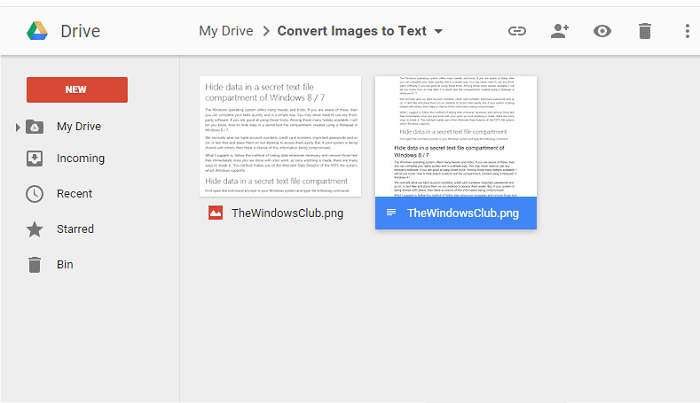
Steps:
1. Upload PDF to Google Drive.
2. Right-click → Open with → Google Docs.
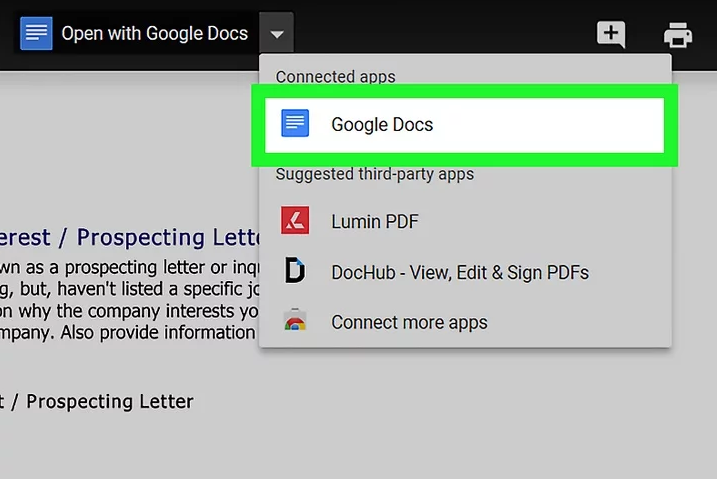
3. Select and copy tables.
4. Paste into new Google Sheet or download Doc as .xlsx.
5. Fix formatting in Sheets/Excel.
Good for light tasks. Need precise table extraction? Try open-source.
Method 5: Tabula (Free Open-Source Table Extractor)
Tabula is a journalist-favorite tool for pulling tables from PDFs into CSV/Excel. Runs locally (via Java), no uploads, free forever.
Draw boxes around tables and export. Best for text-based PDFs; no OCR.

Note: Tabula stopped updates in 2018 (v1.2.1). For modern needs, try Camelot.
Steps:
1. Download and run Tabula (opens in browser locally).
2. Extract zip → run “Tabula” app.

3. If browser doesn’t open, go to http://localhost:8080.
4. Upload PDF → Import.
5. Drag box around table.
6. Click Preview & Export Extracted Data.
7. Review → export as CSV.
Unbeatable for free, accurate table pulls. For pro-grade OCR and polish, see Adobe.
Method 6: Adobe Acrobat Pro (Premium Precision)
Adobe Acrobat Pro delivers enterprise-level accuracy, preserving layout, formulas, and multi-page tables. Built-in OCR handles scans flawlessly.
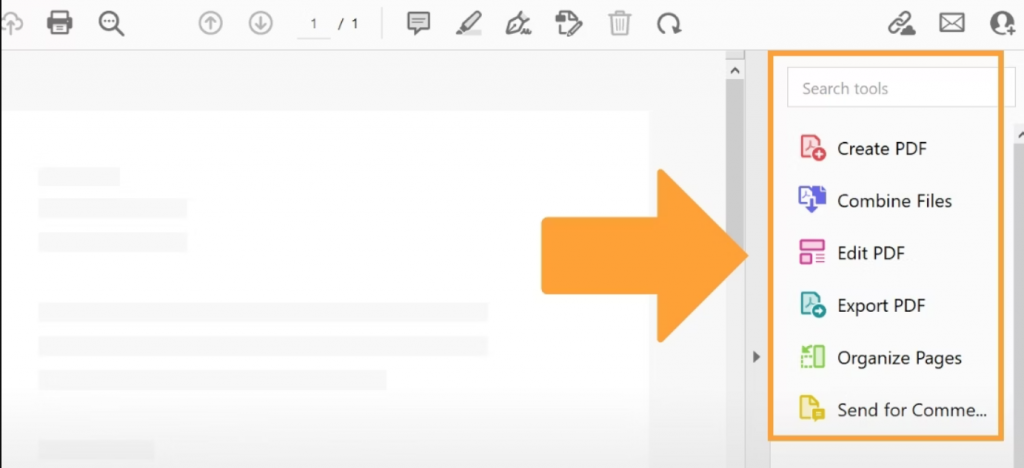
Batch processing, security, cross-platform. Pricey, but unmatched for complex docs.
Steps:
1. Open PDF in Acrobat Pro.
2. Right pane → Export PDF.
3. Select Spreadsheet → Microsoft Excel Workbook.
4. Enable OCR if scanned → tweak layout.
5. Export → save.
AI Assistants (For Tricky or Scanned Files)
When tables are messy or scanned, AI tools like Copilot, ChatGPT, or Grok shine. Upload a screenshot or PDF, and they use OCR to output clean Markdown tables—great for docs or quick edits.
ChatGPT (GPT-4o): Direct PDF upload + Canvas for editable Markdown.
🔍 AI Tool Comparison
| Tool | PDF Upload | OCR for Scans | Free Limits | Paid Perks |
|---|---|---|---|---|
| Copilot | ❌ Screenshots only | ✅ | 1 image/chat | Unlimited, faster, better formatting |
| ChatGPT | ✅ (GPT-4o) | ✅ Strong | GPT-3.5 only | GPT-4o, PDF support, better OCR |
| Grok | ✅ Screenshots/text | ✅ (Grok 3) | Free with limits on X | Grok 3/4: 256K memory, voice, image gen |
How to Use AI:
1. Screenshot or crop table.
2. Upload to AI tool.
3. Ask: “Convert this table to Markdown.”
4. Copy clean output.

Try: Copilot, ChatGPT, Grok, Deepseek, Qwen
III. More PDF Editing with Renee PDF Aide
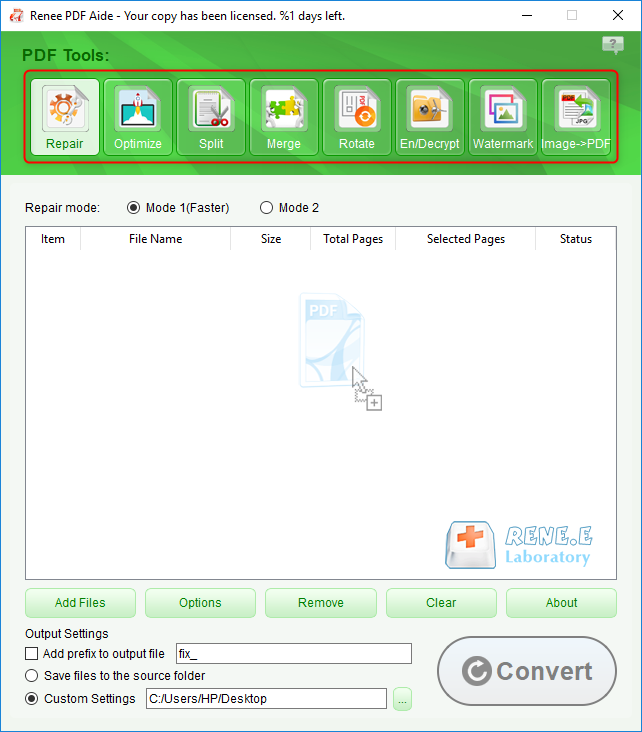
Need to merge, split, rotate, or watermark PDFs? Renee PDF Aide’s PDF Toolset has it all.
Open app → PDF Toolset tab. Choose:
- Repair – Fix damaged files
- Optimize – Compress for faster sharing
- Split – Break into pages or sections
- Merge – Combine with page control
- Rotate – Fix orientation
- Encrypt/Decrypt – Add/remove passwords
- Watermark – Add text/image stamps
- Image to PDF – Convert photos to PDF
Batch support saves hours.
IV. FAQ
How do I convert a scanned PDF to Excel?
Use OCR. In Renee PDF Aide, enable OCR, pick language, and select mode (image or font). Online tools like PDF2Go offer free OCR, but for complex scans, Adobe Acrobat Pro gives cleaner results.
Why is my Excel file messy after conversion?
PDFs don’t store table structure like Excel. Merged cells, page breaks, or images cause issues. Use Renee PDF Aide’s “one sheet per page” option or clean in Excel’s Power Query (unpivot, remove blanks).
Can I convert multiple PDFs at once?
Yes! Renee PDF Aide and Adobe Acrobat Pro support batch. Add files, set format, convert all. Free tools like Tabula are manual.
Are online converters safe for private files?
They use encryption, but files go to servers. For sensitive data (tax, medical), use local tools like Renee PDF Aide—zero upload risk.
What about XFA forms (bank/government PDFs)?
Most tools fail. Renee PDF Aide fully supports XFA, converting forms accurately. Test others first.
V. Summary
From quick online fixes to pro-grade tools, you now have options for any PDF to Excel need. Results vary, but Renee PDF Aide consistently delivers clean, accurate spreadsheets—plus bonus editing tools. Try it free and reclaim your data today.
Comments
0 comments
Please sign in to leave a comment.