Table of contents
Summary
Discover the best tools and methods for batch converting PDF to Markdown in 2025. This definitive guide covers efficient solutions for clean, accurate conversions—perfect for users seeking fast document integration and seamless workflow.
Frustrated with PDFs that won’t let you edit or reuse content? Whether you’re a developer updating documentation, a writer repurposing reports, or just someone who wants more control over locked files, converting PDF to Markdown lets you unlock clean, editable text with proper headings, lists, tables, and code blocks. It’s ideal for wikis, blogs, GitHub READMEs, or any collaborative project.
This guide walks you through the best ways to convert PDF to Markdown—from quick online tools to powerful desktop apps and advanced command-line options. We’ll highlight solutions that keep your layout intact, protect your privacy, and handle batches efficiently.
What PDF to Markdown Conversion Really Means
PDFs are excellent for sharing final documents, but they’re a nightmare for editing. Copying text often breaks formatting, tables turn into garbled lines, and images refuse to cooperate.
Markdown, on the other hand, is a lightweight, plain-text format that’s easy to read, write, and version-control. Use # for headings, ** for bold, - or numbers for lists—simple yet powerful. Converting to Markdown makes your content ready for Git, instant web publishing, or seamless integration with editors like VS Code or Notepad++.
But not every PDF converts cleanly. Scanned pages, multi-column layouts, complex tables, or math equations can trip up even the best tools. That’s why understanding your document type—and the tool’s strengths—is key to getting great results.
📊 How Feasible Is PDF to Markdown Conversion? Tool Support Breakdown
| PDF Content Type | Feasibility | Difficulty | Notes | Tool Support |
|---|---|---|---|---|
| Plain text PDF | ✅ High | ⭐ Easy | Direct text mapping to paragraphs and headings. | Renee PDF Aide: Yes · Pandoc: Yes · Marker: Yes · LightPDF: Yes · Mathpix: Yes |
| Formatted text (titles, lists, tables) | ✅ High | ⭐⭐ Medium | Headings and lists convert smoothly; tables may need minor tweaks. | Renee PDF Aide: Yes · Pandoc: Yes (tables basic) · Marker: Yes · LightPDF: Partial · Mathpix: Yes (OCR for tables) |
| Embedded images | ⚠️ Partial | ⭐⭐ Medium | Images saved separately; linked in Markdown as ![](). |
Renee PDF Aide: Yes (auto-export) · Pandoc: Limited · Marker: Limited · LightPDF: Yes · Mathpix: No (text/math focus) |
| Scanned PDFs (image-based) | ✅ With OCR | ⭐⭐⭐ Hard | OCR quality depends on scan clarity. | Renee PDF Aide: Yes (built-in OCR) · Pandoc: No · Marker: No · LightPDF: Yes (online OCR) · Mathpix: Yes (specialized OCR) |
| Complex tables (multi-page, merged cells) | ⚠️ Limited | ⭐⭐⭐ Hard | Markdown tables are simple; cleanup often needed. | Renee PDF Aide: Yes (handles splits) · Pandoc: Partial · Marker: Partial · LightPDF: Limited · Mathpix: Yes (structured data) |
| Math formulas / special symbols | ⚠️ Partial | ⭐⭐⭐ Hard | Converts to LaTeX in Markdown; accuracy varies. | Renee PDF Aide: Limited · Pandoc: Yes (LaTeX) · Marker: Limited · LightPDF: No · Mathpix: Yes (top-tier LaTeX OCR) |
| Multi-column layouts / magazine style | ❌ Not recommended | ⭐⭐⭐⭐ Very hard | Markdown doesn’t support columns; needs restructuring. | Renee PDF Aide: No · Pandoc: No · Marker: No · LightPDF: No · Mathpix: No |
| Hyperlinks | ✅ High | ⭐ Easy | Becomes clean [text](url) links. |
Renee PDF Aide: Yes · Pandoc: Yes · Marker: Yes · LightPDF: Yes · Mathpix: No |
| Annotations / comments | ⚠️ Partial | ⭐⭐ Medium | Often skipped; manual copy required. | Renee PDF Aide: Limited · Pandoc: No · Marker: No · LightPDF: Limited · Mathpix: No |
This chart shows that simple text and links convert effortlessly, while scanned pages, formulas, or multi-column designs demand OCR or specialized tools. Choose wisely to avoid frustration.
Best Methods to Convert PDF to Markdown
You have options based on speed, privacy, and scale: online for quick tests, desktop for security and batches, or command-line for automation. Let’s explore each.
Method 1: Online Converters (Fastest Start – Done in Under 5 Minutes)
Perfect for beginners or one-time conversions—no software, just a browser. Upload your PDF, select Markdown, and download the .md file instantly.
Popular Online PDF to Markdown Tools
| Tool | Advantages | Disadvantages | Free Batch Support? |
|---|---|---|---|
| Morethan.io | Clean, no-signup interface; great for simple docs. | Weak on complex layouts or scanned files. | ❌ No |
| MConverter | Drag-and-drop; supports larger files. | Free tier has size limits; formatting can vary. | ✅ Yes (limited free batch) |
| Zamzar | Trusted brand; converts to many formats. | Needs email for some files; slower for large PDFs. | ❌ No |
| Vertopal | Developer-friendly CLI option; solid output. | Less intuitive UI; advanced features paid. | ✅ Yes (limited free batch) |
These tools are accessible anywhere—Windows, Mac, or phone. Processing takes seconds for average files, and free tiers cover most personal needs (typically 10–50 MB limits). For example, upload a resume to LightPDF, hit convert, and get a polished Markdown file ready for editing.
Note: Files are uploaded to the cloud, so avoid sensitive documents. Internet speed matters, and customization is minimal.
Test with a sample file first, especially if it has images or links. For frequent or private use, desktop tools are a better long-term choice.
Method 2: Desktop Software (Best for Privacy & Batch Processing)
When you need speed, security, and scale, desktop apps deliver. Renee PDF Aide is our top pick—a powerful offline tool that converts PDFs to Markdown with one click, preserving headings, tables, code blocks, and even scanned text via built-in OCR.
- ✓ Convert to Editable Word/Excel/PPT/Text/Image/Html/Epub
- ✓ Multifunctional Encrypt/decrypt/split/merge/add watermark
- ✓ OCR Support Extract Text from Scanned PDFs, Images & Embedded Fonts
- ✓ Quick Convert dozens of PDF files in batch
- ✓ Compatible Support Windows 11/10/8/8.1/Vista/7/XP/2K
Renee PDF Aide goes beyond basic conversion. It handles multi-page tables, scanned documents, and bulk jobs at up to 80 pages per minute. Export options include Markdown, TXT, Word, Excel, HTML, images, and more. You also get PDF repair, compression, and encryption—all in a clean, user-friendly interface.
A free trial lets you test core features; the full version unlocks unlimited batch processing. Example: Convert a 50-page technical guide—add files, select Markdown, enable OCR if needed, and get perfectly formatted # H1, ## H2, and code fences.
Big plus: Everything stays on your machine—no cloud, no risk. It outperforms online tools on complex layouts like nested lists or footnotes.
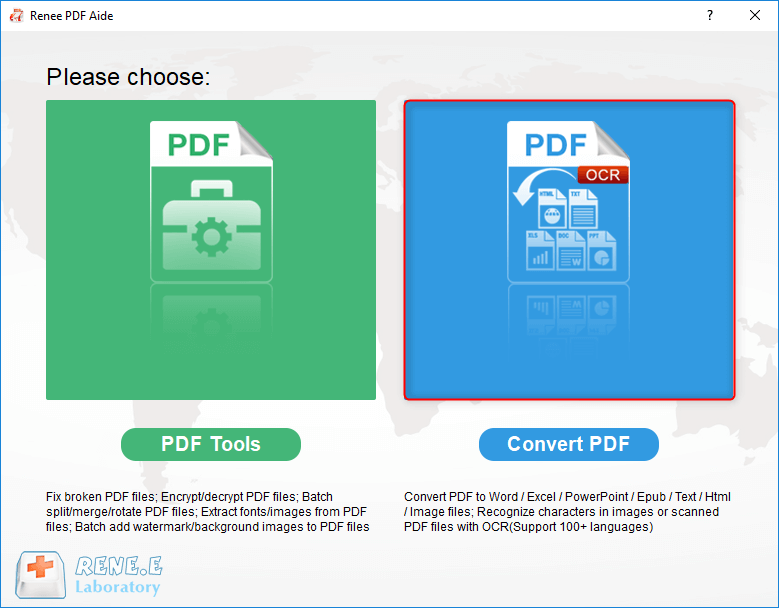
Step-by-Step: Convert PDF to Markdown with Renee PDF Aide
- Download and install Renee PDF Aide, then open it. Click “Convert PDF” to begin.

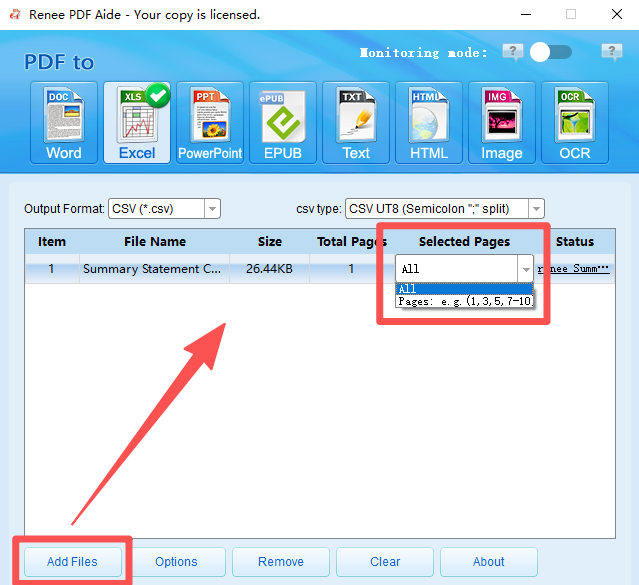
- Click “Add Files” to import one or more PDFs. Use “Selected Pages” to convert only specific pages (e.g., pages 5–10).
- In the output settings, choose TXT → Markdown for structured
.mdoutput.
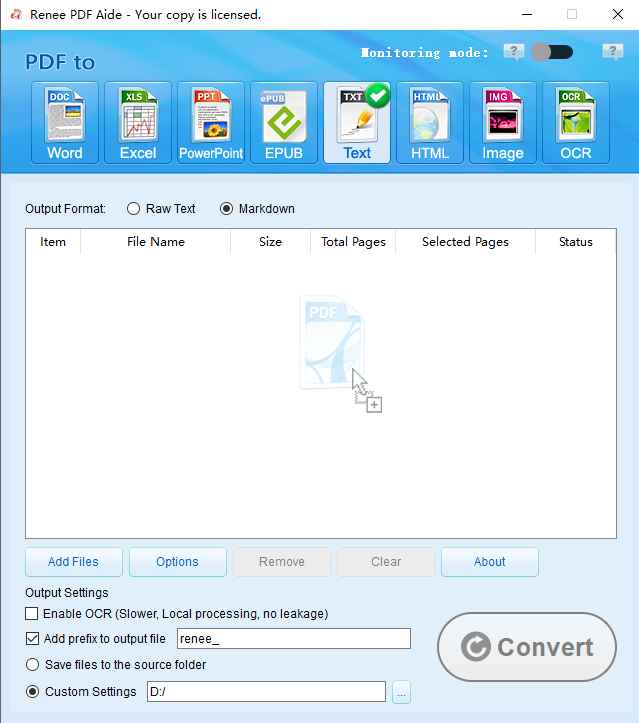
- For scanned PDFs, enable OCR:
- Mode A: Best for images
- Mode B: Best for printed text
- A+B: Most accurate (slightly slower)
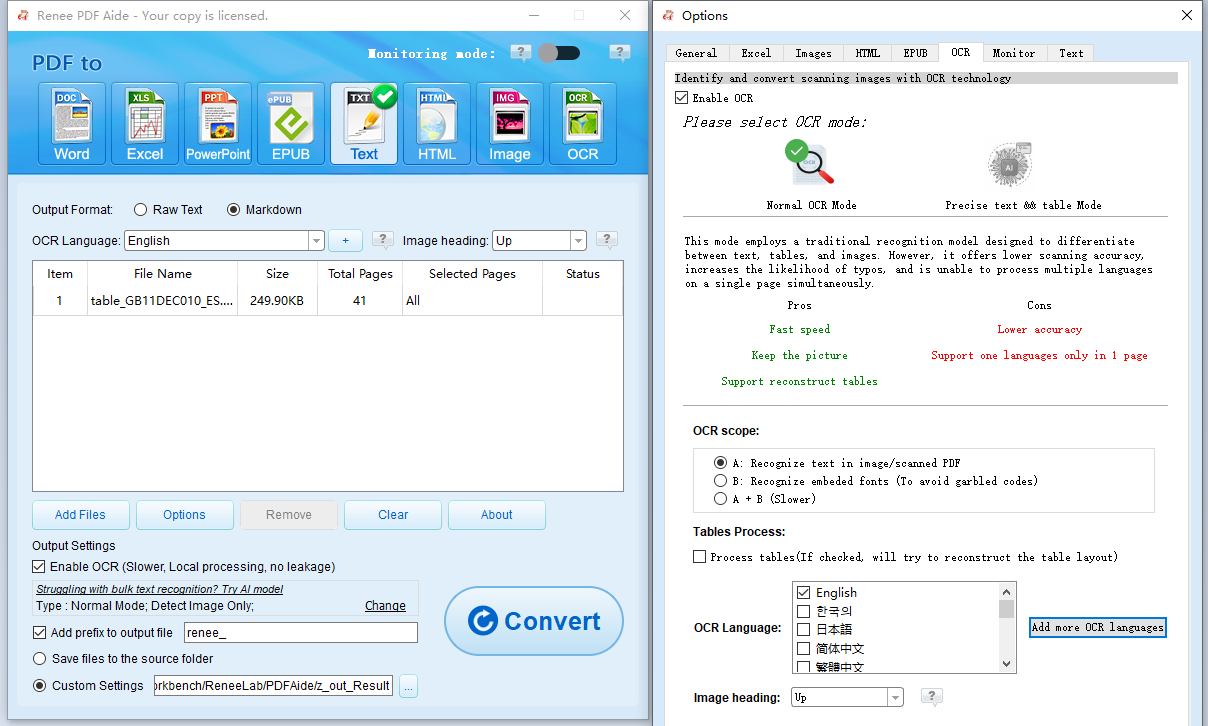
- Click “Convert”. Check the Status column for links to your new Markdown files.
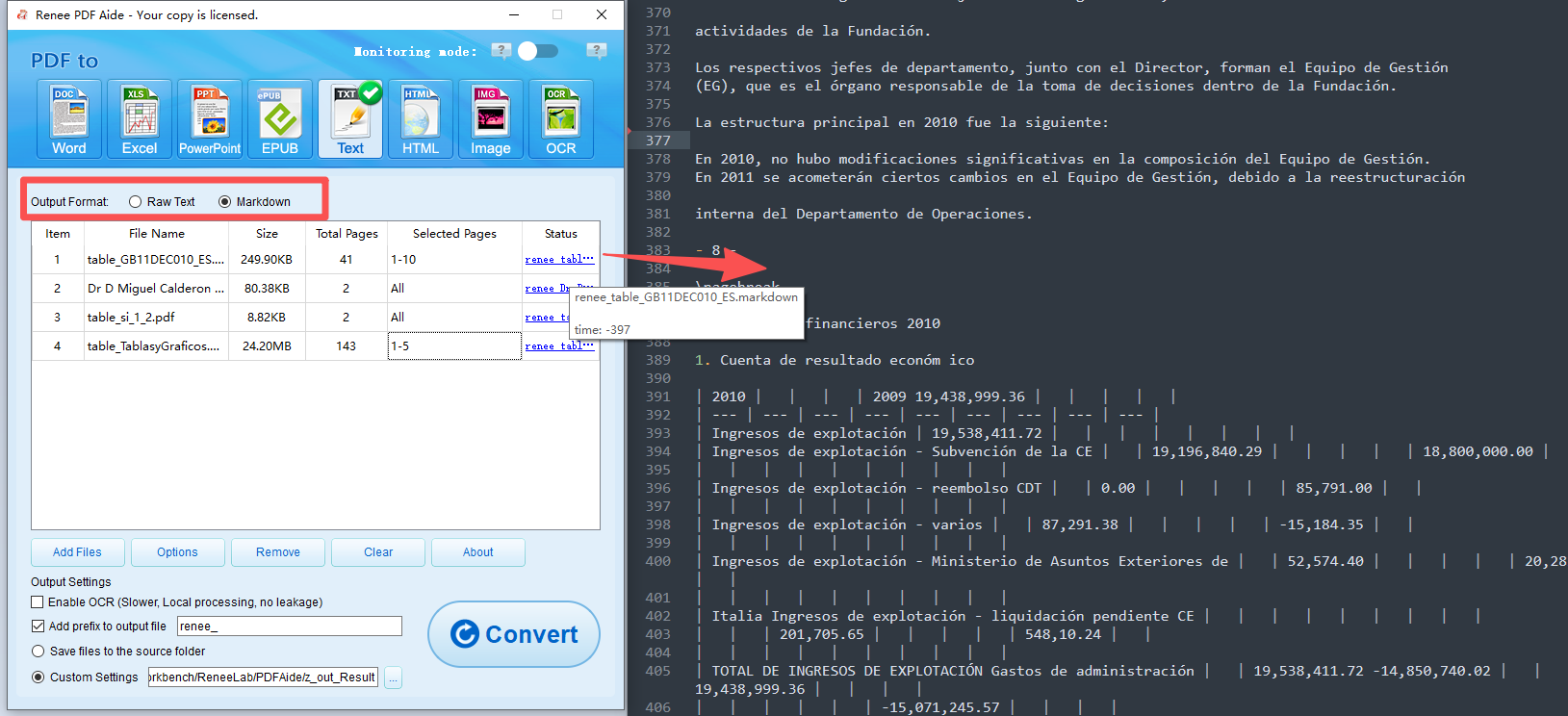
Renee PDF Aide makes professional-grade conversion simple. For even more control, pair it with command-line tools below.
Method 3: Open-Source Command-Line Tools (For Developers & Automation)
Power users love CLI tools for scripting and customization. Pandoc is the gold standard for simple conversions, while Poppler helps extract text and images before processing.
📊 Pandoc vs. Poppler
| Feature | Pandoc | Poppler (pdftotext, pdfimages) |
|---|---|---|
| Main Role | Full document converter (PDF → Markdown) | Extracts raw text/images (needs extra steps) |
| Ease of Use | One command: pandoc file.pdf -o file.md |
Multiple commands; more setup |
| Output Quality | Great for text; basic tables | Raw extraction; needs formatting |
| Images | Limited (--extract-media) |
Strong (pdfimages) |
| Scanned PDFs | No OCR | No OCR (pair with Tesseract) |
| Best For | Simple, text-heavy PDFs | Pre-processing before Pandoc |
How to Use Pandoc for PDF to Markdown
Download Pandoc from pandoc.org
A single command does the magic:
pandoc input.pdf -o output.md
Useful Examples:
Convert specific pages:
pdftk input.pdf cat 5-10 output subset.pdf
pandoc subset.pdf -o output.md
Extract images:
pandoc input.pdf -o output.md --extract-media=./media
Images saved in
./media/ and linked in Markdown.
GitHub-flavored Markdown + TOC:
pandoc input.pdf -o output.md --to=gfm --toc
Custom filters (Lua):
pandoc input.pdf -o output.md --lua-filter=table-clean.lua
Pandoc works on Windows, Mac, and Linux. It’s fast, free, and scriptable—but struggles with scanned or image-heavy files.

Combine Pandoc with Renee PDF Aide for GUI + scripting flexibility.
- ✓ Convert to Editable Word/Excel/PPT/Text/Image/Html/Epub
- ✓ Multifunctional Encrypt/decrypt/split/merge/add watermark
- ✓ OCR Support Extract Text from Scanned PDFs, Images & Embedded Fonts
- ✓ Quick Convert dozens of PDF files in batch
- ✓ Compatible Support Windows 11/10/8/8.1/Vista/7/XP/2K
For complex layouts, math, or noisy scans, even Pandoc falls short. That’s where AI-powered CLI tools shine.
Method 4: AI-Powered Open-Source CLI Tools (Cutting-Edge Accuracy)
LLM-based tools use machine learning to understand document structure—perfect for messy tables, formulas, or multilingual text.
Top AI PDF to Markdown Tools
| Tool | Hardware | Uses LLMs? | License | Notes |
|---|---|---|---|---|
| Marker | CPU/GPU/MPS | Optional | Free (personal); commercial license | Excellent layout, math, batch |
| MinerU (Magic-PDF) | GPU preferred | Yes | AGPL (open); enterprise paid | Top accuracy for tables/formulas |
| Dolphin | CPU/GPU | Yes | MIT (free) | Great for scans and layouts |
| MarkItDown | CPU | Optional (Azure/GPT) | MIT | Multi-format; limited layout |
| pdf2md (Node.js) | CPU | No | MIT | Fast, lightweight |
| GPTPDF | CPU/GPU | Yes (GPT-4o) | Paid (~$0.013/page) | Best for math/images |
| PDF-Extract-Kit | CPU/GPU | Yes | AGPL | Backend for MinerU |
| Unstructured.io | CPU/GPU | Optional | Apache 2.0 (free core) | Great for RAG pipelines |
“Uses LLMs?” Explained:
- Yes: AI improves layout detection, OCR, and Markdown structure.
- Optional: Turn on/off based on hardware or privacy.
- No: Traditional parsing—faster but less accurate.
- ✓ Convert to Editable Word/Excel/PPT/Text/Image/Html/Epub
- ✓ Multifunctional Encrypt/decrypt/split/merge/add watermark
- ✓ OCR Support Extract Text from Scanned PDFs, Images & Embedded Fonts
- ✓ Quick Convert dozens of PDF files in batch
- ✓ Compatible Support Windows 11/10/8/8.1/Vista/7/XP/2K
FAQ
Can I convert scanned PDFs to Markdown accurately?
Yes—use OCR tools. Renee PDF Aide’s A/B/A+B modes deliver high accuracy. Online tools need premium plans. Pandoc requires Tesseract setup.
Is PDF to Markdown conversion free?
Absolutely for basics: LightPDF (limited), Pandoc, Marker. Renee PDF Aide offers a free trial; full version unlocks unlimited batches.
How do I handle complex tables?
Renee PDF Aide preserves multi-page tables best. Pandoc handles simple ones. Marker excels with merged cells. Always review and adjust borders.
What if images or links don’t convert properly?
Most tools embed images as  and preserve links. Renee PDF Aide extracts locally. Test online tools with samples first.
Are online tools safe for sensitive files?
No—files are uploaded. Use offline tools like Renee PDF Aide or CLI for full privacy.
Can I batch convert multiple PDFs?
Yes! Renee PDF Aide supports unlimited (paid). Script Pandoc/Marker for folders. Online tools limit per session.
Conclusion
Converting PDF to Markdown frees your content for editing, collaboration, and publishing. Start with online tools for quick wins, level up with Renee PDF Aide for privacy and power, or go pro with AI CLI tools.
Ready to simplify your workflow? Download Renee PDF Aide’s free trial and convert your first batch today.
- ✓ Convert to Editable Word/Excel/PPT/Text/Image/Html/Epub
- ✓ Multifunctional Encrypt/decrypt/split/merge/add watermark
- ✓ OCR Support Extract Text from Scanned PDFs, Images & Embedded Fonts
- ✓ Quick Convert dozens of PDF files in batch
- ✓ Compatible Support Windows 11/10/8/8.1/Vista/7/XP/2K
Comments
0 comments
Please sign in to leave a comment.