Table of contents
Summary
Translating scanned or image-based PDFs requires Optical Character Recognition (OCR) to convert static images into editable text before translation. This guide outlines secure, offline-first workflows using Renee PDF Aide to ensure data privacy and formatting accuracy, compares common translation methods, and provides a step-by-step process for preparing documents for machine translation services like Google Translate or DeepL.
A scanned PDF is fundamentally a collection of digital images rather than a text document. When you upload such a file to a standard online translation service, the system searches for selectable text layers. If none exist, the service may return an error, produce a blank output, or simply skip the content entirely. Therefore, the primary challenge is not merely translating the file but first performing OCR to make the scanned PDF readable.
Whether you are processing bank statements, notarized legal documents, foreign-language certificates, or multi-page government forms, the underlying workflow remains consistent: recognize the text via OCR, clean up the resulting layout, and then proceed with translation. The following sections detail various approaches, ranging from quick online solutions to a more secure, controlled offline workflow that keeps sensitive data private and ensures higher accuracy.
Common Methods for Translating Scanned PDFs with OCR
There are three primary strategies for handling scanned document translation. Understanding the trade-offs between convenience, privacy, and accuracy will help you choose the right tool for your specific needs.
| Method | How It Works | 👍 Pros | 👎 Cons |
|---|---|---|---|
| 🌐 Online OCR Translators | Free web-based tools (e.g., OnlineOCR, i2OCR) perform recognition and translation in a single step. | Fast, user-friendly, no installation required | Strict file/page limits, lower accuracy, reduced quality in free tiers |
| 📂 Google Drive/Docs | Upload PDF → Open with Google Docs for automatic OCR → Copy text into Google Translate. | Free, widely accessible, simple interface | Formatting often breaks (tables, columns), requires manual copy-paste, struggles with complex layouts |
| 💻 OCR-First, Then Translate | Use desktop OCR software (e.g., Renee PDF Aide) → Export to Word/text → Correct layout → Translate via Google Translate or DeepL. | Highest accuracy, handles lengthy/complex docs, flexible output formats | Requires additional software, takes more time, typically paid solution |
⚠️ Privacy Warning: Free online OCR translators require uploading your files to third-party servers. This poses significant security risks for sensitive documents such as identification cards, financial records, or legal contracts. Additionally, formatting is frequently lost during processing, particularly in documents containing tables or multi-column layouts.
For superior privacy, accuracy, and layout preservation, we recommend adopting the controlled offline workflow described below.
Recommended Workflow: Use Renee PDF Aide for Secure OCR
To achieve the most reliable results when translating scanned PDFs, it is best practice to separate the text extraction phase from the translation phase. Utilizing a dedicated desktop application for OCR is crucial when handling confidential or structurally complex documents.
Why Renee PDF Aide Is Ideal for the OCR Step
In this optimized workflow, Renee PDF Aide serves as your primary tool for the OCR stage prior to any online translation. The objective is to generate a clean, editable Word document—not to obtain a translated PDF in a single click. This distinction is vital: while online translators excel at language conversion, they are not engineered to extract text from scans or images. Sending a raw scan directly to a translator asks the wrong tool to perform a task it cannot handle effectively.
- ✓ XFA-Compatible Support dynamic XFA PDF forms – convert them to Excel/Word without errors, unlike many OCR tools that fail on such files.
- ✓ Secure 100% local conversions ensure zero risk of data leaks
- ✓ Efficient Batch Process dozens of PDF files in seconds
- ✓ Comprehensive Seamlessly convert PDFs to Excel, PowerPoint, Text, and more
- ✓ OCR Support Extract Text from Scanned PDFs, Images & Embedded Fonts
Renee PDF Aide is a comprehensive Windows desktop PDF suite designed for ease of use. It can convert PDFs to Word, Excel, PowerPoint, ePub, Text, HTML, and image formats, all while incorporating advanced OCR capabilities.
Key advantages for the recognize-then-translate workflow include:
-
Offline Processing: Your files remain stored locally on your computer, safeguarding confidential scans from cloud exposure.
-
Scanned PDF to Editable Word/Text Conversion: OCR extracts text from image-based pages, enabling translation tools to process the content accurately.
-
Batch Processing Capabilities: Convert multiple scanned PDFs simultaneously to save time.
-
High-Volume Handling: Efficiently processes large, multi-page documents at speeds reaching up to 80 pages per minute.
-
XFA Format Support: Converts specialized PDF forms commonly used by banks and government agencies, which often cause failures in basic converters.
ℹ️ Note on XFA Compatibility: Renee PDF Aide offers full support for the XFA format—a specialized PDF standard frequently utilized by financial institutions and government bodies. Most converters lacking XFA compatibility will simply generate an error page or fail to render content correctly.
Beyond OCR functionality, Renee PDF Aide can split, merge, optimize, repair, encrypt, and decrypt PDFs. This makes it a versatile choice whenever you need to prepare a scan for online translation without risking the security of uploading original files to unverified OCR websites.
Step-by-Step Guide to Translating a Scanned PDF
Now that the benefits of an OCR-first approach are clear, follow these detailed steps to extract the text, refine the layout, and prepare your document for accurate machine translation.
1. Import the Scanned PDF and Enable OCR
If you have not already done so, download and install Renee PDF Aide.

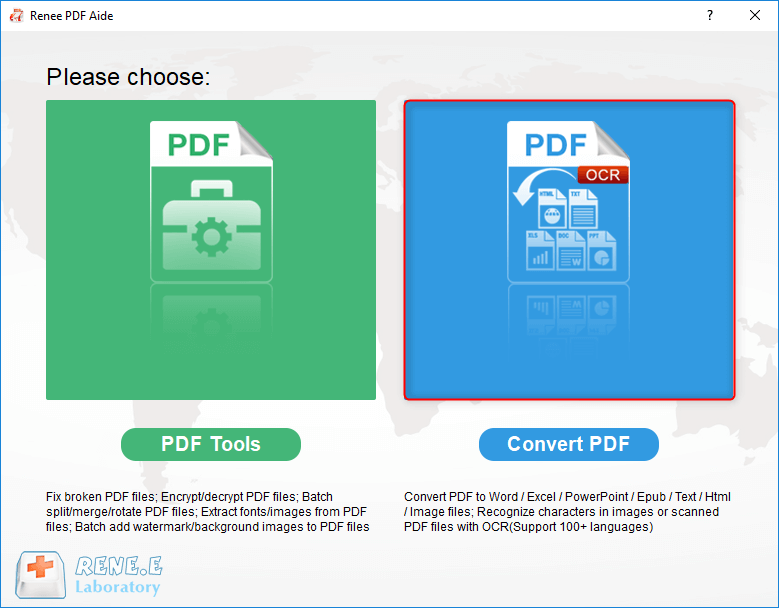
Launch the software and select the Convert PDF module.
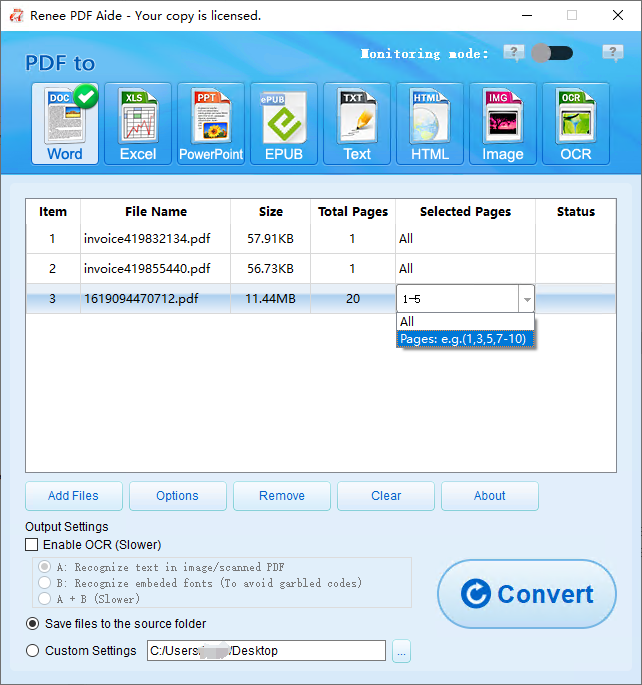
Click Add Files to import your scanned PDF. You may add multiple files if batch processing is required.
Check the Enable OCR option and select the correct source language corresponding to your document’s content.
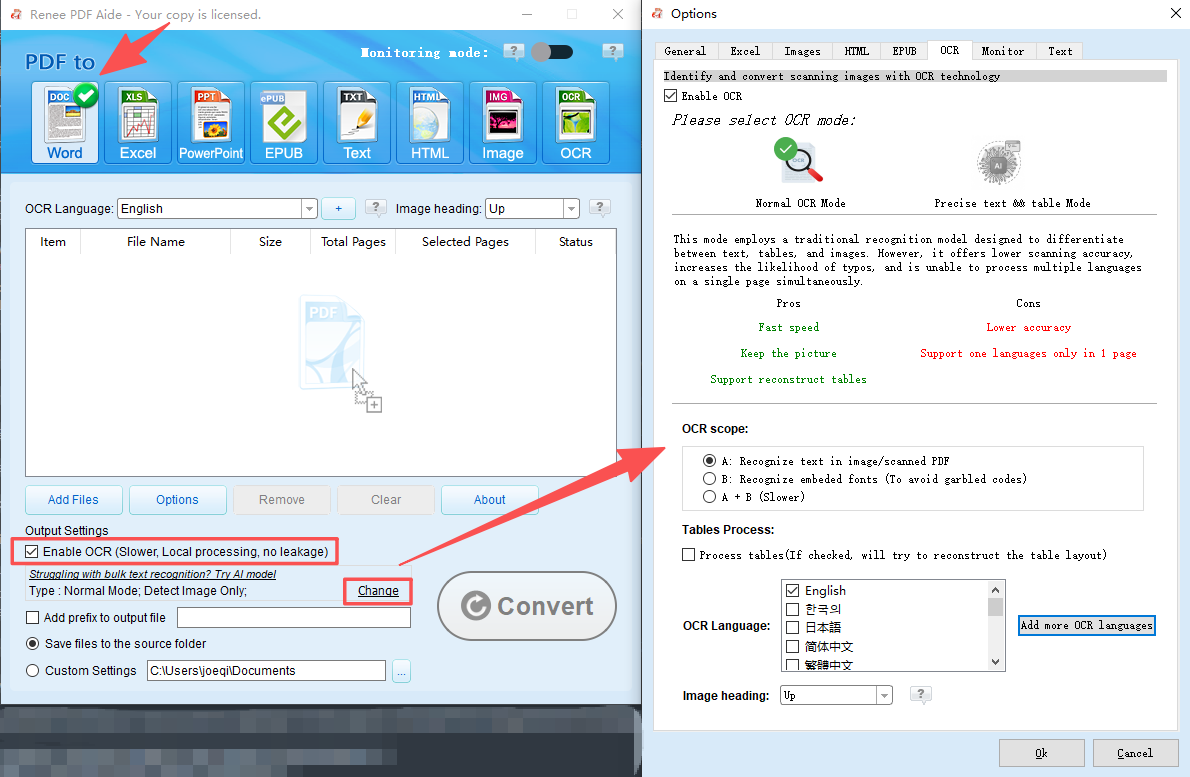
Choose the appropriate OCR mode based on your scan type:
-
Mode A: Best for text embedded within pictures or purely scanned images.
-
Mode B: Designed for embedded fonts that might otherwise become garbled during conversion.
-
Mode A+B: Automatically detects the content type; slower but offers greater flexibility for mixed-content documents.
2. Convert to an Editable Word Document
From the top menu, select Word as your desired output format.
Click Convert. Renee PDF Aide will extract the scanned text and generate an editable Word document.

Once conversion is complete, open the output file directly from the Status column to verify the results.
3. Refine Formatting in Your Word Processor
Open the converted Word file in Microsoft Office, LibreOffice, or WPS Office.
Quickly correct any broken paragraphs, misaligned table rows, or heading issues caused by the original scan layout. Perfection is not necessary; the goal is simply to ensure the text flows logically so the translation engine reads it in the correct order.
4. (Optional) Split Large PDFs Before Translation
If your document exceeds the size or page limits of Google Translate, Google Docs, or DeepL, split it using Renee PDF Aide before proceeding.
1. Open Renee PDF Aide and navigate to PDF Tools.
2. Select Split and click Add Files.
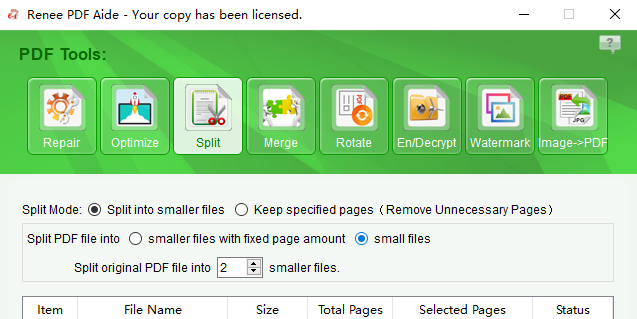
3. Choose Keep specified pages to extract only relevant sections, or Split into smaller files to create manageable chunks for translation.
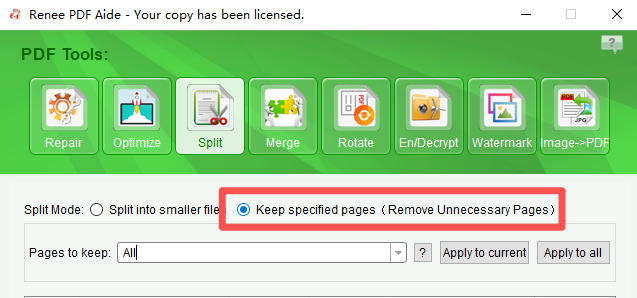
This ensures your files stay within free tier limits of online translators without compromising scan quality through compression or resizing.
4. Define the page range or split size parameters.
5. Click Convert to execute the split.
5. Export and Translate Online
Save your cleaned-up document as a new PDF, or export it as a plain text file depending on the translator’s requirements.
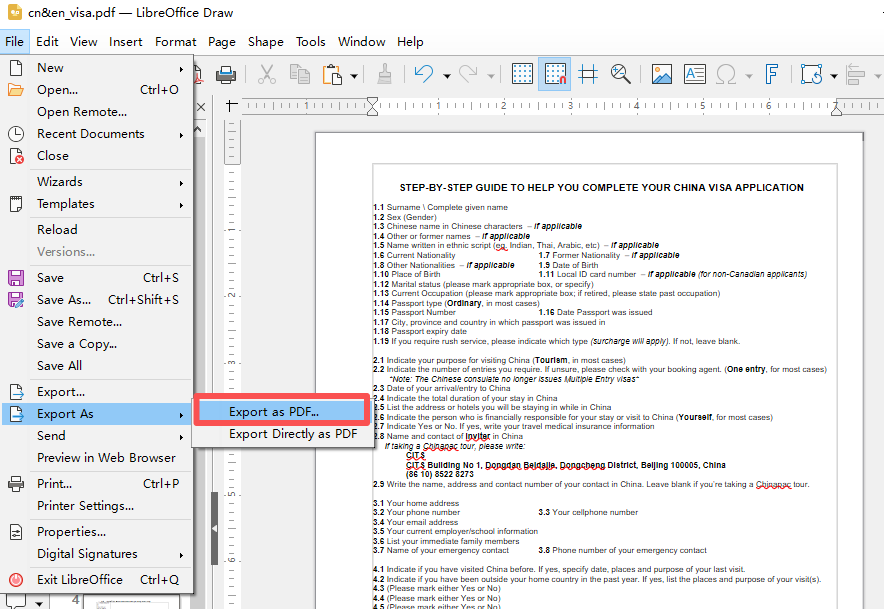
Upload the finalized file to one of the following translation services:
Google Translate: Click Documents, upload your file, and select the target language.
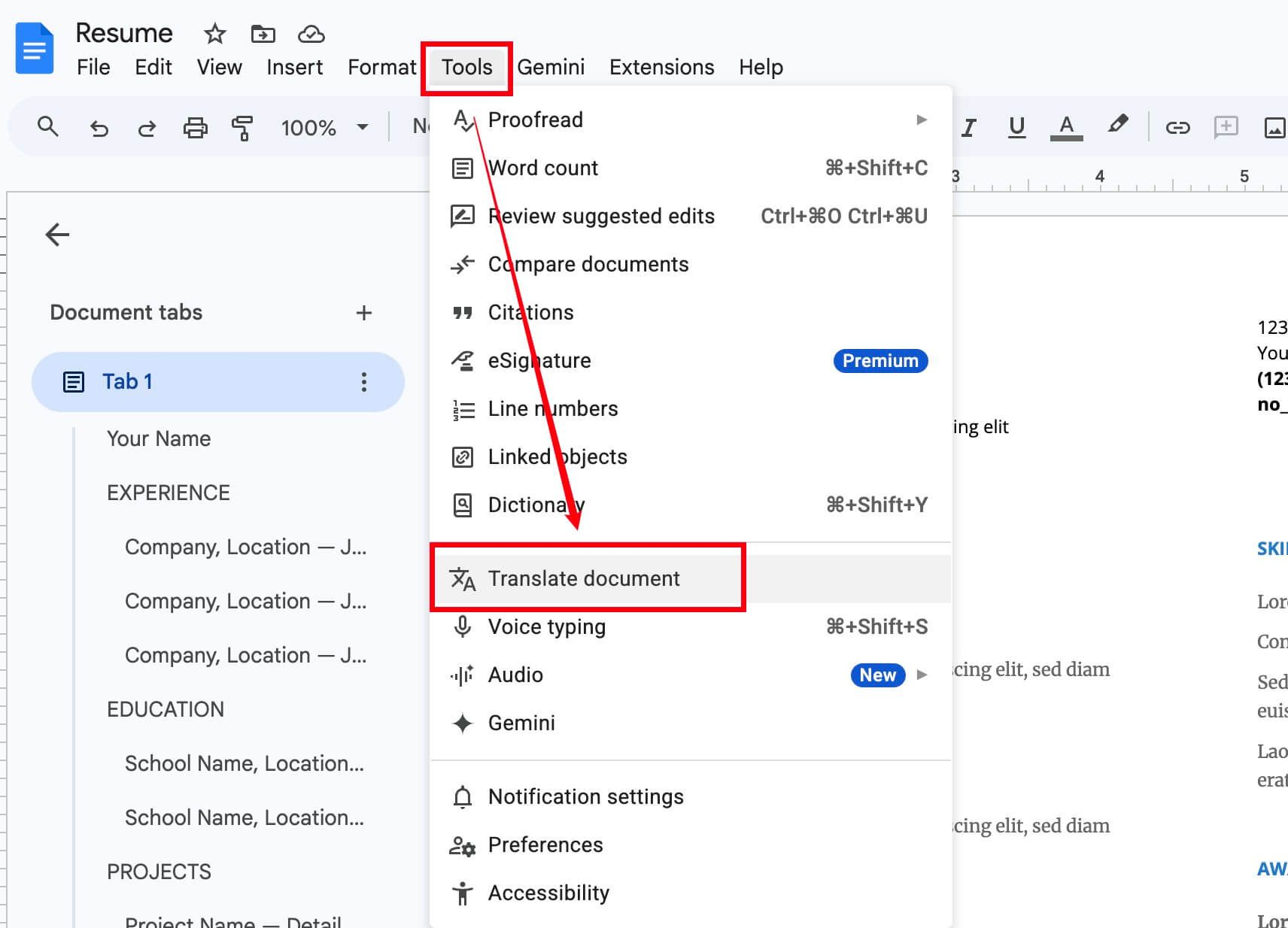
Google Docs: Open the cleaned PDF with Google Docs, then navigate to Tools > Translate document.
DeepL: Upload the PDF provided it falls within the service’s file-size restrictions.
Because your file now contains genuine selectable text rather than images, the translation engine can process it as intended, delivering significantly better results.
FAQ
What is the difference between OCR and translation in this workflow?
Renee PDF Aide handles only the OCR (Optical Character Recognition) phase, converting scanned images into editable Word or text files. It does not perform language translation itself. Once the text has been successfully extracted and formatted, you must use a separate service such as Google Translate, DeepL, or Google Docs to convert the content into your target language.
Why does my scanned PDF produce blank or error results in Google Translate?
Google Translate and similar services rely on selectable text layers within a PDF. Scanned documents consist solely of images, meaning there is no underlying text for the engine to read. To resolve this, you must first run the document through an OCR tool like Renee PDF Aide to create an editable version, which can then be uploaded to the translation service for processing.
Are free online OCR translators safe for sensitive documents?
While free online OCR tools offer convenience, they require uploading your files to external servers, which introduces privacy risks for confidential materials like IDs, bank statements, or legal contracts. These services also frequently suffer from formatting loss and accuracy issues. For sensitive or complex documents, using offline desktop software ensures your data remains secure and yields superior results.
Comments
0 comments
Please sign in to leave a comment.