Table of contents
Summary
Many people struggle to edit PDF content because copy-pasting messes up the layout, and free tools don’t always deliver great results—especially with scanned files or tricky designs. LibreOffice offers a free way to handle this, but it comes with some limitations. For more accurate results, batch processing, or scanned documents, dedicated tools like Renee PDF Aide often work much better.
Converting PDF to Word with LibreOffice
LibreOffice is a free, open-source office suite that lets you open and make changes to PDF files. The usual approach involves using LibreOffice Draw, where you can load a PDF and then work with its contents to get them into a Word format.
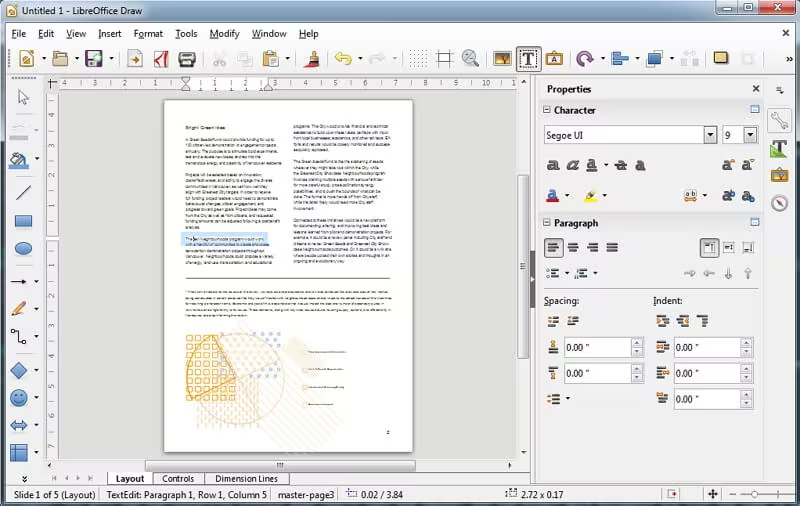
That said, LibreOffice isn’t perfect for complex PDFs. Things like detailed tables, embedded images, or scanned pages (which are essentially pictures of text) often don’t come through cleanly. While Apache OpenOffice does something similar, it receives fewer updates and has a smaller community these days.
Here’s a quick side-by-side look at the two main LibreOffice methods:
| Approach | Best For | Ease of Use | Batch Support | Format Preservation |
|---|---|---|---|---|
| Graphical Interface (Draw) | Single files, basic editing | Moderate | No | Fair for simple PDFs |
| Command-Line (Headless) | Advanced users, automation | Difficult | Possible with scripts | Same limitations as GUI |
Using the Graphical Interface in LibreOffice Draw
The go-to method for most people is opening the PDF directly in LibreOffice Draw, tweaking whatever needs fixing, and then copying everything over to LibreOffice Writer to save as a .docx file. It’s completely free, works offline, and keeps your files private—but it usually involves quite a bit of manual cleanup, especially when text breaks into separate boxes or tables fall apart.
Important note: In recent versions of LibreOffice (including the latest releases like 26.2), Draw doesn’t let you save or export directly to DOCX or DOC. It’s built mainly for vector graphics and drawings, so export options are limited to things like images, HTML, or its own formats (OTG, ODG).
✅ Advantages: ❌ Disadvantages:
Step-by-step instructions:
-
Download and install the latest version of LibreOffice from the official website if you don’t have it yet.
-
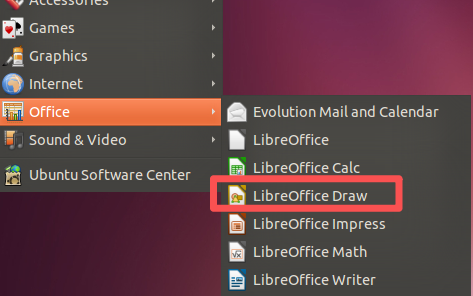
Launch LibreOffice Draw.
-
Go to File > Open, then choose your PDF file.
-
Wait for the PDF to load—it’ll appear as editable objects, but text might show up in individual boxes or frames. Adjust anything that looks off.
Keep in mind that LibreOffice Draw still doesn’t support direct saving or exporting to DOCX. To get the content into Word format, you’ll need to copy it manually page by page or in sections.
-
Press Ctrl+A to select everything, then Ctrl+C to copy.
-
Open LibreOffice Writer and paste with Ctrl+V.
-
Fix up the formatting—ungroup text boxes if needed, rebuild tables, adjust spacing, and so on.
-
When it looks good, go to File > Save As, pick .docx as the format, and save your file.
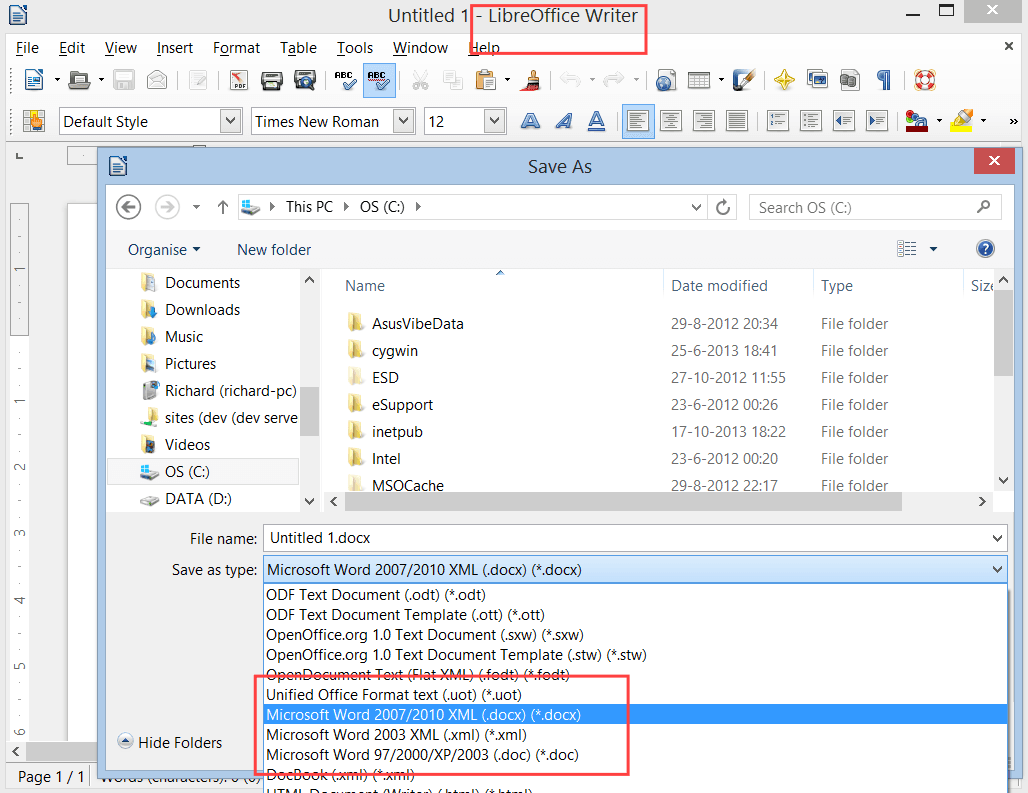
This method gets you an editable Word document, but be ready to spend time polishing it, especially with anything beyond plain text.
- ✓ Convert to Editable Word/Excel/PPT/Text/Image/Html/Epub
- ✓ Multifunctional Encrypt/decrypt/split/merge/add watermark
- ✓ OCR Support Extract Text from Scanned PDFs, Images & Embedded Fonts
- ✓ Quick Convert dozens of PDF files in batch
- ✓ Compatible Support Windows 11/10/8/8.1/Vista/7/XP/2K
Using Command-Line for Headless or Batch Conversion
Some folks look into command-line or headless options to speed things up or automate converting lots of PDFs to Word. Unfortunately, this doesn’t work reliably for PDF-to-DOCX tasks.
LibreOffice’s command-line features are great for converting between office formats (like ODT to DOCX), but PDF handling relies heavily on the Draw component, which isn’t fully supported in headless mode. Trying to run something like this:
soffice --headless --convert-to docx --outdir output/ input/sample.pdf
usually ends up with no output, errors, or junk results because the PDF import can’t run properly without the graphical environment.
Limitations and Troubleshooting
LibreOffice is fantastic for a lot of everyday work, but turning PDFs into editable Word files has some well-known drawbacks:
- Text often breaks into separate boxes, frames, or floating objects
- Tables, multi-column designs, and complex layouts frequently get scrambled
- Images can move around, lose resolution, or disappear
- Scanned PDFs stay as pictures with no text recognition (no OCR built in)
- Headers, footers, page numbers, and other repeating elements sometimes vanish
For straightforward, mostly text-based PDFs, you can usually get something usable. But for reports, brochures, forms, or anything heavy on graphics and structure, you’ll probably run into frustration and need a stronger tool.
Renee PDF Aide: The Reliable Choice for Accurate and Batch Conversions
When LibreOffice doesn’t cut it—whether because of layout issues, the need for batch work, or dealing with scanned documents—Renee PDF Aide is one of the best options out there.
Renee PDF Aide is straightforward PDF software packed with powerful conversion features. It handles output to Word, Excel, PowerPoint, ePub, Text, HTML, and various image formats with impressive accuracy.
It also includes strong OCR (optical character recognition) to pull editable text out of scanned PDFs or image-based pages.
- ✓ Convert to Editable Word/Excel/PPT/Text/Image/Html/Epub
- ✓ Multifunctional Encrypt/decrypt/split/merge/add watermark
- ✓ OCR Support Extract Text from Scanned PDFs, Images & Embedded Fonts
- ✓ Quick Convert dozens of PDF files in batch
- ✓ Compatible Support Windows 11/10/8/8.1/Vista/7/XP/2K
Supported Operating Systems:
Windows 11/10/8.1/8/7/Vista/XP/2000 (both 32-bit and 64-bit).
Converting PDFs to Word in Renee PDF Aide is quick and user-friendly.
The specific operation steps are as follows:
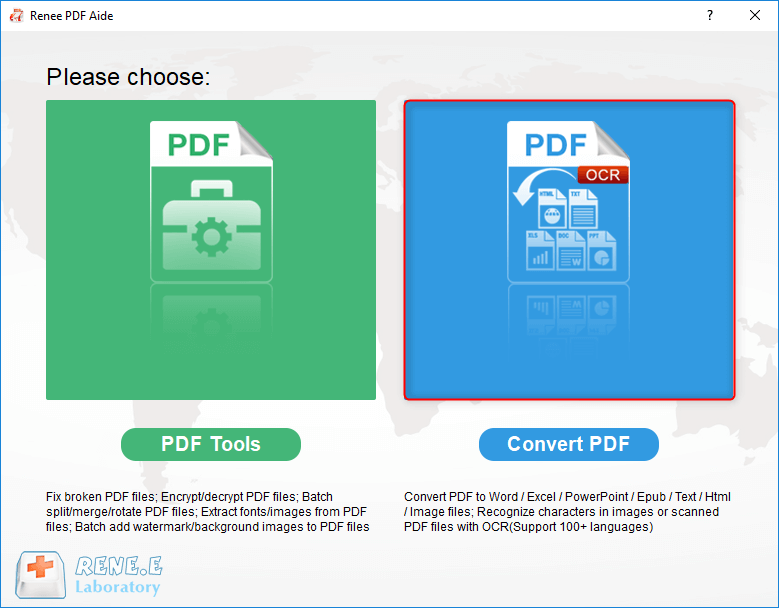
① Download the latest version of Renee PDF Aide

Install it, launch the program, and choose “Convert PDF“.
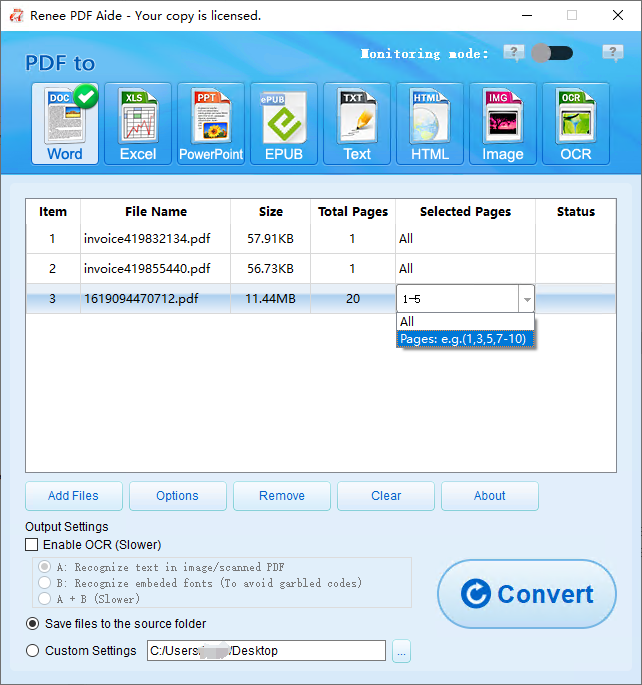
② Select “Word” from the top menu, then pick where you want to save the converted file.
③ Hit “Add File” to load your PDF(s). Once added, you’ll see the file details in the list. Use “Select Page” if you only want certain pages converted.
Note: For scanned PDFs, make sure to turn on “Enable OCR”.
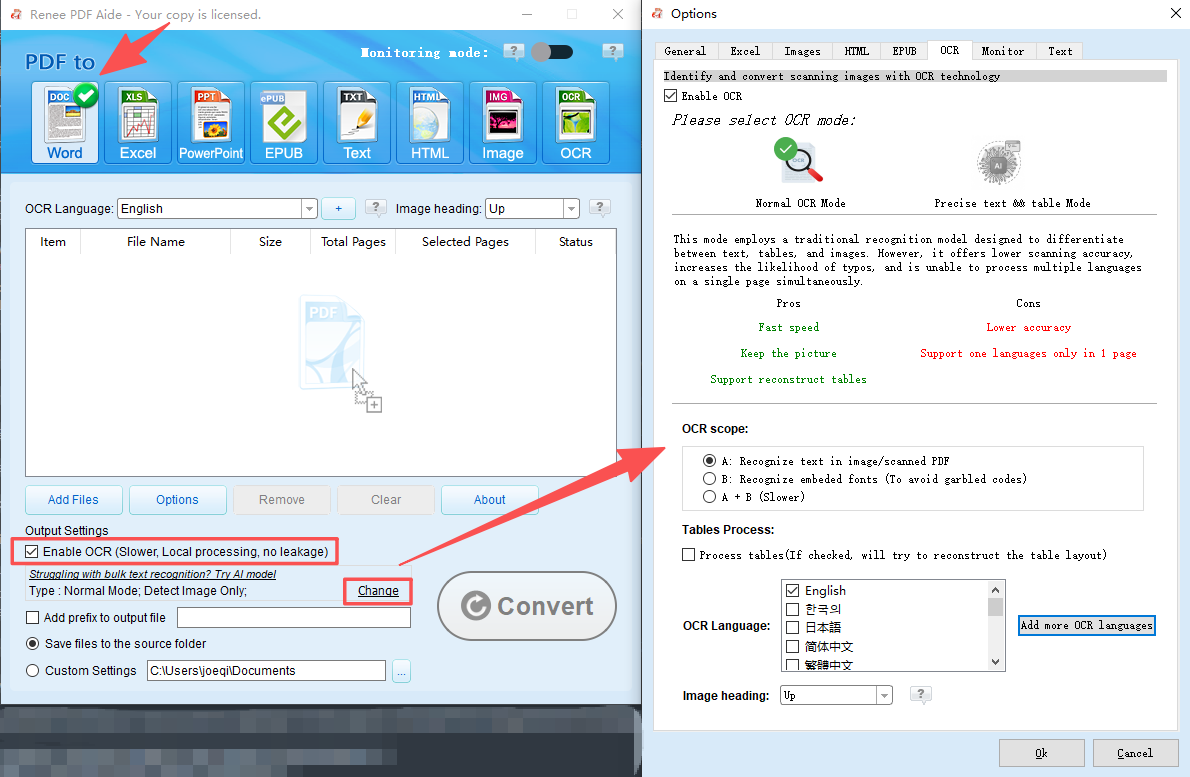
The software provides three OCR text recognition modes:
A: Recognize text in pictures or PDF scans — uses OCR to read text directly from images.
B: Identify built-in fonts (to avoid garbled characters) — converts embedded fonts to images then applies OCR.
A+B (slower): Automatically detects whether text is in images or embedded fonts, handles both, but takes longer.
④ Click “Convert” to start the process. When it’s done, you’ll see a summary showing how many files were processed successfully. Your PDF is now a fully editable Word document.

Renee PDF Aide keeps layouts almost perfectly intact, handles scanned files with solid OCR, supports true batch conversion, and runs completely offline so your files stay private.
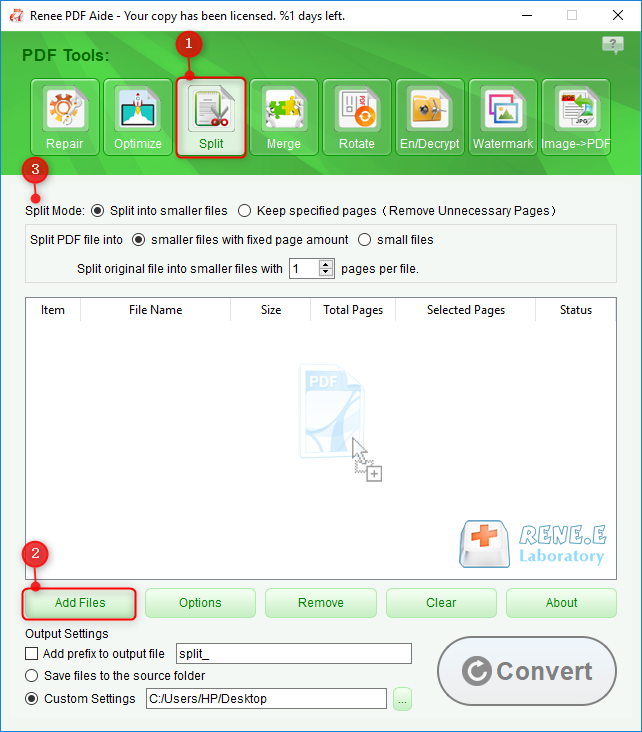
On top of conversion, it lets you split, merge, optimize, repair, encrypt, decrypt, and add watermarks to PDFs. It’s a great trial-based alternative to pricier options like Adobe Acrobat, especially for personal or small-team use.
Free Online PDF to Word Converters
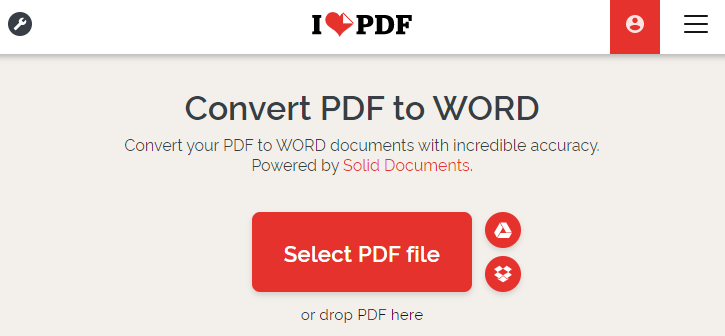
If you want something fast and don’t mind uploading files, online converters are super convenient—no installation required. Tools like iLovePDF and Smallpdf do a solid job with most everyday PDFs, offer basic OCR, and usually keep formatting better than LibreOffice for standard documents.
They process everything in the cloud, which often means nicer handling of tables, pictures, and mixed-language text. iLovePDF has a friendly, multilingual design with tons of PDF tools, while Smallpdf keeps things simple and connects well to cloud drives like Google Drive or Dropbox.
iLovePDF PDF-to-Word Converter
✅ Advantages: ❌ Disadvantages:
Comparison of Common Online PDF Conversion Tools
| Tool | Free Features | Free Tier Limits (Specific) | Best For |
|---|---|---|---|
| iLovePDF | PDF → Word, Excel, PPT; merge/split; basic OCR | 2–5 tasks per day, max 15–20 MB per file, slower queue during peak hours | Users who need a clean interface and solid formatting |
| Smallpdf | PDF → Word; compression; basic editing | 1 task per hour, max 15 MB per file, OCR not free | Quick, occasional conversions on desktop or mobile |
| PDF2Go | PDF → Word; rotate, merge, split; basic OCR | Max 50 MB per file, ads, slower processing, OCR accuracy limited | Users who want many PDF utilities in one place |
| PDFCandy | PDF → Word; 40+ PDF tools; no login required | 1 task at a time, slower speeds, occasional watermarks, max 500 MB per file | Casual users who want variety without creating an account |
| Adobe Acrobat Online | High-quality PDF → Word; strong formatting | 1–2 conversions per day, many tools locked behind subscription | Users who want the most accurate conversion for simple files |
| HiPDF | PDF → Word; limited OCR; cloud integration | 2 tasks per day, max 10 MB per file, OCR accuracy reduced on free tier | Cloud-based workflows and light usage |
| Zamzar | PDF → Word; supports many formats | 2 conversions per 24 hours, max 50 MB per file, no OCR | Simple, occasional conversions without advanced needs |
source:
https://www.ilovepdf.com/pricing
https://smallpdf.com/pricing
These online options shine for one-off or occasional needs when you just want a quick Word file without any setup hassle.
Comparison of PDF to Word Conversion Methods
| Feature | LibreOffice | Free Online Tools (iLovePDF/Smallpdf) | Renee PDF Aide |
|---|---|---|---|
| Ease of Use | Moderate (manual steps) | Very Easy | Very Easy |
| Conversion Quality | Fair (simple PDFs only) | Good | Excellent (high fidelity) |
| Offline Capability | Yes | No | Yes |
| Batch Support | Limited | Limited (free tier) | Full |
| Cost | Free | Free with limits | Free trial |
| Privacy | Excellent (local) | Moderate (uploads required) | Excellent (local) |
| Suitability for Scanned PDFs (OCR) | No | Basic | Advanced |
If you want everything free and staying on your computer, give LibreOffice a try first. For quick, no-fuss conversions now and then, online tools are handy. But if you deal with PDFs regularly, need spot-on layouts, or have scanned files, Renee PDF Aide stands out as the most dependable choice.
Conclusion
Turning PDFs into editable Word documents doesn’t need to be a headache. LibreOffice is a solid free starting point for basic stuff, online converters give you speed and simplicity, and Renee PDF Aide brings professional-level accuracy with great OCR and batch features.
Pick whatever fits your workflow: stick to free methods for light use, or go with Renee PDF Aide when you need consistent, high-quality results. Always keep a copy of your original PDF, and run a test on a sample page first. The right approach will get you clean, ready-to-edit Word files without the frustration.
Frequently Asked Questions (FAQ)
Does LibreOffice support converting scanned PDFs to editable Word files?
No, LibreOffice doesn’t have built-in OCR. Scanned PDFs stay as images, so the text isn’t editable. You’ll need a tool with proper OCR, like Renee PDF Aide, for that.
Why does text become separate boxes after converting with LibreOffice?
PDFs handle text and layout in a very different way than Word files. When LibreOffice imports them, it often treats pieces as individual graphic objects, leading to broken-up text boxes. You’ll usually have to fix this by hand.
Can I batch convert multiple PDFs to Word using LibreOffice?
Not really in a practical way. The main interface forces you to work on one file at a time, and command-line support for PDFs is unreliable or nonexistent in headless mode. True batch PDF-to-Word isn’t feasible with LibreOffice.
Are online converters safe for sensitive documents?
Many claim to use secure connections and delete files after processing, but uploading anything confidential to a third-party server always involves some risk. For important or private files, stick to offline software.
What if LibreOffice misformats my tables or images?
That’s pretty common with anything beyond simple layouts. Tables can split oddly, images shift, and columns break. A dedicated converter like Renee PDF Aide usually preserves these elements much better.
Is there a completely free tool that handles scanned PDFs well?
Fully reliable OCR usually comes in paid or trial software. Free options tend to have weak or limited OCR. Renee PDF Aide offers a trial that includes effective OCR, making it a practical choice even without paying upfront.
- ✓ Convert to Editable Word/Excel/PPT/Text/Image/Html/Epub
- ✓ Multifunctional Encrypt/decrypt/split/merge/add watermark
- ✓ OCR Support Extract Text from Scanned PDFs, Images & Embedded Fonts
- ✓ Quick Convert dozens of PDF files in batch
- ✓ Compatible Support Windows 11/10/8/8.1/Vista/7/XP/2K
Comments
0 comments
Please sign in to leave a comment.