Table of contents
- Quick Test: Is Your PDF Scanned or Text-Based?
- 🌐 Overview of PDF‑to‑Word Conversion Methods
- Method A: Quick Free Online Converters
- Method B: Recommended Solution: Renee PDF Aide (Local App/Batch Process)
- Method C: Built-in Microsoft Word (Free Workaround)
- Pro Tips for Better Conversion Results
- Frequently Asked Questions
Summary
Discover the most effective strategies to convert PDF to Word documents while preserving your original formatting. This comprehensive guide walks you through quick online tools, built-in Microsoft Word workarounds, and professional desktop software equipped with advanced OCR, ensuring accurate, secure, and efficient document conversions for every need.
PDFs are fantastic for locking content into a fixed, professional layout that looks perfect on any screen. However, that same rigid structure becomes a major roadblock when you need to edit the content. Imagine a university student trying to extract research quotes from a scanned course pack, only to find the text completely unselectable. A business professional might need to update a contract date or pricing in a PDF-only file just minutes before a crucial meeting, only to be stuck staring at uneditable text. Similarly, an office administrator could face a massive stack of archived forms that would take days to retype manually.
The root cause of most conversion failures is treating all PDFs as if they were created the same way. Native, text-based PDFs behave very differently from image-based or scanned documents.
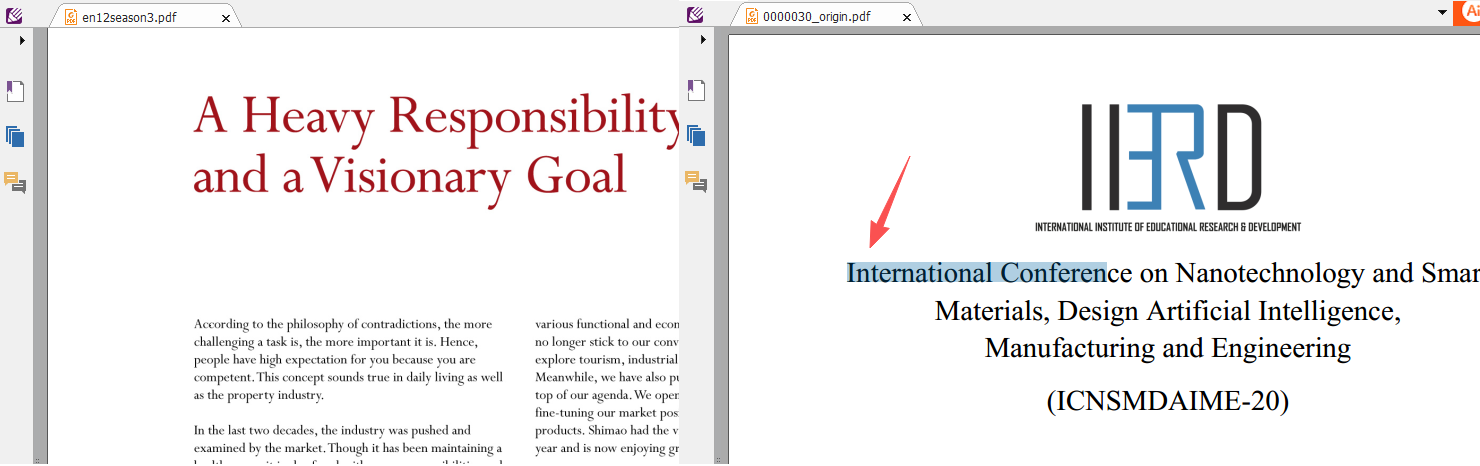
Pro Tip: Before you begin, open your PDF in any standard viewer and try selecting a sentence. This quick test will help you choose the right conversion method and prevent frustrating, garbled results.
Quick Test: Is Your PDF Scanned or Text-Based?
To determine your file type, simply try selecting and copying a full sentence using any PDF viewer. If the text highlights smoothly and pastes cleanly into another document, you are working with a native, text-based PDF. On the other hand, if the cursor treats the entire page as a single image and you cannot highlight individual words, your document is scanned or image-only.
| PDF Type | Typical Source | Needs OCR? | Conversion Difficulty | Expected Accuracy |
|---|---|---|---|---|
| Text-based (native) | Word export, digital print | No | Low | High (formatting may shift slightly) |
| Image-based / scanned | Scanner, smartphone photo, old archive | Yes | High | Varies based on the tool and original scan quality |
Understanding this distinction upfront saves you from wasting time on basic free tools that simply cannot process scanned pages. If your PDF is scanned, bypass the standard online converters and opt for a robust tool with reliable Optical Character Recognition (OCR) capabilities.
🌐 Overview of PDF‑to‑Word Conversion Methods
When it comes to converting PDFs to Word documents, you have four primary approaches—ranging from quick web-based utilities to advanced professional workflows.
Each method offers unique strengths and trade-offs, depending on your specific requirements, file sensitivity, and budget.
| Conversion Method | Best Use Case | Advantages | Limitations |
|---|---|---|---|
| Free Online Converters | Occasional, non‑confidential text‑based PDFs | • No installation required • Fast and simple • Works on any device with a browser |
• Privacy concerns (files are uploaded to external servers) • Limited daily usage caps • Formatting often breaks on complex layouts |
| Built‑in Microsoft Word | Basic PDFs originally created in Word or similar apps | • Free for existing Office users • Familiar, intuitive interface • Decent for simple, text-heavy documents |
• Struggles significantly with scanned PDFs • Frequently loses layout accuracy • Lacks native OCR support |
| Professional Desktop Software (e.g., Adobe, Renee PDF Aide) | Frequent conversions, sensitive files, or image‑heavy documents | • High accuracy and complete privacy • Full, advanced OCR support • Easily handles large files and batch processing |
• Requires software installation • Paid license needed for premium features |
| Advanced Batch & OCR Workflows (e.g., Python scripts) | Power users digitizing massive archives or automating repetitive tasks | • Lightning-fast batch processing • Highly customizable automation • Ideal for enterprise or academic research |
• Complex initial setup • Requires scripting or command-line knowledge |
- ✓ Versatile Convert to Word/Excel/PPT/Text/Image/Html/Epub
- ✓ Secure 100% local conversions ensure zero risk of data leaks
- ✓ Efficient Batch Process dozens of PDF files in seconds
- ✓ Comprehensive Seamlessly convert PDFs to Excel, PowerPoint, Text, and more
- ✓ OCR Support Extract Text from Scanned PDFs, Images & Embedded Fonts
Method A: Quick Free Online Converters
For users who only need to switch PDF to Word occasionally and prefer not to install dedicated desktop software, free online converters provide a highly accessible alternative. As highlighted in the overview table above, these web-based platforms allow you to simply upload your PDF to their cloud servers and download the converted Word document within minutes. They are incredibly convenient for quick, on-the-go tasks, provided your document does not contain confidential information and does not require advanced OCR capabilities.
Here is a comparison of some of the most popular online options available today:
| Online Tool | Free-Tier Limits | Free-Tier OCR Support | Paid Plan Starting Price |
|---|---|---|---|
| Smallpdf | 2 tasks per day | No | $12.00 / month (approx. ₹1,000) |
| iLovePDF | 1 file, 15 MB max | No | $6.00 / month (approx. ₹500) |
| Adobe Acrobat Online | 1 free conversion | No | $14.99 / month (approx. ₹1,250) |
This quick comparison helps you identify limits at a glance—especially regarding scanned PDFs and data privacy. While casual tasks can easily be handled by free tools, you should transition to a dedicated desktop solution for reliable results with sensitive files or complex layouts.
[advanAndDisadvan advan_txt=”Advantages:” disadvan_txt=”Disadvantages:” advan_con=”No software installation or updates required##Highly convenient for quick, one-off conversions##Accessible from any device with an internet browser##” disadvan_con=”Strict daily limits and file size caps on free tiers##No reliable OCR support for scanned PDFs on free plans##Significant privacy risks when uploading sensitive or confidential files##” /]
Method B: Recommended Solution: Renee PDF Aide (Local App/Batch Process)
Renee PDF Aide stands out as a premier desktop tool for switching PDF to Word. Because it processes files entirely locally on your hard drive, it guarantees complete privacy. It also delivers powerful OCR for scanned documents, handles batch conversions at impressive speeds of up to 80 pages per minute, and supports specialized XFA formats frequently used by banks and government agencies.
- ✓ Versatile Convert to Word/Excel/PPT/Text/Image/Html/Epub
- ✓ Secure 100% local conversions ensure zero risk of data leaks
- ✓ Efficient Batch Process dozens of PDF files in seconds
- ✓ Comprehensive Seamlessly convert PDFs to Excel, PowerPoint, Text, and more
- ✓ OCR Support Extract Text from Scanned PDFs, Images & Embedded Fonts
The software is fully compatible with Windows 11, 10, 8.1, 8, 7, Vista, XP, and 2000 (both 32-bit and 64-bit versions). Beyond conversion, it offers a suite of extra tools, including merging, splitting, compressing, and repairing PDFs.
Step-by-Step Operation Instructions
① After installing Renee PDF Aide, launch the application and select the “Convert PDF” module from the main dashboard.

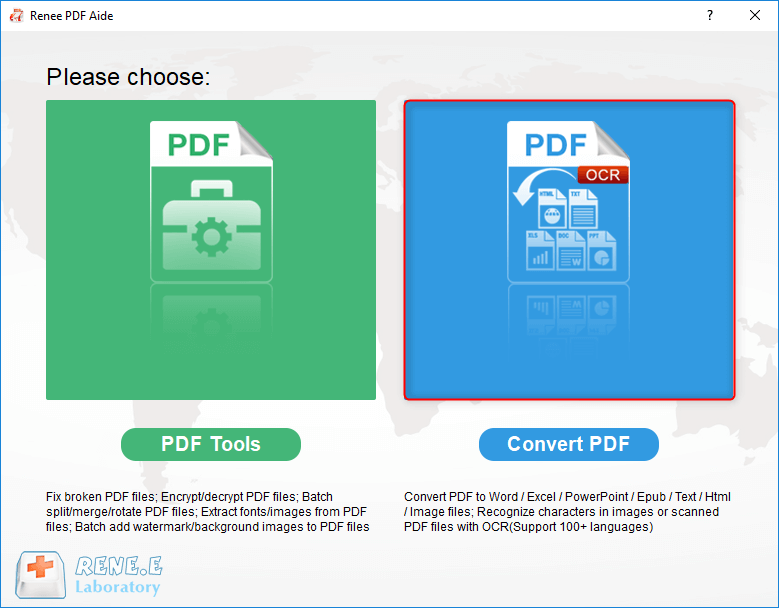
② Click the “Add File” button to import your PDF document. Once added, the file details will appear in the list. If you only need to convert specific sections, click “Select Page” to customize your page range.
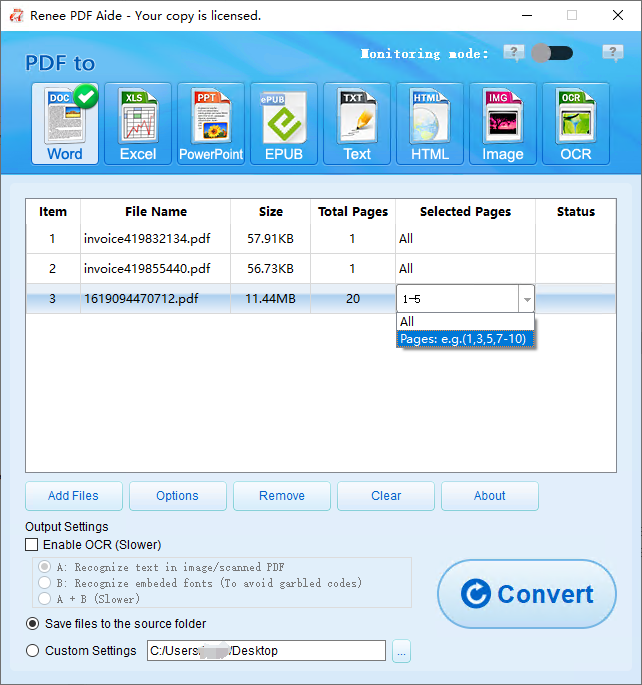
③ Navigate to the top menu bar, click “Word”, and choose your preferred destination folder to save the output.
④ If you are working with scanned PDFs, make sure to check the “Enable OCR” box.
The software provides three distinct OCR text recognition modes:
Mode A: Recognizes text in pictures or flat PDF scans.
Mode B: Identifies and utilizes built-in fonts to prevent garbled characters.
Mode A+B (Slower but thorough): Automatically detects and combines both methods for maximum accuracy.
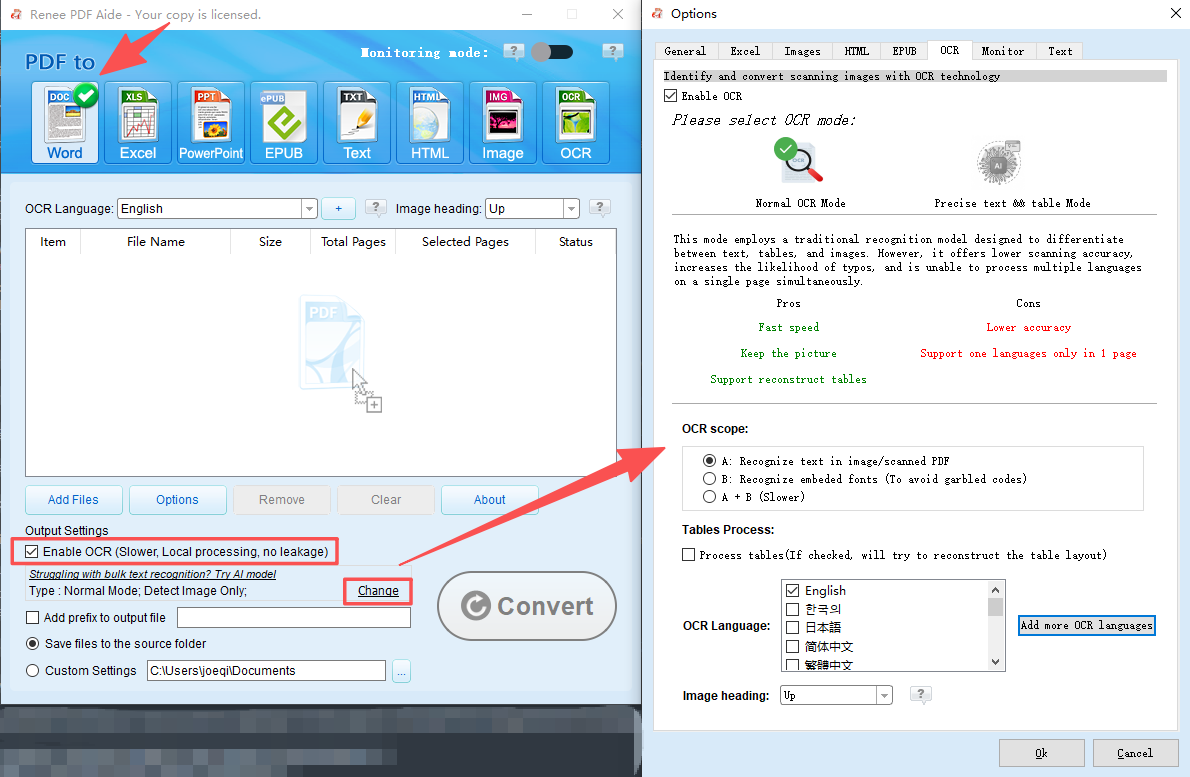
⑤ Finally, click the “Convert” button. Once the process is complete, check the status window for direct links to your newly editable Word documents.

Monitoring Mode (Automated batch processing)
For high-volume environments such as legal offices or digital archiving centers, Renee PDF Aide’s Monitoring Mode takes automation to the next level. This feature continuously watches a designated folder on your computer and automatically converts any new PDFs dropped into it using your predefined settings.
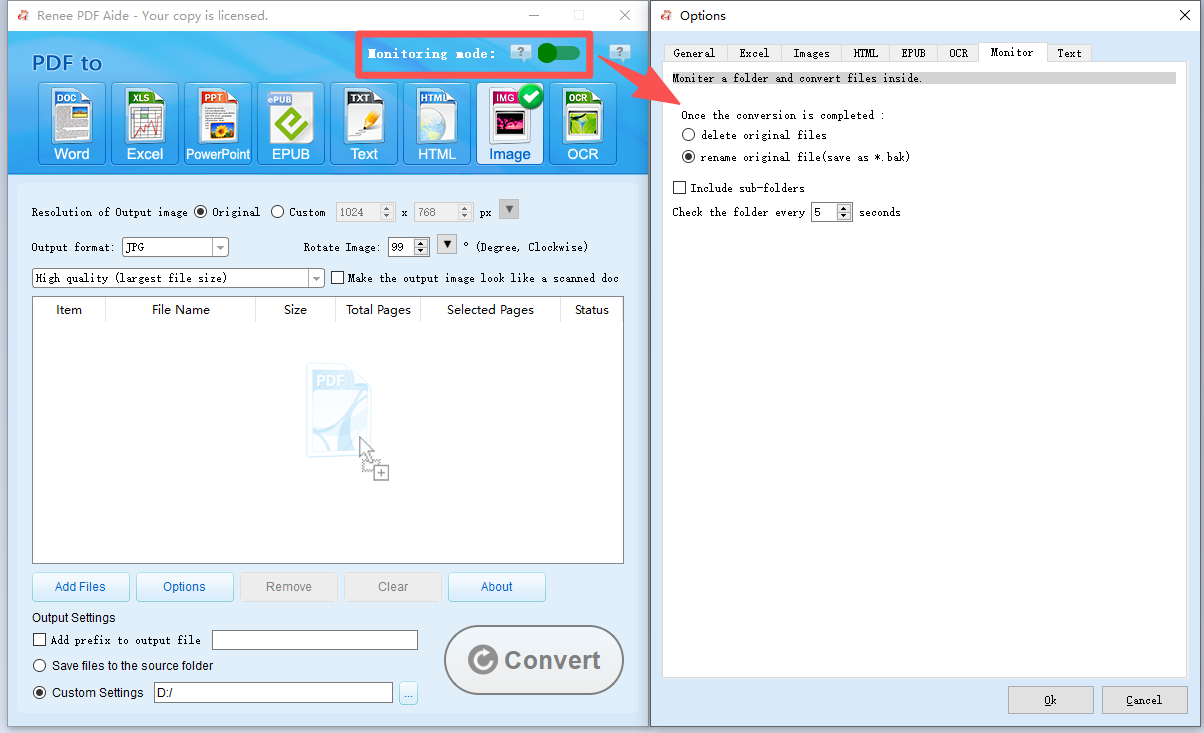
This dramatically reduces manual effort on large batches while perfectly maintaining your original layout and supporting advanced OCR.
- ✓ Versatile Convert to Word/Excel/PPT/Text/Image/Html/Epub
- ✓ Secure 100% local conversions ensure zero risk of data leaks
- ✓ Efficient Batch Process dozens of PDF files in seconds
- ✓ Comprehensive Seamlessly convert PDFs to Excel, PowerPoint, Text, and more
- ✓ OCR Support Extract Text from Scanned PDFs, Images & Embedded Fonts
Method C: Built-in Microsoft Word (Free Workaround)
If you already have Microsoft Office installed on your computer, you might not need to download any additional software to switch PDF to Word. Microsoft Word includes a built-in feature that allows you to open PDF documents directly and convert them into editable Word files. This method is particularly effective for simple, native text-based PDFs that were originally generated in Word or similar word processors, making it a convenient, zero-cost workaround for basic document editing tasks.
[advanAndDisadvan advan_txt=”Advantages:” disadvan_txt=”Disadvantages:” advan_con=”Zero additional cost for existing Office subscribers##Quick and accessible for simple, native text PDFs##No need to download or install third-party software##” disadvan_con=”Lacks OCR support for scanned or image-based documents##Complex layouts, tables, and formatting often break or shift##Not suitable for heavily designed or image-heavy PDFs##” /]
Steps to convert PDF to Word using Microsoft Word:
-
Open Microsoft Word on your computer.
-
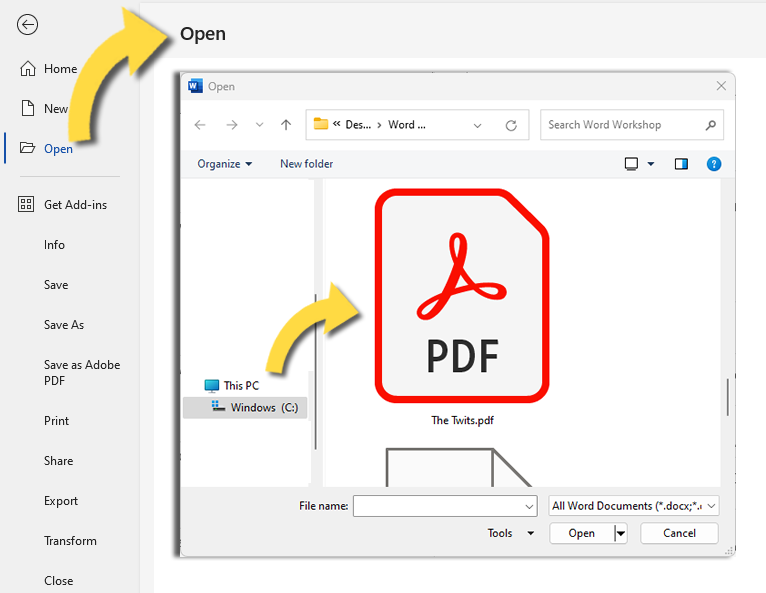
Navigate to File > Open and browse your local folders to select your PDF file.
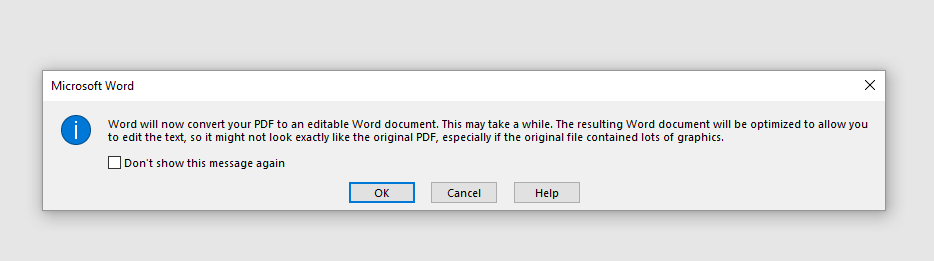
- Word will display a prompt informing you that it is about to convert the PDF into an editable Word document. Click OK to proceed.
- Once the conversion finishes, carefully review the document for any formatting discrepancies, and then save it as a new Word file.
While this built-in feature is incredibly handy for quick edits on simple text documents, it falls short when dealing with complex layouts or scanned files. For those more demanding scenarios, you will need a more robust, dedicated solution.
- ✓ Versatile Convert to Word/Excel/PPT/Text/Image/Html/Epub
- ✓ Secure 100% local conversions ensure zero risk of data leaks
- ✓ Efficient Batch Process dozens of PDF files in seconds
- ✓ Comprehensive Seamlessly convert PDFs to Excel, PowerPoint, Text, and more
- ✓ OCR Support Extract Text from Scanned PDFs, Images & Embedded Fonts
Pro Tips for Better Conversion Results
To achieve the best possible results when you switch PDF to Word, always select the correct OCR language to maximize recognition accuracy. Whenever possible, use high-resolution scans (300 dpi or above) as your source files. Pay close attention to output options, such as keeping pages separate, which can make subsequent editing much easier. Always preview the resulting Word file and perform a quick cleanup: select all text to apply a uniform font, and manually fix any tables if needed. Finally, save a clean version immediately to preserve your hard work.
Frequently Asked Questions
Does Renee PDF Aide support converting scanned PDFs to Word without losing formatting?
Yes. Its advanced OCR technology extracts text from images while preserving layout, tables, and fonts as much as possible. Results are highly editable in Word.
Is my data safe when using free online PDF converters compared to desktop software?
Desktop tools like Renee PDF Aide keep everything local with no uploads. Online converters require sending files to external servers, which carries privacy risks for contracts or personal data.
What is the difference between OCR Mode A, Mode B, and Mode A+B?
Mode A recognizes text in pictures or scanned images. Mode B handles embedded fonts to prevent garbled characters. Mode A+B automatically detects and combines both (slower but more thorough).
Why does my converted Word file have garbled text, and how can I fix it?
Garbled text usually comes from scanned PDFs or font issues. Enable OCR and try Mode B for embedded fonts, or improve original scan quality. A quick font reset in Word often helps afterward.
Comments
0 comments
Please sign in to leave a comment.