
Excel 365 provides a straightforward method for importing data from PDF files directly into an Excel workbook. This guide will walk you through the process of converting a PDF file into an Excel spreadsheet, making it easier to analyze and manipulate the data.
To begin converting a PDF file into Excel, follow these steps:
1. Open your Excel workbook.
2. Navigate to the Data tab located at the top of your Excel interface.
3. Click on the Get Data button.
4. From the dropdown menu, select From File and then From PDF .
5. Browse and select the PDF file you want to convert.
Once Excel has analyzed the selected PDF file, it will present several options for data import. Here’s what you need to do:
1. Excel will open the Navigator window, which displays all the tables and pages in the PDF file.
2. Select the table or page you want to import by checking the corresponding box.
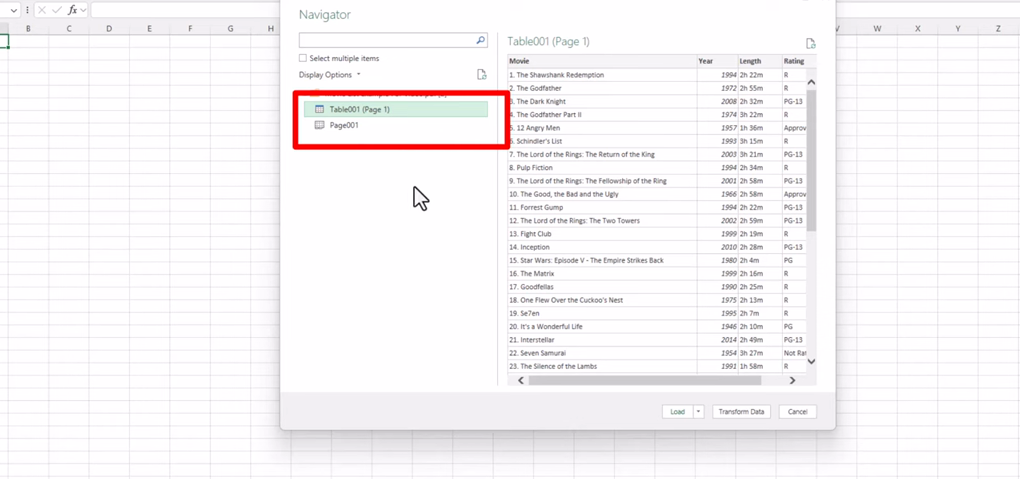
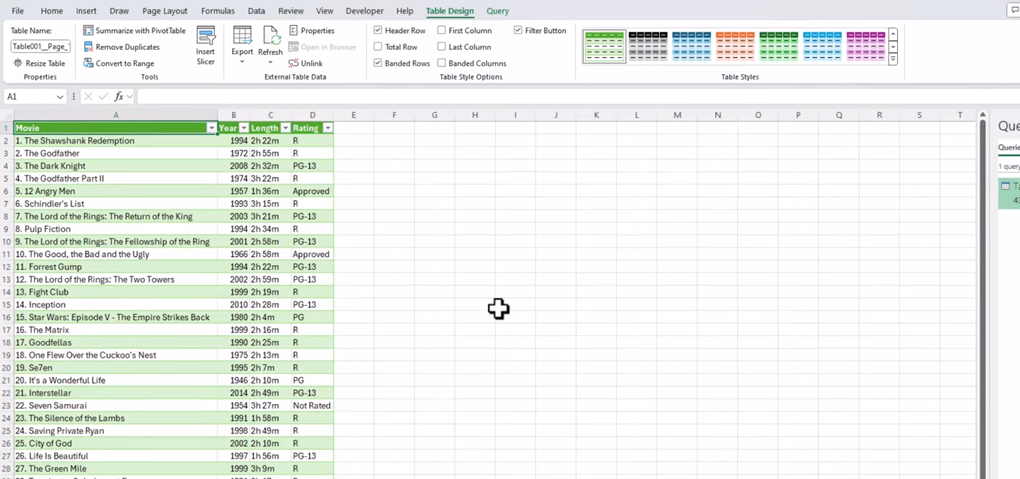
3. Click Load to import the selected data into Excel.
For those looking for a more versatile and powerful tool, Renee PDF Aide is an excellent choice. Renee PDF Aide is easy to operate and can convert up to 80 pages/min . It supports conversion from PDF to Excel , Word , PowerPoint, ePub, Text, HTML, JPG, TIFF , and more. This software integrates various functions including optimizing, repairing , and encrypting PDF files . Despite its diverse features, the interface is user-friendly and simple . Renee PDF Aide uses advanced OCR technology to convert scanned PDFs and Images into editable formats and supports one-click batch conversion for efficiency, safety, and a free conversion experience.
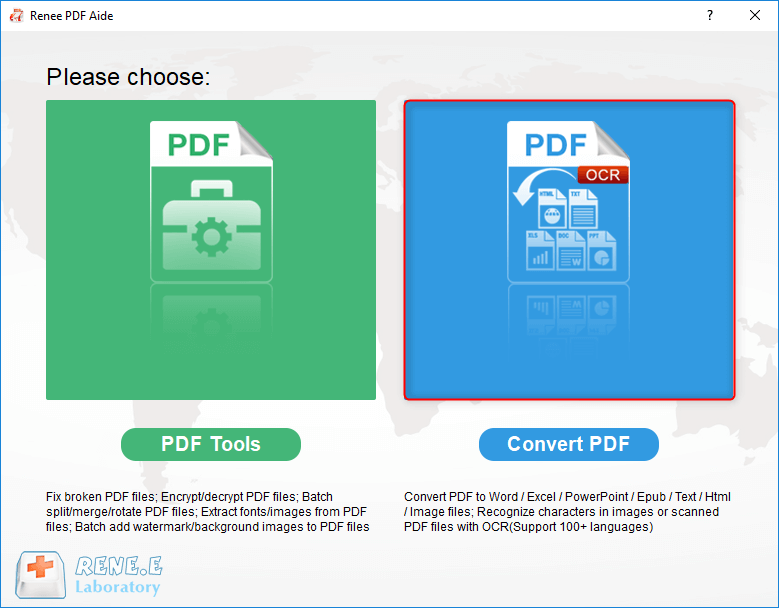
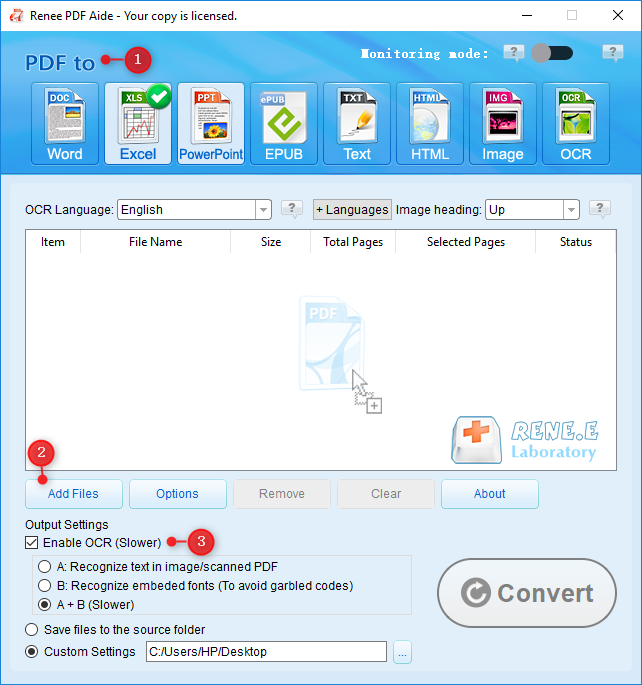
① After installing Renee PDF Aide , open it. Select “ Convert PDF “.
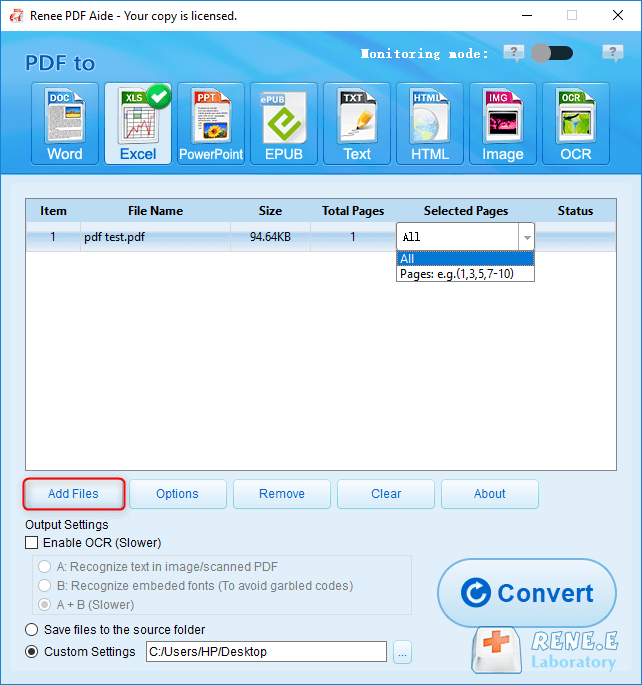
② Add the PDF files to be converted by clicking the “Add Files” button. The software supports batch conversion , allowing you to import multiple files simultaneously. Once added, the file information will appear in the conversion list. Click the “Selected Pages” list to set the pages for conversion.
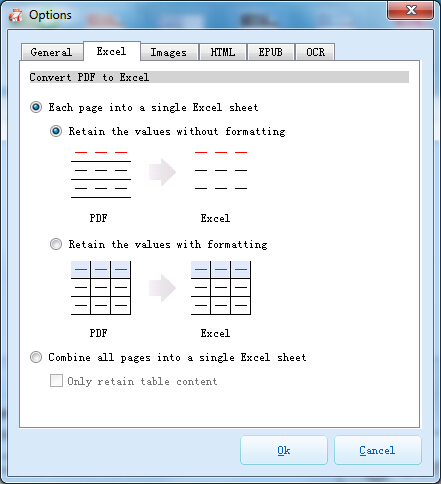
④ If your PDF file is a scanned copy, please select “ Enable OCR ” in location 3. If not, skip this step.
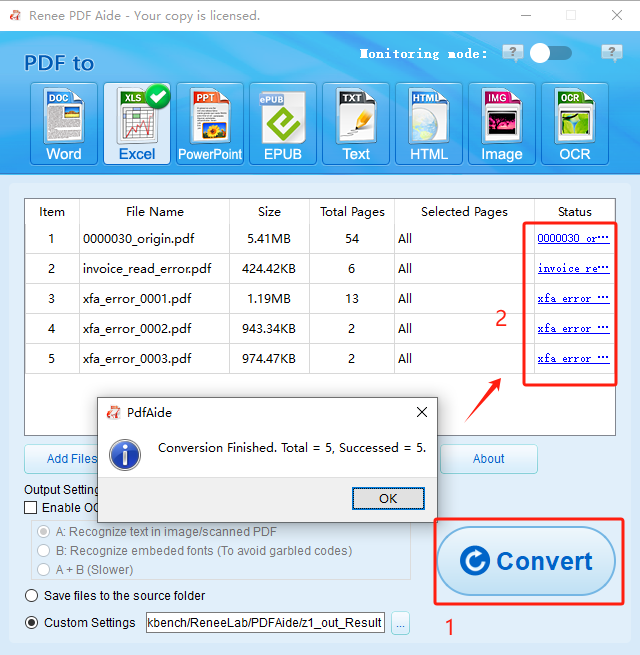
⑤ Click “Convert” button. After conversion, a prompt will display the total number of files converted, as well as the successful ones. The PDF is now converted into an Excel file. To access the result files, click the links in the “Status” column.
While the process described utilizes Excel’s native capabilities, it is important to note that the success of the conversion depends heavily on the structure of the original PDF file. PDFs containing well-organized tables are more likely to convert accurately compared to those with unstructured or image-based content. For complex PDFs, third-party tools specialized in PDF-to-Excel conversion, such as Renee PDF Aide , may offer enhanced functionality.
Relate Links :
How to Convert Between PDF and Word

07-04-2025
Amanda J. Brook : The article discusses the importance of converting documents between PDF and Microsoft Word formats, emphasizing the need for...
Convert Images to Text with Ease
24-04-2024
Amanda J. Brook : Learn how to convert image to text faster and more efficiently with these helpful tips, saving you time...
Repair Damaged PDF Files: Simple Solutions
30-01-2024
Amanda J. Brook : Learn how to repair damaged PDF files to ensure that you can open and view the content. Follow...
Convert ASPX to PDF: A Simple Guide
10-10-2023
Amanda J. Brook : Learn how to convert ASPX files to PDF with a simple method, allowing for easier use and transfer....
Comments
0 comments
Please sign in to leave a comment.