Table of contents
Summary
Learn how to extract text from PDF files with ease using free tools and OCR technology. This guide covers manual and automated methods, providing practical solutions for anyone wondering ‘How to Extract Text from PDF’.
Struggling to pull text from a PDF for editing, analysis, or sharing? Whether you’re a student needing quotes from research papers, a professional extracting data from reports, or handling scanned receipts, extracting text from PDFs saves hours of manual work. This guide offers simple, effective ways to extract text from PDF files, from quick hacks to powerful tools, tailored for beginners and pros alike.
Renee PDF Aide - Powerful PDF Converting/Editing Tool (100 FREE Quota)Convert to Editable Convert to Word/Excel/PPT/Text/Image/Html/Epub Multifunctional Encrypt/decrypt/split/merge/add watermark OCR Support Extract Text from Scanned PDFs, Images & Embedded Fonts Quick Convert dozens of PDF files in batch Compatible Support Windows 11/10/8/8.1/Vista/7/XP/2K Convert to Editable Word/Excel/PPT/Text/Image/Html/Epub OCR Support Extract Text from Scanned PDFs, Images & Embedded Support Windows 11/10/8/8.1/Vista/7/XP/2K

Start Simple: Copy and Paste Text from PDF
The easiest way to extract text is copying it directly from a searchable PDF using a free reader like Adobe Acrobat Reader DC or Foxit Reader. This works for digital PDFs where text is selectable, like e-books or reports.
Steps to Copy and Paste Text page by page
- Open the PDF: Launch Adobe Acrobat Reader DC or Foxit Reader.
-
Switch to Text Selection Mode: In Foxit Reader, click the “Select” tool (text cursor icon) in the toolbar to enable text selection. For Adobe, use the “Select” tool from the top menu.

- Highlight and Copy: Click and drag to select the text, right-click, and choose “Copy.”
- Paste: Open a text editor (e.g., Notepad or Google Docs) and paste the text.
If the text comes out garbled due to embedded fonts, or if you can’t select it (common with scanned PDFs), you’ll need Optical Character Recognition (OCR). OCR scans images or non-selectable PDFs to convert them into editable text. Try Renee PDF Aide, which uses OCR to handle these cases effortlessly.
OCR stands for Optical Character Recognition. It’s a technology that allows computers to “read” text from images, scanned documents, or even photos of signs and books, and then convert that text into a machine‑readable, editable format. In short, OCR is what makes it possible to turn a scanned page into something you can edit in Word, search in a PDF, or feed into a database.

copy pdf text generates garbled characters
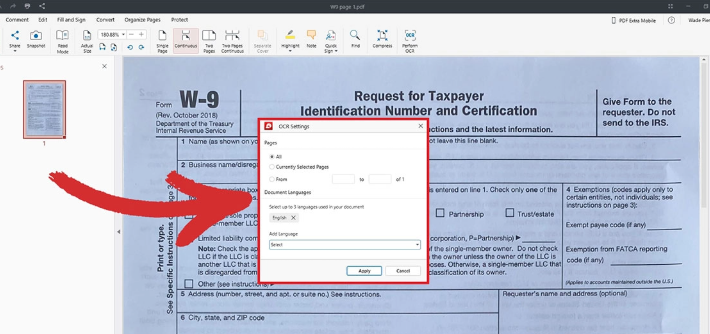
scanner generated PDF files
This method is great for small, one-off tasks but can be slow for large files. Let’s explore other options for more complex needs.
Use AI Assistants to Extract Text from one PDF page
AI tools like Microsoft Copilot(https://copilot.microsoft.com/), ChatGPT(https://chat.open.com/) or Grok(https://grok.com/) can help extract text from PDFs for free, especially for image-heavy files. They’re useful for quick tests, like pulling text from a single page screenshot.
How to Use AI for Text Extraction
Take a screenshot of the PDF page (e.g., a 2025 conference agenda), upload it to the AI tool, and prompt: “Extract all text from this image as a bullet list.” The AI uses OCR-like features to read the text.
For example, you may use Copilot(https://copilot.microsoft.com/) to extract text from normal pdf files or scanned pdf files:

However, AI tools may struggle with multi-page PDFs or low-quality scans and require manual screenshots per page. For a quick test, like extracting a diagram’s text from an engineering report, this works, but for bulk tasks, desktop software is more reliable.
Got it — here’s the expanded comparison table in polished American English, now with two extra columns: “PDF Conversion Support” and “Output Formats.”
📊 PDF Handling: Free vs. Paid Plans
| Platform | Free Version | Paid / Premium Version | PDF Conversion Support | Output Formats |
|---|---|---|---|---|
| Microsoft Copilot | You can upload and analyze PDFs, but very large files may need to be split. 1-2 page per output. | With Microsoft 365 Personal, Family, or Premium, you get higher usage allowances and smoother handling of long documents. | ❌ No direct PDF‑to‑Word/Excel conversion. | output plain text only |
| ChatGPT (OpenAI) | Free users cannot upload PDFs directly; you’d need to paste text manually. | Plus and Team plans allow PDF uploads. Files over ~100–200 pages may exceed the context window and need to be split. | ❌ No built‑in PDF conversion. It can summarize or reformat text, but not export structured files. | N/A (outputs plain text in chat) |
| Grok (xAI) | You can upload and analyze PDFs, about 10-20 pdf pages per output. | About 100-200 pdf pages per output. | ❌ No PDF conversion support. | N/A (outputs plain text in chat) |
Extract Text with Desktop Software for batch processing
Desktop software offers secure, offline processing for extracting text from PDFs, making it especially valuable for batch jobs or handling sensitive information. While many online tools provide convenience, they often come with file size limits, slower speeds, or privacy concerns. In contrast, a dedicated desktop solution ensures both performance and data security.
What is Renee PDF Aide?
One such solution is Renee PDF Aide, a versatile PDF converter equipped with advanced OCR technology. It can transform both scanned and text‑based PDFs into fully editable formats such as Word, Excel, PowerPoint, HTML, EPUB, or TXT. Beyond conversion, it supports multiple languages—including English, Spanish, and Chinese—and offers additional functions like file repair, splitting, merging, and encryption. With processing speeds of up to 80 pages per minute, it is designed for efficiency as well as accuracy. You can even download a free trial to experience its performance firsthand.
Renee PDF Aide - Powerful PDF Converting/Editing Tool (100 FREE Quota)Convert to Editable Convert to Word/Excel/PPT/Text/Image/Html/Epub Multifunctional Encrypt/decrypt/split/merge/add watermark OCR Support Extract Text from Scanned PDFs, Images & Embedded Fonts Quick Convert dozens of PDF files in batch Compatible Support Windows 11/10/8/8.1/Vista/7/XP/2K Convert to Editable Word/Excel/PPT/Text/Image/Html/Epub OCR Support Extract Text from Scanned PDFs, Images & Embedded Support Windows 11/10/8/8.1/Vista/7/XP/2K
Extract Text to Word
Converting a PDF to Word makes it easy to extract diverse content, like text, tables, or images, while preserving formatting. For example, pulling clauses from a 2025 legal contract PDF is simple with this method.
- Download Renee PDF Aide from Offical website.
-
Install Renee PDF Aide and select “Convert PDF.”
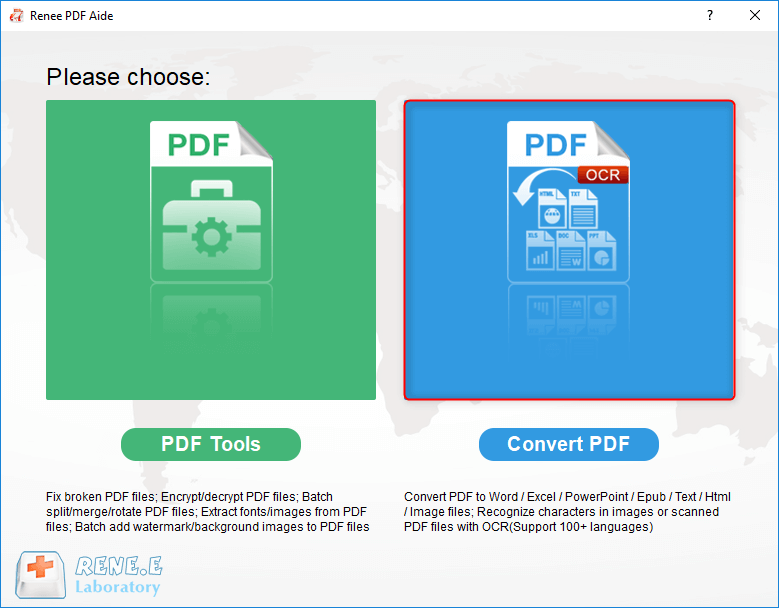
-
Choose “Word” and set the save location. Check “Enable OCR” for scanned PDFs.
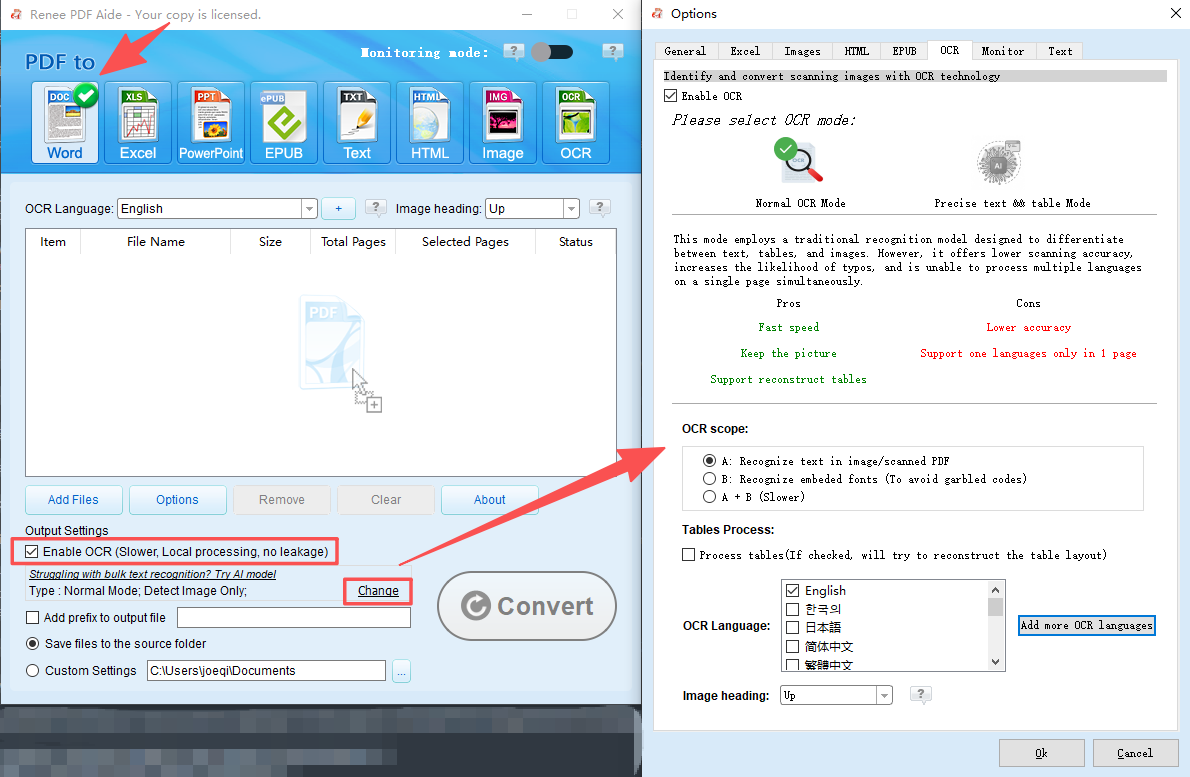
- OCR Options:
- Text in Images/Scans: Recognizes text in pictures or scanned PDFs.
- Embedded Fonts: Avoids garbled text from built-in fonts.
- A+B (Slower): Auto-detects fonts but takes longer.
-
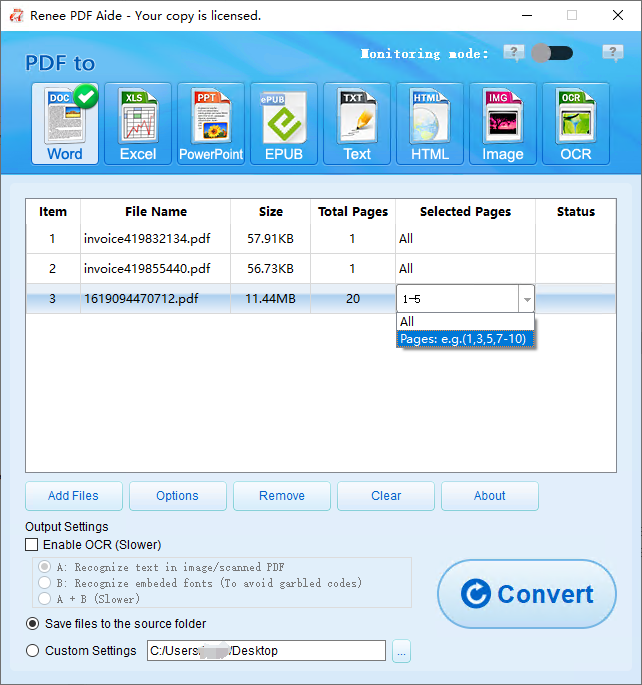
Click “Add File,” select the PDF, and choose specific pages if needed.
-
Click “Convert.” The Word file appears in the set location, ready for text extraction.

Extract Text to Excel
For PDFs with tables, like a 2025 budget report, converting to Excel simplifies data extraction and analysis.
- Run Renee PDF Aide and select “Convert PDF.”
-
Choose “Excel,” add the PDF, and enable OCR if it’s a scanned file.
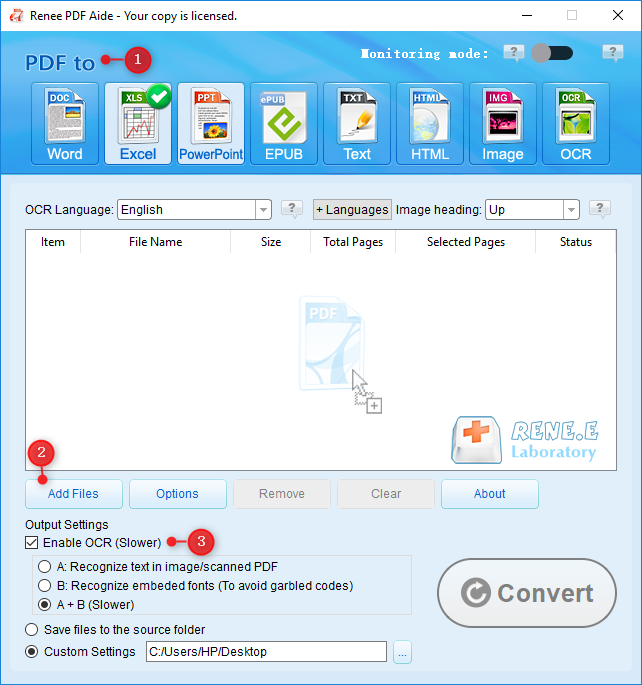
- Click “Convert” to get an editable Excel file in the chosen folder.
Extract Text to PowerPoint
To extract text from presentation PDFs, like a 2025 webinar slide deck, convert to PowerPoint to keep visuals and text editable.
-
Open Renee PDF Aide, select “Convert PDF,” and choose “PowerPoint.”
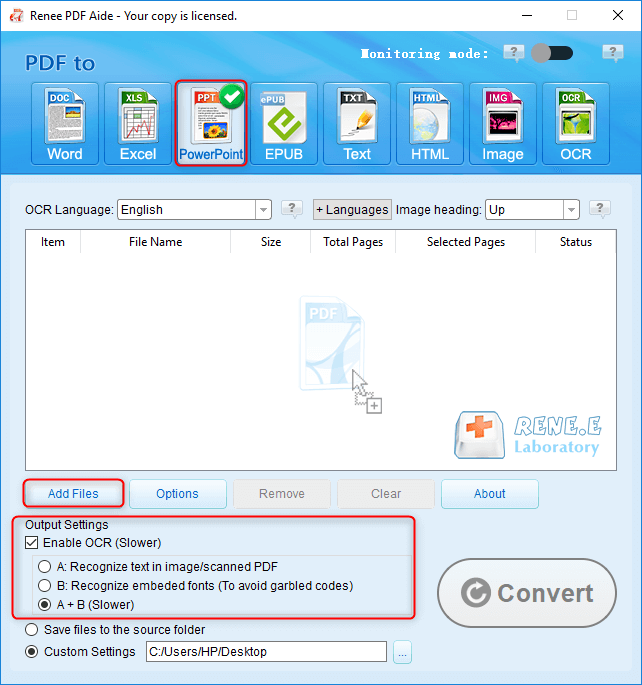
- Add the PDF, enable OCR if needed, and click “Convert.”
- Access the PPT file for text extraction.
Extract Text to TXT
For plain text extraction, like pulling dialogue from a 2025 novel PDF draft, TXT is the simplest format.
-
Launch Renee PDF Aide, select “Convert PDF,” and choose “Text.”
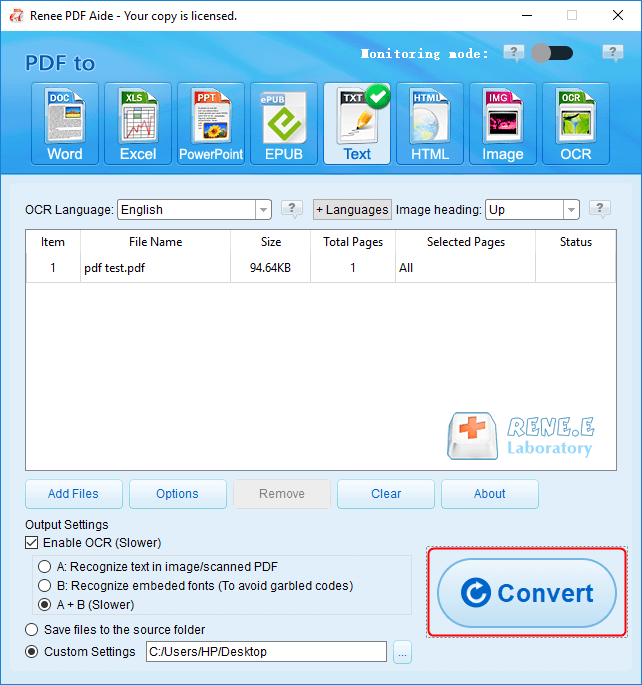
- Add the PDF, check “Enable OCR” for scans, and click “Convert.”
- Find the TXT file for easy text copying.
Desktop tools like Renee PDF Aide are versatile for most needs, but if you prefer cloud-based solutions, online tools offer quick alternatives.
Renee PDF Aide offers full support for the XFA format—a specialized PDF standard commonly used by banks and government agencies. In contrast, most conversion tools that lack XFA compatibility generate only an error page, as illustrated below:

Try Free Online Tools for PDF Text Extraction
Online converters are great for quick, one-off PDF text extractions, especially on mobile devices or shared computers. Upload your file, let the tool process it, and download the text. Below is a comparison of two popular free tools:
| Tool | Features | Limitations |
|---|---|---|
| PDF Candy | Free PDF-to-TXT conversion, auto OCR for scanned files, user-friendly interface. Ideal for extracting product lists from catalogs. | File size limits (~100MB), ads in free version, slower during peak times, privacy risks from server uploads. |
| PDF2Go | No registration needed, supports mobile, fast TXT conversion with OCR. Great for quick notes from meeting PDFs. | Limited file size, potential data exposure, occasional formatting loss, internet required. |
These tools suit casual users but aren’t ideal for sensitive data or large files due to privacy concerns and size caps. For more control, consider coding your own solution.
Advanced: Extract Text with Python Scripts
For developers or data enthusiasts, Python scripts automate PDF text extraction, perfect for bulk tasks like processing 2025 election polling PDFs. Using PyMuPDF for text extraction and tesserocr for OCR, you can save results as TXT or Word files.
Python Script Example
This script extracts text from a PDF and saves it as either TXT or Word, with OCR for scanned files:
import fitz  # PyMuPDF
import tesserocr
from PIL import Image
from docx import Document
import os

def extract_text_to_file(pdf_path, output_format="txt"):
    # Open PDF
    doc = fitz.open(pdf_path)
    text_output = ""

    for page in doc:
        # Try direct text extraction
        text = page.get_text()
        if text.strip():  # If text is found
            text_output += text + "\n"
        else:  # Use OCR for scanned pages
            pix = page.get_pixmap()
            img = Image.frombytes("RGB", [pix.width, pix.height], pix.samples)
            text = tesserocr.image_to_text(img)
            text_output += text + "\n"

    doc.close()

    # Save to TXT or Word
    output_file = os.path.splitext(pdf_path)[0] + f".{output_format}"
    if output_format == "txt":
        with open(output_file, "w", encoding="utf-8") as f:
            f.write(text_output)
    elif output_format == "docx":
        doc = Document()
        doc.add_paragraph(text_output)
        doc.save(output_file)

    return output_file

# Example usage
pdf_file = "sample.pdf"  # Replace with your PDF path
extract_text_to_file(pdf_file, output_format="txt")  # Or "docx" for Word
To use this, install dependencies: pip install PyMuPDF tesserocr python-docx Pillow. For a 2025 multilingual report PDF with Hindi and English, set tesserocr’s language to hin+eng for accurate OCR. Save as TXT for plain text or Word for formatted editing.
This method requires coding skills and setup but offers unmatched flexibility for automation.
Frequently Asked Questions (FAQs)
What if the extracted text is garbled or incomplete?
Garbled text often results from embedded fonts or image-based PDFs. Use OCR-enabled tools like Renee PDF Aide, which achieves over 95% accuracy on clear scans, like a 2025 resume PDF. Check language settings for multilingual files to avoid errors.
Are online tools safe for sensitive PDFs?
Online tools risk data leaks since files are uploaded to servers. For confidential PDFs, like financial statements, use offline software like Renee PDF Aide to keep data secure on your device.
Can I extract text from encrypted PDFs?
Yes, with tools like Renee PDF Aide, which decrypts PDFs before extraction. Ensure you have permission to unlock the file. For example, decrypt a protected 2025 policy PDF to extract guidelines legally.
How do I handle large PDFs (e.g., 500+ pages)?
Large files can overwhelm free tools. Renee PDF Aide processes up to 80 pages per minute and supports page selection. Alternatively, Python scripts can split and extract in batches, ideal for a 2025 annual report PDF.
How do I extract text from multilingual PDFs?
Use tools with multi-language OCR, like Renee PDF Aide, which supports English, Chinese, and more. For scripts, tesserocr allows language specification (e.g., hin+eng) for accurate extraction from bilingual PDFs.
Does text extraction keep the original PDF formatting?
TXT outputs lose formatting, but Word or Excel conversions via Renee PDF Aide preserve layouts. For a 2025 recipe PDF, Word output keeps bullet points intact for easy editing.
Comments
0 comments
Please sign in to leave a comment.