Table of contents
- Choose by Scenario: Email, Government Portals, Scanned PDFs, Target Size
- Quick Start: Compress PDF Online (No Installation)
- Recommended Desktop Software: Renee PDF Aide (Windows, Offline)
- Compress PDF on Mobile (iOS and Android)
- Desktop Pro Methods: Adobe Acrobat Pro and Alternatives
- Mac Built-in Method: Preview Export with Reduced File Size
- Advanced Automation and Batch Processing
- FAQs
Summary
This guide covers multiple approaches to how to compress PDF files, including online tools for quick results, offline desktop software for greater control and privacy, and mobile options for on-the-go use. Additional sections address creating smaller PDFs at the source, batch processing, and security considerations.
Need to upload a PDF under a strict size cap, attach it to an email, or share it from your phone? This guide explains exactly how to compress PDF files—online, on desktop, and on mobile—while keeping text readable, images as clear as practical, and your data protected.
Different situations call for different approaches. Sometimes you just need the quickest fix with no installation. Other times, privacy, upload limits, or scanned documents mean you need finer control. To help you decide fast, start with the scenario guide below.
Choose by Scenario: Email, Government Portals, Scanned PDFs, Target Size
Use this decision matrix to pick the best path for your situation. These guidelines help you compress a PDF for tight upload limits with fewer retries.
| Scenario | Typical limit | First-choice method | Backup method | Notes (quality/privacy) |
|---|---|---|---|---|
| Email attachments | $20–25\text{ MB}$ (typical) | Online tool | Desktop (Renee PDF Aide/Acrobat) if output looks blurry | Balance speed and clarity; providers vary (e.g., Gmail $25\text{ MB}$, Outlook $20\text{ MB}$) |
| Government portals | $≤1\text{ MB}/≤500\text{ KB}/≤100\text{ KB}$ | Offline desktop (Renee PDF Aide or Acrobat) | Split by size/pages + recompress | Avoid uploading sensitive IDs (e.g., SSN, PAN, Aadhaar, driver’s license) to third-party sites |
| Scanned PDFs (image-heavy) | Often $≤1–2\text{ MB}$ | Scan at $150–200\text{ DPI}$, grayscale, OCR → then compress | Acrobat custom settings or Renee PDF Aide with OCR | OCR preserves searchability and readability at smaller sizes |
| Mobile-only user | Varies | Mobile web compressor; choose Strong if needed | Native app with offline compression | Prefer Wi‑Fi; review app data permissions |
| “Compress to $1\text{ MB}/500\text{ KB}/100\text{ KB}$” | As stated | Start Medium → Strong in steps | Downsample images and/or split | Check file size after each pass; avoid over‑blurring images |
Trade‑off rules
-
Lower DPI and higher compression reduce size but may blur images; OCR helps keep text crisp.
-
Privacy‑sensitive → go offline first. Time‑sensitive → use online tools first.
These quick rules minimize trial and error so you can hit your target size faster.
Quick Start: Compress PDF Online (No Installation)
If you want a fast, free, and simple option, compress your PDF online. The tools below work in any modern browser, offer free tiers, and give you an instant download. Expect a minor trade‑off between size and image clarity.
✅ Advantages: ❌ Disadvantages:
Online tool comparison (free tiers)
| Tool | Max file size (free) | Free usage limits | Compression levels | Batch support | Sign-in required | Auto deletion policy | Mobile web friendly | Notes |
|---|---|---|---|---|---|---|---|---|
| Smallpdf | Up to $5\text{ GB}$ | Daily task cap (e.g., a few actions/day) | Strong, Recommended/Basic | Single-file in free web tool | Sometimes after first task | Deletes shortly after processing (e.g., ~1 hour) | Yes | Strong brand, 14‑day trial removes caps |
| iLovePDF | Up to $200\text{ MB}$ (typical) | Daily cap on free tasks | Extreme, Recommended, Less | Yes, multi-file to ZIP | No for basic use | Auto-delete after a short period (e.g., ~2 hours) | Yes | Mobile apps available (iOS/Android) |
| Adobe Acrobat Online | Up to $2\text{ GB}$ (typical) | Repeated tasks may require Adobe ID | High, Medium (Recommended), Low | No (one file at a time) | Often required for repeat use | Auto-delete after processing/limited time | Yes | Trusted privacy stance, clean results |
*Sources: smallpdf.com/compress-pdf, www.ilovepdf.com/compress_pdf, www.adobe.com/acrobat/online/compress-pdf.html *
Service limits and policies can change—check each tool’s site for the latest details.
This quick-start route covers most upload, email, and sharing needs. For strict privacy or very specific size/quality targets, switch to an offline desktop method next.
Recommended Desktop Software: Renee PDF Aide (Windows, Offline)
Disclosure: The Windows tool below is recommended for users who need offline privacy and consistent results. Always choose the method that best fits your needs.
Renee PDF Aide is a full-featured Windows PDF suite that runs entirely offline. You can compress, split, merge, convert, encrypt/decrypt, and repair PDFs, with OCR for scanned documents. Use it when privacy matters or when online tools can’t meet tight size caps.
- ✓ Convert to Editable Word/Excel/PPT/Text/Image/Html/Epub
- ✓ Multifunctional Encrypt/decrypt/split/merge/add watermark
- ✓ OCR Support Extract Text from Scanned PDFs, Images & Embedded Fonts
- ✓ Quick Convert dozens of PDF files in batch
- ✓ Compatible Support Windows 11/10/8/8.1/Vista/7/XP/2K
Compress with Optimize (offline, fast)
If your PDF was created from scanned images, you can often shrink it further by running OCR before compressing. In Renee PDF Aide, use OCR to convert scanned pages into an editable Word, Excel, or PowerPoint file, then export back to PDF. This removes heavy image layers and usually produces a smaller, cleaner file.
Use Optimize to reduce file size without uploading to the cloud—ideal for email, portal submissions, and batch work.
- Open Renee PDF Aide and click PDF Tools.

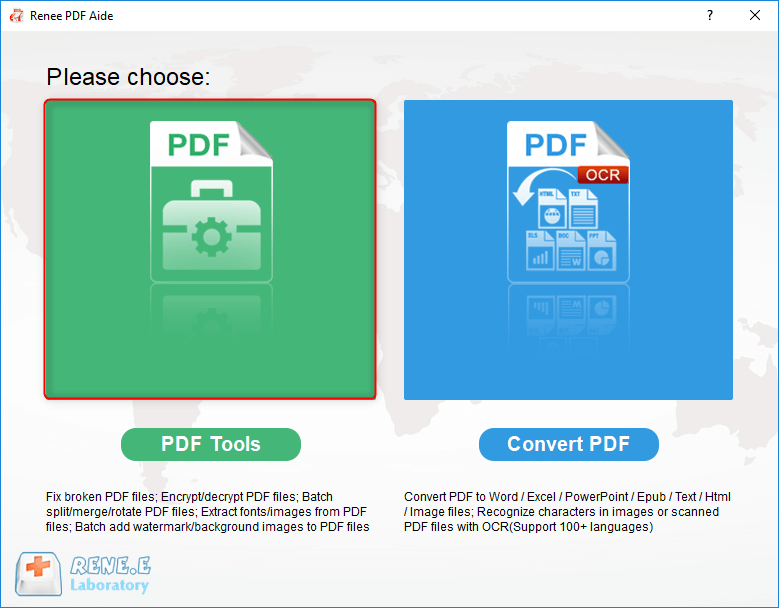
- Click Optimize → Add File to import your PDF.
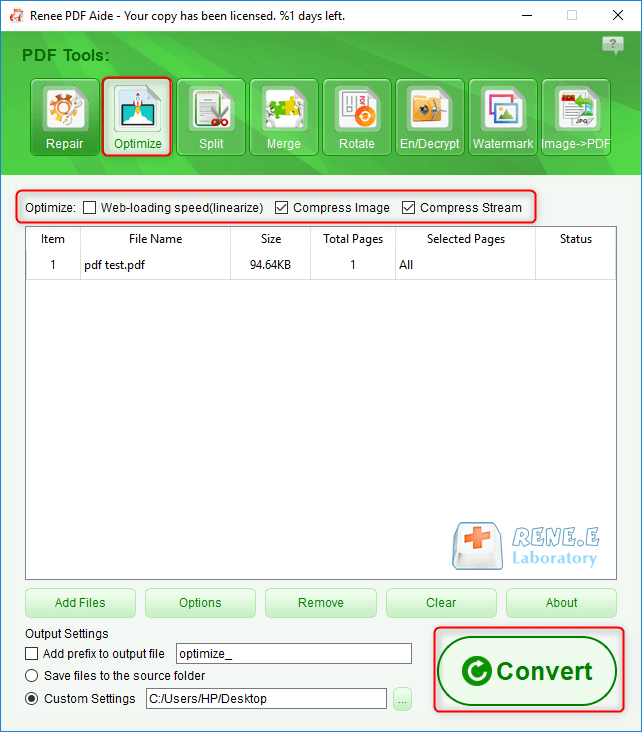
- Choose optimization options:
-
Online page loading speed (Linearize): Improves first-page loading over the web (“Fast Web View”).
-
Compress images: Downsizes and recompresses images—the biggest driver of file size.
-
Compress data stream: Further compresses internal PDF objects to shrink overall size.
- Click Convert and review the output size. If it’s still too large, re-run with stronger image compression or a lower image DPI.
If you must hit very small targets (for example, $≤1\text{ MB}/≤500\text{ KB}/≤100\text{ KB}$) and the PDF is long, switch to Split (below) after one Optimize pass. Then compress each part again to meet portal limits with better readability.
When the target size is very small, use Split instead of Optimize
Use Split when compression alone can’t meet strict upload limits—common on some government, education, and corporate portals. Splitting reduces pages per file, making tight targets achievable without over‑blurring images.
- In PDF Tools, select Split, then Add Files to import your PDF.
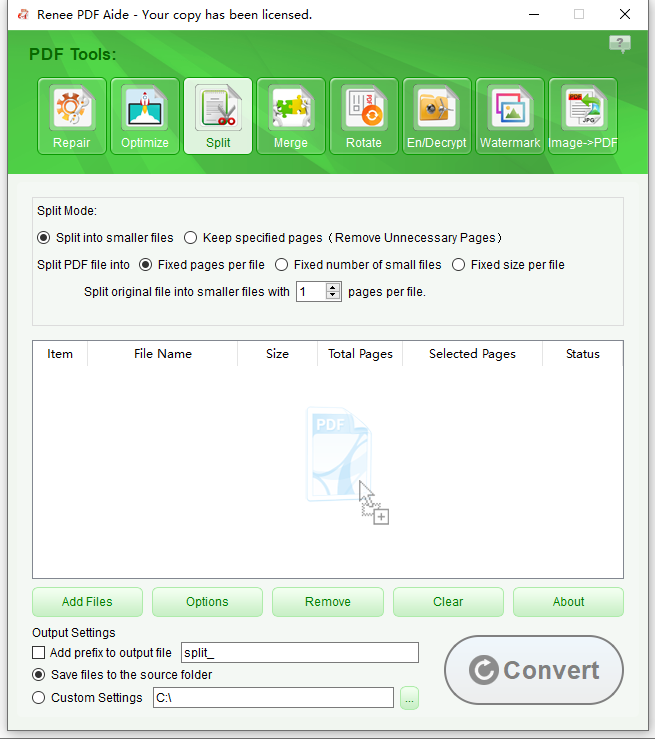
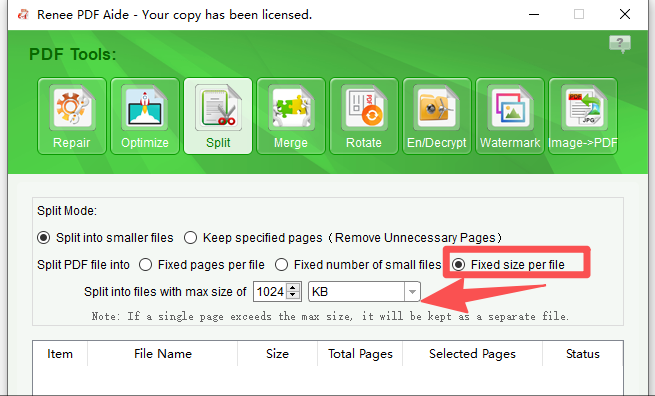
- Choose your split mode:
-
Split into smaller files: Create multiple files. You can split:
-
By equal page counts or into a fixed number of files.
-
By maximum file size (best for upload limits like $≤1\text{ MB}$).
-
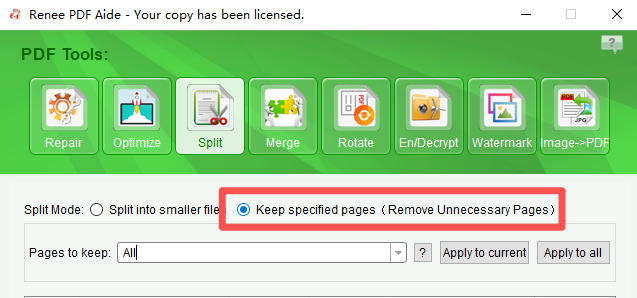
- Keep specified pages: Extract only the pages or ranges you need to keep the file as small as possible.
- Set the output folder and click Convert to process. Then open each resulting file and run Optimize again, if needed, to reach your target size with acceptable clarity.
✅ Advantages: ❌ Disadvantages:
- ✓ Convert to Editable Word/Excel/PPT/Text/Image/Html/Epub
- ✓ Multifunctional Encrypt/decrypt/split/merge/add watermark
- ✓ OCR Support Extract Text from Scanned PDFs, Images & Embedded Fonts
- ✓ Quick Convert dozens of PDF files in batch
- ✓ Compatible Support Windows 11/10/8/8.1/Vista/7/XP/2K
Mini comparison: Renee vs Online vs Acrobat Pro
| Factor | Renee PDF Aide (Windows) | Online Tools (Smallpdf/iLovePDF/Adobe Online) | Adobe Acrobat Pro (Win/Mac) |
|---|---|---|---|
| Privacy | Full offline, local processing | Files upload to servers | Full offline, local processing |
| Control | Good (image, stream, linearize; OCR) | Basic (3 levels) | Excellent (granular optimizer, fonts, metadata) |
| Cost | Free trial; paid license | Free tiers; optional subscriptions | Paid subscription |
| Batch/OCR | Yes/Yes | Limited batch; no OCR | Batch via Actions; OCR included |
| Learning curve | Moderate | Very easy | Moderate to advanced |
If you frequently compress sensitive PDFs or must satisfy strict portal caps, the Optimize → Split → Optimize flow in Renee PDF Aide is a reliable, privacy‑first approach.
Compress PDF on Mobile (iOS and Android)
Compressing a PDF on mobile is straightforward whether you prefer a browser or a native app. The mobile web route is fastest: open a reputable online compressor, upload from Files/Drive/iCloud, pick a level (start with Medium/Recommended), and download to share immediately.
✅ Advantages: ❌ Disadvantages:
Mobile web (no app install)
-
Open Smallpdf, iLovePDF, or Adobe Acrobat Online in your mobile browser.
-
Upload from Files/Google Drive/iCloud, choose a compression level (Strong/High if you must meet strict limits).
-
Download the result to your device or cloud storage.
Tip: On iPhone, use the Share sheet to save to Files; on Android, save to device or Drive.
Native apps (iOS/Android)
-
Adobe Scan + Adobe Acrobat Reader: Scan at $150–200\text{ DPI}$ for text documents; enable OCR; open in Acrobat and use Compress (advanced levels may require a subscription).
-
Files by Google (Android): Handy for managing storage and sharing; for compression, pair it with iLovePDF or Adobe apps.
-
Apple Files/Shortcuts (iOS): Create a Shortcut to send a PDF to an online compressor or an automation flow if you prefer one‑tap actions.
Connectivity and portal tips
-
If connectivity is unstable, compress offline or wait for Wi‑Fi to avoid failed uploads.
-
Many portals specify strict limits ($≤1\text{ MB}/≤500\text{ KB}/≤100\text{ KB}$). Check FAQs, prepare multiple variants, and test uploads early.
This way, you can compress PDFs on your phone quickly with the right balance of speed and safety.
Desktop Pro Methods: Adobe Acrobat Pro and Alternatives
If you need maximum control over image quality, fonts, DPI, and metadata, Adobe Acrobat Pro is the industry standard. It includes both one‑click and granular optimization tools.
✅ Advantages: ❌ Disadvantages:
Two workflows in Acrobat Pro
One‑click (fastest):
-
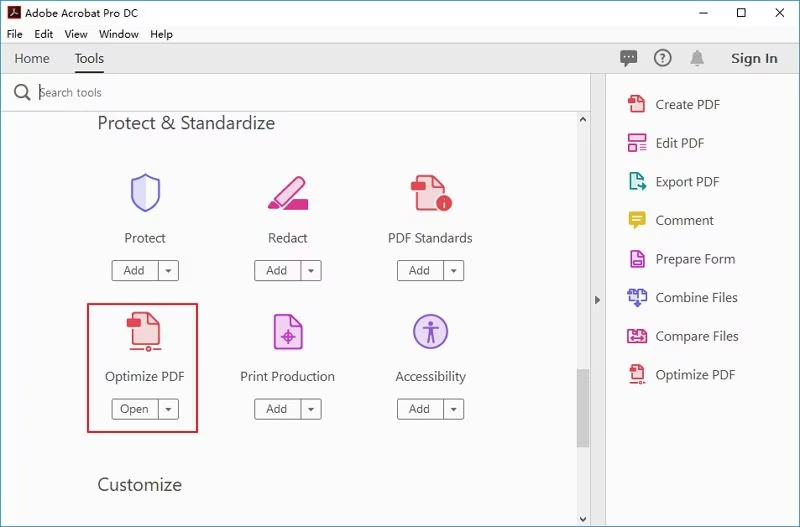
File → Save as Other → Reduced Size PDF
-
Choose compatibility if prompted and save.
Custom (recommended when quality matters):
-
File → Save as Other → Optimized PDF
-
Configure:
-
Images: Downsample to $150\text{ DPI}$ for web/email or $300\text{ DPI}$ for print; choose
JPEGorJPEG2000with moderate quality. -
Fonts: Subset or remove embedded fonts when safe (don’t remove if it changes appearance).
-
Discard objects: Remove unused elements, page thumbnails, embedded files, and hidden layers you don’t need.
-
Clean up: Remove metadata, optimize structure, and enable linearization for fast web view.
-
If your goal is “compress PDF without losing quality,” use the custom method to preserve text and vector elements while only downsampling images.
Mac Built-in Method: Preview Export with Reduced File Size
On a Mac, the quickest built‑in way to compress a PDF is Preview. It’s a single setting, though it can be aggressive on images.
✅ Advantages: ❌ Disadvantages:
2-step flow
-
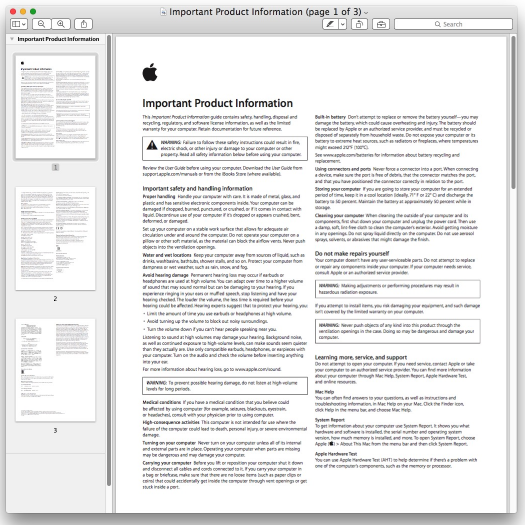
Open your PDF in Preview → File → Export.
-
Set Quartz Filter: Reduce File Size → Save.
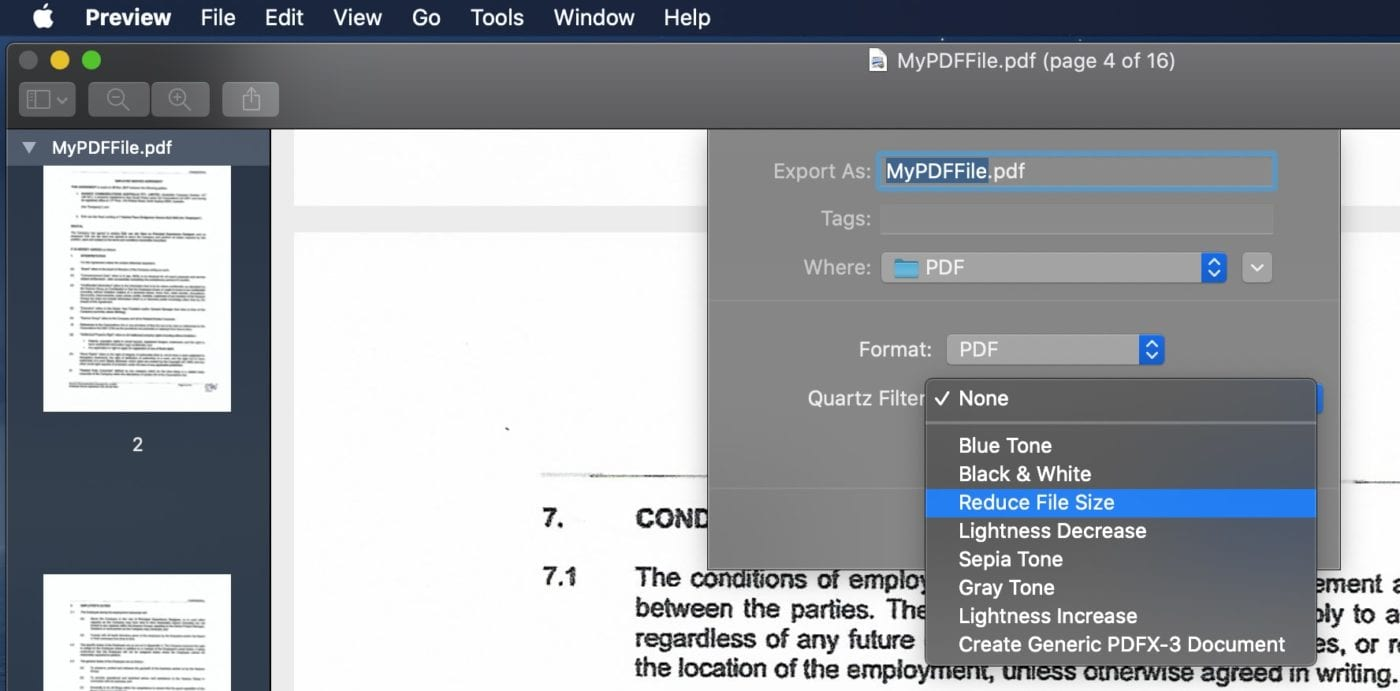
If results look poor, try Acrobat Pro’s Optimizer or an online tool where you can pick Medium/Recommended compression.
Advanced Automation and Batch Processing
For IT and power users. Test on sample files and back up originals before you run batch jobs.
✅ Advantages: ❌ Disadvantages:
Steps
-
Install Ghostscript from the official site and add it to your system PATH.
-
Start with a single file: run a balanced command targeting about
150DPI for color/gray images and review quality. -
Set up batch commands (Bash or PowerShell) to process multiple PDFs into a
compressed_output folder. -
Iterate to target sizes by lowering DPI to
120or96only if needed; validate fonts, colors, tables, and diagrams before rolling out.
Ghostscript examples
Single file:
gs -sDEVICE=pdfwrite -dCompatibilityLevel=1.6 -dPDFSETTINGS=/ebook \
   -dColorImageDownsampleType=/Bicubic -dColorImageResolution=150 \
   -dGrayImageDownsampleType=/Bicubic -dGrayImageResolution=150 \
   -dMonoImageDownsampleType=/Subsample -dMonoImageResolution=300 \
   -dDetectDuplicateImages=true -dCompressFonts=true \
   -o output.pdf input.pdf
Batch (Bash):
for f in *.pdf; do
  gs -sDEVICE=pdfwrite -dCompatibilityLevel=1.6 -dPDFSETTINGS=/ebook \
     -dColorImageResolution=150 -dGrayImageResolution=150 \
     -o "compressed_$f" "$f"
done
Batch (PowerShell):
Get-ChildItem *.pdf | ForEach-Object {
  $out = "compressed_$($_.Name)"
  gs -sDEVICE=pdfwrite -dCompatibilityLevel=1.6 -dPDFSETTINGS=/ebook `
     -dColorImageResolution=150 -dGrayImageResolution=150 `
     -o $out $_.FullName
}
Target size iteration strategy
-
Start with
150DPI for color/gray images, then adjust to120or96DPI if still too large; review quality after each step. -
Consider
-dPDFSETTINGS=/screenonly for aggressive cuts; expect noticeable image degradation.
Extras
-
qpdf --linearizeimproves “Fast Web View” but won’t meaningfully shrink large images. -
Color profiles and transparency flattening can alter appearance—test on a few pages first.
This approach helps teams batch compress PDFs while controlling quality across large sets.
FAQs
How to compress PDF without losing quality?
- Preserve text and vector elements, and only downsample images. Use Acrobat Pro Optimizer or Renee PDF Aide with image compression tuned to $150–300\text{ DPI}$. See the Desktop Pro and Renee sections.
How to compress scanned PDF?
- Re‑scan at $150–200\text{ DPI}$, grayscale, enable OCR, then compress. This keeps text sharp at smaller sizes. See the Mobile and Scenario sections.
How to compress PDF to $100\text{ KB}$?
- Iterate: Medium → Strong, then lower image DPI. If it’s still above $100\text{ KB}$, split the PDF and compress each part. See Quick Start and the Scenario table.
Why didn’t ZIP make my PDF smaller?
- PDFs are already compressed; ZIP often adds little. ZIP is better for bundling or password-protecting multiple files. See Reduce at Source section.
- ✓ Convert to Editable Word/Excel/PPT/Text/Image/Html/Epub
- ✓ Multifunctional Encrypt/decrypt/split/merge/add watermark
- ✓ OCR Support Extract Text from Scanned PDFs, Images & Embedded Fonts
- ✓ Quick Convert dozens of PDF files in batch
- ✓ Compatible Support Windows 11/10/8/8.1/Vista/7/XP/2K
Comments
0 comments
Please sign in to leave a comment.