Table of contents
Summary
Converting PDF files to Base64 turns binary documents into plain text strings, perfect for APIs, JSON, HTML embeds, or any text-only system. This guide covers quick online tools, powerful programming options, secure desktop software, and answers to common questions—all with a focus on privacy, speed, and real-world usability.
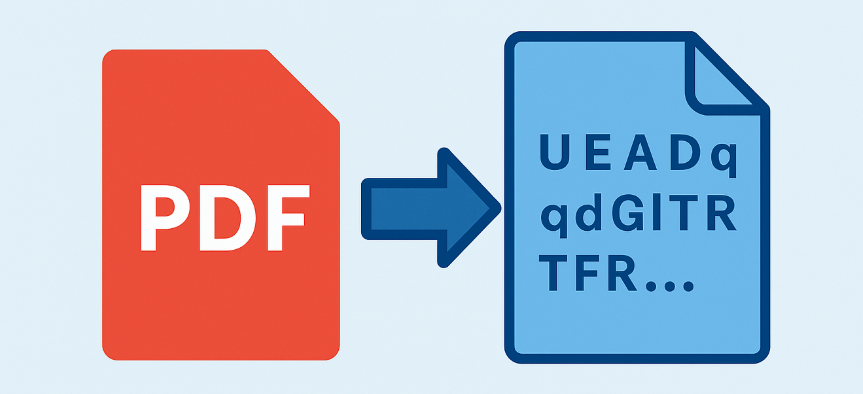
If you’ve ever tried attaching a PDF to an API call, stuffing it into JSON, or sending it through a system that only handles text, you’ve probably run into issues like corruption, encoding errors, or outright rejection. Converting your PDF to Base64 fixes that by turning the whole file into a clean, ASCII-safe string that passes through text channels without a hitch.
Developers use this all the time for web apps, workflow automation, and service integrations. Even non-coders sometimes need it when sharing files in locked-down environments. Luckily, there are easy ways to handle it—from no-code online tools to custom code and desktop apps. We’ll walk through the best options, keeping things practical with an eye on privacy, file size handling, and simplicity.
Online Tools for PDF to Base64 Conversion
Online converters give you a fast, no-install way to encode PDFs into Base64 strings. They work right in your browser or on the service’s servers: just upload your file and grab the result in seconds. Popular ones like Base64 Guru, Aspose PDF tools, and others offer clean interfaces, drag-and-drop uploads, and quick previews—great for one-time jobs like testing APIs, embedding files in forms, or sending docs over text-only channels.
Most free versions limit files to around 50–100 MB, need a solid internet connection, and process everything on external servers, so they’re not ideal for private or sensitive files. For everyday, non-confidential PDFs, though, they’re quick, convenient, and get the job done.
Single-File Online Converters (No Coding Needed)
These are beginner-friendly and perfect for occasional use. Top picks include Base64 Guru, Aspose PDF Converter, and Base64Encode.org.
| Tool | Processing Method | File Size Limits | Privacy Level | Key Strength |
|---|---|---|---|---|
| Base64 Guru | In-browser (no upload) | ~50 MB | High — files stay on your device | Super fast, secure, dead simple |
| Aspose PDF Converter | Server-side upload | Larger files OK | Low–Medium — temporary server storage | Batch support and multi-format options |
| Base64Encode.org | Server-side upload | Large outputs as download links | Medium — temp server storage | Lightweight and quick for basic tasks |
How it works:
- Head to the website and upload your PDF.
- It processes either in your browser or on their server.
- You get the Base64 string to copy or a .txt file to download.
✅ Advantages: ❌ Disadvantages:
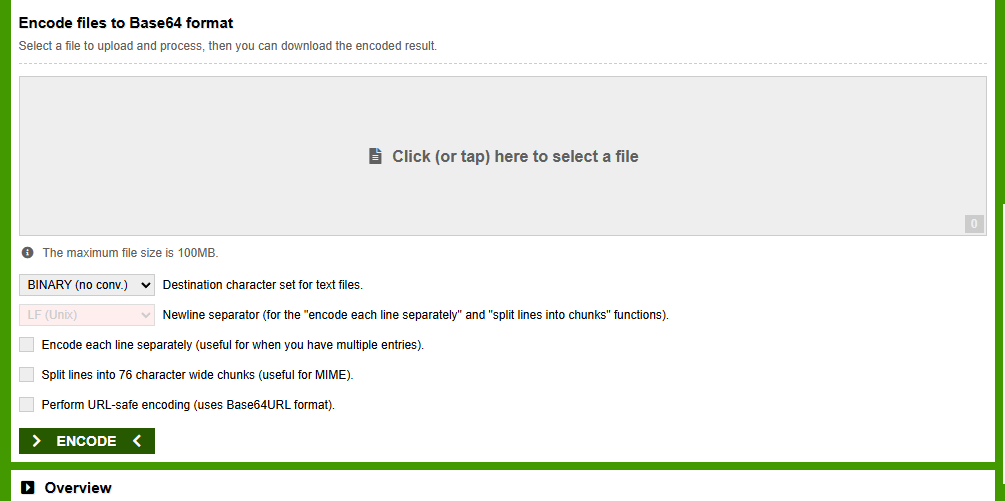
The whole thing takes just seconds: pick your file, hit convert, and copy the string. It’s ideal for small to medium PDFs when you need a fast result.
API-Based Online Services
For automation or batch work, some services offer APIs. These give developers endpoints to hit from code.
| Service | Processing Method | Privacy Level | Integration Style | Best For |
|---|---|---|---|---|
| Aspose Cloud API | Server-side (REST) | Medium (uploads) | REST + SDKs (C#, Java, Python) | Enterprise apps, batch jobs, multi-format |
| ConvertAPI | Server-side (REST) | Medium | Simple HTTP POST + SDKs | Fast integration, big files, many formats |
| Base64.sh | 100% client-side | High (no upload) | JavaScript SDK + API | Privacy-focused apps, local encoding |
| Base64.is | Client-side only | High | Minimal JS API | Security-sensitive tasks |
| CyberChef | Client-side (open-source) | High | Local only, no hosted API | Advanced flows, offline work |
These shine when you’re scripting conversions or handling files repeatedly. Send the PDF via POST and get the Base64 back.
✅ Advantages: ❌ Disadvantages:
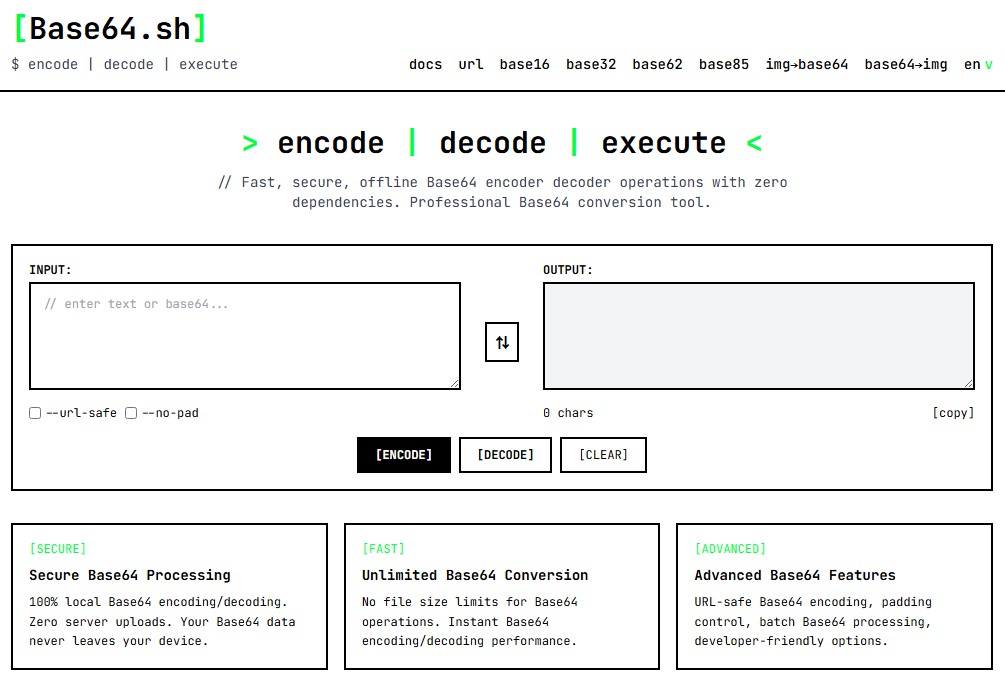
They nicely connect simple one-off tools with full programming approaches.
Programming Approaches to Convert PDF to Base64
Coding your own solution puts you in full control—perfect for reliability, scale, and tight integration. Everything runs locally, so no upload worries or size caps. Just load the PDF as bytes and use your language’s Base64 tools.
This method fits great for automated reports, app-embedded docs, large batches, or secure API transfers. It plays well with PDF libraries or compression too. Once set up, the code is reusable, handles thousands of files efficiently, and keeps everything private—ideal for production use.
| Language | Library/Method | Key Features | Example Use Case |
|---|---|---|---|
| Python | base64.b64encode | Built-in, no extras needed | Scripts and automation |
| JavaScript | btoa() or FileReader | Works in browsers or Node.js | Web apps and uploads |
| Java | java.util.Base64 | Built-in since Java 8 | Enterprise systems |
| C# | Convert.ToBase64String | Native .NET, simple file handling | Windows apps or services |
| Node.js | Buffer.from().toString(‘base64’) | Fast, stream support for big files | Server-side processing |
✅ Advantages: ❌ Disadvantages:
Here are ready-to-run examples:
Python
import base64
# Replace with your actual file path, e.g., 'C:/Users/YourName/Documents/invoice.pdf' or '/home/user/documents/report.pdf'
with open("document.pdf", "rb") as pdf_file:
    base64_string = base64.b64encode(pdf_file.read()).decode('utf-8')
print(base64_string)
JavaScript (Browser)
const fileInput = document.querySelector('input[type=file]');
fileInput.onchange = async (e) => {
  const file = e.target.files[0];
  const base64 = await fileToBase64(file);
  console.log(base64);
};
function fileToBase64(file) {
  return new Promise((resolve, reject) => {
    const reader = new FileReader();
    reader.readAsDataURL(file);
    reader.onload = () => resolve(reader.result.split(',')[1]);
    reader.onerror = error => reject(error);
  });
}
Node.js
Basic Version (small files)
const fs = require('fs');
// Replace with your actual file path, e.g., '/home/user/documents/report.pdf'
const base64 = fs.readFileSync('document.pdf').toString('base64');
console.log(base64);
Advanced Version (large files, memory-efficient)
const fs = require('fs');
// Create a read stream for the PDF file
const stream = fs.createReadStream('document.pdf');
// Collect chunks of data
let chunks = [];
stream.on('data', (chunk) => {
  chunks.push(chunk);
});
stream.on('end', () => {
  // Combine all chunks into a single Buffer
  const pdfBuffer = Buffer.concat(chunks);
  // Convert to Base64
  const base64 = pdfBuffer.toString('base64');
  console.log(base64);
});
stream.on('error', (err) => {
  console.error('Error reading file:', err);
});
These are short, solid, and easy to tweak for batches or bigger projects. If coding isn’t your thing, desktop software gives you a nice graphical alternative with local power.
Desktop Software Solutions for PDF to Base64 Conversion
Desktop apps are best when you’re offline, dealing with sensitive files, or processing lots of documents. Dedicated PDF-to-Base64 tools are uncommon, but file encoders and PDF suites let you handle things securely on your machine.
Free command-line options like certutil (Windows) or base64 (Linux/macOS) work great, while paid tools often add batch features and friendlier interfaces.
Renee PDF Aide – Recommended Desktop Solution
For a strong balance of speed, reliability, and privacy, Renee PDF Aide stands out. It runs completely locally—nothing leaves your computer.
It’s packed with PDF tools like optimization, repair, and secure handling, making it perfect for prepping files before encoding them with a quick script or system utility. It handles batches well, processes fast, and includes extras like encryption and format conversion.
- ✓ Convert to Editable Word/Excel/PPT/Text/Image/Html/Epub
- ✓ Multifunctional Encrypt/decrypt/split/merge/add watermark
- ✓ OCR Support Extract Text from Scanned PDFs, Images & Embedded Fonts
- ✓ Quick Convert dozens of PDF files in batch
- ✓ Compatible Support Windows 11/10/8/8.1/Vista/7/XP/2K
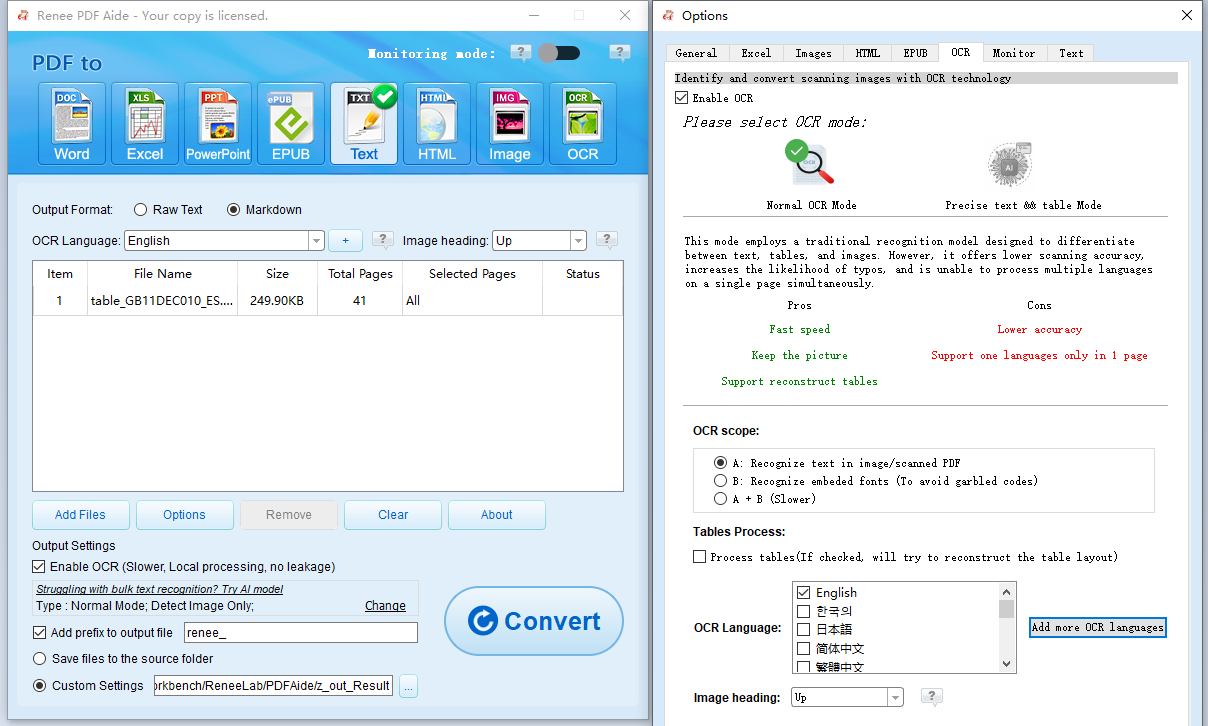
The interface is clean and intuitive, even with all the advanced features under the hood.
Other Desktop and Free Alternatives
Free options include:
- Command-line tools (certutil on Windows, base64 on Linux/macOS)
- Simple apps like Base64 Encoder from app stores
- Open-source drag-and-drop encoders
They cover basic needs but don’t match the full PDF management of dedicated suites. Paid developer tools sometimes offer direct encoding scripts too.
Frequently Asked Questions (FAQ)
What exactly does converting a PDF to Base64 do?
It turns the binary content of your PDF into a standard Base64 text string, so you can safely embed or send it in places like JSON, HTML, or API requests that only accept text.
Are online converters safe for confidential PDFs?
They’re okay for non-sensitive files, but skip them for anything private. Uploading to third-party servers adds privacy risks—stick to offline methods instead.
How can I handle very large PDF files?
Code-based solutions or desktop tools have almost no size limits (just your computer’s memory). Online tools usually top out at 50–100 MB. For massive files, process them in chunks when coding.
Can I convert the Base64 string back to the original PDF?
Yes—use the matching decode function in any language (like base64.b64decode in Python). You’ll get back the exact original file.
Why is my Base64 string so long?
Base64 adds about 33% to the size. A 1 MB PDF turns into roughly 1.33 MB of text. That’s completely normal and required for safe text transmission.
Do I need special software for batch conversions?
Not really—Python or Node.js scripts handle batches with ease. Desktop tools like Renee PDF Aide (great for editing and prep, though not direct Base64) can streamline things by optimizing PDFs first.
Comments
0 comments
Please sign in to leave a comment.