Table of contents
Summary
Converting image-based or scanned PDFs to editable Excel spreadsheets can save hours of manual data entry. This guide covers quick online options, powerful desktop software like Renee PDF Aide, Microsoft Office workarounds, comparisons, tips for best results, and answers to common questions.
Dealing with scanned PDFs or image-based tables can be really frustrating—the text is locked inside pictures, so you can’t select, copy, or edit it directly. This often means typing everything out by hand, which takes forever and leads to mistakes, especially with financial statements, invoices, research tables, or any multi-page documents full of data you need to analyze, sort, or run calculations on. With tight deadlines, nobody wants to waste hours rebuilding spreadsheets that should be simple to work with in Excel.
The good news? You don’t have to retype everything manually. Plenty of tools use OCR (Optical Character Recognition) to detect text in images and turn it into editable Excel files quickly and accurately. For fast, one-off jobs, online converters are super convenient. For more serious or frequent work—especially with sensitive info or tricky layouts—desktop programs usually deliver much better results.
Quick Online Options
Online PDF-to-Excel converters are great when you need something done fast, particularly for small files or occasional use. They work right in your browser with no software to install, and most finish in just seconds. They rely on OCR to pull text out of scanned or image-only PDFs.
Keep in mind that free OCR access, account needs, and real limits differ a lot between services, which can catch people off guard.
Here’s a straightforward look at some popular online tools, including details on OCR access, sign-up rules, and free-tier restrictions.
| Tool | Free OCR Conditions & Requirements | Usage Limits (Free Tier) | Notes |
|---|---|---|---|
| Smallpdf | OCR is a Pro feature; basic PDF to Excel works without signup, but full OCR requires a paid plan or trial. | Limited tasks per day (often 2 conversions) | 7-day Pro trial available (may need payment details to start); auto-renews if not canceled. |
| Adobe Acrobat Online | OCR available after signing in with an Adobe account; no credit card needed for basic features. | Limited free conversions | File size and advanced features restricted in free mode. |
| LightPDF | OCR available with account login (no payment needed). | Up to 5 files per day, 10 MB per file | Accuracy can vary on detailed or complex tables. |
| PDFgear | OCR fully available without registration or payment. | No strict daily limits stated (file size up to ~100 MB) | Strong accuracy on scanned documents; great for free users. |
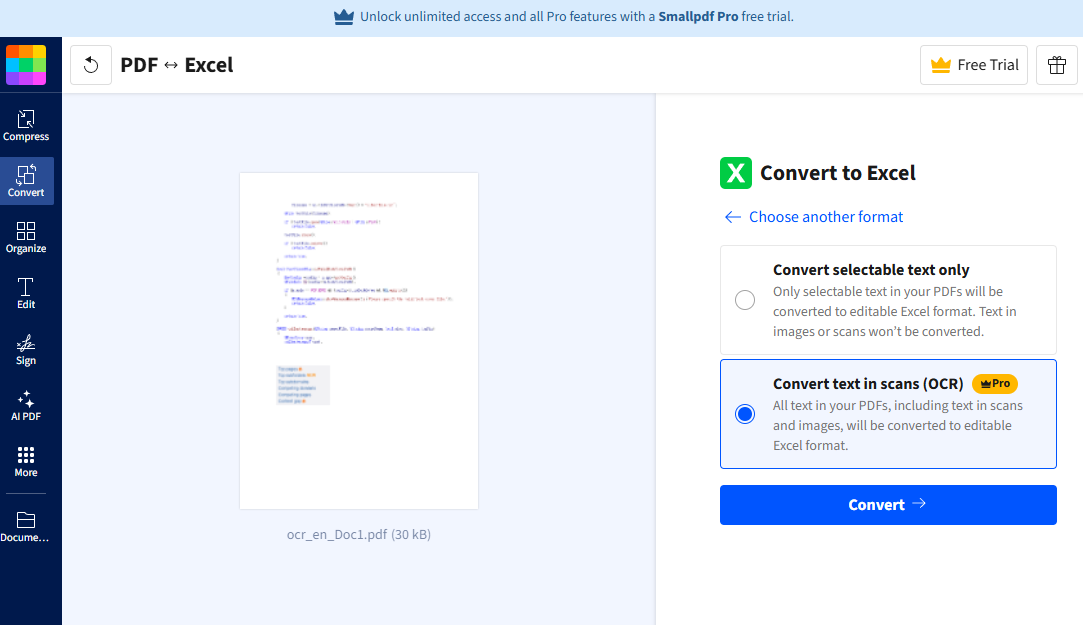
Many online services push for sign-ups—and sometimes payment info—before unlocking full OCR capabilities.
✅ Advantages: ❌ Disadvantages:
Online converters shine for simple, occasional tasks where convenience is key. But for confidential files, big batches, or top-notch accuracy, a solid desktop tool like Renee PDF Aide stands out with better control and security.
Recommended Desktop Tool: Renee PDF Aide
When online options aren’t enough—maybe because of complicated tables, scanned pages, or privacy worries—a trustworthy desktop program is the way to go. Renee PDF Aide handles converting image-based PDFs to Excel with excellent precision, and it keeps all your data right on your computer.
For a great mix of features, privacy, and straightforward use, Renee PDF Aide is a top pick. It uses powerful built-in OCR to pull tables from both regular and scanned PDFs.
It exports tables straight to Excel (.xlsx), CSV, Markdown, TXT, editable Word files, and several other formats. Since processing happens locally, nothing gets uploaded—perfect for private or sensitive documents.
- ✓ Versatile Convert to Word/Excel/PPT/Text/Image/Html/Epub
- ✓ Secure 100% local conversions ensure zero risk of data leaks
- ✓ Efficient Batch Process dozens of PDF files in seconds
- ✓ Comprehensive Seamlessly convert PDFs to Excel, PowerPoint, Text, and more
- ✓ OCR Support Extract Text from Scanned PDFs, Images & Embedded Fonts
Renee PDF Aide is simple to use and processes up to 80 pages per minute. It supports output to Excel/CSV, Word, PowerPoint, ePub, Text/Markdown, HTML, JPG, TIFF, and more. Beyond conversion, it includes PDF optimization, repair, encryption, and other handy tools. The interface stays clean and approachable even with all these options. It features advanced OCR for scanned content, one-click batch processing, and a free trial to get started.
One especially useful capability is full handling of XFA forms (often found in banking and official forms). Many tools choke on these and output blank or broken pages:

How to Extract Tables Using Renee PDF Aide
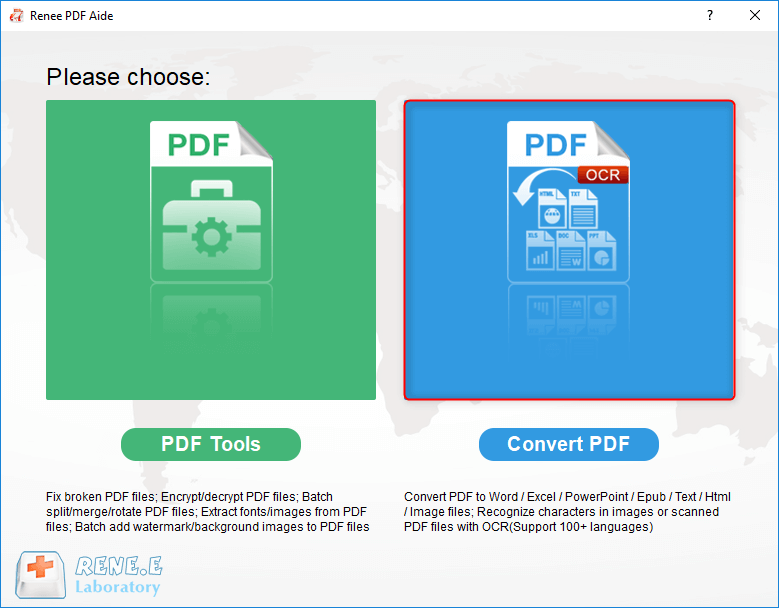
① Install and launch Renee PDF Aide, then choose “Convert PDF”.

② Hit “Add Files” to load your PDFs. It supports batch adding multiple documents. Once added, you’ll see file info listed. Use the “Selected Pages” menu to pick specific ranges if needed.
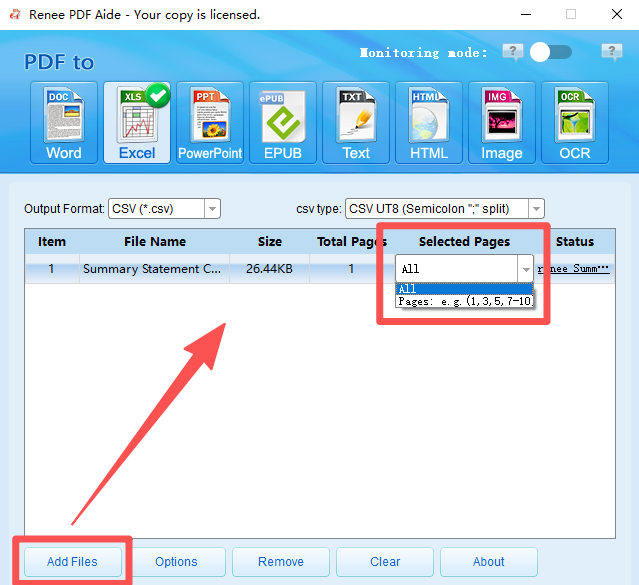
③ Pick your target format from the toolbar. For tables, go with Excel or CSV in the Excel section, or Markdown/TXT under the TXT options.
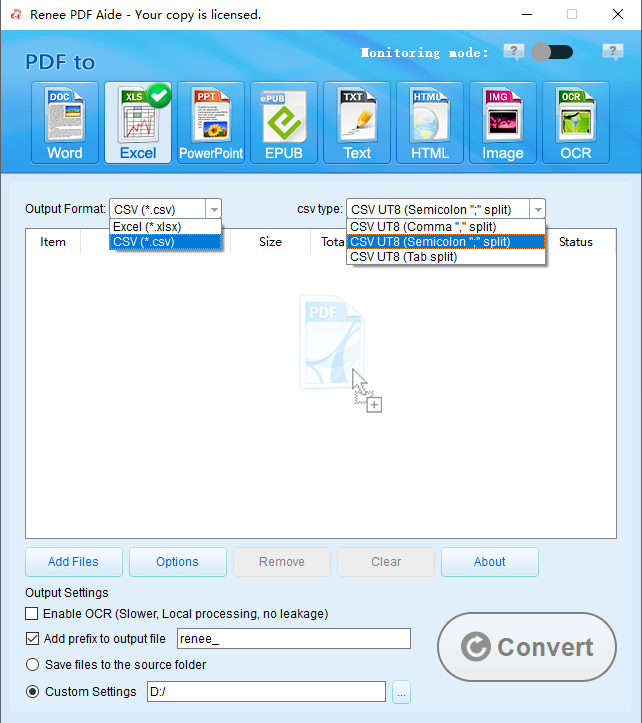
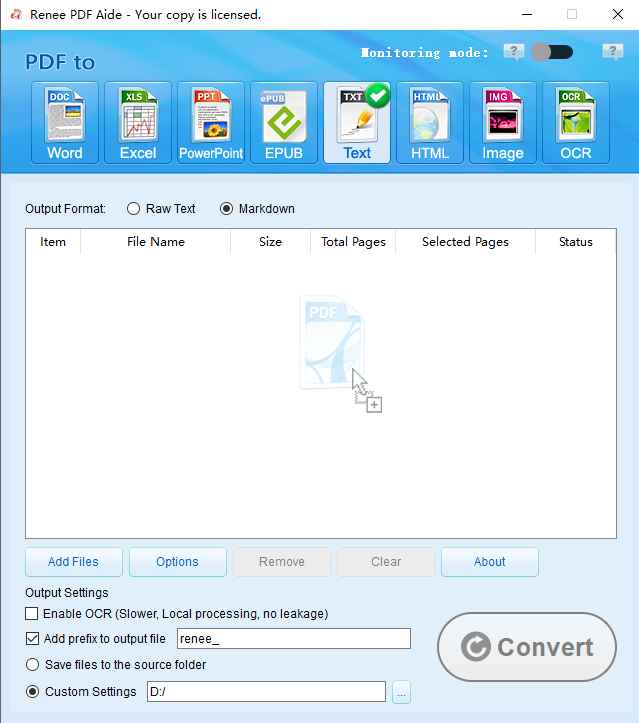
Renee PDF Aide can output tables in clean ASCII format too.
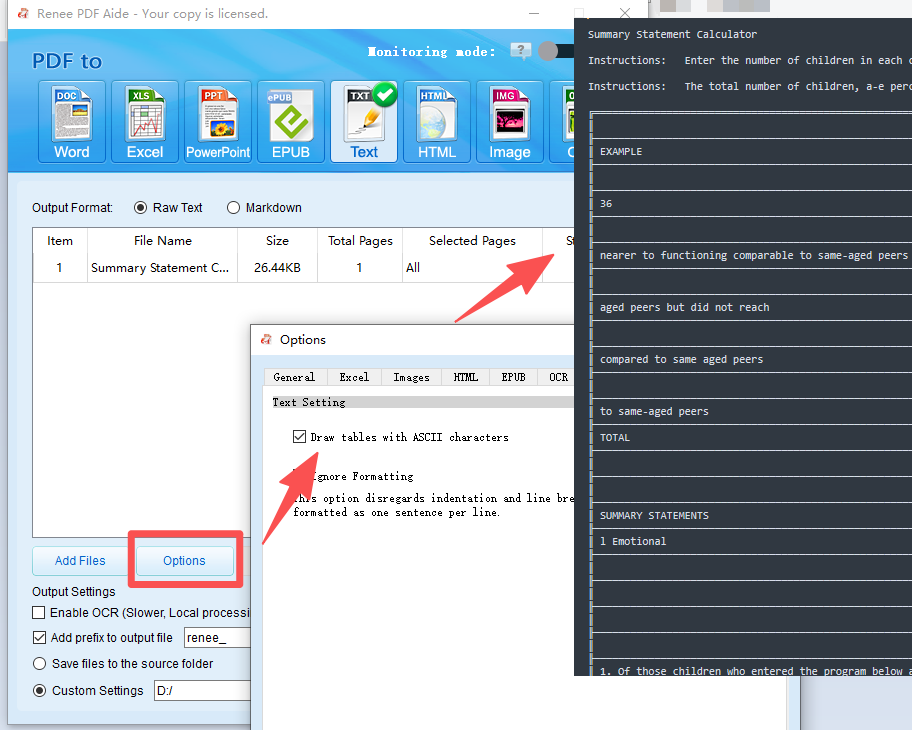
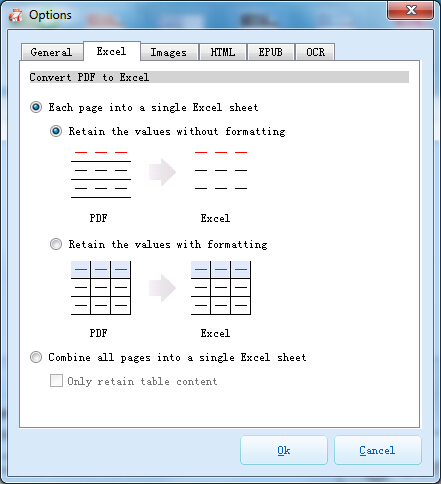
Pro Tip: Hit “Options” to decide if multi-page tables should land in one sheet or separate ones—handy for reports or ledgers.
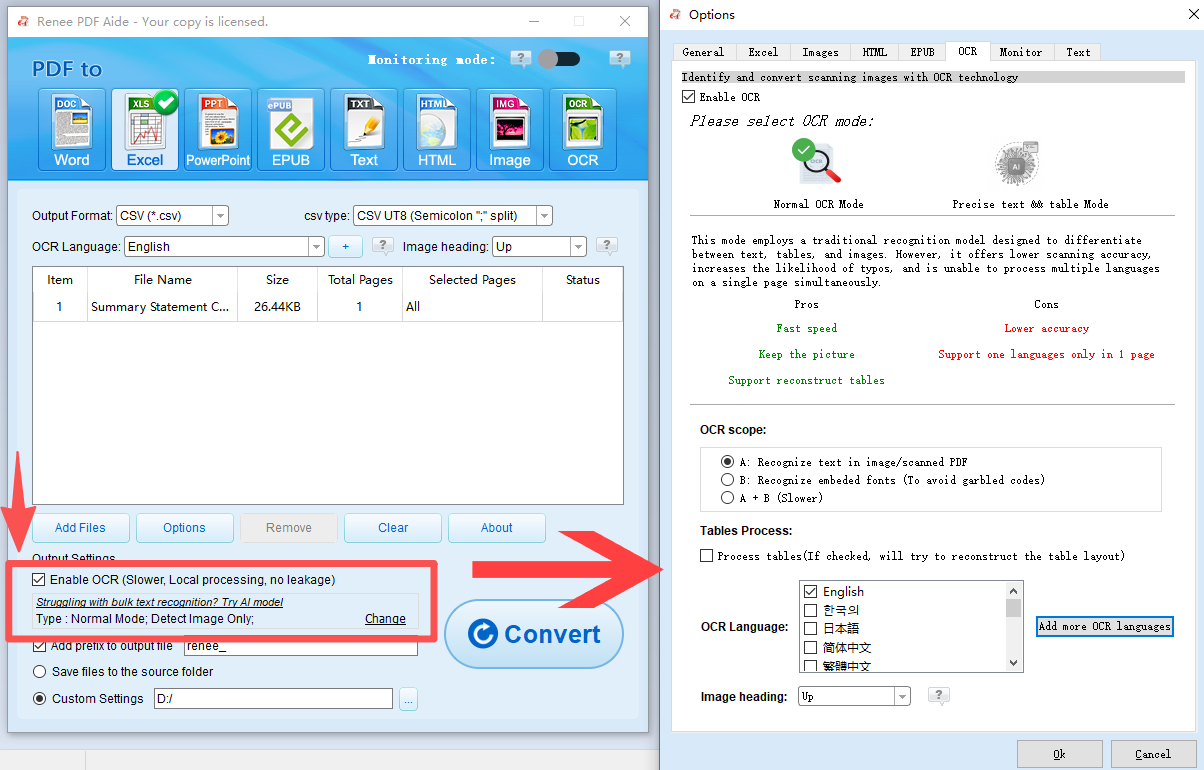
④ For scanned or image PDFs, turn on “OCR”. You can skip this step for searchable text PDFs.
Understanding OCR Modes:
-
A: Recognize text in image/scanned PDF — Applies OCR to image content (select language for improved results).
-
B: Recognize embedded fonts (To avoid garbled codes) — Handles font issues by treating them as images then running OCR.
-
A+B (slower) — Smart mode that checks and processes both automatically.
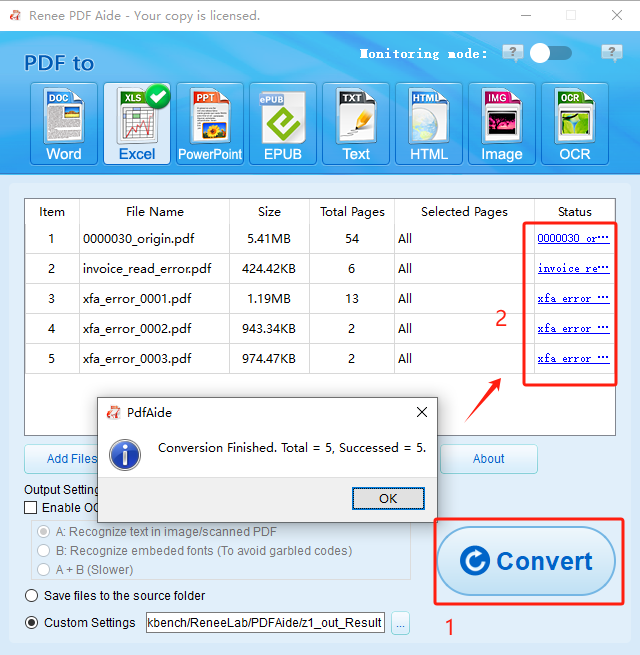
⑤ Press “Convert”. You’ll get a quick overview of completed files. Click in the “Status” column to open results right away.
Renee PDF Aide gives you secure, speedy, and precise conversions for just about any table extraction scenario.
- ✓ Versatile Convert to Word/Excel/PPT/Text/Image/Html/Epub
- ✓ Secure 100% local conversions ensure zero risk of data leaks
- ✓ Efficient Batch Process dozens of PDF files in seconds
- ✓ Comprehensive Seamlessly convert PDFs to Excel, PowerPoint, Text, and more
- ✓ OCR Support Extract Text from Scanned PDFs, Images & Embedded Fonts
Alternative Methods: Microsoft Office and Other Desktop Options
If you already use Microsoft Office every day, there are solid built-in ways to pull data from scanned PDFs without extra downloads. While Excel and Word don’t have native full OCR for images, tools like OneNote (desktop) and Microsoft Lens (mobile) can extract text from pictures and feed it into Excel.
These approaches suit basic tables, lighter workloads, and folks who like staying inside the Microsoft suite. They might need a bit more cleanup and aren’t the best for huge files or very intricate designs.
PC Method: Using OneNote OCR to Extract Tables from PDF Images
On Windows PCs, OneNote has built-in OCR that reads text from inserted images or scanned PDFs—making it a handy bridge to Excel.
How it works:
-
Launch OneNote (desktop version) and insert the PDF or image (Insert → File Printout or Picture).
-
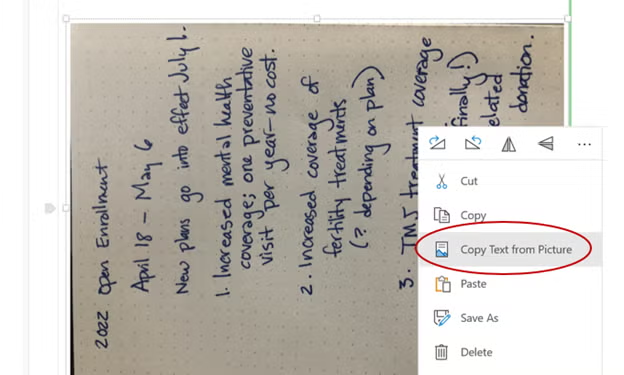
Right-click the inserted content and pick “Copy Text from Picture” or “Copy Text from This Page of the Printout.”
-
Paste the text into Excel.
-
Use Excel features like Text to Columns or table tools to tidy everything up.
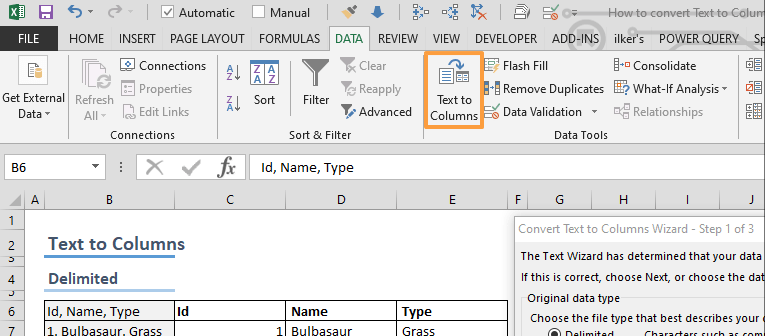
Mobile Method: Using Microsoft Lens OCR to Import Data into Excel
On your phone, Microsoft Lens offers an easy scanning and OCR flow. It’s built for capturing receipts, invoices, whiteboards, and printed tables.
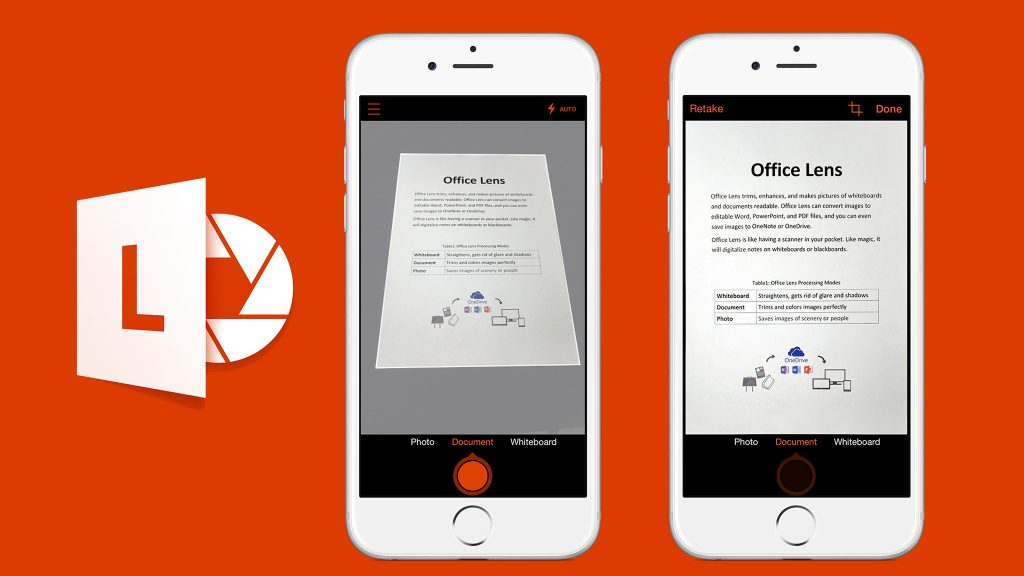
How it works:
-
Open Microsoft Lens on your smartphone and scan the page or load an existing photo.
-
Select Document or Table mode for sharper OCR results.
-
Export directly as Excel, Word, or OneNote.
-
Open in Excel to check and refine the data.
✅ Advantages: ❌ Disadvantages:
Microsoft-based methods work nicely for casual, infrequent jobs where ease beats perfection. For superior accuracy, batch handling, and reliable results—especially on scanned material—a dedicated OCR tool is usually the smarter choice long-term.
Tool Comparison: Online, Desktop, and Office Methods
| Approach | Accuracy (Complex/Scanned Tables) | Privacy & Security | Batch Processing | Cost Structure | Ease of Use |
|---|---|---|---|---|---|
| Online Tools | Good for basic; varies on scans | Upload required | Limited in free versions | Mostly free with caps | Extremely simple |
| Renee PDF Aide (Desktop) | Excellent with strong OCR | 100% local, no upload | Full batch support | One-time purchase + free trial | Clean and intuitive |
| Microsoft Office | Fair to good (varies by tool/version) | Local processing | Mostly manual | Included in Microsoft 365 subscription | Very familiar for Office users |
Desktop programs like Renee PDF Aide typically lead the pack when you need serious performance.
- ✓ Versatile Convert to Word/Excel/PPT/Text/Image/Html/Epub
- ✓ Secure 100% local conversions ensure zero risk of data leaks
- ✓ Efficient Batch Process dozens of PDF files in seconds
- ✓ Comprehensive Seamlessly convert PDFs to Excel, PowerPoint, Text, and more
- ✓ OCR Support Extract Text from Scanned PDFs, Images & Embedded Fonts
Tips and Best Practices for Accurate PDF Image to Excel Conversion
Start with a High-Quality Source File
-
Aim for scans at 300 DPI or higher when you can.
-
Ensure pages are straight, evenly lit, and without shadows, glare, or extra marks.
-
If working from a paper original, rescan it instead of using a low-quality version.
High-quality input helps OCR detect numbers, text, and grid lines properly, cutting down on errors like shifted columns or missing entries.
Test with a Small Sample First
-
Run a conversion on just one or two pages before tackling the whole document.
-
Review alignment, number formats, and any dropped data.
-
Tweak OCR settings or layout choices based on the preview, then process everything.
This quick check prevents wasting time on big files that need adjustments.
Choose the Right Tool for the Workload
-
Go online for fast, single-use jobs with straightforward tables.
-
Pick desktop software for regular use, large documents, or complicated structures.
If you convert image-based PDFs to Excel often and want dependable, clean results, desktop solutions bring better consistency, batch power, and overall value.
Frequently Asked Questions
How accurate is OCR when converting scanned PDF images to Excel?
Modern OCR performs very well on clear scans in supported languages, but accuracy depends on image clarity, font types, and table complexity. Dedicated desktop tools with advanced OCR usually preserve table structure much better than basic online converters.
Are there file size or page limits with free tools?
Yes—most free online services set daily task caps, file size restrictions (commonly 10–100 MB), or page limits. Desktop options like Renee PDF Aide have no such restrictions once installed.
Do these tools support multiple languages?
Many do, especially if you pick the right language in the OCR settings. Renee PDF Aide handles multi-language recognition strongly, even for scanned pages.
Can I convert PDF images to Excel offline?
Absolutely—desktop apps like Renee PDF Aide and Microsoft Office tools run fully offline, so your files stay private and you can work without any internet.
What if the converted table formatting is messed up?
Double-check your OCR mode and language settings, experiment with output choices (like one sheet vs. multiple), or do light cleanup in Excel. Better tools minimize formatting issues from the start.
- ✓ Versatile Convert to Word/Excel/PPT/Text/Image/Html/Epub
- ✓ Secure 100% local conversions ensure zero risk of data leaks
- ✓ Efficient Batch Process dozens of PDF files in seconds
- ✓ Comprehensive Seamlessly convert PDFs to Excel, PowerPoint, Text, and more
- ✓ OCR Support Extract Text from Scanned PDFs, Images & Embedded Fonts
Comments
0 comments
Please sign in to leave a comment.