Table of contents
- Quick Diagnostic: What Type of PDF Are You Dealing With?
- Free and Built-in Methods: Fast but Limited
- Professional Solution: Renee PDF Aide for Accurate, Editable Word Output
- Step-by-Step: Batch Convert PDF to Editable Word Using Renee PDF Aide
- Method Comparison: Matching Your PDF Type to the Right Tool
- FAQ
Summary
This guide walks you through reliable ways to turn PDFs into fully editable Word documents while preserving tables, columns, and complex layouts. Learn when to use free tools versus professional OCR software, and get step-by-step instructions for batch conversions that save time and keep your formatting intact.
You’ve opened a PDF that looks flawless on your screen—clean text, crisp tables, perfectly placed images. But the moment you try editing it in Word, everything falls apart. Text refuses to move. Tables collapse into messy rows. Images jump to unexpected spots. And if the file you received was scanned? You’re essentially looking at a collection of photos, not editable content.
This scenario plays out daily for professionals, students, and administrative teams alike. Elements like bold formatting, multi-column layouts, and anything more complex than simple paragraphs often get scrambled during conversion. Scanned PDFs present the biggest challenge since they store text as image data—meaning Word can’t recognize individual characters to edit. The end result? Wasted hours retyping content or painstakingly repairing broken formatting.
Quick Diagnostic: What Type of PDF Are You Dealing With?
Taking a moment to identify your PDF type is the fastest way to choose the right conversion method—and avoid the frustration of tools that just don’t work for your file. Once you’ve matched your document to the correct category below, you’ll skip the trial-and-error and move straight to a clean, editable result.
| Diagnostic Question | What It Means | How to Handle It |
|---|---|---|
| Can you click and drag to select text in the PDF? | The PDF is text‑based / digitally created. | Use standard converters (Word, Google Docs, online tools). Formatting usually survives. Or use Renee PDF Aide for batch processing |
| Does the text look like a photo when zoomed in? | The PDF is scanned — everything is stored as images. | You must use OCR. Free tools struggle; use a desktop OCR tool like Renee PDF Aide. |
| Does the PDF contain tables, columns, mixed fonts, or complex layout? | The PDF has a complex structure that basic converters cannot preserve. | Use a professional converter with layout reconstruction (Renee PDF Aide or similar). |
Match your file to the right method, and you skip the frustration of incompatible tools.
Free and Built-in Methods: Fast but Limited
When budget is a concern, free conversion tools can handle straightforward PDFs just fine—but it’s important to understand their limitations before you commit your time (or your documents) to them. Knowing where these options fall short helps you decide when it’s worth upgrading to a more robust solution.
1. Free Online Converters (Quick for Simple PDFs)
Web-based converters shine when you’re working with simple, text-based PDFs and need a quick result without installing software. Most platforms offer a drag-and-drop interface and deliver a Word file within minutes—perfect for one-off tasks. Just keep in mind that convenience often comes with trade-offs around privacy, file size, and formatting accuracy.
| Tool | Free Usage Limits | OCR in Free Version | Starting Price (Basic Plan) |
|---|---|---|---|
| Smallpdf | 1–2 tasks per day; some tools require sign‑in; 7‑day free trial requires credit card | No (OCR is paid; available only during trial) | ~$9/month (~₹750/month, billed annually) |
| iLovePDF | Several free tasks per day; ads may appear | Yes, but basic | ~$7/month (~₹580/month, billed annually) |
| Adobe Acrobat Online | Requires Adobe account; limited free conversions | Yes, but slower and limited | ~$13/month (~₹1,080/month) for Acrobat Standard |
| PDFCandy | 1 task at a time; queue delays for free users | Yes, basic OCR | ~$6/month (~₹500/month) |
| PDF2Go | Daily limits; ads; slower processing | Yes, but limited | ~$6/month (~₹500/month) |
| Zamzar | 2 conversions per 24 hours; file size limits | No OCR | ~$6/month (~₹500/month) |
Don’t upload confidential contracts, financial records, or personal data to free online tools.
How to use a free online converter:
-
Go to a trusted PDF to Word conversion website.
-
Click “Choose File” or drag your PDF into the upload area, then wait for processing.
-
Download the Word file and scan it for formatting issues.
Limitations to watch for: file size caps (usually 10-50 MB), privacy risks (your document goes to their server), and inconsistent accuracy on tables or columns. Formatting often shifts around on anything beyond plain text, and scanned documents rarely convert cleanly without paid OCR features.
✅ Advantages: ❌ Disadvantages:
These work well for casual, one-off needs. For regular use, sensitive documents, or anything with complex formatting, you’ll want something more reliable and secure.
2. Using Microsoft Word and Google Docs
Microsoft Word has a handy built-in feature: go to File > Open and select your PDF. Word will attempt to convert it into an editable .docx file. Google Docs offers a similar workflow—upload your PDF to Drive, then choose Open with Google Docs.
Methods for built-in conversion:
- In Microsoft Word: File > Open, browse to your PDF, select it, and click through the conversion prompt.

- In Google Docs: Upload the PDF to Google Drive, right-click the file, and pick “Open with Google Docs.”
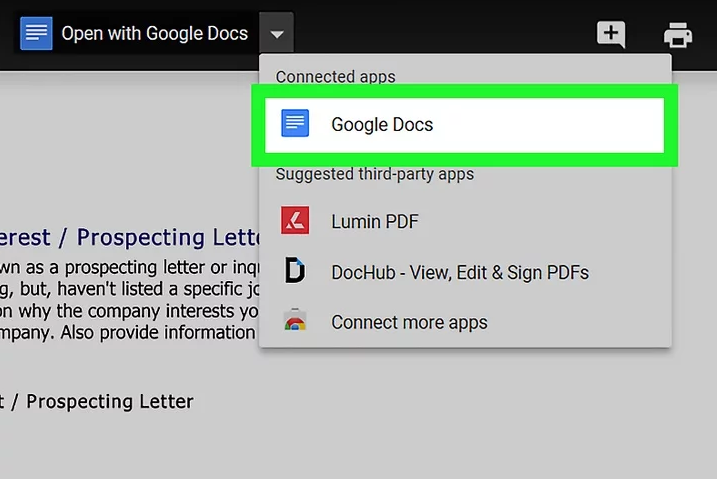
Both handle simple native PDFs reasonably well. But introduce tables, columns, or scanned content, and results can get messy quickly. Neither includes robust OCR capabilities in their free tiers, so image-based text remains locked as pictures you can’t edit directly.
✅ Advantages: ❌ Disadvantages:
These built-in options are perfectly fine if you already have Office or Google Workspace and just need a quick, simple conversion. For challenging files or professional-grade results, a dedicated converter delivers noticeably better outcomes.
When Free Methods Fail
Free tools often produce scrambled text, broken tables, missing images, or strange garbled characters—especially when working with scanned PDFs. Multi-column documents, forms with fields, and files with mixed fonts rarely survive the conversion process intact.
Once you find yourself spending more time cleaning up conversion messes than you saved by using a free tool, it’s a clear signal to switch to a proper desktop solution with reliable OCR and intelligent layout preservation.
Professional Solution: Renee PDF Aide for Accurate, Editable Word Output
1. Why Upgrade to a Desktop OCR Converter
When you need to convert PDF to editable Word with professional-grade accuracy, desktop solutions are the way to go. They run locally on your machine, so sensitive documents never leave your computer. You get no file size restrictions, significantly better formatting retention, and support for batch conversion to process multiple files simultaneously.
Renee PDF Aide brings advanced OCR technology to the table, delivering conversion speeds up to 80 pages per minute while maintaining solid support for both native and scanned PDFs. It intelligently handles complex layouts, preserves tables and columns, and even processes XFA forms commonly used by banks and government agencies.
- ✓ Convert to Editable Convert to Word/Excel/PPT/Text/Image/Html/Epub
- ✓ Multifunctional Encrypt/decrypt/split/merge/add watermark
- ✓ OCR Support Extract Text from Scanned PDFs, Images & Embedded Fonts
- ✓ Quick Convert dozens of PDF files in batch
- ✓ Compatible Support Windows 11/10/8/8.1/Vista/7/XP/2K
Beyond conversion, it also optimizes, repairs, merges, splits, and encrypts PDFs—all within one intuitive, user-friendly interface.
2. Who Should Use Renee PDF Aide
This tool is ideal for business professionals managing contracts, legal teams handling confidential files, students converting scanned textbooks or lecture notes, and administrators processing forms in bulk. It performs equally well with simple native PDFs and challenging scanned documents alike.
Runs smoothly on Windows 11/10/8.1/8/7/Vista/XP/2000 (both 32-bit and 64-bit versions). A free trial is available with no watermarks, perfect for everyday testing and light use.
Step-by-Step: Batch Convert PDF to Editable Word Using Renee PDF Aide
1. Before You Start: Identify Whether You Need OCR
Open your PDF and try selecting a few words with your cursor. If you can copy and paste text easily, it’s a native file—OCR isn’t necessary. If text selection doesn’t work or the content appears pixelated when zoomed in, you’ll want to enable OCR for that scanned document to ensure accurate conversion.
2. Conversion Workflow (Four Main Steps)
Once you’ve determined whether OCR is needed, follow these four straightforward steps to convert your PDF into a fully editable Word document.
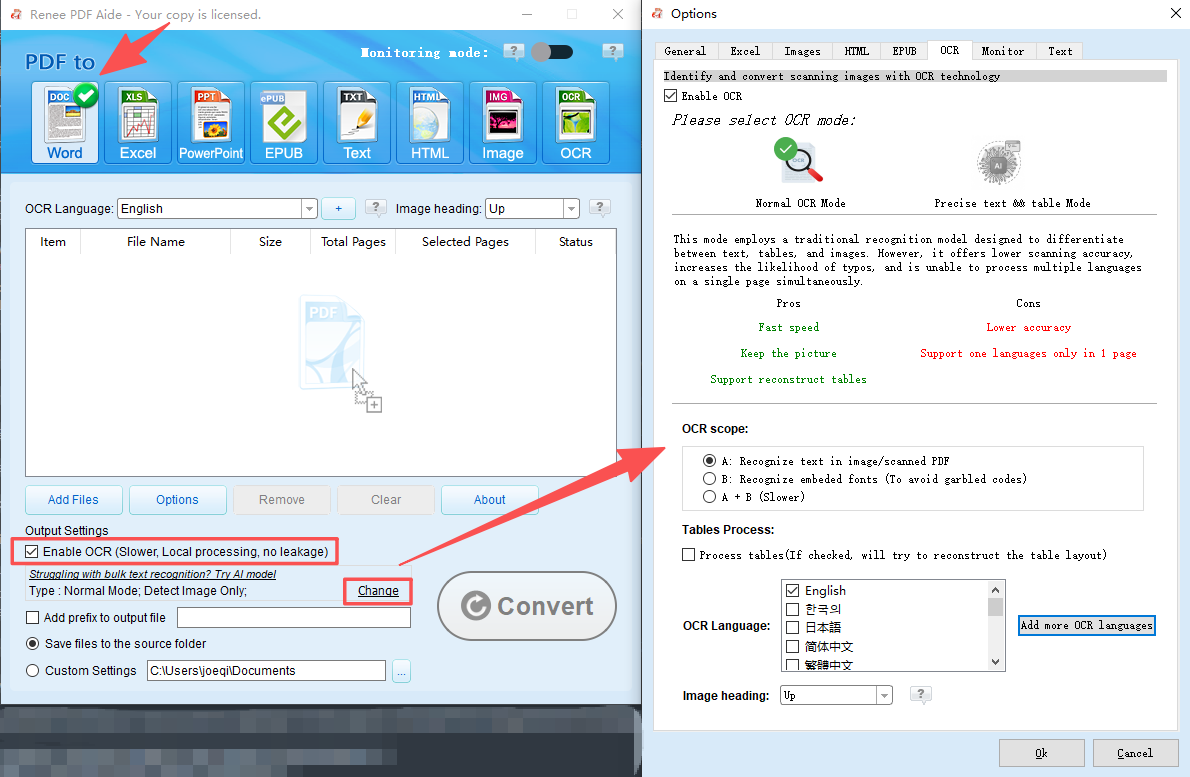
① Open Renee PDF Aide and select “Convert PDF”.

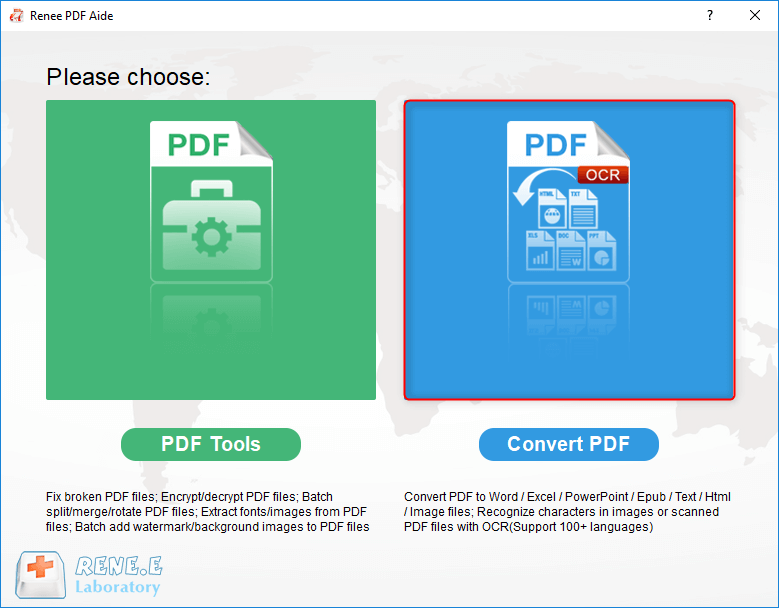
② Choose Word as your output format. For scanned PDFs, check “Enable OCR” to activate text recognition.
③ Click the “Add Files” button to load your PDFs (batch conversion is fully supported). Use the “Selected Pages” option if you only need to convert specific page ranges.
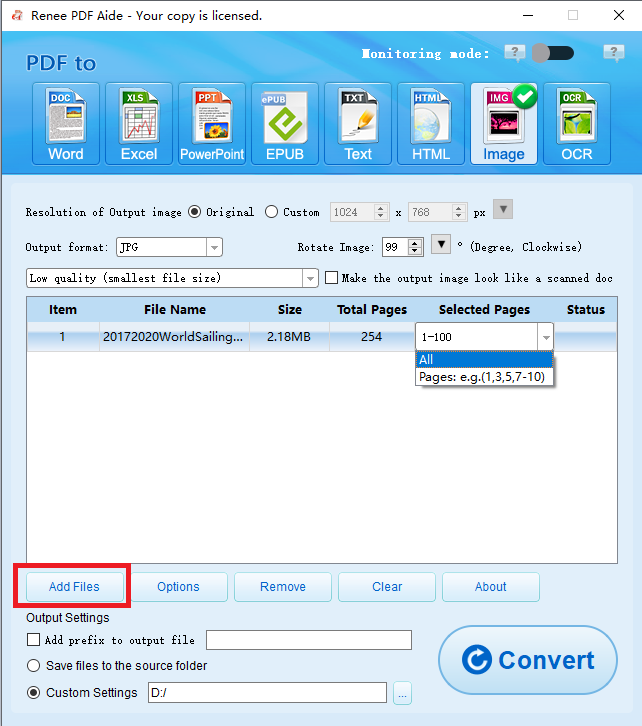
④ Hit the “Convert” button. Once processing finishes, check the “Status” column for direct links to your newly created editable Word files.

3. Understanding OCR Modes (For Scanned PDFs)
Renee PDF Aide offers three distinct OCR modes to handle different scanning scenarios:
-
Mode A: Optimized for text embedded within pictures or scanned images. Selecting the correct source language significantly improves recognition accuracy.
-
Mode B: Designed to handle PDFs with embedded fonts that often cause garbled or missing characters during conversion.
-
Mode A+B: Automatically detects and processes mixed content types. This mode takes slightly longer but delivers the most thorough results for complex documents.
For most standard scanned documents, Mode A provides the best balance of speed and accuracy.
4. Pro Tips for Best Conversion Quality
Test a single page first before running a full document through conversion. Always match the OCR language setting to your document’s actual content. Use the Options button to fine-tune output preferences like font preservation or image handling. For large batches, consider processing files in smaller groups to maintain system performance. And never skip enabling OCR for image-based PDFs—it’s essential for making that content editable.
Method Comparison: Matching Your PDF Type to the Right Tool
Choosing the best way to convert PDF to editable Word really depends on your file type and what matters most to you—speed, privacy, accuracy, or cost. Here’s how the main options compare across common scenarios:
| PDF Type | Recommended Method | Expected Accuracy | Privacy | Cost |
|---|---|---|---|---|
| Simple native | Online or Word | Good | Low | Free |
| Complex layout | Renee PDF Aide | High | High | Trial / Paid |
| Scanned/image | Renee PDF Aide (OCR) | High | High | Trial / Paid |
| Bulk / Sensitive | Renee PDF Aide | High | High | Trial / Paid |
When accuracy, data privacy, and reliable handling of tricky files matter most, Renee PDF Aide delivers the strongest all-around value.
FAQ
Can I convert a scanned PDF to editable Word without retyping everything?
Yes. Enable OCR in Renee PDF Aide, and it recognizes text from images so you can edit the content normally in Word.
Is it safe to upload confidential PDFs to free online converters?
Generally no. For anything sensitive, use a desktop tool like Renee PDF Aide that keeps everything on your computer and doesn’t upload your files to external servers.
Why does my converted Word file show weird symbols or garbled text?
That usually happens with scanned PDFs or when the OCR language setting doesn’t match your document’s actual language. Pick the correct OCR mode and language in Renee PDF Aide to fix it.
What’s the difference between converting a native PDF vs. a scanned PDF?
Native PDFs already contain selectable, real text and convert pretty easily. Scanned PDFs need OCR to turn those image-based letters into editable characters that Word can work with.
Can Renee PDF Aide handle batch conversion of multiple PDFs at once?
Yes. Add several files, and it converts them together—saving significant time on large jobs.
Comments
0 comments
Please sign in to leave a comment.