Table of contents
- Why Offline PDF to DOCX Conversion Matters for Your Documents
- Quick Diagnostic: Identify Your PDF Type Before Converting
- Method 1: Start Here – Microsoft Word Built-in Converter (Zero Cost)
- Method 2: Renee PDF Aide (Best for Batch Processing & OCR)
- Method 3: Alternative Offline Methods (Free Desktop Apps)
- Method 4: Command-Line Tools (Advanced Users - Brief Mention)
- Pro Tips for Better Offline Conversion Results
- FAQ (Frequently Asked Questions)
Summary
This guide walks you through reliable offline methods to convert PDF files to editable DOCX format, helping you maintain document privacy, preserve formatting, and work without internet dependency. From built-in tools like Microsoft Word to dedicated software like Renee PDF Aide, you’ll find the right approach for your document type and workflow needs.
When you need to convert PDF to DOCX offline, selecting the right method starts with understanding your document’s structure. A straightforward text-based PDF behaves very differently from a scanned document or a complex form filled with interactive fields. This comprehensive guide explores multiple offline solutions—from the convenience of Microsoft Word’s built-in converter to powerful dedicated tools like Renee PDF Aide, plus free alternatives such as LibreOffice and PDF24 Desktop. We’ll also touch on command-line options for tech-savvy users. By the end, you’ll be equipped to choose the approach that best matches your file type, privacy requirements, and formatting expectations.
Why Offline PDF to DOCX Conversion Matters for Your Documents
Many users only realize the limitations of online converters after encountering failed uploads, broken formatting, or the unsettling moment they’ve shared sensitive information on an unfamiliar website. When you convert PDF to DOCX offline, the objective extends far beyond a simple file format change. It’s about ensuring your document remains fully editable, securely private, and immediately usable—all without depending on browser tabs, upload queues, or third-party servers.
| Key Point | Offline Conversion 🖥️ | Online Conversion 🌐 |
|---|---|---|
| 🔒 Privacy & Security | Files stay on your computer | Files uploaded to website |
| 📶 Internet Need | Works anytime, no connection required | Needs stable internet |
| ⚡ Speed & Reliability | Fast for big or multiple files | Slower uploads, server delays |
| 📁 File Limits | No page or size caps | Often restricted or paywalled |
| 💰 Cost | Free or one‑time purchase | Monthly or yearly subscription |
| 🧠 OCR & Settings | Full control over output | Basic or hidden options |
| 👌 Best For | Confidential docs, travel, poor connectivity | Quick small jobs, casual use |
| 📄 Examples | Contracts, IDs, invoices, medical forms, reports | Simple PDFs, short notes |
Why offline matters
-
🔐 Protects sensitive data from unintended exposure
-
🚫 Works seamlessly without internet connectivity
-
📂 Handles large files or batch conversions with ease
-
🆓 Avoids upload limits, watermarks, or hidden fees
-
⚙️ Provides granular control over OCR settings and formatting output
Ideal users
-
💼 Business professionals managing contracts or reports
-
🎓 Students working on assignments or research papers
-
⚖️ Legal and medical staff handling confidential records
-
🏠 Remote workers with intermittent connectivity
-
🕵️ Privacy-conscious individuals prioritizing data control
Quick Diagnostic: Identify Your PDF Type Before Converting
Before selecting a conversion tool, take a moment to assess your PDF’s characteristics. This small step can save considerable time, as not all PDFs convert equally well with every method. Some files transform cleanly using built-in features, while others require specialized OCR capabilities or format-specific support.
Conversion success largely depends on how the PDF was originally created:
-
A native text PDF typically originates from software like Word, Excel, or a digital export system, preserving selectable text and metadata
-
A scanned PDF consists of image-based pages where text isn’t directly selectable—it’s essentially a photograph of a document wrapped in a PDF container
-
A mixed-content PDF combines both selectable text sections and scanned image pages within the same file
-
An XFA form PDF represents a specialized interactive format frequently used by financial institutions and government agencies for structured forms
Refer to this quick reference table before proceeding with any conversion method:
| PDF Type | Characteristics | Recommended Offline Method | OCR Needed? | Formatting Expectation |
|---|---|---|---|---|
| Native text PDF | Selectable text, clean digital origin | Microsoft Word built-in (try first) or Renee PDF Aide | No | Good to excellent |
| Scanned/image PDF | No selectable text, appears as pictures | OCR-capable converter (Renee PDF Aide recommended) | Yes | Requires OCR for any editable text |
| Mixed content PDF | Combination of text and scanned images | OCR-capable converter (Renee PDF Aide) | Yes (recommended) | Best results with OCR enabled |
| XFA form PDF | Interactive forms from banks/government | Specialized XFA-compatible tool (Renee PDF Aide) | Varies | Most standard tools fail; error page appears |
A simple way to check your file: open the PDF in any viewer and attempt to highlight a sentence. If the text selects normally, you’re likely dealing with a native text PDF. If the entire page selects as a single image block, it’s almost certainly a scanned document.
Use this diagnostic table first to match your PDF type with the most effective offline conversion method before investing time in the process.
Method 1: Start Here – Microsoft Word Built-in Converter (Zero Cost)
If Microsoft Word is already installed on your device, this represents the most accessible offline method to attempt first. It performs reliably with simple, text-heavy PDFs and requires no additional software installation. For many users—particularly students or office staff handling occasional conversions—Word offers the quickest starting point with minimal setup.
The process is refreshingly straightforward: Word can open certain PDF files directly, transform them into an editable document format, and then allow you to save the result as a standard DOCX file. For uncomplicated PDFs such as resumes, plain-text reports, formal letters, or meeting notes, the output often proves surprisingly usable. Headings, paragraph structures, and basic tables frequently translate well enough for light editing tasks.
Microsoft Word first introduced native support for opening and editing PDF files with the release of Word 2013 in January 2013.
Works well for vs Fails for
| Works well for | Often fails for |
|---|---|
| Simple text PDFs | Scanned PDFs |
| Letters and reports | Complex tables |
| Basic formatting | Multi-column layouts |
| One-off conversions | Batch conversion |
| Small office documents | XFA forms |
How to use Microsoft Word for offline PDF to DOCX conversion
-
Launch Microsoft Word on your computer.
-
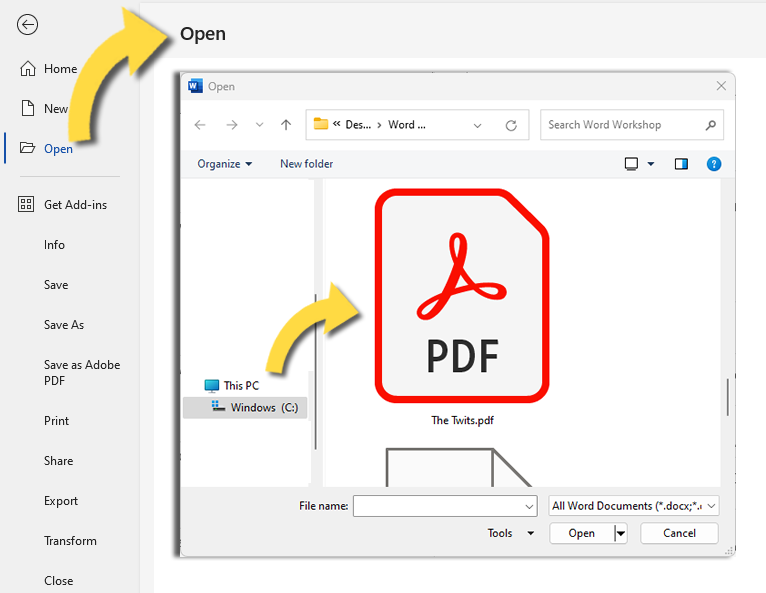
Navigate to File > Open.
-
Browse to locate your PDF file and select it.
-
Word will display a notification explaining that it will convert the PDF into an editable Word document.
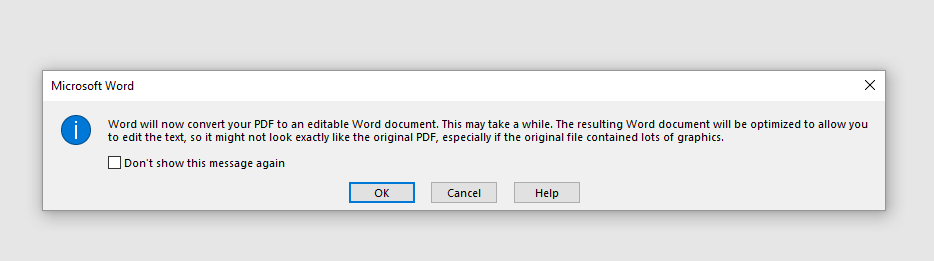
- Click OK and allow time for the file to process and open.
A practical example: if you have a 5-page class handout originally exported from a digital source, Word may convert it sufficiently well that you only need minor adjustments to spacing and heading styles. However, if that same handout was scanned from a physical paper copy, the text likely won’t become editable at all without OCR assistance.
If your PDF opens with disrupted formatting or reveals itself to be a scanned document, proceed to the professional tool outlined below for more robust handling.
Method 2: Renee PDF Aide (Best for Batch Processing & OCR)
When Microsoft Word’s capabilities fall short, a dedicated desktop converter becomes the preferable solution. Renee PDF Aide is engineered for users requiring a more dependable approach to offline PDF to DOCX conversion, particularly when working with scanned documents, intricate layouts, or multiple files simultaneously.
- ✓ Versatile Convert to Word/Excel/PPT/Text/Image/Html/Epub
- ✓ Secure 100% local conversions ensure zero risk of data leaks
- ✓ Efficient Batch Process dozens of PDF files in seconds
- ✓ Comprehensive Seamlessly convert PDFs to Excel, PowerPoint, Text, and more
- ✓ OCR Support Extract Text from Scanned PDFs, Images & Embedded Fonts
Unlike basic converters, this software operates entirely on your local machine, ensuring your files remain secure throughout the entire process. This makes it an ideal fit for confidential business documents, contract drafts, archived scans, and form-heavy PDFs that shouldn’t be uploaded to any external service. It also supports far more than just Word output, which proves helpful if your workflow later requires Excel spreadsheets, plain text, images, or document repair utilities.
Key advantages that set it apart:
-
Fully offline operation – sensitive files never leave your computer’s storage
-
Advanced OCR technology effectively handles scanned PDFs and image-based documents
-
Batch conversion capability with processing speeds reaching up to 80 pages per minute
-
XFA form support for bank and government PDFs that many alternative tools cannot process correctly
-
Supports conversion from PDF to Word, Excel, PowerPoint, ePub, Text, HTML, JPG, TIFF, and additional formats
Renee PDF Aide also features an intuitive interface and includes supplementary functions for optimizing, repairing, encrypting, decrypting, splitting, and merging PDFs. This versatility makes it more valuable than a single-purpose converter, especially for users who regularly manage PDF workflows.
Renee PDF Aide provides comprehensive support for the XFA format—a specialized PDF standard commonly utilized by banks and government agencies worldwide.
If a conversion tool lacks XFA format support, the output may appear similar to this:

Why Users Switch from MS Word to Renee PDF Aide
The primary reason users transition beyond Word’s built-in converter is consistency. While the native option works adequately for straightforward files, formatting complexity often leads to messy outputs. Headers may shift position, tables can fragment, and multi-column layouts might lose their intended structure entirely.
Renee PDF Aide addresses these challenges in several specific ways:
-
Superior formatting preservation on documents featuring tables, columns, headers, and footers
-
Robust OCR support for scanned PDFs and image-based pages that lack selectable text
-
Batch processing capabilities enabling multiple PDFs to be converted in a single operation
-
XFA compatibility, which proves critical for certain institutional and official forms
-
Local processing only, eliminating any need for cloud uploads or internet dependency
Step-by-Step: Convert PDF to DOCX Offline
Renee PDF Aide offers an intuitive workflow, though selecting appropriate settings significantly impacts results. The steps below focus specifically on converting PDFs to editable Word/DOCX format offline, including OCR configuration for scanned files.
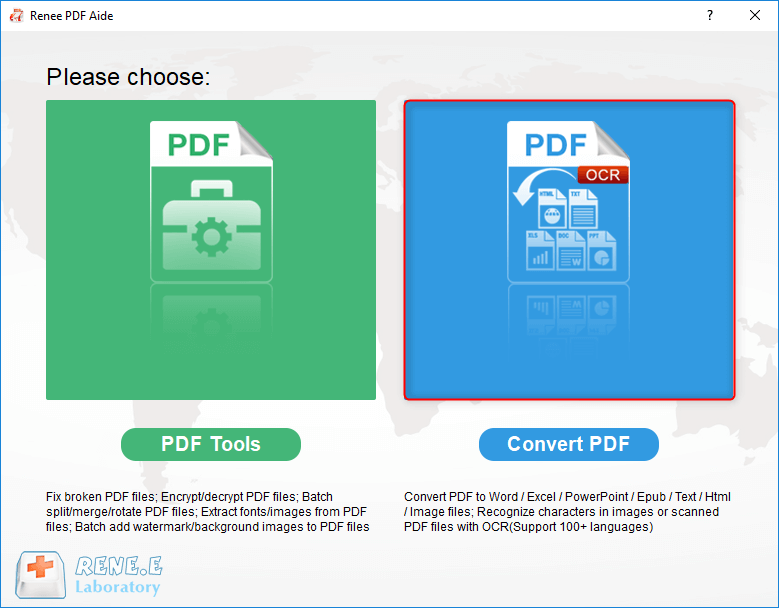
1. Launch Software and Select Conversion Mode
After installing Renee PDF Aide, open the application and choose Convert PDF from the main interface. This section serves as the central hub for transforming PDFs into Word and other editable formats.

2. Add Source PDF Files
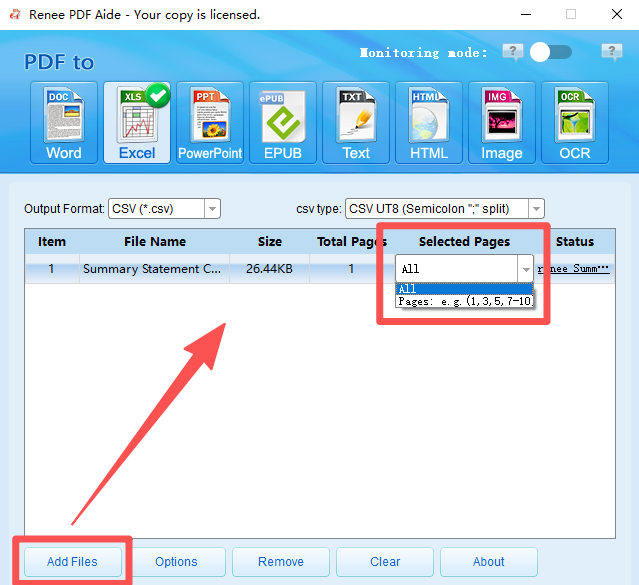
Click Add Files to import the PDF you wish to convert. You can add a single file or multiple documents simultaneously since the software supports batch conversion. Once added, files appear in the conversion queue list.
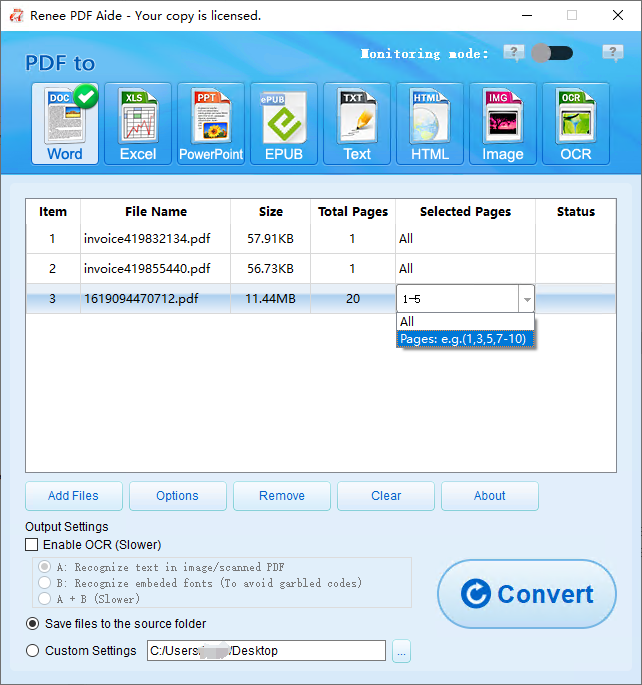
If you prefer not to convert the entire document, use the Selected Pages option to specify a particular page range. This proves helpful when only a portion of a lengthy report or form requires editing.
3. Choose Output Format as Word/DOCX
At the top format selection bar, click Word as your desired output format. This instructs the software to generate an editable Word document, typically in standard DOCX-compatible form.
The format bar also includes options such as Excel, PowerPoint, Image, Text, and HTML, but for this specific workflow, maintain the selection on Word.
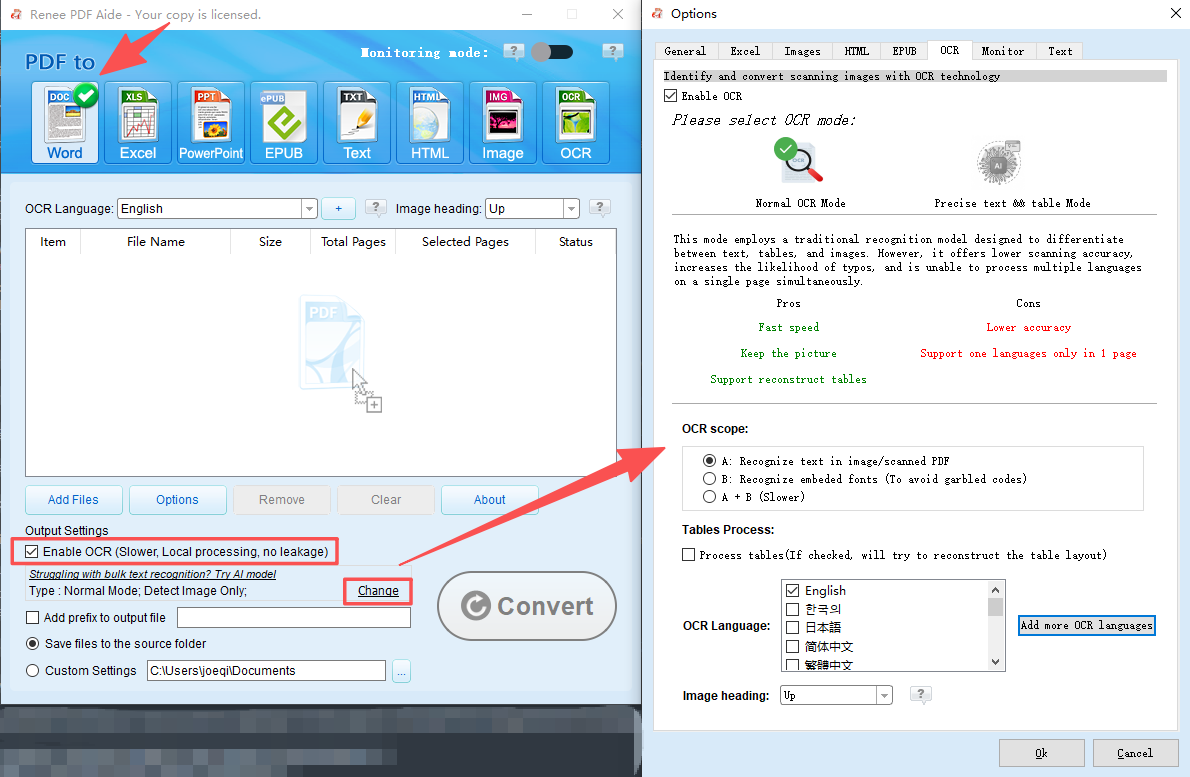
4. (Optional) Configure OCR Settings for Scanned PDFs
If your PDF is a scanned copy or image-based file, enable the OCR feature. If the PDF already contains selectable text, you can skip OCR to save processing time and achieve faster output.
When OCR is enabled, select the appropriate recognition mode:
-
Mode A: Recognize text in pictures or PDF scans – Ideal for pages that are essentially scanned images. The OCR engine extracts visible text directly from the image layer.
-
Mode B: Identify built-in fonts to avoid garbled characters – Useful when the PDF employs embedded fonts that don’t convert cleanly. The software processes those fonts as image-like input before recognizing the text.
-
Mode A+B (slower) – The program automatically analyzes whether page content behaves more like an image or an embedded-font PDF. This approach is more thorough but requires additional processing time.
If your document contains text in a specific language, select it within the OCR settings. This improves recognition accuracy, particularly for names, specialized forms, and technical terminology.
Skip OCR for native text-based PDFs to achieve faster results; only enable this feature when your PDF lacks selectable text.
5. Adjust Advanced Options (Optional)
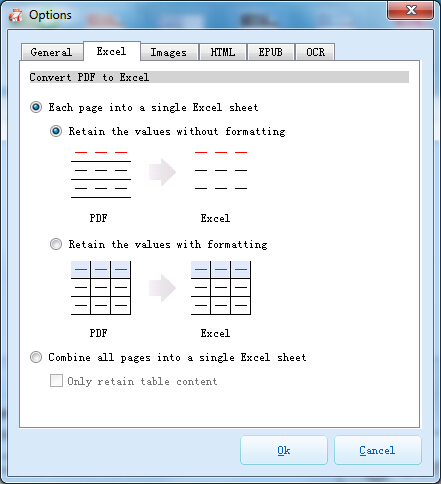
If needed, click Options adjacent to the output settings. This section allows you to fine-tune conversion behavior for specific document structures or layout requirements.
Generally, advanced options prove useful when you require greater control over layout-related output elements. For standard PDF-to-DOCX tasks, many users can retain default settings, but knowing this option exists helps when tackling more precise or complex conversion jobs.
6. Start Conversion
Once your files and settings are configured, click Convert. The software begins processing immediately and displays real-time conversion progress for each file in the queue.
After processing completes, a summary prompt indicates how many files were processed and how many converted successfully. This feature proves especially valuable during batch jobs, where verifying every file’s completion status matters.

7. Access Converted DOCX Files
Following conversion, review the Status column. You can click the result link there to open the output folder or access the converted DOCX file directly.
At this stage, the file is ready to open in Microsoft Word or any other DOCX-compatible editor for further editing, cleanup, or final review.
Method 3: Alternative Offline Methods (Free Desktop Apps)
If you prefer a free desktop solution, several alternatives merit consideration. These tools can perform adequately for basic PDFs, though they typically don’t match dedicated converters regarding OCR accuracy, XFA support, or complex layout retention. Consequently, they serve best as practical budget-friendly options for simpler documents.
LibreOffice (Free, Cross-Platform)
LibreOffice represents a well-established free office suite, and many users explore it due to its zero cost and multi-platform availability. For offline document tasks, this offers a clear advantage. If your objective is to open a basic PDF and transfer content into an editable format without installing paid software, LibreOffice deserves initial testing.
That said, maintain realistic expectations. LibreOffice isn’t primarily designed as a professional PDF-to-DOCX conversion utility. It can occasionally open PDFs in a manner permitting partial editing, especially with simple, text-based files, but formatting preservation varies considerably. Complex tables, interactive forms, image-heavy layouts, and scanned documents often require substantial manual cleanup afterward.
Additionally, OCR support remains limited, making scanned PDFs a particular weakness for this option.
For instance, if you have a plain digital handout or a brief text report, LibreOffice may suffice. However, when dealing with bank forms, legal documentation, or extensive scan archives, you’ll likely require a more capable converter.
[advanAndDisadvan advan_txt=”Advantages:” disadvan_txt=”Disadvantages:” advan_con=”Free to use##Works offline##Available on multiple platforms##” disadvan_con=”Formatting may shift on complex PDFs##Limited OCR capability##Not ideal for scanned or XFA PDFs##” /]
How to use LibreOffice
-
Install LibreOffice on your computer if it isn’t already present.
-
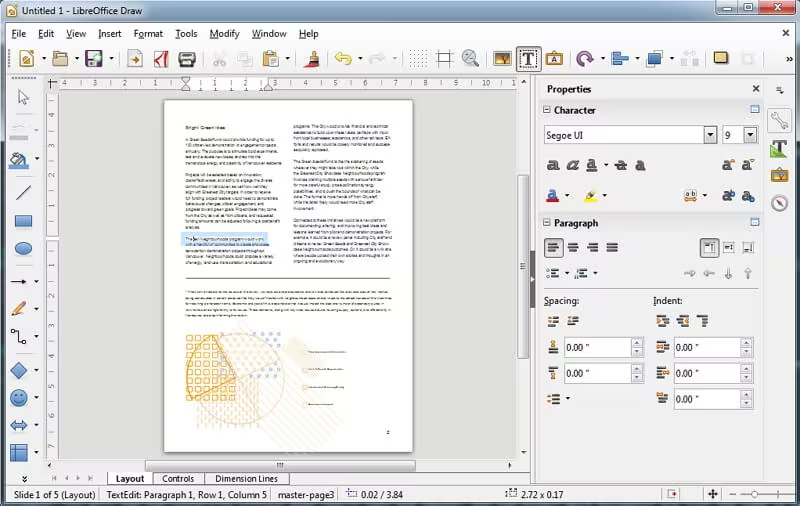
Open the PDF file using LibreOffice.
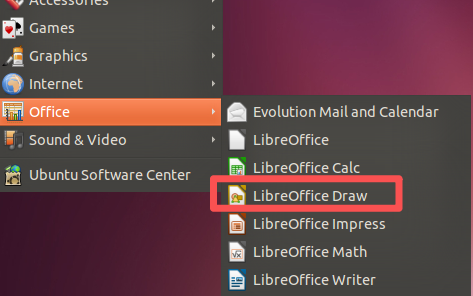
- Depending on the file’s structure, it may open in Draw or another LibreOffice component.
-
Edit or copy the content as needed for your purposes.
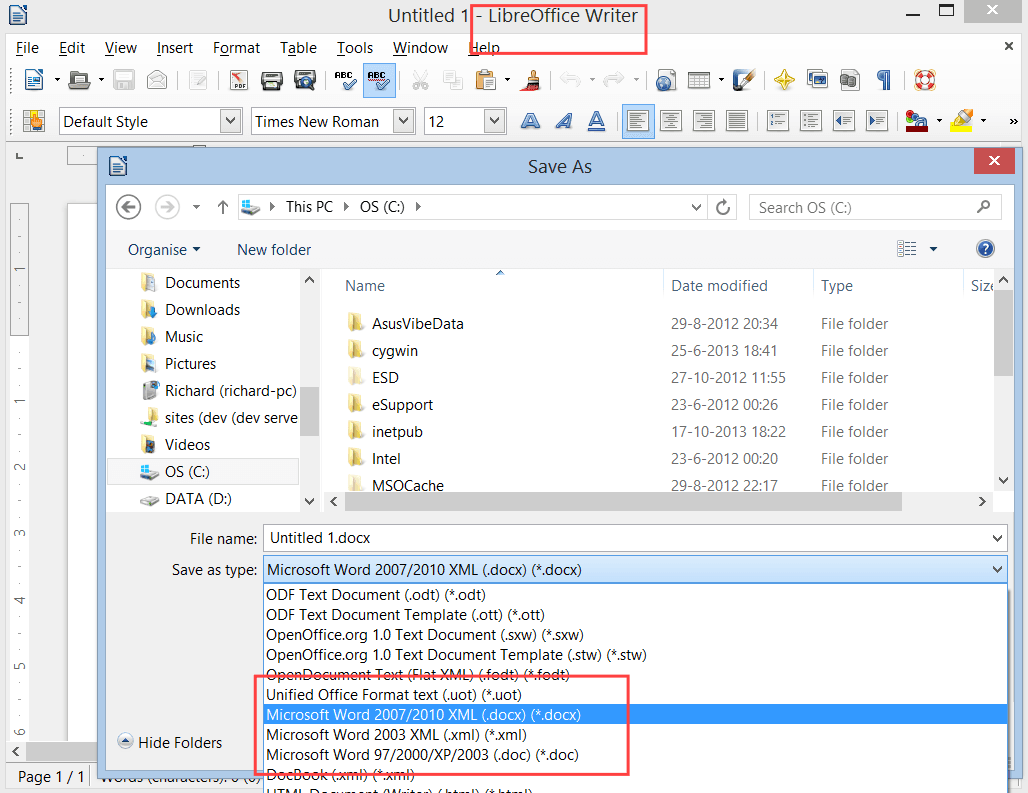
-
Export or save the file into a format compatible with your continued workflow.
LibreOffice serves as a reasonable free option for basic, text-centered PDFs, but if the output appears unstable or the source file is scanned, transitioning to a more robust offline tool makes practical sense.
PDF24 Desktop (Free, Windows)
PDF24 Desktop offers another offline alternative for users seeking a free Windows-based solution with an approachable interface. It often appeals to home users because the installer is straightforward, the application is easy to navigate, and it bundles multiple PDF-related utilities beyond basic conversion.
For PDF to DOCX purposes, PDF24 Desktop can assist with text-based PDFs and routine conversion tasks. It proves especially useful for users wanting a local Windows tool who may need to process several files in one session. However, several limitations warrant attention. It doesn’t provide strong OCR capabilities for scanned documents, meaning image-based PDFs won’t convert effectively into editable text. It’s also Windows-exclusive and lacks XFA support, which matters significantly for certain official forms.

[advanAndDisadvan advan_txt=”Advantages:” disadvan_txt=”Disadvantages:” advan_con=”Free desktop tool##Works offline after installation##Suitable for simple batch conversion on Windows##” disadvan_con=”No OCR for scanned PDFs##Windows only##No XFA support##” /]
Method 4: Command-Line Tools (Advanced Users - Brief Mention)
For most users, a graphical desktop converter represents the more accessible choice. However, advanced users often prefer command‑line tools because they integrate smoothly into automation scripts, scheduled tasks, and developer workflows.
Below is a list of popular command‑line options currently available:
| Tool | Main Features ⚙️ | Platforms 💻 | Pros 👍 | Cons 👎 |
|---|---|---|---|---|
| Apryse PDF2Word | Stand‑alone CLI app, converts PDF → Word/RTF | Windows • macOS • Linux | 🔒 Strong privacy, 📝 Keeps formatting | 💰 Commercial license, not free |
| PDF‑to‑DOC Toolkit | Python CLI, batch convert, OCR via Tesseract | Cross‑platform (Windows, macOS, Linux) | 🧑💻 Flexible, 🆓 Open source | ⚙️ Needs Python setup, 🧩 Extra OCR install |
| Pandoc | Universal doc converter, supports PDF → DOCX (via LaTeX/filters) | Windows • macOS • Linux | 🌍 Widely used, 🔧 Many formats | 📄 Formatting may break, 🧑💻 Needs config |
| LibreOffice CLI | soffice command, converts PDF → DOCX | Windows • macOS • Linux | 🆓 Free, 🖥️ GUI + CLI | 🖼️ Complex PDFs may lose layout |
| Poppler + pdf2docx | Poppler utilities + Python pdf2docx | Windows • macOS • Linux | ⚡ Fast, 🔓 Open source | 🧑💻 Requires combo setup |

This approach primarily suits developers, IT professionals, and power users comfortable troubleshooting format issues independently. It isn’t ideal for average users because command-line conversions lack visual feedback, often require iterative testing, and may not preserve complex formatting as effectively as dedicated PDF conversion software. OCR support also isn’t a primary strength in most command-line solutions.
[advanAndDisadvan advan_txt=”Advantages:” disadvan_txt=”Disadvantages:” advan_con=”Good for automation##Works offline##Useful in scripted workflows##” disadvan_con=”Steep learning curve##Not beginner-friendly##Formatting results can vary##” /]
Comparison Table: Offline Methods at a Glance
| Tool/Method | Cost | OCR Support | Batch Conversion | XFA Forms | Best For |
|---|---|---|---|---|---|
| Microsoft Word | Free (with Office) | No | No | No | Simple text-only PDFs |
| Renee PDF Aide | Paid (trial available) | Yes (Mode A/B/A+B) | Yes (80 pages/min) | Yes | Scanned docs, complex layouts, privacy, batch jobs |
| LibreOffice | Free | Limited | Yes | No | Budget users, basic text PDFs |
| PDF24 Desktop | Free | No | Yes | No | Windows batch conversion for text PDFs |
Pro Tips for Better Offline Conversion Results
Selecting the appropriate tool represents only half the equation. A few thoughtful preparation steps can significantly enhance the final DOCX output quality, especially when the source PDF is scanned, contains mixed content, or features heavy formatting.
PDF Preparation Best Practices
Higher DPI for scanned documents
For scanned documents, source quality profoundly impacts results. If you’re creating scans yourself, aim for 300 DPI or higher. Low-resolution scans frequently produce OCR errors, particularly with small text, intricate tables, and handwritten signatures. A cleaner, higher-quality scan translates to fewer correction steps during post-conversion review.
Try free methods first
If your PDF is native and text-based, begin with Microsoft Word. It’s quick, requires no additional installation if you already have Office, and costs nothing to test. However, if formatting breaks unexpectedly, or if the file includes complex tables, image pages, or inconsistent fonts, transition to Renee PDF Aide for greater control and reliability.
If a file is large, test or split into smaller files first
Before processing an exceptionally large file, test conversion on a single page or a short page range first. This helps confirm whether OCR is necessary, whether language settings are correctly configured, and whether the formatting output meets expectations. If the file is very large, consider splitting it into smaller segments beforehand for more manageable processing.
Always keep the original PDF unchanged as a backup reference
Handling Special PDF Types
Certain PDFs present greater challenges than others, even with capable software. XFA forms exemplify this difficulty. These frequently appear in structured institutional documents, and many standard converters fail to process them correctly or generate only error pages. Renee PDF Aide proves valuable here because it explicitly supports XFA—a capability many competing tools lack.
Mixed-content PDFs also warrant special attention. When some pages contain normal selectable text while others consist of scanned images, enabling OCR often represents the safer overall choice. While this may increase processing time, it typically yields more consistent and reliable results across the entire document.
For password-protected PDFs, ensure you possess proper authorization to unlock and convert them. Some tools require the password to be removed beforehand, while others can process protected files if valid credentials are provided during conversion.
FAQ (Frequently Asked Questions)
Can I use Renee PDF Aide when I’m not connected to the internet?
Absolutely. Renee PDF Aide functions as a fully offline desktop application, meaning all conversion tasks execute directly on your local device. Your documents never leave your computer’s storage, which not only safeguards privacy but also enables seamless operation in environments with limited or no internet access—such as during travel, within secure facilities, or in areas experiencing connectivity issues. Once installed, you can convert files anytime, anywhere, without concerns about upload limits, server availability, or subscription verification.
Is it possible to convert scanned PDFs to editable Word files without paying?
While several free offline tools claim to handle scanned documents, most lack robust OCR (Optical Character Recognition) capabilities. Without accurate OCR, scanned text remains embedded as images and won’t become editable content. Dedicated solutions like Renee PDF Aide incorporate advanced OCR engines that deliver substantially better results, particularly for documents featuring mixed content, small fonts, or complex layouts. If budget constraints exist, you can begin with free options for simple files, but for dependable conversion of scanned materials, investing in a purpose-built tool often saves considerable time and reduces frustration over the long term.
How many pages can Renee PDF Aide process in a single batch conversion?
Renee PDF Aide supports batch conversion and can process files at up to 80 pages per minute under supported conditions. The actual speed depends on your file size, document complexity, and system resources.
Why does my formatting break when I open a PDF directly in Microsoft Word?
Word works best with simple text-based PDFs. Complex layouts, tables, columns, embedded fonts, and scanned content often cause spacing, alignment, or structure issues during import.
Comments
0 comments
Please sign in to leave a comment.