Table of contents
Summary
This guide explains how to translate an oversized PDF when online translators reject it due to strict upload limits. The core solution is to split the PDF into smaller sections, translate each part individually, and then merge the results. It also covers how to prep scanned PDFs with OCR and why tools like Renee PDF Aide are useful for handling large or image‑based documents locally.
When your PDF is too large for free translation services, you’ll often hit an upload ceiling and receive errors before translation even begins. This guide shows you how to translate large pdf file over upload limit by splitting your document into manageable sections, translating each part, and then recombining the results. You’ll also learn how to handle scanned PDFs using OCR and how to prepare files locally with Renee PDF Aide.
If you’ve ever had a seemingly normal PDF—say, 12 MB or 320 pages—rejected by an online translator, you’re not alone. The solution is to break the document into smaller pieces that fit within upload limits, rather than trying to force the entire file through at once.
Quick answer: how to translate a large PDF that exceeds upload limits
The simplest workaround is:
1. Split your large PDF into smaller page ranges.
2. Translate each section using your preferred online translator.
3. Merge the translated files or keep them organized in a folder.
Common obstacles include Google Translate’s approximate 10 MB/300-page limit, DeepL’s free-tier file restrictions, and ChatGPT’s file size/context caps. These limitations are the reason you see “file too large” or “upload failed” errors.
| Translator | Free-tier size limit | Page/practical limit | Why users hit the upload error |
|---|---|---|---|
| Google Translate | About 10 MB | Around 300 pages | File is too large or page-heavy |
| DeepL Free | About 5 MB per file | 3 documents/month | Small file cap and monthly quota |
| ChatGPT | Varies by plan; often 10–512 MB | Long/scanned docs may time out | Upload/context limits or processing failure |
Tip: Never upload sensitive documents to free online translators without first reviewing their privacy policy.
See the step-by-step workflow below for detailed instructions.
Use Renee PDF Aide to prepare an oversized PDF for translation
Renee PDF Aide is a desktop PDF tool designed for local file preparation, allowing you to bypass upload limits entirely. It’s ideal for this workflow because it processes files on your computer (keeping sensitive content private), supports batch operations, and includes built-in OCR for scanned PDFs. With conversion speeds up to 80 pages per minute, it’s well-suited for handling even lengthy documents.
Why prepare the PDF before uploading
Free online translators enforce strict size and page limits, so splitting your file locally helps you avoid failed uploads and wasted time. Also, not all PDFs are the same:
Text-based PDFs can be split and translated directly.
Scanned PDFs are image-based and require OCR before any translator can process their content.
- ✓ Versatile Convert to Word/Excel/PPT/Text/Image/Html/Epub
- ✓ Secure 100% local conversions ensure zero risk of data leaks
- ✓ Efficient Batch Process dozens of PDF files in seconds
- ✓ Comprehensive Seamlessly convert PDFs to Excel, PowerPoint, Text, and more
- ✓ OCR Support Extract Text from Scanned PDFs, Images & Embedded Fonts
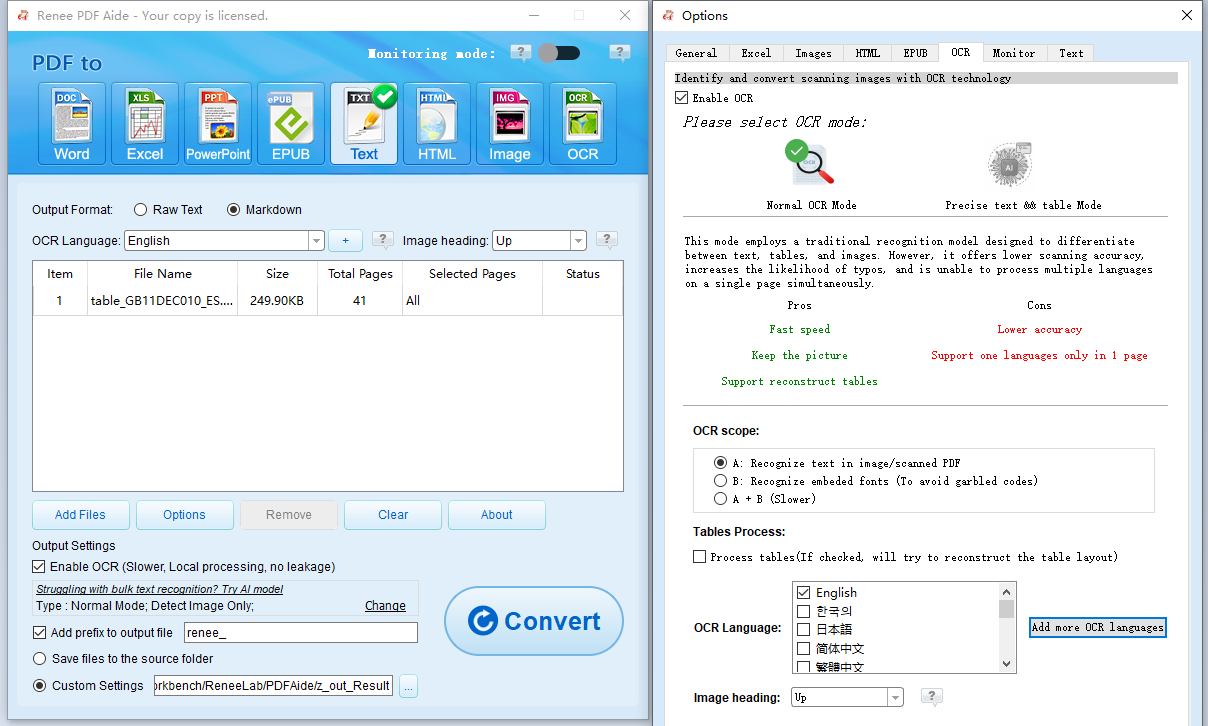
Renee PDF Aide includes built‑in OCR technology that makes it easy to process scanned PDF files.
Step-by-step: split, translate, and recombine a large PDF
Follow these steps, even if you’re new to working with PDFs. Start by inspecting your file and planning logical splits—don’t jump straight to compression.
1. Check file size and page count
Start by determining what’s causing the upload issue:
-
Windows: Right-click your PDF, select Properties, and check the Details tab.
-
Mac: Select the file, press Command + I, and review the size and page count.
If your PDF is under 10 MB but over 300 pages, focus on splitting by page count. If it’s over 10 MB, split by file size or page range. A good target is chunks of 20–40 pages or under 8 MB each.
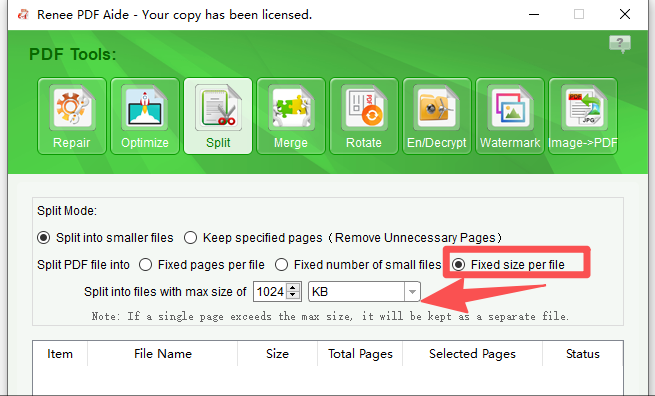
2. Split the PDF at logical boundaries with Renee PDF Aide
Split your document at natural breaks—such as chapters or sections—to preserve formatting and make merging easier later.
1. Open Renee PDF Aide.
2. Click PDF Tools.
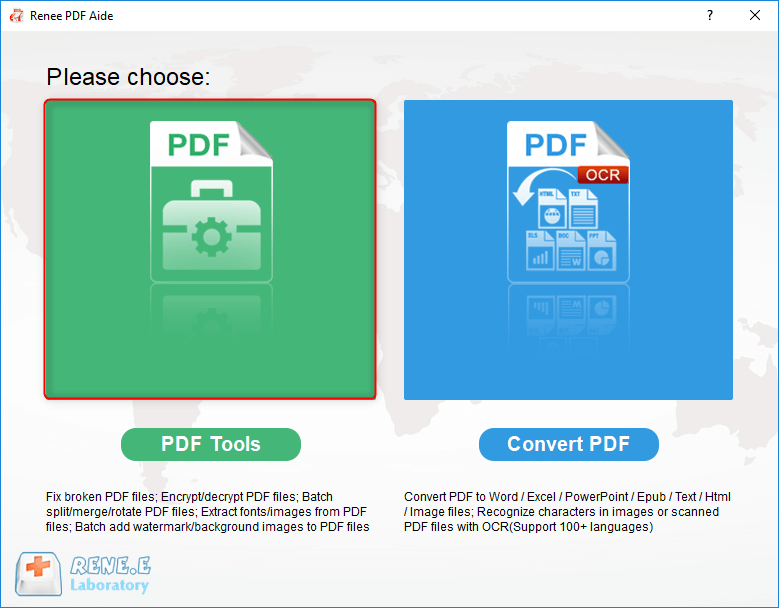
3. Click Add Files and select your large PDF.
4. Configure your preferred split mode.
4. Click Convert.
Note: If your PDF is scanned, be sure to enable OCR before exporting. Otherwise, translators will only see blank pages or images.
3. Translate each chunk with the chosen tool
Use your preferred translator—Google Translate, DeepL, or another service that accepts smaller files. Keep your file naming consistent to avoid confusion:
-
Doc_Part1.pdf -
Doc_Part2.pdf -
Doc_Part1_translated.pdf -
Doc_Part2_translated.pdf
Upload and translate one chunk at a time, then download and rename each result before moving on.
4. Track recombined outputs
Maintain a simple tracking log to ensure you don’t miss any sections or mix up pages. A spreadsheet or text file works well for this.
| Source File Name | Page Range | Translated File Name | Status |
|---|---|---|---|
| Doc_Part1.pdf | 1–40 | Doc_Part1_translated.pdf | Translated |
| Doc_Part2.pdf | 41–80 | Doc_Part2_translated.pdf | Ready |
| Doc_Part3.pdf | 81–120 | Doc_Part3_translated.pdf | Not started |
5. Recombine or organize the translated document
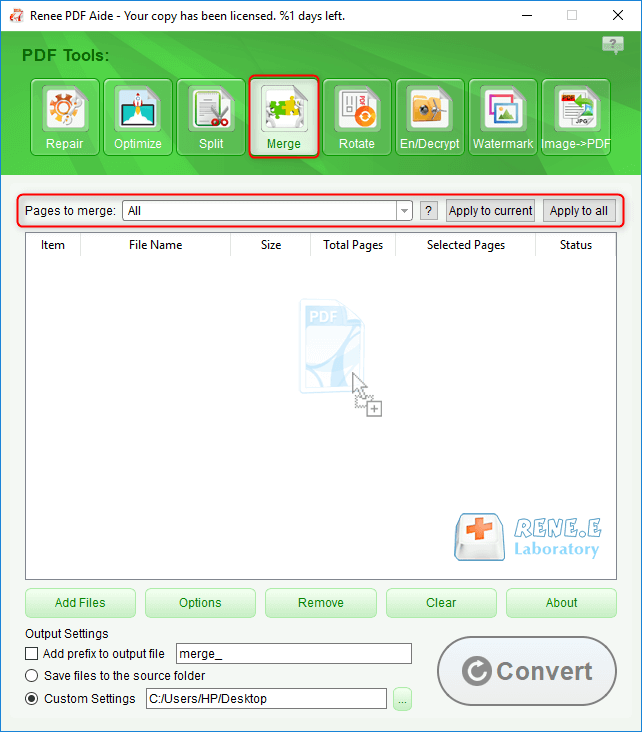
Use a PDF merger to combine the translated files into one document. With Renee PDF Aide, go to PDF Tools > Merge, add your files in order, and click Convert.
If you prefer, you can keep the translated chunks organized in a clearly labeled folder instead of merging.
Tip: Avoid compressing a PDF below readable quality just to meet an upload limit. Compression won’t help with page-count restrictions and can degrade translation quality.
FAQ
What are the actual size and page limits on Google Translate, DeepL, and ChatGPT?
Google Translate typically allows files up to 10 MB and about 300 pages. DeepL Free supports files up to 5 MB and limits you to 3 documents per month. ChatGPT’s file caps vary by plan, but long or scanned PDFs can still time out or exceed context limits. Always check the latest documentation for updates, as these limits can change.
Can I translate a scanned large PDF that is entirely image-based?
Yes, but you’ll need to run OCR first. Scanned PDFs contain images, not text, so translators can’t extract the content directly. Use the Enable OCR feature in Renee PDF Aide to recognize the text, then export as Word, TXT, or searchable PDF before uploading.
Will splitting a PDF ruin the formatting or layout in the final translation?
Splitting at logical boundaries—like chapter ends or section breaks—minimizes formatting issues. Merging the translated files in the correct order usually restores the document’s flow. For documents where layout is critical, export to Word, translate the text, and adjust formatting afterward as needed.
Is compressing the PDF safer and faster than splitting it into chunks?
No. Compression reduces file size but not page count, and can degrade text and image quality. Always split the PDF first. Only use compression as a last resort if a single chunk is just over the size limit.
Comments
0 comments
Please sign in to leave a comment.